
Review Tree - Unreviewed Sticky Notes
Sticky Notes are used to display calculations and other important information in the form of a note.
Unreviewed Sticky Note(s)
category lets you go through the pages marked by Sticky Notes. Follow these steps to mark unreviewed
Sticky Notes
as reviewed: - Select theExpandicon
 to expand the Unreviewed Sticky Note(s)category.noteThe number in the parenthesis next to theUnreviewed Sticky Note(s)category shows the total number ofUnreviewed Sticky Note(s).
- Select theExpandicon
 to expand the sub-category.

- All the Sticky Notes that have been added to the binder will appear in theReview Treealong with their page number.Select aSticky Noteto open the source document where theSticky Noteis added.

- The Unreviewed Sticky Note category lets the preparer/reviewer do a recheck of every Sticky Note by marking that Sticky Note as Reviewed.After review, right-click the Sticky Note in theReview Treeand then selectMark Sticky Note as Reviewedon the shortcut menu.noteAlternatively, you can hold down theCTRLkey on the keyboard and select the Sticky Note on theDocument Viewer window.

- TheSticky Notein theReview Treewill change into a Bold font in green color. The Sticky Note on the source document will be highlighted in green outline.

Follow these steps to mark reviewed
Sticky Notes
as unreviewed: - To mark a reviewed Sticky Note as unreviewed, right-click the reviewed Sticky Note in the Review tree, and then selectMark Sticky Note as Unreviewedon the shortcut menu.

- To delete a Sticky Note, right-click on the Sticky Note in theReview Tree, then selectDelete Sticky Noteon the shortcut menu.
 Alternatively, right-click the Sticky Note in theDocument Viewer Window, then selectDeleteon the shortcut menu.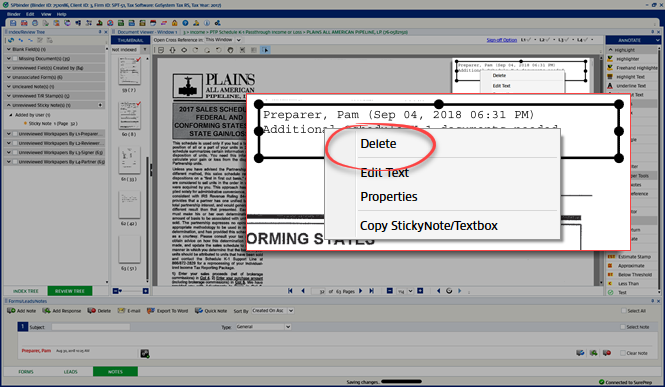
- When theDelete Confirmationwindow appears, selectYesto Delete or selectNoto cancel.
 noteMaking modifications to aSticky Noteafter it is reviewed will change the Sticky Note to unreviewed (that is, the text color of the Sticky Note in the review tree will turn to Black and simultaneously the border of the Sticky Note will also turn to Black color).

