
Export data to tax software
SPbinder lets you export binder information, leadsheets, and Tax Exempt Interest.
Types of Export
Binders with Leadsheets
Binders created with leadsheets have the following export options:
- Export to Tax Software
- Tax Exempt Interest
Binders without Leadsheets
Binders created without leadsheets have the following export options:
- Export to Tax Software
- Export Leadsheets to Excel
- Tax Exempt Interest
Export to tax software
Lets you transfer all the referenced data from SPbinder to the tax software.
Follow these steps to export referenced data from SPbinder to the required tax software:
Go to .
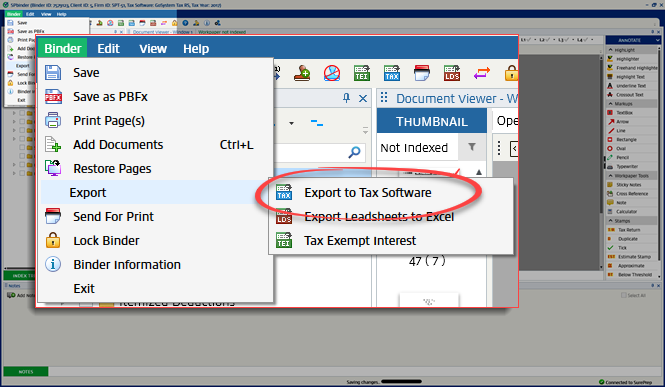
You can also select the  on the SPbinder toolbar.
Export to Tax Software
icon on the SPbinder toolbar.View details on how to export the data for specific tax software.
Export Leadsheets to Excel
Lets you export Leadsheets to an Excel file.
Go to .
Export Leadsheets to Excel
option is available for binders that are submitted without leadsheets.note
Binders submitted without a leadsheet don’t show the
Leads
tab.In comparison, the
Export Leadsheets to Excel
option isn't available for binders with leadsheets already generated in SPbinder.You can also select the
Export Leadsheets to Excel
icon on the SPbinder toolbar.Alternatively, if you want to export leadsheets from FileRoom, go to the  picklist icon. From the dropdown menu, select
Options
column, then select the picklist icon. From the dropdown menu, select Leadsheets
.Import tax return values in SurePrep along with Leadsheets
Along with the leadsheets, you can also import tax return values to the GoSystem Tax RS software.
note
This feature doesn't apply to other tax software like Lacerte and UltraTax CS. In this case, you will have to enter tax return values in the leadsheets.xls manually from the tax software.
GoSystem Tax RS
The
Export to Leadsheets
option in SPbinder lets you reconcile the amounts entered in the tax software and the leadsheets generated from a binder.Follow these steps to export leadsheets to Excel for GoSystem Tax RS binders:
From the
Binder
menu, select Export
, then Export Leadsheets to Excel
.You can also select the
Export Leadsheets to Excel
icon on the SPbinder toolbar.Importing Tax Return Values and Generating Leadsheets from GoSystem Tax RS
When the
Leadsheet
window appears, mark the Import Tax Return Values
checkbox. Select Next
to begin the Import TR Data process from GoSystem Tax RS.The status on the progress bar reflects the status of the tax return values being imported from GoSystem Tax RS to SPbinder.
Once the process is completed, the Leadsheets with tax return values are generated as an Excel file. You can save the Leadsheets on your machine for future reference.
You can now reconcile and edit the values if required.
Generating Leadsheets without Importing Tax Return Values from GoSystem Tax RS:
If you don’t want to import the tax return values from the GoSystem Tax RS, clear the checkbox for
Import Tax Return Values
, then select Next
.Once the process is complete, Leadsheets without tax return values are generated as an Excel file. You can save the Leadsheets on your machine for future reference.
Tax Exempt Interest
You can export the Tax Exempt Interest (TEI) details to Excel for binders with leads as well as for binders without leads.
Follow these steps to export Tax Exempt Interest:
From the
Binder
menu, select Export
, then Tax Exempt Interest
.You can also select the
Tax Exempt Interest
icon on the SPbinder toolbar.When the
Save As
window appears, choose a location where you want to save the exported file, then select Save
.The generated TEI worksheet consists of 2 parts: Client Details and Tax Exempt Interest/Dividend.
Client Details:
- Engagement ID
- Taxpayer
- Spouse
- Filing Status
- Tax Year
- Resident State
Tax Exempt Interest/Dividend
:- Broker Name
- Account Number
- Description
- 1099 Earning
- Exempt Percentage
- Exempt Amount
The total tax exempt amount is also calculated and displayed on the sheet.
note
To generate a report for Tax Exempt Interest in SPbinder, go to . Then mark the
Show transaction details in the Review Wizard step
checkbox. Alternatively, in the Create New Binder
window, when you create a new binder, go to section. If you select
State non-taxable
or State taxable
, you'll need to mark the Show transaction details in the Review Wizard step
checkbox manually.If you mark the
Automatically determine state taxability
checkbox, then the option for Show transaction details in the Review Wizard step
is selected automatically and not available.
