
Highlight
Highlight
section is only visible in the Annotate
panel if the selected document is a PDF file type.note
The Highlight Text
, Underline Text
, and Cross-out Text
annotation tools will only work if the PDF text is selectable/searchable or Native PDF.Highlighter
Lets you highlight everything in the selected area. Select
Highlighter
, then select and drag over the area you want to be highlighted.
Freehand Highlighter
Lets you draw any shape. Select
Freehand Highlighter
, then select and draw across the area to place the highlight.
Highlight Text
Lets you highlight selectable/searchable text on the source document. Select
Highlight Text
, then select and drag across the area to place the highlight.note
Highlight Text
only works if the PDF that was created from a text file or is a native PDF.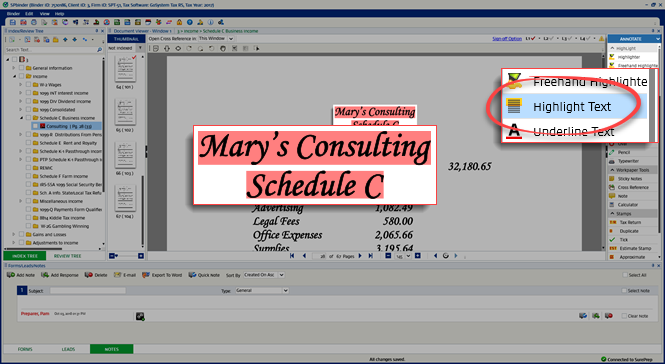
Underline Text
Lets you underline important information on the source document with selectable/searchable text. Select
Underline Text
, then select and drag across the area to underline text.
Crossout text
Lets you cross out unwanted information on the source document for selectable/searchable text. Select
Crossout Text
, then select and draw across the area to cross out the text.
Highlighter Properties
You can change the appearance (color and transparency). To open the Highlighter Properties, right-click the highlighted area and select properties on the shortcut menu.


When the
Highlighter properties
window appears, select a color from the color picker menu.
Adjust the transparency of the highlight through the
Opacity
meter.
Select
Make Current Properties Default
to make the current highlight properties be the default option for any new highlights.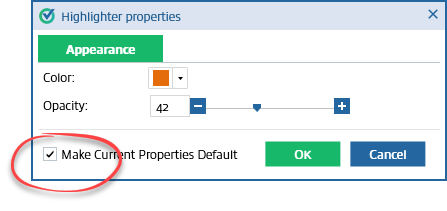
Deleting the Highlight
: To remove a highlight, right-click the highlight then select Delete
on the shortcut menu. You can also delete the highlight by using the delete button on the keyboard.
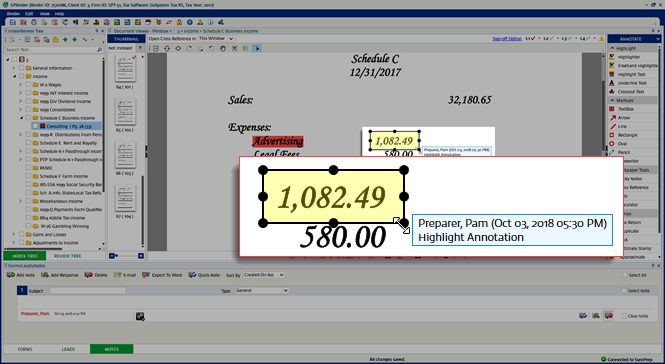
You can also move, edit, or resize a highlight by selecting it and dragging one of the handles to make adjustments.
A mouse-over on the highlight will display the details of the user who inserted the highlight.
Related Content
-
Annotations overview
Format: Article

