
Show and hide annotations
Show/Hide Annotations
helps you to show/hide all the SurePrep annotations placed on the source documents in that particular binder.
note
The
Show Annotations
option is turned on as a default option whenever the binder is opened.To hide all the SurePrep annotations, go to  icon on the SPbinder toolbar.
View
, then Hide Annotations
or select the Hide Annotations
icon on the SPbinder toolbar.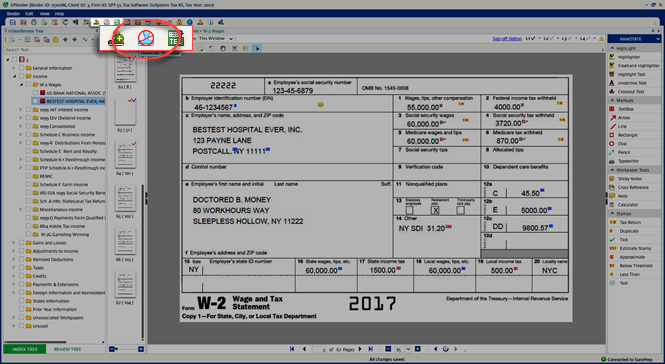
SurePrep Annotations includes all annotations placed from the
Annotate
toolbar as well as all references (red, blue, and orange) placed from the Forms
tab.
To view all hidden annotations, go to  icon on the SPbinder toolbar.
View
, then Show Annotations
or select the Show Annotations
icon on the SPbinder toolbar.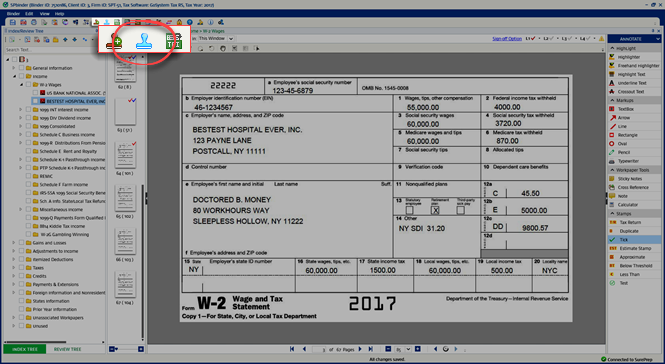
A confirmation window appears if the annotations are hidden and you try to place an annotation on the source document.
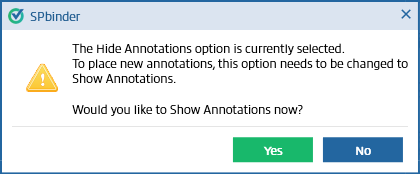
For instance, a confirmation window will appear when you place a
Duplicate
stamp on the source document while the Hide Annotations
option is selected.Select
Yes
to show all the annotations and place the new Duplicate
stamp.Selecting
No
to close the message window and the annotations will be hidden.note
By default, SPbinder is set to
Show Annotations
, so you will be able to view all annotations placed on the source document next time the binder is opened. Related Content
-
Annotations overview
Format: Article

