
Custom Stamps
SPbinder lets you add various different annotations to your workpapers, which include stamps. By default, SurePrep comes with many predefined stamps out of the box. You can use these predefined stamps or create your own custom stamps for your firm users.
To configure Custom Stamps, go to .

Configure Stamps
There are 2 types of stamps:
- Predefined Stamps- Lets you select/clear stamps provided by SurePrep.
- Custom Stamps- Lets you create and add custom stamps for your firm users.
Predefined Stamps
The SurePrep
Predefined Stamps
will be displayed in this section. Stamps that are selected will appear for all firm users in the Annotation
panel of SPbinder . Conversely, stamps that are cleared won’t appear in the Annotation
panel.note
Users can also manually configure which stamps appear on the
Annotation
panel in SPbinder. There are 4 default stamps that are auto-checked and disabled. These stamps are displayed for all binders:
- T/R

- D

- Checkmark

- EST

To select a predefined stamp, select the checkbox.
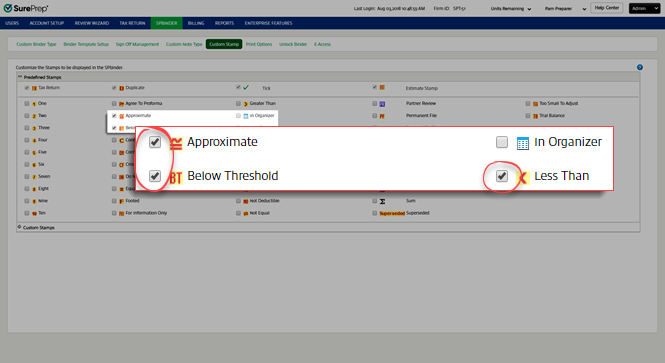
All the selected stamps will be displayed in the SPbinder.
note
The stamps placed from the Predefined Stamps list will display the name, date, and time on the stamps when placed.
Custom Stamps
Follow these steps to add, edit, or delete a custom stamp.
- To expand the custom stamp section, selectCustom Stamps.

- To add or design a new stamp, select theNew Custom Stampbutton.

- A new row will be added. Enter the description of the stamp in the input field under theDescriptioncolumn.noteTheDescriptionfield is restricted to a maximum limit of 30 characters.

- Under theImagescolumn, you have the option toSelect filesorDesign stamp.Select filesTheSelect filesbutton lets you create a stamp by importing an image from your computer.To import an image successfully, it must meet the following criteria:
- The image file must have a *GIF, *BMP, *JPEG, *PNG *TIFF or *TIFF extension.
- The file size should not exceed 100 KB.
- The width and height of the image should not be more than 65x15 pixels.
Follow these steps to import an image as a stamp:- ChooseSelect files.

- On theOpenwindow, select an image then selectOpen.

- The following message may appear if the image was not successfully imported:Please import *.gif, *.bmp, *.jpg, *.png *.tif and *.tiff extensions file.
 Please Import maximum 100 KB file.
 Height and width of Image size cannot exceed 15 * 65 pixels.
- Select theDisplaycheckbox to make the stamp available to users in SPbinder, then select theSave
 icon. If the Displaycheckbox is selected then the stamp can be selected from the Select Stamps window and added to the Annotations toolbar.

- The saved stamp will be added to theCustom Stampslist.

DesignFollow these steps to design a stamp:- SelectDesign stamp.

- Custom Stamps Designerwindow will appear. You can design a custom stamp by text or a predefined style.To design a custom stamp from text, select theTextoption, then enter the text into theTextinput field.
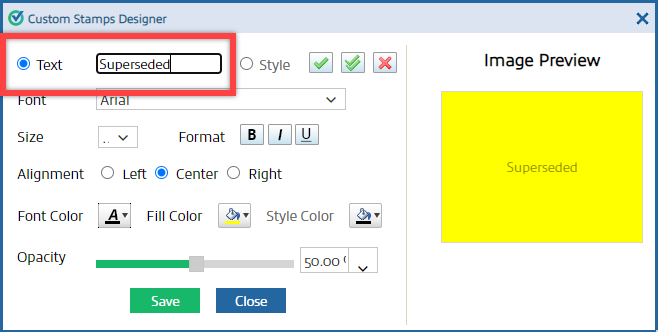 noteThe text can be a maximum of 10 characters.You can select the font, size, format, alignment, color, and opacity of the text from the options provided. The image preview automatically updates to reflect any changes.
- To design a custom stamp with a predefined style, selectStyle.
 There are 3 predefined types of signs:
- Single tick
- Double tick
- Cross mark
Select a sign to select it. To choose a color, selectStyle Color.
- SelectSaveto save the stamp to the custom stamp list. SelectCloseto close without saving.

- Select theDisplaycheckbox to display this stamp in the Stamps list under theAnnotationstoolbar of SPbinder. To save the stamp, select theSave icon.
- Your stamp will appear in the saved list.
Edit a Custom Stamp
To edit a particular stamp, select the  on the
  to save changes. Or select the
  to close edit mode without saving any changes.
Edit
icon on the Custom Stamps
list. Once you edit the stamp, select the Save
icon to save changes. Or select the Cancel
icon to close edit mode without saving any changes.
Delete a custom stamp
To delete a particular stamp, select the  on the
Delete
icon on the Custom Stamps
list.
Clear Filter
The  button removes all filters that have been either applied on individual columns or when the search option has been used.
button removes all filters that have been either applied on individual columns or when the search option has been used.note
The
Clear Filter
button turns on when the filters are applied on columns, or when the search field is used for searching a specific row. Otherwise, it remains inactive or grayed out.Search
Use the search field  to search for data. The search functionality only applies to the
to search for data. The search functionality only applies to the Description
column under the Custom Stamps
tab.
Select the  to view the help page.
Help
icon to view the help page.Related Content
-
Stamps
Format: Article

