
Stamps placed by OCR
With Leads
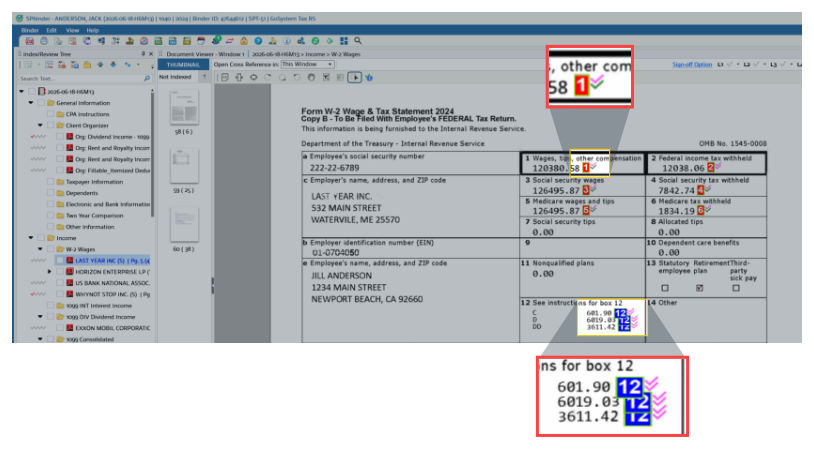
The following stamps are placed by OCR when the binder is processed through either 1040SCAN PRO or 1040SCANverify:
Image of the stamp | Stamp name | Description |
|---|---|---|
 | Duplicate | Indicates data from an Organizer page matches data on a related Source Document. |
 | Conflicting Duplicate | Indicates the data on the Organizer page doesn’t match with the data on the related Source Document even though the user marked them as a duplicate in the Duplicate Review wizard. |
 | Certain Data | Indicates the amounts have been auto-verified per a predefined business rule such as sales price, less cost basis equals gain or loss amount. This provides further assurance that data has been captured accurately. |
 | Auto-verified | Indicates the reference is auto-verified using the PDF’s text layer. |
 | Auto-verified combination | Indicates the reference is auto-verified using both pre-defined business rules and the PDF's text layer. |
 | Cross-reference | Indicates the page number where this cross-reference is linked to. OCR will place cross-references for the items which are marked as a duplicate in the Duplicate Review wizard. Select the cross-reference, to move to the related page. |
  | T/R Stamps | For leadsheet binders, T/R stamps appear with red and blue references. Indicates the value has been captured. |
note
The previous stamps also appear in the printed DreamWorkpapers.
Without Leads
The following stamps are placed by OCR when the binder is processed through either 1040SCAN PRO or 1040SCANverify:
 | Tax Return | Indicates the value has been captured and entered into the tax software. |
 | Tax Return | Indicates the value has been captured by OCR as an uncertain field and hasn’t been verified by the user. |
 | Agree to Proforma | Indicates the value is Proforma data within the tax software. |
| Duplicate | Indicates data from an Organizer page matches data on a related Source Document. |
| Conflicting Duplicate | Indicates the data on the Organizer page doesn’t match with the data on the related Source Document even though the user marked them as a duplicate in the Duplicate Review wizard. |
 | Manually Verified | Indicates the field was highlighted in yellow within the 1040SCAN Review Wizard and the user verified the number as correct or modified the amount. |
| Certain Data | Indicates the amounts have been auto-verified per a predefined business rule such as sales price, less cost basis equals gain or loss amount. This provides further assurance that data has been captured accurately. |
| Auto-verified | Indicates the reference is auto-verified using the PDF’s text layer. |
| Auto-verified combination | Indicates the reference is auto-verified using both pre-defined business rules and the PDF's text layer. |
| Cross-reference | Indicates the page number where this cross-reference is linked to. OCR will place cross-references for the items which are marked as a duplicate in the Duplicate Review wizard. Select the cross-reference, to move to the related page. |
note
The previous stamps also appear in the printed SPbinder PDF.
Legend for Tickmark
You can also review the differences between each Tickmark when you select the  on the
Legend for Tickmark
icon on the Document Viewer
toolbar.
Related Content
-
Stamps
Format: Article

