
Sign-off documents
Sign-Off lets each tax preparer mark a document as reviewed at various stages of preparation.
note
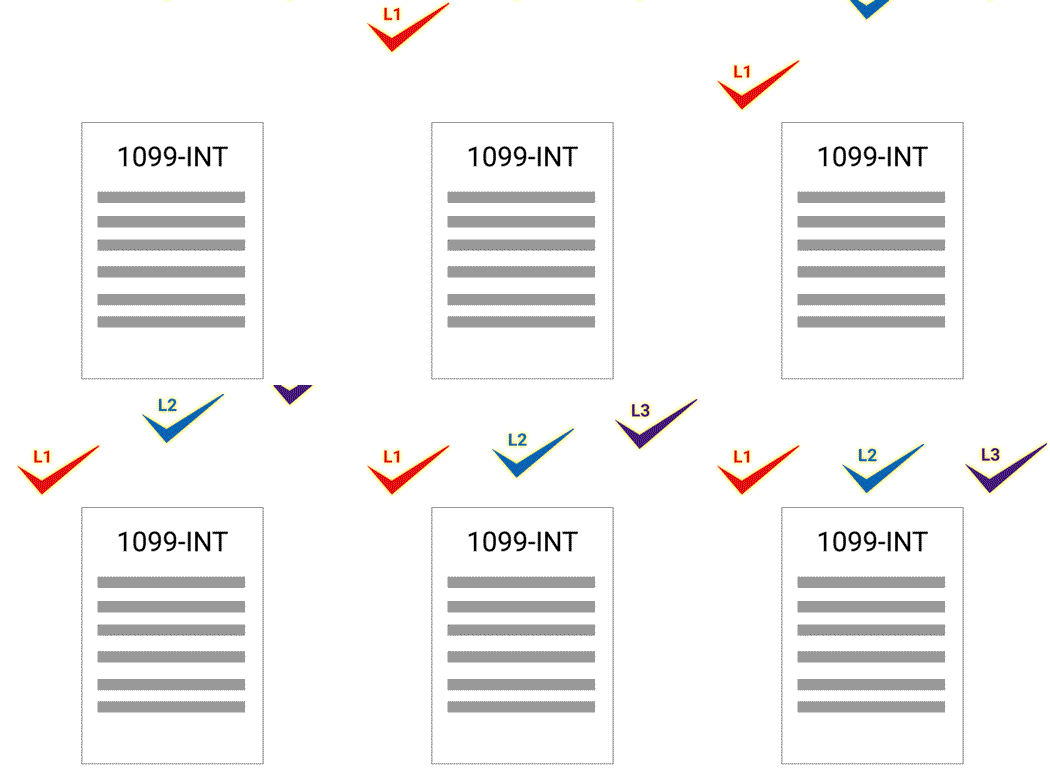
When printing a binder with leadsheets, firms can also print sign-off levels for each page that was reviewed.
Enable sign-off level
Sign-off levels that were not selected in
Admin
, SPbinder
, then Sign Off Management
will be grayed out and unavailable for selection in SPbinder.
Each check mark can be assigned to a different role defined in the
Admin
section. For example, if your role is preparer, then only L-1 (Preparer) check mark will be enabled for signing.
Sign-off option
To open the
Sign-Off Option
window, select Sign-Off Option
in the corner of the Document viewer
window.note
The
Sign-Off Option
window appears automatically when you select the Sign-off
check mark for the first time. Sign-off Options

Sign-Off Options
window will appear.
Sign-Off Option | Description |
|---|---|
Don’t move to the next page when signed-Off | Go to the next page manually after each sign-off. |
Move to next page when Signed-Off | Navigate to the next page automatically after each sign-off. When a page is signed-off on the Index Tree or Thumbnail , it will automatically go to the next page in their respective sections. |
Sign off all references and linked TR stamps on page | Enables you to sign off all the references and linked TR stamps on the page with a single click. You can select this check box alongside the other two options. Select here to learn more about signing off all references and linked TR stamps on a page (leadsheet binders only) note This checkbox option only appears for binders with leadsheets. |
Select
OK
to save your changes. Select
Cancel
to close without saving.Sign-off documents
To sign-off a document you reviewed, select the sign-off level check mark (L1, L2, L3 & L4) on the
Document Viewer
window toolbar.Sign-off check mark

Select the picklist icon  on the side of the sign-off level check mark
  to display the
on the side of the sign-off level check mark to display the Sign-Off
window.You can also select
Sign-off
to sign-off a page. After the page is signed-off, your name, sign-off date, and sign-off time are displayed in this window.Sign-off menu

Clear Sign
is enabled when the document is signed-off.Clear Sign-off

If multiple users
Sign-off
, each name, date, and time of sign-off are displayed in the Sign-off
window.
Clear Sign
is enabled for the user with the most recent sign-off at that level. If the Clear Sign
is enabled, you can only clear the most recent sign-off made by you.
If you sign-off a second time at the same level and if no one else has signed-off since your original sign-off, only the date and time of your sign-off gets updated.

However, if another user also signs-off at the same level after you, you can no longer clear your sign-off.

If you sign off again at the same level, then a new entry will be added with date and time.

For example, first Pam signs-off a page at Level1, then Paul signs-off the same page at the same level. Pam can't clear the first sign-off. If Pam signs-off again on a page at the same level, a new entry will be added to the history with name, date, and time. 3 rows get displayed in the history.
note
The user with the highest level rights can sign-off at the lowest levels (that is, a user with Partner Level rights can sign-off at the Preparer or Reviewer Level).
Index Tree
Workpaper in the
Index Tree
have check marks indicating the sign-off levels. Each check mark colors match the Sign-Off level indicated on the Sign-Off
toolbar.
To sign-off from the
Index Tree
, right-click a workpaper on the Index Tree
, point to Review Workpaper
on the shortcut menu, then select the sign-off level you want to sign-off.
Review Tree
The
Review Tree
shows unreviewed workpapers nodes for each sign-off level. For example, if only L1 and L2 are supported, then the Review Tree
will only show Unreviewed Workpapers nodes for L1 and L2.
You can also sign-off a document on the
Review Tree
when you right-click the document then select Mark the Workpaper as reviewed
.
The unreviewed workpaper nodes (L1, L2, L3, L4) in
Review Tree
are updated when a page is signed off. When a workpaper is signed-off, the unreviewed workpaper in the Review Tree
will become green and bold. The Unreviewed Workpapers By (L1, L2, L3, L4)
page count goes down by one.
When a workpaper is signed off at L1, it is marked as reviewed in Unreviewed Workpapers By L1-Preparer and it turns green. The workpaper remains unreviewed at
Unreviewed Workpapers By L2-Reviewer
until L2-Reviewer signs off.Thumbnail
The
Thumbnail
section shows check marks indicating that the workpaper has been signed off. Each checkmark's color matches the sign-off level indicated on the Sign-Off
toolbar.note
You can change the sign-off colors at
FileRoom
, Admin
, SPbinder
, thenSign Off Management
.
You can select the  on the
Filter
icon on the Thumbnail
section to filter pages that are not signed off based on individual levels. From the dropdown, select the Not Signed-off
checkbox, then select OK
.
The sign-off level checkmarks can also be viewed in the DreamWorkpapers generated from SPbinder.
Whenever you sign-off the document at any of the defined levels (that is, Preparer, Reviewer, Signer, or Partner) in SPbinder, the sign off colors, role, user names, date, and time of sign-off will be displayed in the same manner in the tooltip.
note
You can't edit, sign-off, or clear the sign-off in DreamWorkpapers.
Changes made after sign off
A  icon appears next to the workpaper if the current workpaper has been modified after being signed off. This applies to all users at any level (that is, Preparer, Reviewer, Partner, or Signer).
Caution
icon appears next to the workpaper if the current workpaper has been modified after being signed off. This applies to all users at any level (that is, Preparer, Reviewer, Partner, or Signer).
Sign off on all references and linked TR stamps on page (leadsheet binders only)
The
Sign Off all references and linked TR stamps on pages
option in the Sign Off Option
window enables you to sign off all the references and linked TR stamps on the page with a single select.note
This option is not included in Step 2: Verification wizard.

The
Sign-Off Option
will be saved for the current user and will remain saved when the binder is opened again.Sign Off all references and linked TR stamps on pages
option can be used with either of the previous selection (Do not move to next page when signed-Off
or Move to next page when signed-Off
).
When the
Sign Off all references and linked TR stamps on page
checkbox is selected and you sign off on a page, all references and linked TR stamps on that page will get marked as reviewed, and the following areas are affected:- On the source document, the border of all references/linked TR stamps will turn green.
- In theFORMStab, the particular reference column will have a green border.
- In theREVIEW TREEof a classic binder, the reviewed fields will be removed from theUnreviewed Fields created bycategory.
- In theREVIEW TREEof a simplified binder, the reviewed fields will turn bold green in theLS Linked TR stampcategory.
- InLeadsheets, all linked references from that page will change to theReviewedstatus. A tickmark will appear beside the cells if the leadsheet is already calculated. Otherwise, the cell will appear with a green tickmark when calculating the leadsheet.
Classic leadsheets
:
Simplified leadsheets
:
note
If you clear the sign off checkbox on a page, the references/linked TR stamps on the document, input form, and Review Tree won’t get unreviewed.
Flag a Binder for Review
After preparers at your firm complete their own sign-offs (L1, L2, etc), they have an option to set aside the binder for (final) review by a reviewer. From SPbinder's
Sign-Off Options
window, select Flag this binder for Review
to mark it ready for the (final) Reviewer. When reviewers sign in, they can see exactly what's waiting for them in FileRoom.Sign-Off Option window, “Flag this binder for Review.”

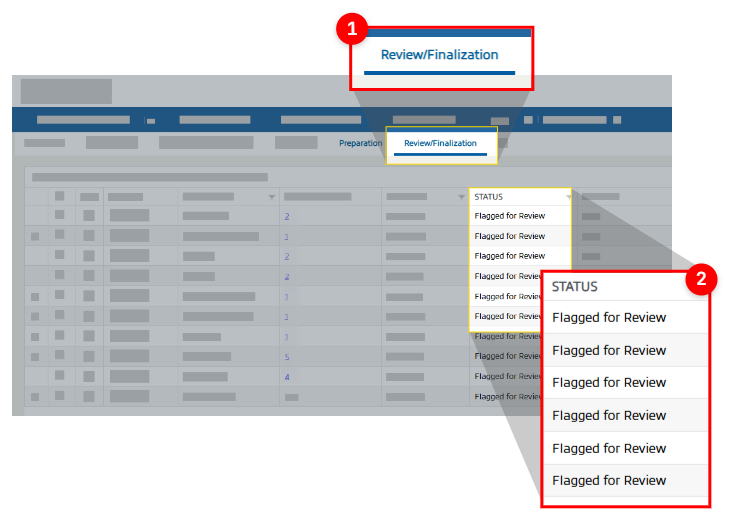
In FileRoom, the binder status will change to
Flagged for Review
, a new standardized status indicating the binder is ready for review and finalization.
All binders flagged for review will appear exclusively in the new
Review / Finalization
tab, giving reviewers quick access to what they need.Review/Finalization tab
note
For firms using custom statuses, this enhancement does not replace your current workflow setup. Flagging a binder for (final) review provides a new standardized workflow where preparers can flag binders for review and reviewers can see a dedicated location to review binders. You can continue to use your firm's current workflows as desired.

