
Reply with amount
You can fulfill a document request by replying with an amount.
Follow these steps to reply to a document request with an amount:
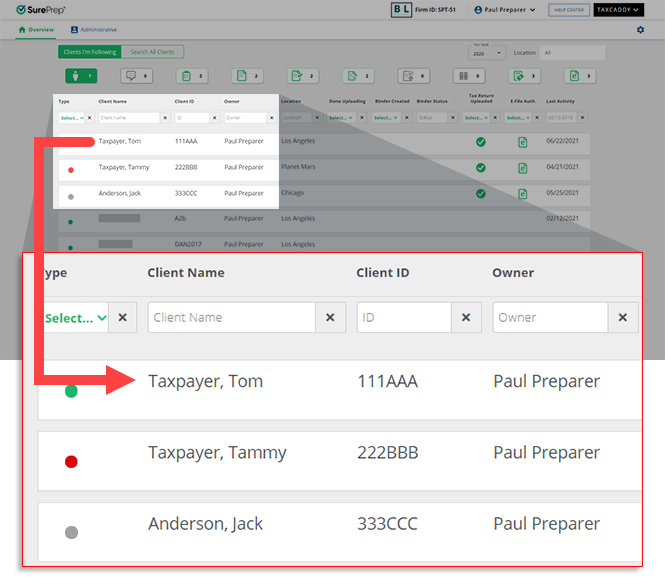
- On theOverviewscreen, select a client tile to view the client profile. You can also search for a client then select the client tile from the search result.
- SelectDocuments, then selectRequested Items.

- On the document tile, select theMenu
 icon, then select Reply With Amount.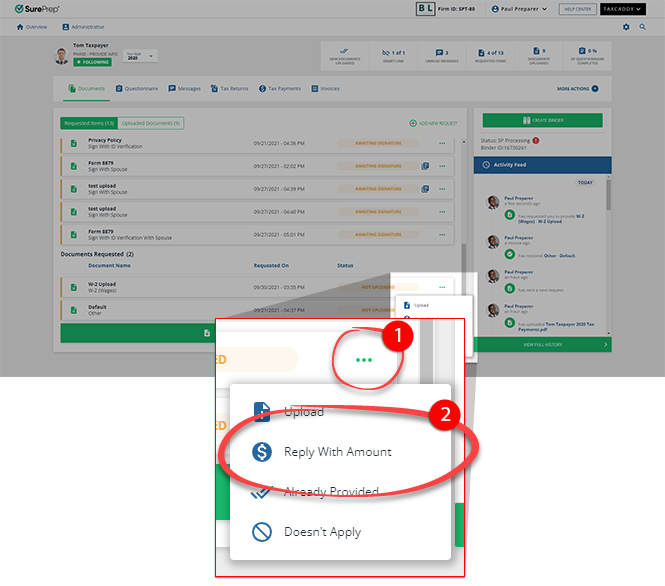
- Reply With Amountwindow will appear, fill the form, then selectNEXT.
 To add multiple values, selectADD ANOTHER AMOUNT.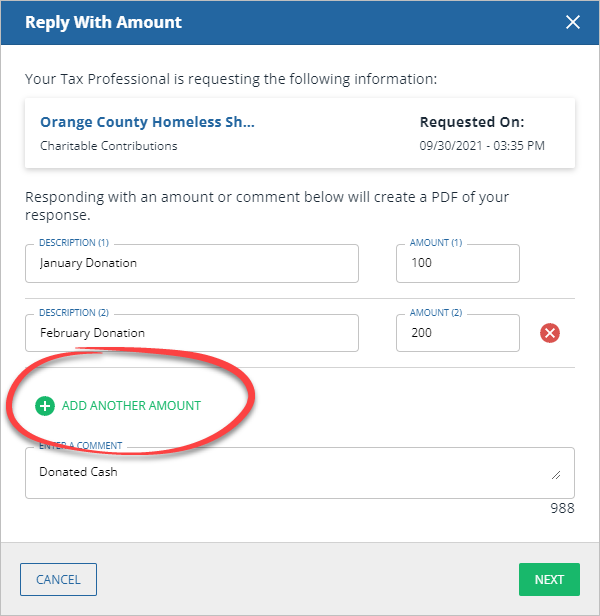
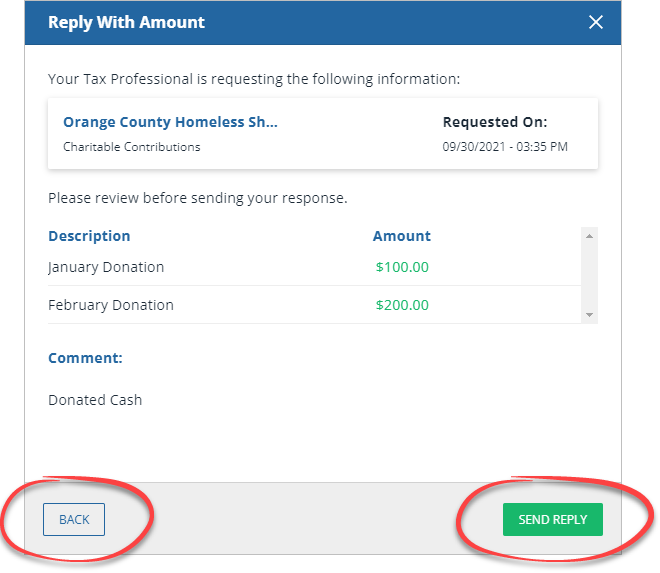
- Reply With Amountwindow will let you review the data.SelectBACKto make changes.SelectSEND REPLYto fulfill the document request with an amount.
- TheStatuswill be updated toREPLIED WITH AMOUNT.
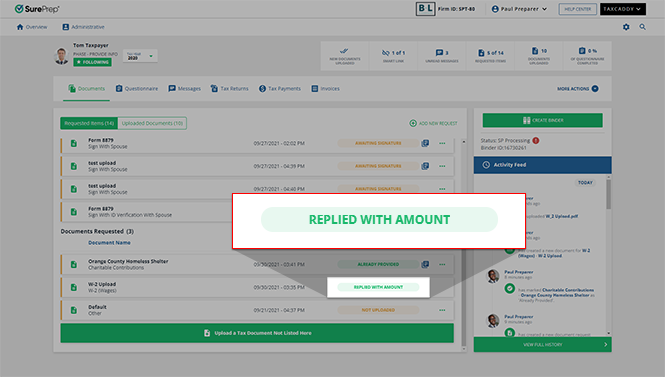 The requested document will be resolved and saved in theUploaded Documentstab.
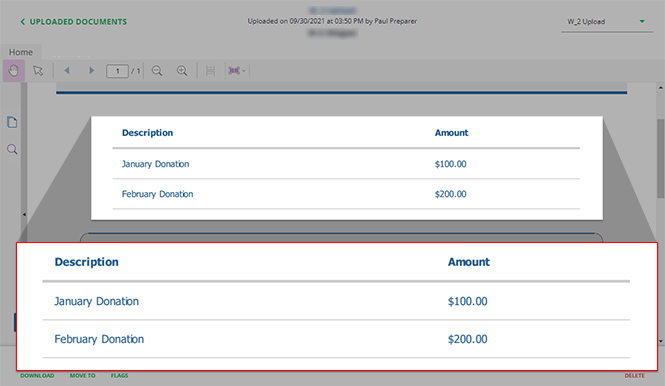
- You can select the document title to view the document created byReply with Amount.
 Article

