
Edit Document Request List (DRL)
Document Request List (DRL) is based on your clients' proforma data from last tax year's tax return, as pulled from your tax software. Create Custom DRLs for clients before you can edit and send them DRL.
note
Edit DRL
feature is only available for clients who haven’t been sent a DRL for the current tax year.View Document request
Follow these steps to view Document Request Lists for each client:
- Sign in to TaxCaddy.
- Go toAdministrativethenClient Management.

- Select theMANAGE CLIENTSmenu.
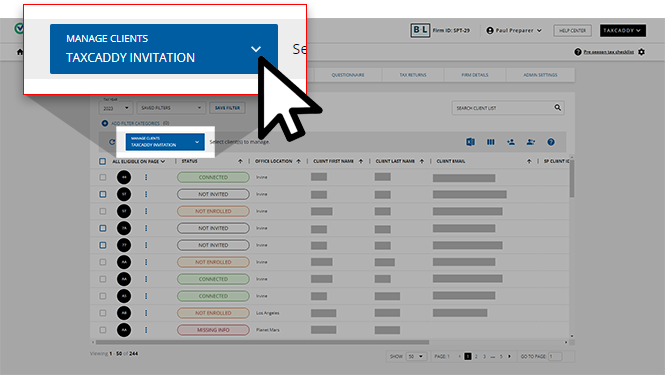
- SelectSend DRL.

- To edit a client's DRL, select theMenu
 icon, then select Edit DRL.
 noteYou won’t seeEdit DRLas an available option if you didn’t selectSend DRLfrom theMANAGE CLIENTSmenu.
 - TheSTATUScolumn shows which clients are eligible forEdit DRL. TheEdit DRLoption is only enabled for clients with the following status:
- UnderSEND DRL, the status should beNot Sent.

note- TheEdit DRLoption will be unavailable for clients who have already been sent their DRL. To only see clients who are eligible to receive a DRL request, selectSend DRLand find clients with the statusNot Sent.TheReset DRLandEdit DRLoptions will be unavailable for clients who have already been sent DRL. You can use the filter feature to narrow down the client list to only see clients with the proper status (for example,Completed,Not Sent). selectADD FILTER CATEGORIES>Status> then select the checkbox to filter clients.
- Edit Document Request Listscreen will appear. The document request list for the client will appear at the bottom.

Add document request
Follow these steps to add documents to the Document request list:
- On theEdit Document Request Listscreen, selectAdd Document Request.

- TheDocument Requestwindow will appear. select on a category to select it. The Requested document will be placed in the selected category once it is uploaded.

- SelectAdd New...to create a new subcategory.

- Enter a name for the new subcategory, then select theSave
 icon.
icon.
- After the subcategory is listed, selectDONEto save the subcategory.noteYou can selectAdd New...to add a new subcategory to the list. Only the latest subcategory will be used.

- The new document request will be added to the end of the Document Request List.

Remove document request
Follow these steps to edit Document Request Lists for each client:
- On theEdit Document Request Listscreen, select the checkbox next to the document to remove it from the document request list. Deleted documents will not be sent to the customer as a requested item.

- To search for a specific document on theEdit Document Request Listscreen, enter the document name in the search field on the upper-right side.

- The selected documents are deleted from the document request list before they are saved or sent.
- SelectSaveto save the edited DRL. The saved DRL won’t be sent to the client.TheSave DRLappears when you selectSave.

- SelectYesto remove the document and save the DRL.
- SelectNoto cancel.
- SelectSendto save and then send the edited DRL.TheSend DRLwindow appears when you selectSend.

- SelectYesto remove the document before you send the DRL.
- SelectNoto cancel.
Related Content
-
Send a Document Request List (DRL) to clients
Format: Article

