
View Document Request List
You can customize the list of predefined categories list that appears by default when a client uploads or moves a document. You can also add custom categories as needed. Additionally, you can enable the option to send clients Customized Fillable Forms when sending a DRL. Clients can use the
Complete Form
feature to fill out the fillable forms (for example, Schedule C, E, F, and more).Follow these steps to customize the Document Request List:
- Sign in to TaxCaddy.
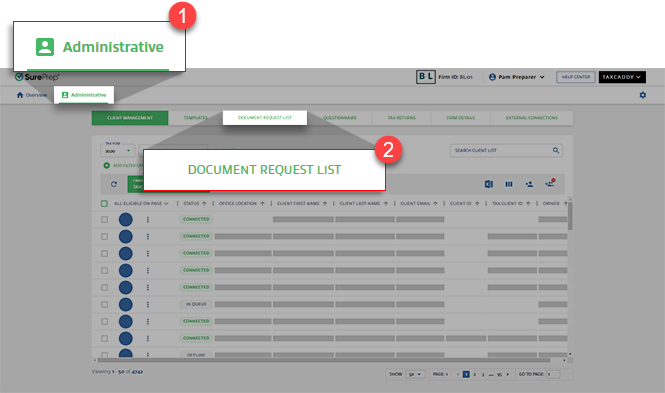
- SelectAdministrative, then selectDOCUMENT REQUEST LIST.noteOnly users with Administrative permissions have access to theDocument Request List.
- Select theTAX YEAR.

- Predefined categories names appear on the left column. The middle column lets you show or hide each category under the most popular tab when moving or uploading a document.
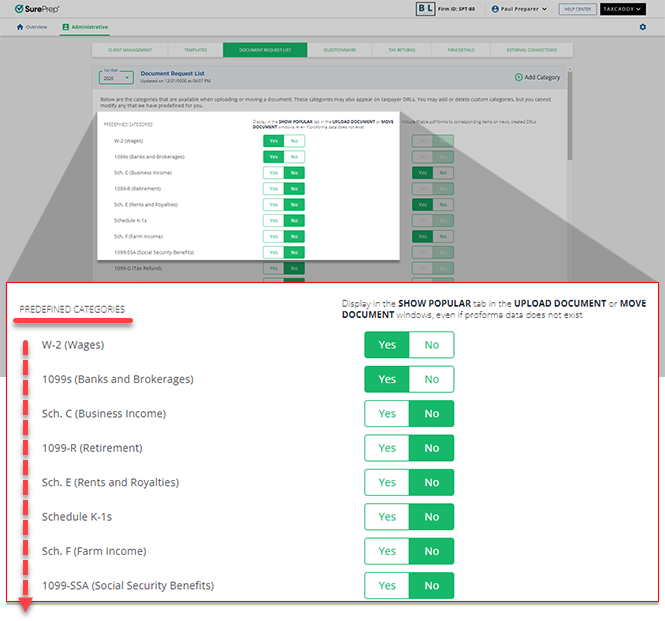
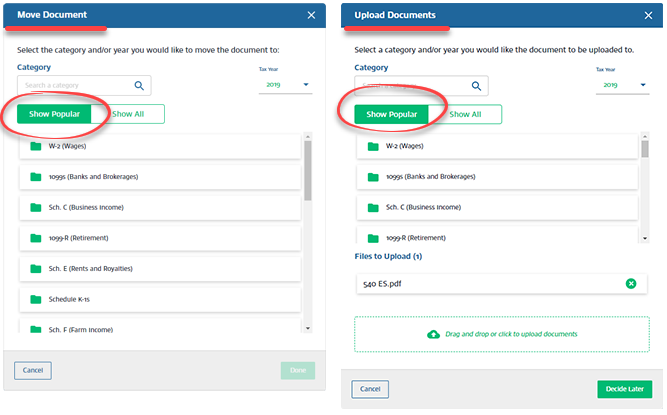 noteSelecting to show/hide predefined categories will only reflect changes on the defaultShow Populartab. Your clients can select theShow Alltab to view all predefined categories.
 - On the right column, selectYesto send clients Customized Fillable Forms when sending a DRL or through a document upload request in Client Profile. Clients can use theComplete Formfeature to complete the fillable forms (for example, Schedule C, E, and F. See full list).
 noteCustomized Fillable Forms are only sent to the clients if the tax application has proforma data for the selected category.
 - User-added categories appear after the predefined categories.
 You will now see your custom categories when uploading documents.
 You will also see your custom categories when moving documents.
Related Content
-
Administrative screen
Format: Article

