
Enable assigned members on client profiles
note
Contact SurePrep support before activating this feature.
Enabling assigned members on the domain level restricts access to all FileRoom binders and TaxCaddy client profilesby default. Restricted binders and client profiles can then only be accessed by Owners, Assigned Members, and Firm System Administrator.
note
You can also enable assign members restrictions individually per binder or TaxCaddy client profile instead of on the domain level.
Follow these steps to enable this feature on your domain:
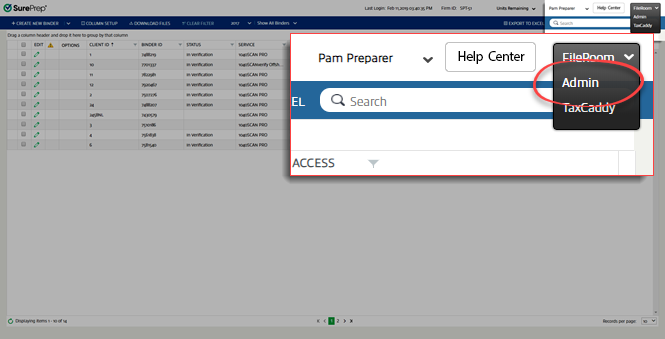
- Select the FileRoom dropdown then selectAdmin.
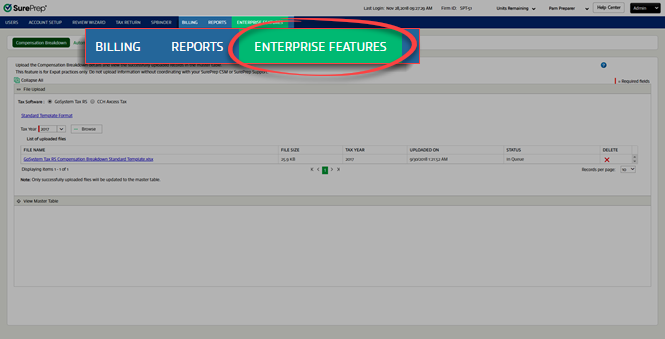
- SelectEnterprise Featureson the toolbar.
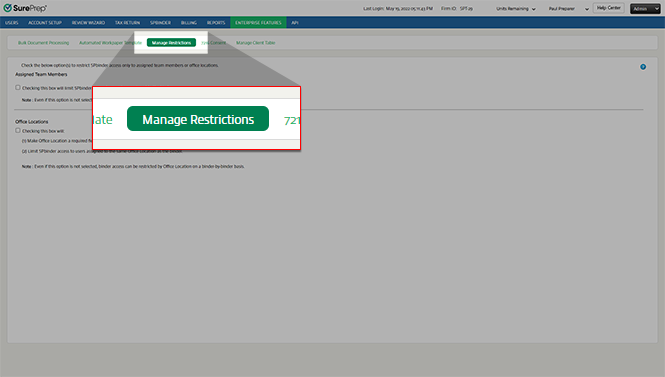
- SelectManage Restrictions.
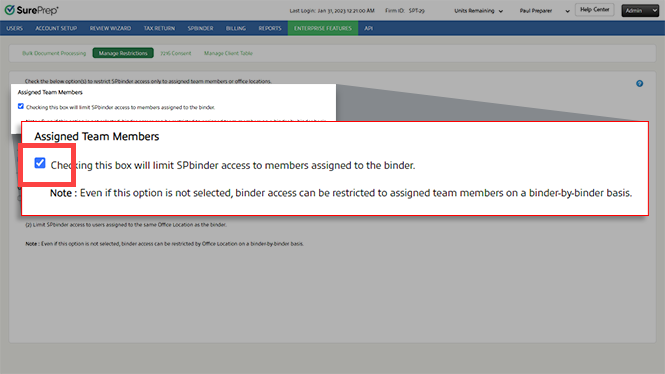
- Mark theChecking this box will limit SPBinder access to members assigned to the bindercheckbox. This option allows only selected assigned members the permission to view profiles for clients they are assigned to while restricting access to clients users aren't assigned to.
 The member engagement option will now be visible on client profiles. To view assign or remove members, selectMore Actionson the navigation bar then selectMember Engagement Team.
 noteWhen assign members restriction is enabled, selecting a new owner may remove the previous owner from being able to access the client until they are added back as an assigned member or an owner. You can enable firm-level settings to automatically add the previous owner as an assigned member if the client's TaxCaddy profile is restriced.

Related Content
-
Assign member engagement permissions to user groups
Format: Article
-
Add or remove members on a Member Engagement Team (assigned members)
Format:
Article

