
Link TaxCaddy client profile to a binder
The
Link Binder
feature allows you to connect a TaxCaddy client profile with an existing binder in FileRoom. Once a client's profile has been linked to an existing binder, you can upload documents from TaxCaddy to the binder.
note
Create Binder
and Link Binder
appear enabled/disabled under different conditions. Link client profile to binder
Follow these steps to link a TaxCaddy client profile with an existing binder in FileRoom:
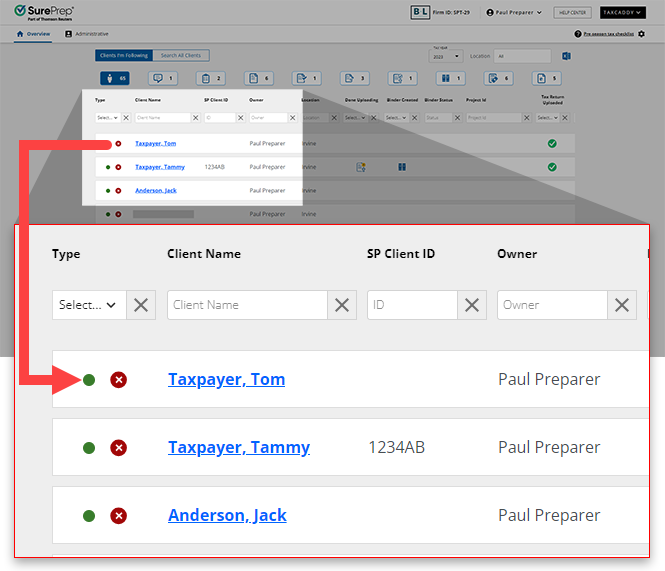
- On theOverviewscreen, select a client tile to view the client profile. You can also search for a client then select the client tile from the search result.
- SelectLink Binder.noteLink Binderappears when the client profile is associated with a Tax Client ID that matches a binder with the same Tax Client ID in FileRoom.If you need to link a 1041 binder in FileRoom, select a 1041 tax return profile from theTAX RETURNmenu.
 If your client's profile doesn't include a Tax Client ID, then you'll the following message:Unable to link binder due to missing Tax Client Id. Please edit the client record in Client Management.
 Go to theAdministrativescreen, then edit your client record with a proper Tax Client ID.
 - Your browser downloads a PBFX file. Select the file to open theLink Binderwindow.
 A matching binder will automatically show if you have a binder with a matching Tax Client ID, tax year, and tax software (CCH Axcess Tax or GoSystem Tax RS only). On theLink Binderwindow, confirm the client name and ID then selectLinkto link the binder.
 Go to the next step if you do not see this window.
 - Select from the dropdown one of the following options to find the binder:
- Client ID
- Client Name
- Binder ID
- Tax Client ID
- PS Project

- Enter text in the search field then selectGo.

- Select the client then selectLink.

- When the confirmation window appears, verify the client name and ID then selectLink.

- Once the binder has been linked successfully, selectCloseto close the window or selectOpen Binderto open the linked binder.
 Once the binder has been linked, refresh the client's profile to see the change in the binder status.You can selectOpen Binderto open the binder orAdd documentsto add additional documents to an existing binder.
Changes after linking to a binder
The following will take effect after the binder has been linked:
- The binder owner in FileRoom will become the new owner of the TaxCaddy client profile.
- Assigned Members will be merged together on the binder and client profile.
When can I use Link Binder?
Matching Tax Client ID
The Client profile must have a Tax Client ID that matches a binder's Tax Client ID in FileRoom. However,
Link binder
won't appear if the binder is in SP Processing status.
note
When linking a binder, if the office location restrictions is disabled on the binder (in FileRoom) but is enabled on the client profile (TaxCaddy) then Office Location won't sync to TaxCaddy and remain as is in the binder and client profile. Similarly, if there's no Office Location assigned to a binder then it won't sync with TaxCaddy client profile.
On the
Link Binder
window, you won't be able to select or view new binders that are in Document Uploading or SP Processing status in FileRoom.
