
Migrate clients from one firm to another
Firms undergoing a merger or acquisition may want to migrate their taxpayer clients from 1 domain to another domain within TaxCaddy. To facilitate this transfer, SurePrep can help firms move the taxpayer accounts over without needing to disconnect and reconnect them. TaxCaddy will migrate client lists from the acquired firm (also referred to as the
Original Firm
) to the new firm that will manage these migrated clients moving forward (also referred to as the Destination Firm
). 
Pre-requisite steps before migration
If you require the
Migrate Client
feature enabled for your firm, you (the Original Firm
) and the Destination Firm
must contact the SurePrep Support team to specify which firm will be migrating to which. Upon submitting this request, the Support team will work to ensure that users with Taxcaddy Administrative
and Manage Bulk Action
permissions can initiate the migration process.Before the
Original Firm
initiates the migration process, users at the Destination Firm
are expected to complete certain actions to ensure a smoother transference of client records. The following list will outline these steps and serve as a guide to a smooth transition from Original
to Destination
Firms
: Field | Description |
|---|---|
Transfer Original Firm users | During the migration, clients will be matched to their Owner based on the Owner's name, meaning that each firm user's first and last name in the Destination Firm must match the first and last name in the Original Firm to migrate client lists successfully.Using the New User feature in Account Admin , transfer any firm users from the Original Firm to maintain your clients' Owner record post-migration. This will avoid the use of the Alternate Owner record. 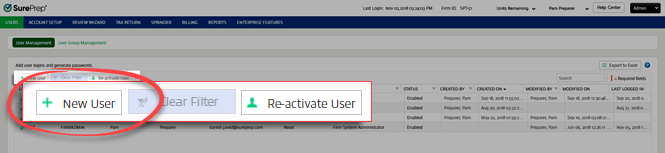 |
Allow new users to be Owners | When transferring users from the Original Firm that will be assigned as the Owner of any of the Destination Firm’s clients (migrated or otherwise), they must have the Can be an Owner permission enabled for their assigned User Group in FileRoom.  |
Transfer Office Location | Using the New Office Location feature in Account Admin , transfer any relevant office location from the Original Firm to maintain your clients' Location field post-migration. This will avoid the use of the Alternate Location record previously provided. 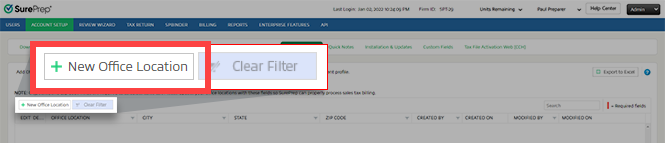 |
Tax Software Activation & Tax Software Account Number | To ensure Original Firm clients retain their tax application and account number post-migration, turn on the matching application and account number in the Destination Firm beforehand. If no matching application is found and no overwrite is provided, clients will migrate without their tax application record.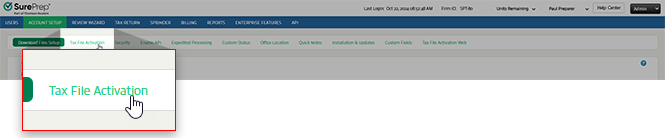 Ensure the tax application account number matches the Original Firm . Failure to do so (without providing a tax application or account number) will lead to incorrect account numbers for clients post-migration. |
TaxCaddy Document Request List | If necessary, adjust the Destination Firm’s DRL settings to address any categories not included in those of the Original Firm , including custom DRL categories as well.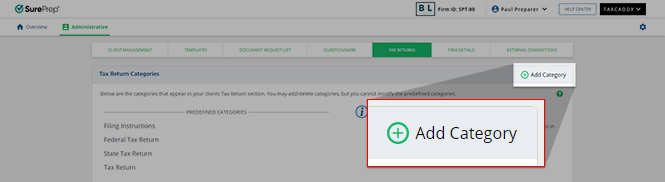 |
Custom Fillable PDF | If the Original Firm has enabled fillable PDF forms for any of their DRL categories, the Destination Firm can also enable these fillable PDF forms to give their clients the ability to fulfill their document request from within TaxCaddy. 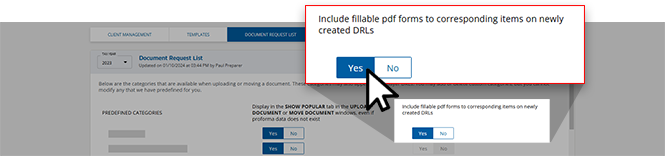 |
Tax Return Category | If the Original Firm has enabled any added categories in their Tax Return settings, recreate the same categories to the Destination Firm's Tax Return settings if you’d like the migrated clients to receive their tax return requests as usual. 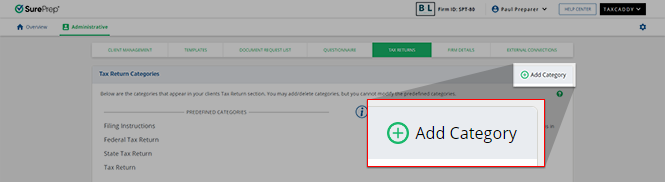 |
Custom Field | If the Original Firm has enabled and created a custom field for TaxCaddy and FileRoom in their Admin settings, and the Destination Firm would like to continue the use of this custom firm for clients moving forward, enable this setting and provide the custom field in the Project ID field. 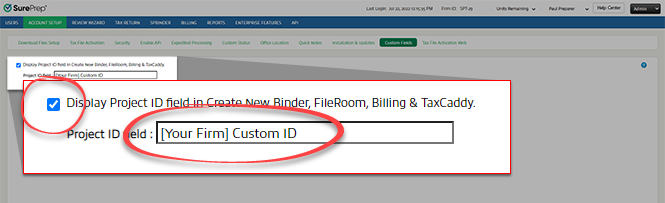 |
Tax year manager | Establish the range of tax years that the Destination Firm will have access to, and the frequency of tax year-related email notifications once the migration is complete.  |
Add a Stripe account | Skip this step if you currently don't have a Stripe account setup. Any pending invoice from a migration client may not be viewable in the Destination Firm if they don’t have a Stripe account added to their firm.  |
Export client list | We recommend that users export the All Columns Excel file of your firm’s entire client list from Client Management to have the most comprehensive record of all your clients’ records pre-migration. 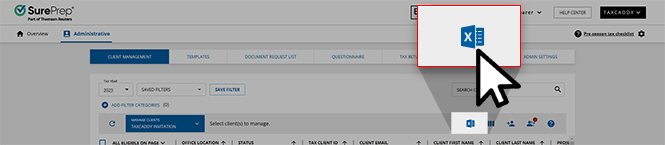 Once migration is complete, the selected clients won’t be in the Original Firm . If their migrated records must be compared to their status prior to migration, users will have access to each client's status. |
Contact Support for a report of assigned members | Your clients’ Assigned Members list won’t be migrated to the Destination Firm . If you would like to preserve the access your firm users have to their client list, then we recommend contacting SurePrep Support to receive an Excel spreadsheet of each client’s Assigned Members. |
Migrating clients to their new destination
Once all of the necessary pre-requisite steps have been completed and the Destination Firm has been configured to accommodate all of the incoming client records, users at the Original Firm can begin initiating the migration process:
- Sign into TaxCaddy.
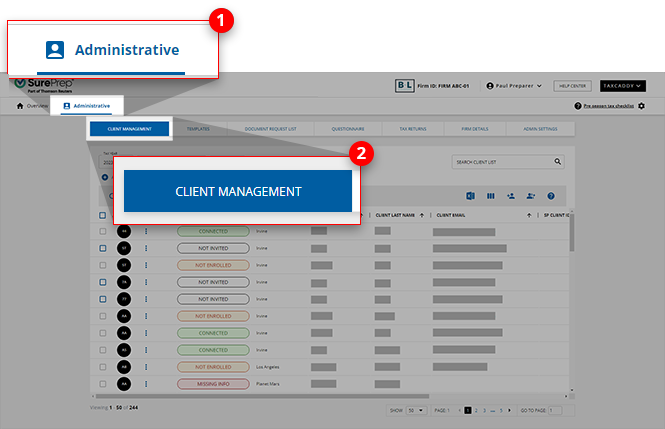
- Go toAdministrative, thenCLIENT MANAGEMENT.
- Select theMANAGE CLIENTSmenu.

- SelectMigrate Clientsfrom theADMINISTRATIVEsection. Contact SurePrep Support if you don’t see theMigrate Clientsoption.

- Now select the checkbox for each client you'd like to migrate.Option 1: Select the checkbox next to each client to only choose those clients.
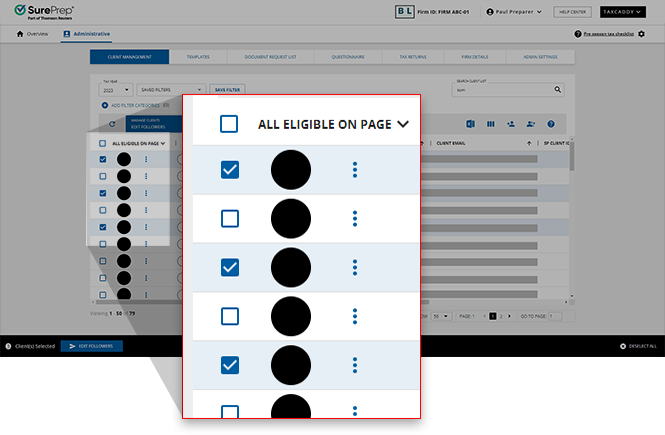 Option 2: To bulk select clients, select the 1st column header then select from the following options:
- All Eligible- It selects all eligible clients in your firm from all pages. However, if you are currently using filters and/or search thenAll Eligible(clients) will only apply to clients who are currently filtered/searched. If you need to perform the same action separately for a different set of clients then you must wait for the 1st bulk operation to complete before initiating the same action for the 2nd set of clients. RequiresCan Bulk Sendpermission.
- All Eligible on Page- It selects all eligible clients on the current page.

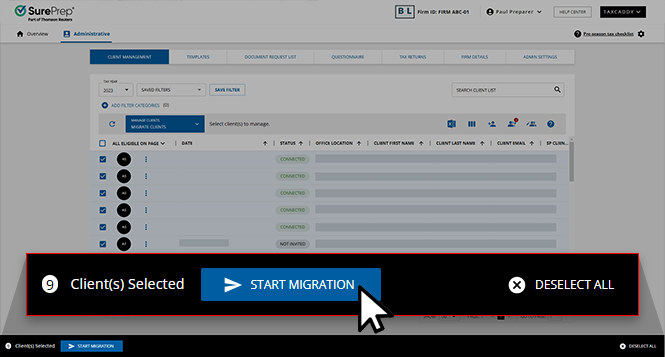
- After you select the clients, a selection bar slides up from the bottom of the page. SelectSTART MIGRATIONto begin editing the selected clients. SelectDESELECT ALLto cancel and clear all selected clients.
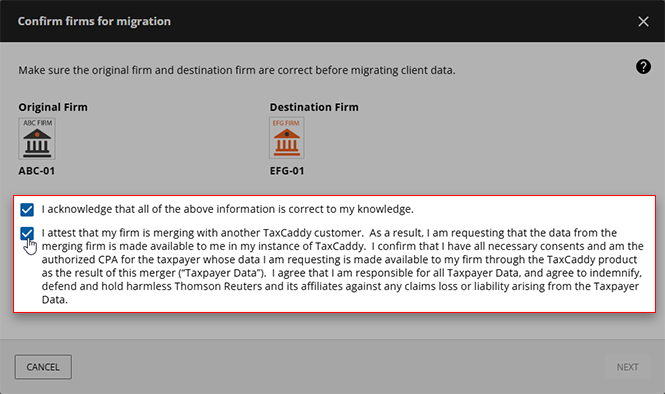
- TheConfirm firms for migrationwindow will appear.Within this window, you will be able to confirm which firm has been allocated as the
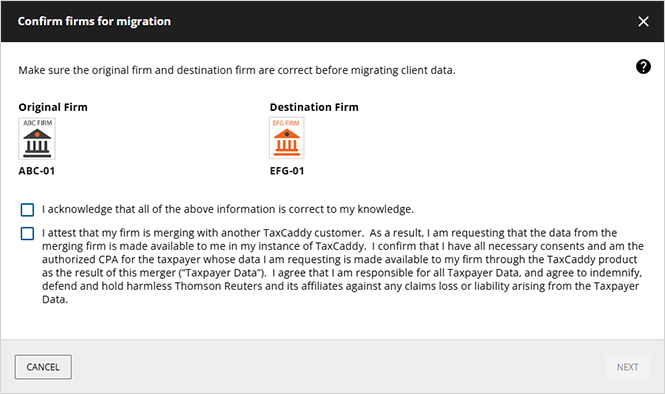 Original Firmand which firm has been allocated as theDestination Firm.
 noteIf this information is incorrect, please contact SurePrep Support for further assistance in rectifying these records. Do not proceed with migration if theDestination Firmis incorrect.
 - After you've reviewed the firm information and you are ready to proceed with the migration, users will select theI acknowledge that all of the above information is correct to my knowledge.andI attest that my firm is merging with another TaxCaddy customer...checkboxes.
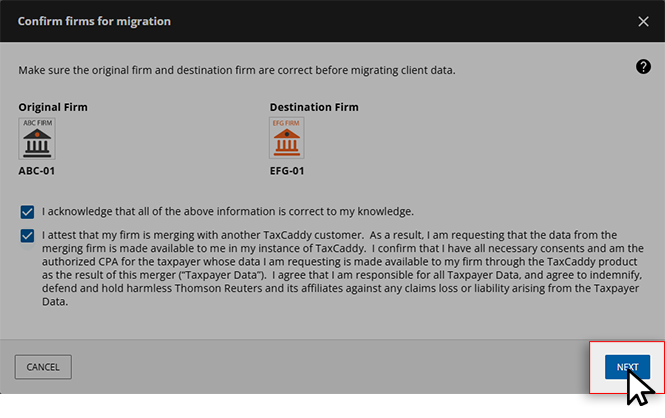
- SelectNEXTto proceed to the next step in client migration.
- You will be prompted to provide optional alternate records (populated by theDestination Firm) that will be applied to clients whoseOriginalrecords couldn’t be located in theDestination Firm.
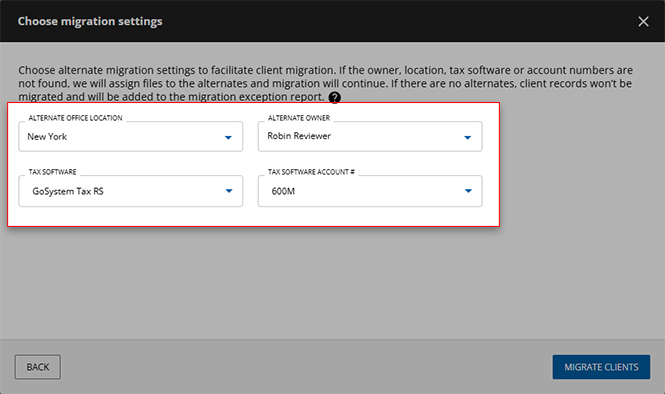 Field NameDescriptionALTERNATIVE OFFICE LOCATIONThis is an optional field. If possible, our system will assign each taxpayer client to the same office location that they had on file in theOriginal Firm. However, if this office location can't be found in theDestination Firm, the client will then be assigned to the Fallback Location.ALTERNATE OWNERThis is an optional field. If possible, our system will assign each taxpayer client to the same Owner that they had on file in theOriginal Firm. However, if this Owner can't be found in theDestination Firm, the client will be assigned to theFallback Owner.TAX SOFTWAREandACCOUNT NUMBER*These are optional fields. When provided, these will replace the original tax application and account numbers of all migrated clients, regardless of what was saved to their records in theOriginal Firm. If provided, any tax application and account number value that can't be located in theDestination Firm(that is, not yet turned on, incorrectly provided) will cause the migration to fail.Ensure that the values provided for these fields are accurate and present in theDestination Firmbefore initiating the migration process.note*Only 1 tax application and account number can be provided. This optional tax application and account number will then be applied to all client records being migrated to the new firm. Firms with multiple tax application and account number options must update the applicable clients post-migration.
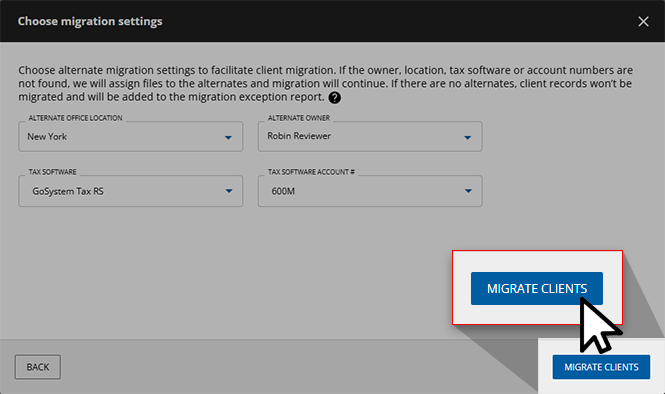
 - After all necessary alternate records have been provided in their respective fields, you are ready to begin migrating clients. SelectMIGRATE CLIENTSif you'd like to proceed with the client migration process.Read more about what successful client migration results will entail.
- TaxCaddy will begin migrating clients from your firm (theOriginal Firm) to theDestination Firm. Once the migration is complete, you will see a toast notification appear indicating the results, including a count of successfully and unsuccessfully migrated clients.noteOnce all of the clients you'd like to migrate have been migrated, contact the Support team to remove theMigrate Clientsoption from theMANAGE CLIENTSmenu to avoid accidental migration in the future.

Download an exception report
After trying to migrate clients to the
Destination Firm
, an exception report will be generated within the Original Firm
for any clients that failed the migration process.- To download the most recent exception report made for your firm, select theExport Client Reports To Excel
 icon from CLIENT MANAGEMENT.
 - From theExport Client Reports To Excelwindow, select theREPORT TYPEdropdown menu, and selectMigration Exception Report.
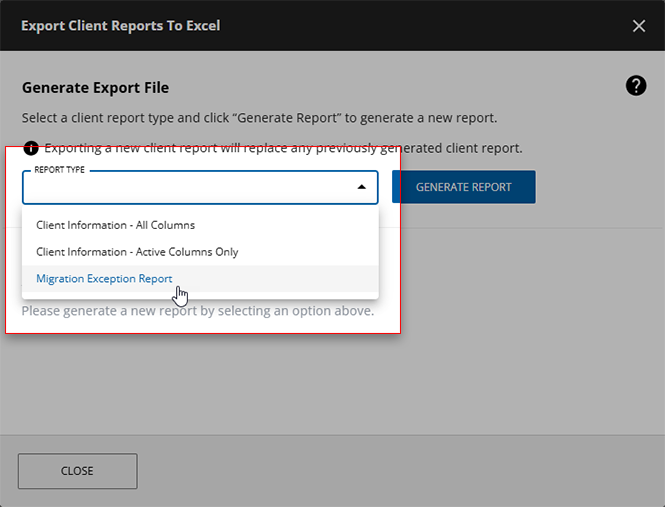
- SelectGENERATE REPORT.

- After it has been generated, the exception report will be ready for download. SelectDownload filefrom the window.

- When you open the exception report, find theReason for Failing Recordscolumn to view the reasons for each client that failed the migration process. Rectify the client/alternate data according to the suggestion in theReason for Failing Recordscolumn. Learn more about what could cause a client record to fail migration.

Reasons for an unsuccessful migration
After you've downloaded an exception report for the failed migration, the
Reasons for Failing Records
can provide insight as to why the client couldn't be migrated. Find each reason as to why a client record has failed migration and potential resolutions that can lead to a successful migration upon trying again. Error Message | Description | Resolution |
|---|---|---|
Duplicate record | The email saved to this client's record is already saved to a client's record in the Destination Firm . | Update the indicated client's email address in the Original or Destination Firm and try again. |
Owner not found | The client's Owner in the Original Firm can't be located in the Destination Firm . | Add the original Owner into the Destination Firm with Can be an Owner permissions and try again.Alternatively, users can provide an ALTERNATE OWNER and try again. |
Office Location not found | The client's office location in the Original Firm can't be located in the Destination Firm . | Add the client's original Office Location to the Destination Firm and try again. Alternatively, users can provide an ALTERNATE OFFICE LOCATION and try again. |
Tax software not found | The client's tax application in the Original Firm can't be located in the Destination Firm . | Add the original tax application/account number to the Destination Firm and try again. Alternatively, users can provide an ALTERNATE TAX SOFTWARE/ACCOUNT NUMBER* and try again.* This will assign the alternate application/account number to all other clients in the template upon retry. |
Multiple owners with the same first and last name were found in the Destination Firm | TaxCaddy found multiple Owners in the Destination Firm that share a 1st and last name with the client's Owner in the Original Firm . | Firm Admin users can temporarily edit the name of the Destination Firm's intended Owner to a unique name. Upon completion of a successful migration, they can then revert the Owner's name to its original value. |
note
TaxCaddy will combine error messages in the exception report in the event that a client migration attempt failed for multiple reasons.
What will a successful migration look like?
After successfully migrating clients from 1 firm to the next, firm users of the
Original
and Destination Firm
can expect to find the following changes made to their domain and migrated client records.
- What happens to the Client Management details of the migrated clients?For clients classified as eitherStandardorOffline, their classification will remain unchanged in theDestination Firm.The following fields will be preserved and migrated as is from theOriginal Firm:
- Client's First Name
- Client's Last Name
- Client's Email
- Mobile Number and Country Code
- Spouse's First Name
- Spouse's Last Name
- Spouse's Email ID
- Tax Client ID
- Tax software version
- Tax software password
- Custom Field
- What happens to the Assigned Members List?A client’s Assigned Members list won’t be retained and carried to theDestination Firm. After the migration is completed users at theDestination Firmwill need to add assigned members manually as needed. Before migration, you can contact SurePrep Support to get a report of your clients’ Assigned Members list.
- What happens to any Duplicate records that were migrated?If an identical record (either Standard or Offline profile with the same Email ID on file) is already present in theDestination Firm, this record will be skipped during the migration process, and we’ll generate a log containing these records for review. A Support team representative will receive this list and manage it with your firm.
- How are the Original and Destination firms' TaxCaddy Unit consumption impacted?Once client migration is complete, theDestination Firmsperforming any type ofGatherorDeliveractions that theOriginal Firmpreviously performed in a client’s profile resulting in TaxCaddy Unit consumption will incur the same charge for theDestination Firm.For example, if theOriginal Firmwas previously charged a TaxCaddy Unit for performing aGatheractivity (sending a client their questionnaire, using Smart Links) then post-migration, theDestination Firmwill also be charged a TaxCaddy Unit for performing anotherGatheraction (sending DRL, uploading a document to their profile) for the same client.
- What happens to any questionnaire that was sent prior to migration?If anOriginal Firmuser has sent a client their questionnaire in the previous tax year and aDestination Firmuser would like to view it in theDestination Firm, the user must:
- Create their firm's questionnaire for that tax year.
- Send the created questionnaire to at least one of the firm's clients.
If theDestination Firmuser doesn’t want to create their firm's questionnaire for that tax year, they’ll have the option to generate a PDF of that client's questionnaire (via the File to Tax Documents feature) that they can then view in theUploaded Documentstab of their account. - What happens to any DRL that was sent prior to migration?DRL items will be migrated from theDestination Firmto theDestination Firmas is.
- DRLs that were previously created in theOriginal Firmwill still be accessible in theDestination Firm. If personal information has been imported along with the DRL, it will also be preserved.
- DRLs that were previously sent from theOriginal Firmwill be displayed in the Requested Items tab of both firm user and client. Any fulfilled document requests will also be accessible from theDestination Firm.
- If a DRL item was marked asDoesn't ApplyorAlready Provided, that status will also be preserved in theDestination Firm.
- What happens to a client's existing documents after they're migrated?All the documents that were requested (that is, Review, Sign, e-file, and Upload requests), directly uploaded to the accountTax Returns,Tax Payments, andInvoiceswill be retained and available with their most recent status.Uploaded requests
- System-defined categories: These will be retained and carried forward, along with the uploaded document with the status.
- Custom categories: If anOriginal Firm'scustom DRL category also exists in theDestination Firm, then any request uploaded with this category will be preserved, and any documents uploaded to this category will still be saved to it. If anOriginal Firm'scustom category doesn’t exist in theDestination Firm, any request or document uploaded to this category will still be migrated to theDestination Firmunder this custom category. However, this category won’t be added to theDocument Request Listcategory list, and further requests using this category can't be made until it is added from theAdministrativescreen.
Direct upload (documents uploaded directly in uploaded document section)- System-defined categories: System-defined categories will be preserved and migrated along with any documents uploaded to them.
- Custom categories: If a custom category that was added to theOriginal Firmexists in theDestination Firm, then any documents uploaded to it can be found in the same category that they are currently in. If a custom category that was added to theOriginal Firmdoesn’t exist in theDestinationFirm, then any documents uploaded to this category will still be migrated to theDestination Firmunder this custom category, however, this category won’t be added to theDocument Request Listcategory list, and further uploads using this category can't be made until it is added.
Tax returns, tax payments, and invoicesIf tax returns, tax payments, or invoices were uploaded to theOriginal Firmin a previous year not available in theDestination Firm, the tax return document will be visible at the profile-level after migration, rather than at the firm-level.For example, if a tax return, tax payment, or invoice document was uploaded in 2019 but that year is not enabled in theDestination Firm, the only way of viewing this document (or any 2019 document that resulted from migration) will be through the account it was uploaded to.noteIf a Stripe account is not added to theIf a custom category that was added to theOriginal Firmexists in theDestination Firm, then any tax return uploaded to it can be found in the same category that they are currently in. Tax returns uploaded to anOriginal Firm'scustom category that doesn’t exist in theDestination Firmwill be migrated and categorized as aFederal Tax Return.Destination Firm, any invoices migrated from theOriginal Firmwon’t be visible to the firm user. Once the Stripe account is added, the invoices will become visible. - How are the Destination Firm's tax years impacted by migration?If theOriginal Firm'stax year manager extends beyond theDestination Firm'stax year manager, additional tax years will be added for the migrated clients only, exclusively granting firm users access to those clients' documents outside of the Destination Firm’s range.For example, if anOriginal Firmhas access to client documents from tax years 2017 and onward, but theDestination Firmonly grants users access to client documents from the tax year 2020 and onward, users at theDestination Firmwill maintain access to these clients’ 2017 documents migrated from theOriginal Firm. However, firm users won’t gain access to the 2017 documents of clients that were not part of the migration (for example, Destination Firm’s original client list won’t retroactively gain access to previous years).
- How are clients' existing binders impacted by migration?TheOriginal Firm'sbinders won’t be migrated to theDestination Firm. Once the migration is complete, theDestination Firmwill need to recreate binders for the migrated clients.
- How is a client's 7216 Consent status impacted by migration?A client’s 7216 consent status will remain the same as it was in theOriginal Firm. If theDestination Firmwould like to update a clients 7216 consent status or settings, they must perform the update in theDestination Firmonce the migration is complete.
- Will a client's existing message threads be impacted after migration?Message threads will be retained in their current status without any changes.
- How will a client's 1041 entities be impacted by migration?Any 1041 trusts that have been added (as well as the activities performed within them) will be migrated to theDestination Firmin their current status.
- Will there be any impact on a client's open invitation or reminder after migration?All pendingInvitesandReminderswill now direct users to theDestination Firm’sconnection page and the user will be able to connect with theDestination Firm.
- Will a Dynamic Password client's email access link be impacted by migration?Clients who previously accessed theirOriginal FirmTaxCaddy accounts using a link emailed to them (dynamic password users) rather than creating a password and signing into their account via the login screen can still use their valid sign in emails to access their account. LikeInvites/Reminders, they’ll now be redirected to theDestination Firm.

