
Offline and duplicate clients
Offline clients can be created for clients who haven't yet signed up for TaxCaddy or for clients you don't intend to invite. Creating offline clients can help you take advantage of TaxCaddy features without relying on taxpayers to sign up and connect with you in TaxCaddy. Client profiles for offline clients allow you to upload and organize tax documents. You can also create a binder once you've uploaded documents.
If an offline client connects to your firm as a Standard(Online) client via invite, then the pre-existing offline client profile will be labeled as
Duplicate
. If you already uploaded files to the Offline/Duplicate client profile then you can use the Transfer
documents feature to copy documents over to the Standard (connected) client profile.note
There's an alternative method of adding Standard clients as offline clients that function similarly to Standard(online) clients. The new alternative offline client method streamlines all of your clients as "Standard" clients instead of Standard and Offline/Duplicate client types. You also don't need to transfer documents between different client profiles if the client decides to sign up at a later time. The Standard(offline client) method does require you to provide a client's mobile phone number for instant access to the clients' profiles.
Enable Offline Clients
Follow these steps to enable offline clients:
- Log in to TaxCaddy.
- SelectAdministrativethenADMIN SETTINGS.

- Select theOffline Clientstab.

- SelectEnableto allow adding offline clients, selectDisableto prevent adding any new offline clients.noteDisabling this feature won’t effect any existing offline clients.

Add an offline client
- Once you've enabled offline clients, selectAdministrativethen theClient Managementtab.

- Select theAdd a Clienticon
 .
.

- TheAdd Clientscreen will appear. If the offline client feature is enabled, you will see the option to make standard clients at the top of the screen. SelectStandardto make a regular online client, or selectOfflineto make an offline client. Continue entering the remainder of your client's information.noteA client can have both aStandardas well as anOfflineclient profile if theStandardclient is unconnected. If the client connects with your firm, the Standard client status will be updated toConnected, and theOfflineprofile's status will be updated toDuplicate.

- Once all the required fields have been entered, selectSAVEto add the client. SelectCANCELto close without adding the client.

Once the client has been added, the
Offline
status appear as the client's status.
An Offline client can't be created if there's already a connected standard client using that Tax Client ID. Users will see the following error:
A connected client already exists with this Tax Client ID.
If an offline client creates an account and connects to you as their firm, their offline client profile with the same email address or Tax Client ID will be labeled as a
Duplicate
. Fields matching a connected client will be in red text.note
When an Offline Client Profile is marked as a
Duplicate
, any documents associated with the Offline Client Profile won’t be automatically transferred to the Standard Connected client's profile. If you already uploaded files to the Offline/Duplicate client profile then you can use the Transfer
documents feature to copy documents over to the Standard (connected) client profile. Follow an offline client
Follow these steps to follow a client on the
Overview
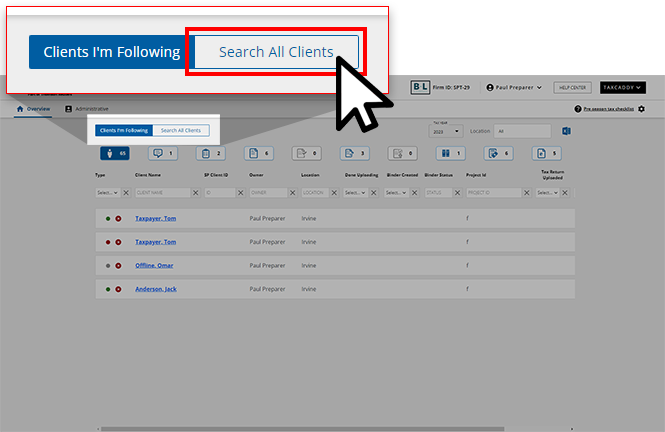
screen:- On theOverviewscreen, selectSearch All Clients.
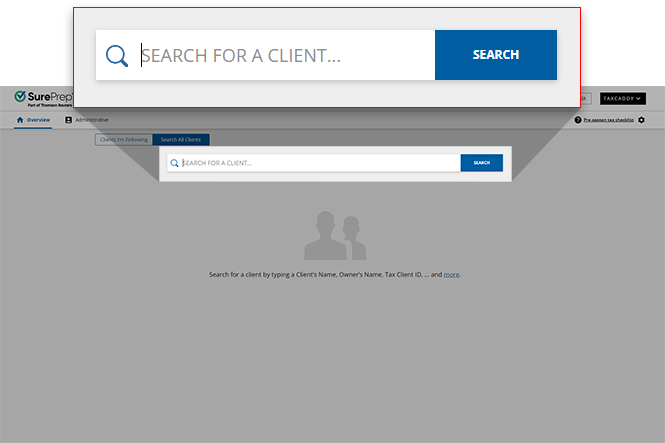
- Enter the client name then selectSearchto search for clients.
- On theTypecolumn, each search result will have a color indicating the client profile status.
- A green dot indicates a connected client.
- A red dot indicates a duplicate client.
- A gray dot indicates an offline client.

- OFFLINE ACCOUNT will show on the upper left corner of the client profile for an offline client. SelectFollowto follow the client on theOverviewscreen.
 Similarly,DUPLICATEwill show on the upper left corner of the client profile for a duplicate client. SelectFollowto follow the client on theOverviewscreen.
 noteDocuments from Offline or Duplicate client profiles don’t transfer to the connected client's profile.
Offline client profile
Offline Client Profiles allow you to upload and organize tax documents. You can select
Add Document Requests
to add requested documents one by one or you can use the Create Custom DRL (document request list) feature to import document requests based on the proforma from the tax software.
Once you've uploaded documents, select
Create Binder
to create a binder.
Delete an offline client
Follow these steps to delete an offline client:
- On theAdministrativescreen, select theClient Managementtab.
- Locate the offline client you want to delete, then select theMenuicon
 .
.

- SelectDeletefrom the dropdown.

- On theConfirm Deletewindow, selectYesto delete or selectNoto cancel.

What's Next?
At a later time, if an offline client connects to your firm as a Standard(Online) client via invite, then the current pre-existing offline client profile will be labeled as
Duplicate
. If you already uploaded files to the Offline/Duplicate client profile then you can use the Transfer
documents feature to copy documents from 1 client profile to another.Related Content
-
Alternative to offline clients
Format: Article
-
Alternative to offline clients
Format:
Article

