
Add a follow-up question to an existing question
A follow-up question lets you get more information from your client about their answer to a previous question. Follow-up questions appear conditionally when triggered in response to a multiple-choice answer provided by your client. You can decide when you want the follow-up question to appear (for example, only have the follow-up question appear when your client answers
YES
to the previous question).Add a follow-up question
Follow these steps to add a follow-up question to a client's questionnaire template:
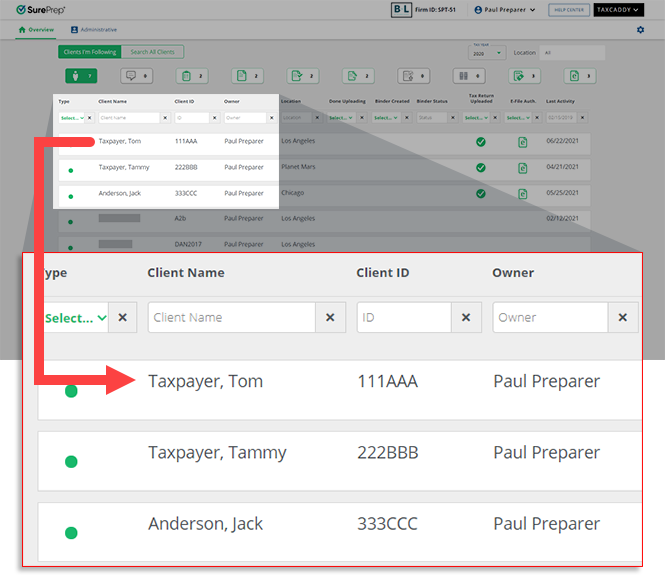
- On theOverviewscreen, select a client's tile to view the Client Profile. You can also search for a client and select the client tile from the result.
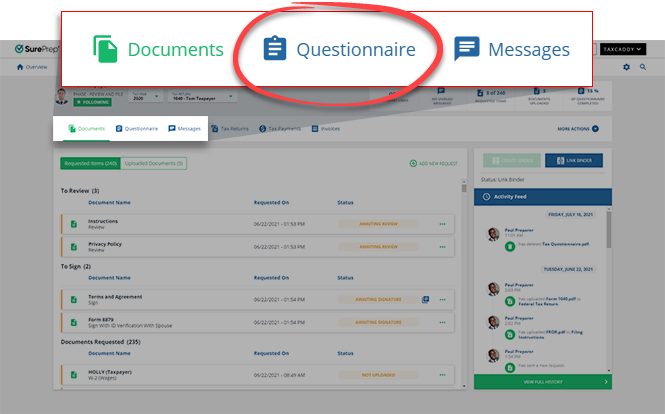
- SelectQuestionnaire.
- SelectADD FOLLOW-UP QUESTION.
 noteFollow-up questions only appear when they are triggered based on the client's reply.
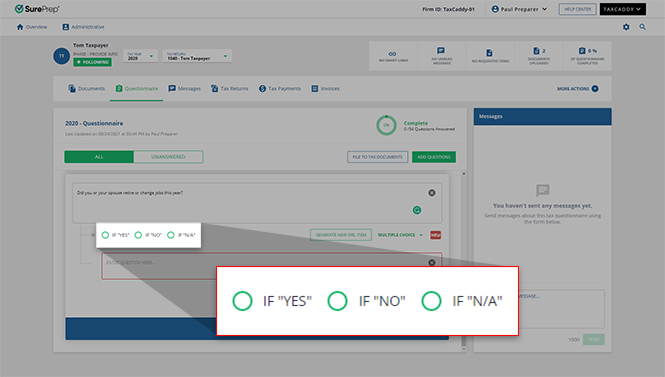
 - Select 1 of the following:
- IF "YES"to display the follow-up question if your client selectedYESas their answer.
- IF "NO"to display the follow-up question if your client selectedNOas their answer.
- IF "N/A"to display the follow-up question if your client selectedN/Aas their answer.
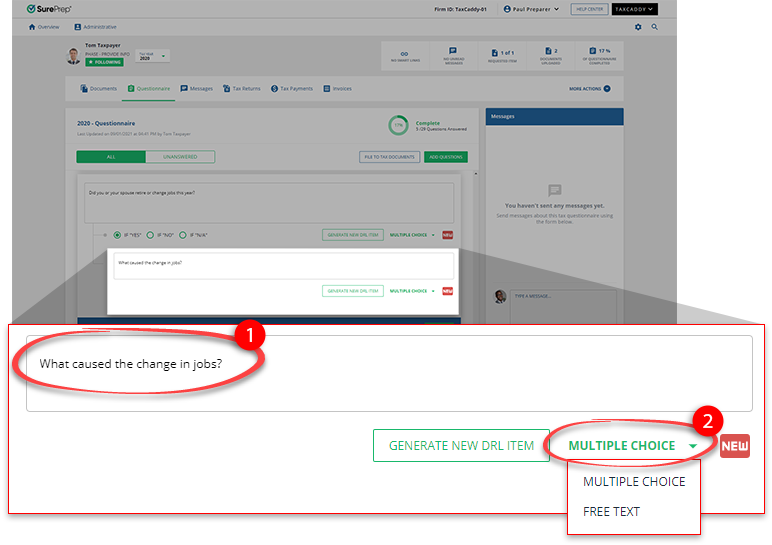
- Enter the follow-up question in the input field. Select whether or not it is a multiple-choice or free text question.
- SelectSAVEto continue.

Delete a follow-up question
Follow these steps to delete a follow-up question:
- Go to the question you want to delete.
- SelectDelete.
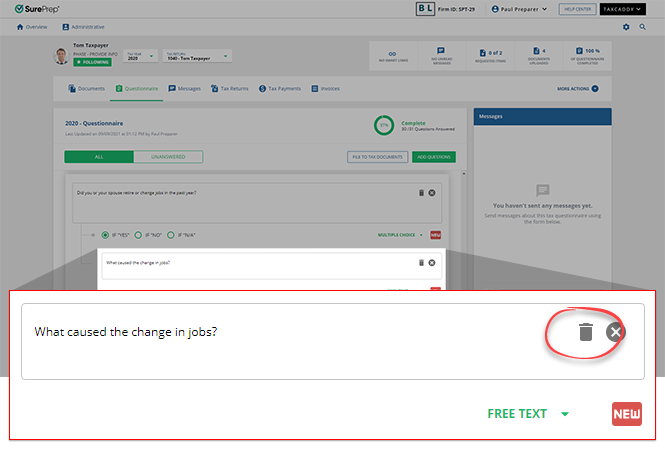 tipSelectDeletenext to the parent question to delete both the parent question and the follow-up question.
Taxpayer's experience
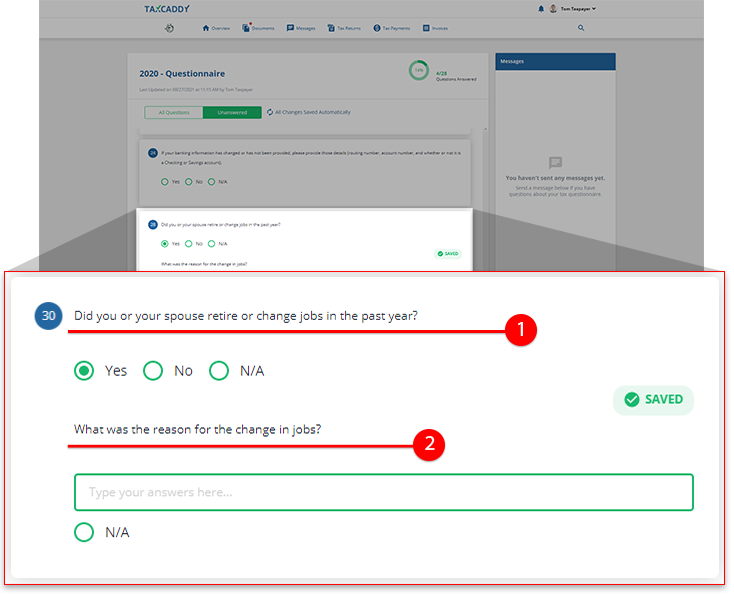
Questions with follow-ups appear as multiple-choice questions in the questionnaire.

Once your client provides an answer that triggers the follow-up question, it appears after the initial question.
Related Content
-
Adding questions to the questionnaire template
Format: Article
-
Adding questions to the questionnaire template
Format:
Article

