
Creating DRL from the questionnaire template
You have the option to automatically request a document based on your client's response to a specific question from the questionnaire template. When your client answers the question, a document request is created automatically in your client's profile. Creating DRL from questionnaire responses helps you avoid the process of manually requesting documents after reviewing your client's questionnaire.
Before you start
Your firm must first enable the Questionnaire DRL feature. After the feature is enabled, you can begin modifying the questionnaire template to set up DRL.
note
Updating the questionnaire template won’t retroactively update any existing questions in clients' profiles.
Creating DRL from questionnaire answers
Follow these steps to create Questionnaire DRL for your clients:
- Log in to TaxCaddy.
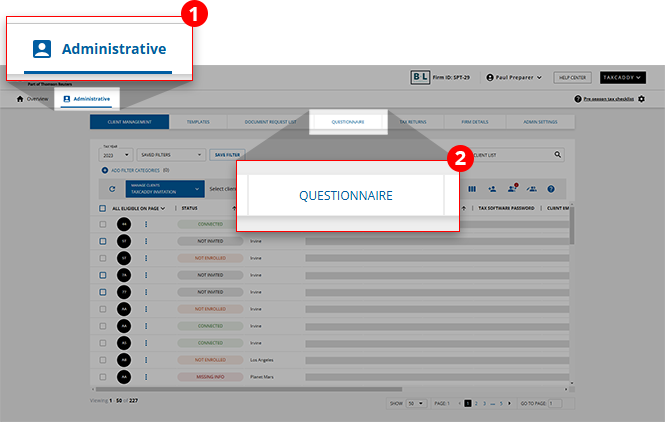
- SelectAdministrativethen selectQuestionnaire.
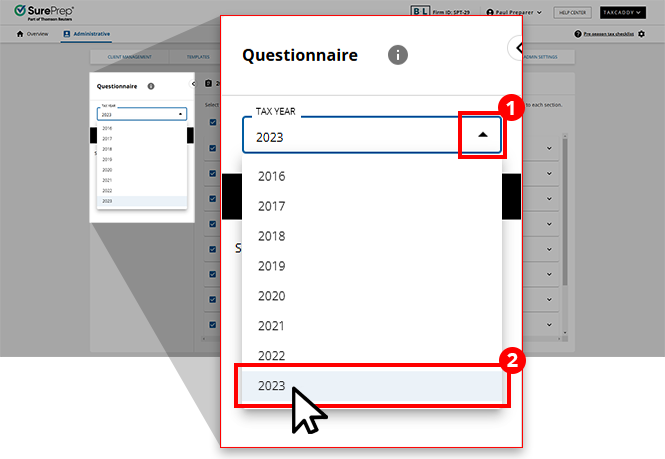
- Select the tax year for the questionnaire template.
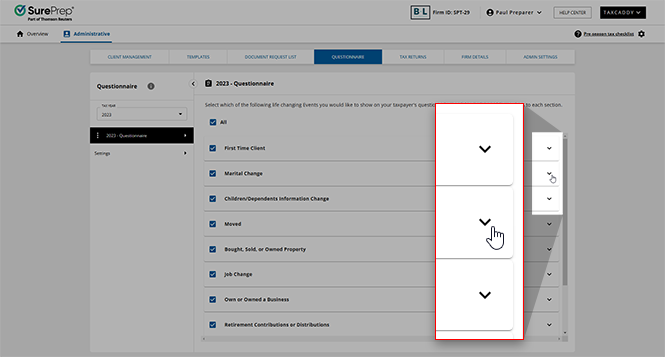
- Select theExpandicon to view questions in that life-changing event category.
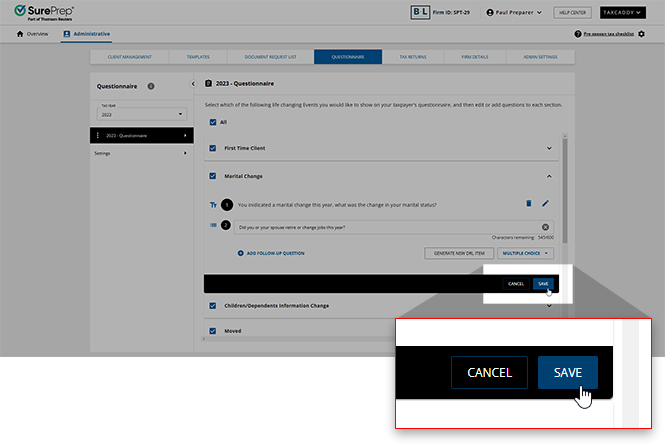
- SelectEdit
 to edit an existing question. You can also scroll to the end of the list, then select ADD NEW QUESTIONto add a new question.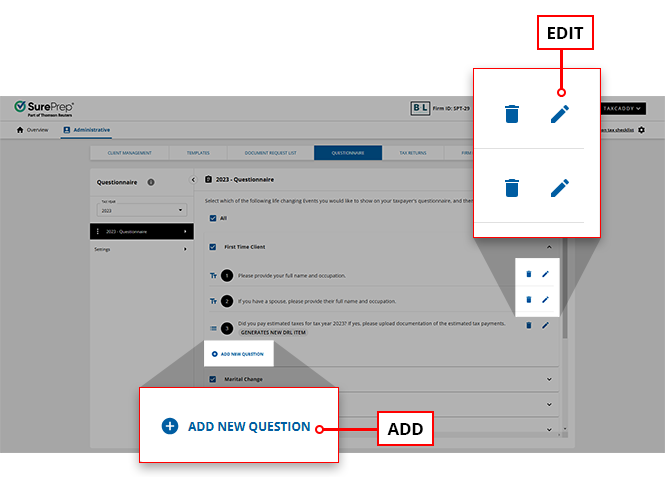
- SelectMULTIPLE CHOICEfrom the dropdown menu.
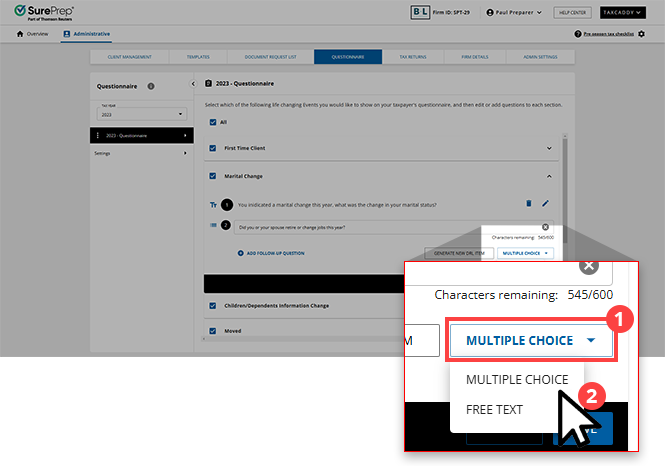 noteYou can only set up DRL for questions set up asMULTIPLE CHOICE. Rephrase your question in a way that will require a Yes or No response.
 - SelectGENERATE NEW DRL ITEM.
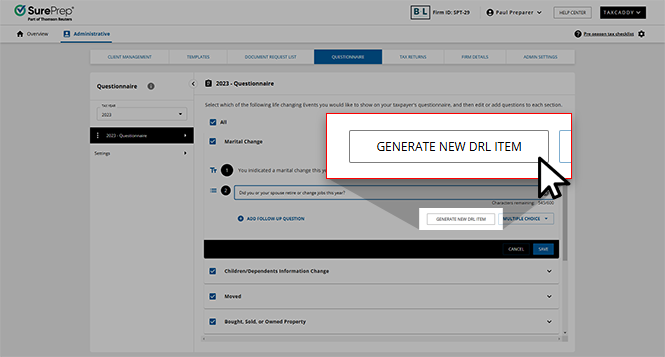
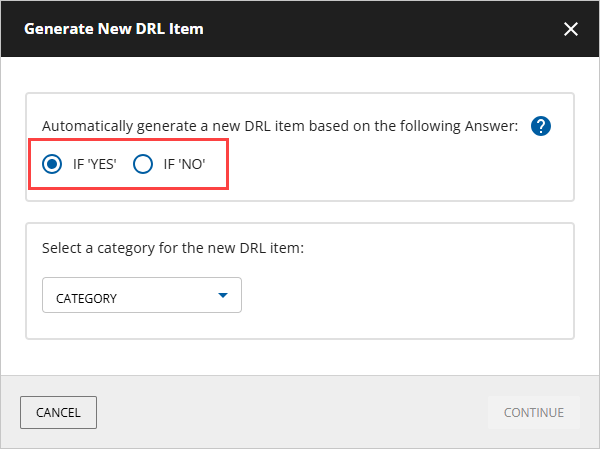
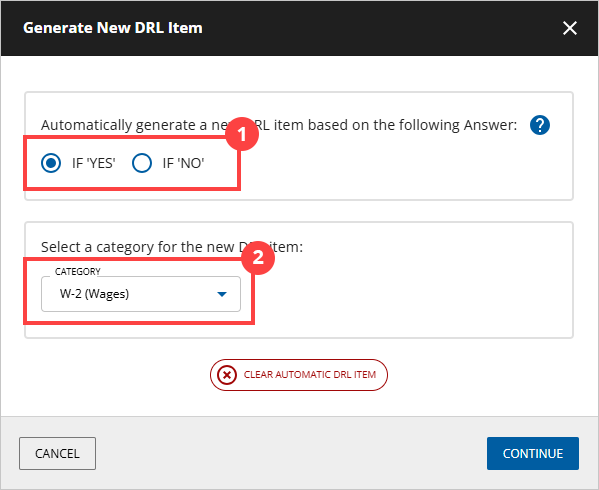
- SelectIF 'YES'to create a document request if your client selects"YES"as an answer.SelectIF 'NO'to create a document request if your client selects"NO"as an answer.
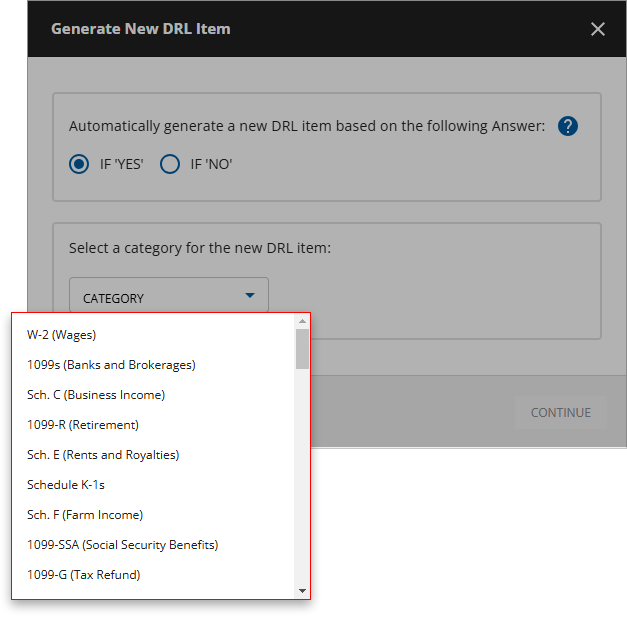
- Select aCATEGORYfrom the dropdown menu.
- SelectSAVE. Updating the questionnaire template won’t retroactively update any existing questions in clients' profiles.
- You will now see theGENERATES NEW DRL ITEMstatus.
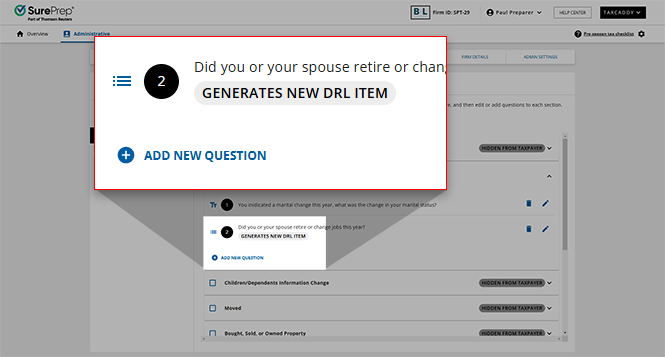
- Once a client provides their answer to a question that generates a DRL item, you will be able to see whether or not their answer will trigger the generation of the DRL item. If a DRL item will be created, then the associated question will have theDRL ITEM GENERATEDbadge.If a DRL item won’t be created, then the associated question will have the
 DRL ITEM NOT GENERATEDbadge.
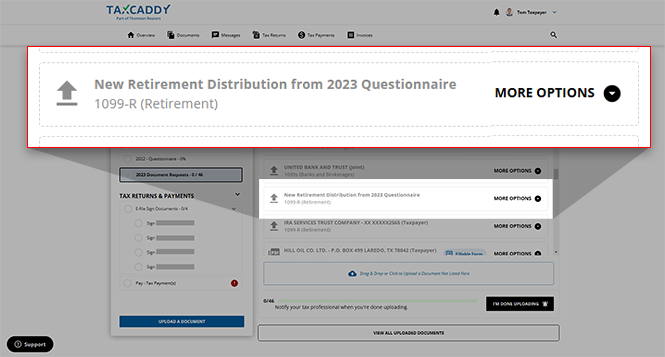
Sample
When your client answers the question with the selected "if" statement then a corresponding document request will automatically appear in the client's profile after a short buffer time.
Updating or removing the Questionnaire DRL
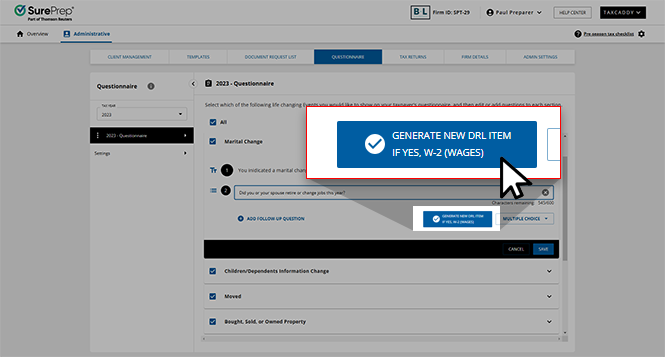
To update a question's document request, select the icon, then select
Edit
icon, then select GENERATE DRL ITEM
.
Select a new
CATEGORY
or change the "IF"
statement, then select CONTINUE
.
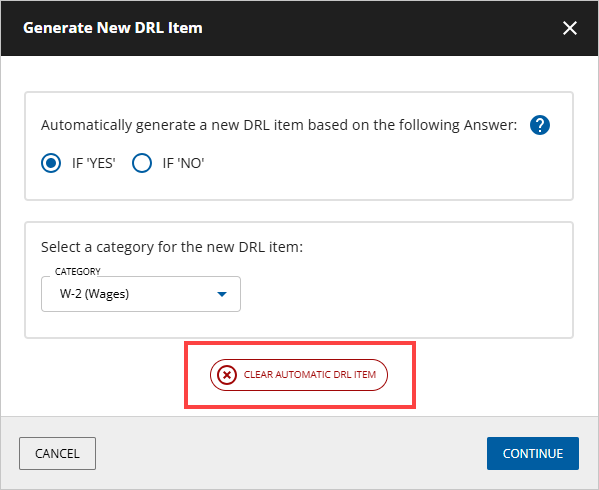
To remove an automatic document request from a questionnaire, select
CLEAR AUTOMATIC DRL ITEM
.
Related Content
-
Adding questions to the questionnaire template
Format: Article

