
Undo an action (delete, doesn't apply, already provided)
If you, another tax professional from your firm, or your client accidentally delete a document or indicate that a requested item doesn’t apply or was already provided, you can undo the action at any time.
note
Your client also has the ability to undo actions.
Follow these steps to undo an action.
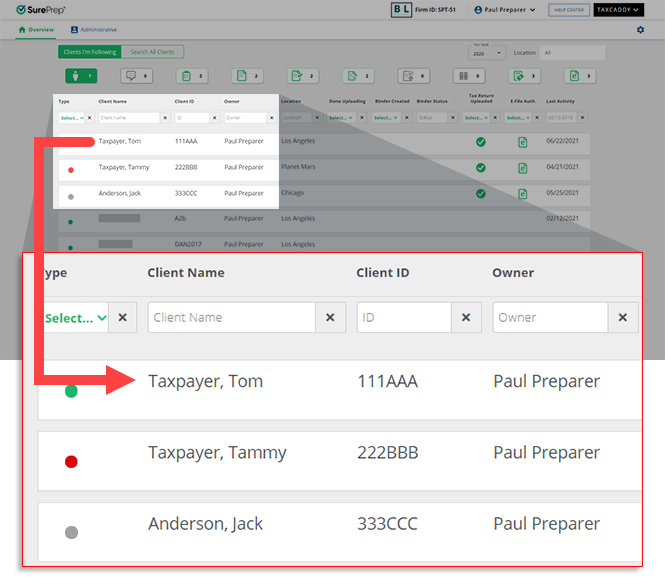
- Sign in to TaxCaddy and go to a client profile by selecting a client tile on theOverviewscreen.
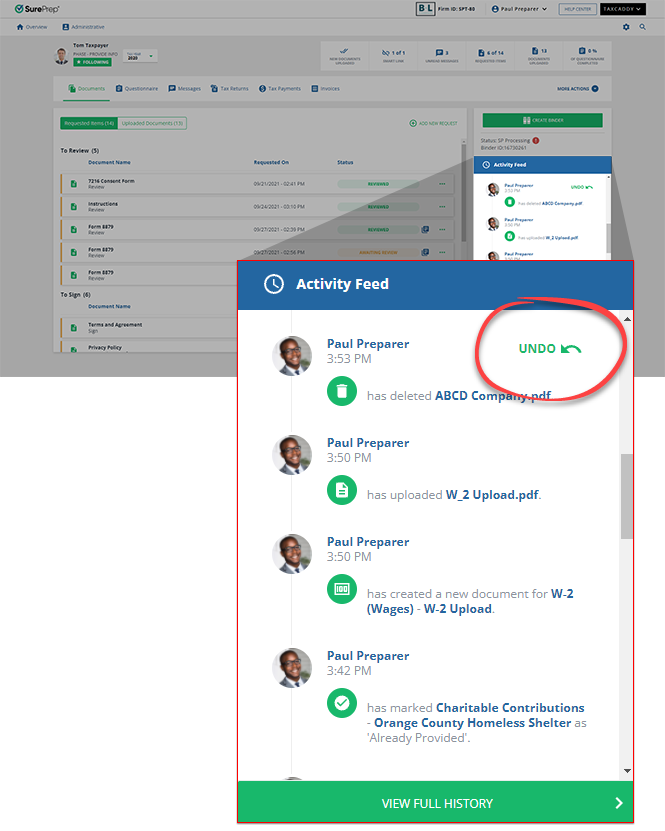
- UnderActivity Feed, point to the action you want to undo, then selectUNDO.tipIf you need to undo an action that was not recent, selectView Full Historyto see the complete history of actions on the account.
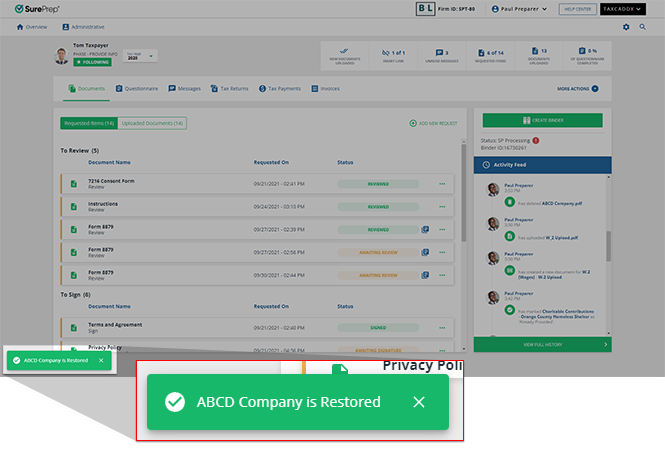
- TaxCaddy confirms the document or request was restored.
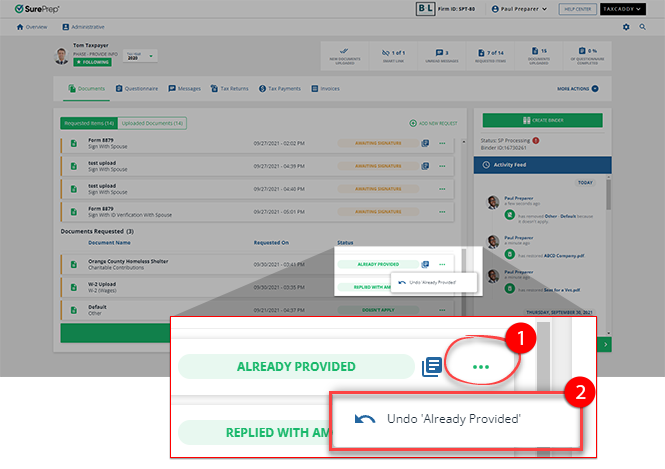
 You can also undoDoesn't ApplyorAlready Providedwhen you select theMenu
 icon on a Requested Item, then selectUndo 'Does not Apply'orUndo 'Already Provided'.
Related Content
-
Delete documents
Format: Article

