
Select and zoom
The select and zoom options let you scroll, select text, and zoom the document.
You can use the select and zoom options on the
Home
and Comments
tabs.Home
tab.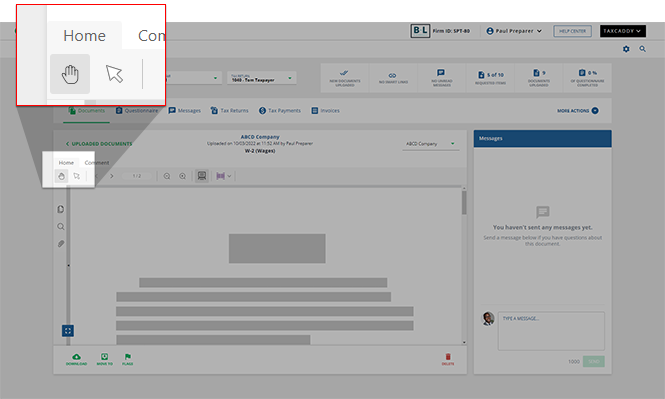
On the
Comment
tab, select and zoom gives you the same features available on the Home
tab. You can scroll the document, select text, and zoom.note
The
Comment
tab only appears when viewing tax returns, tax payments, and uploaded documents in the Document Viewer panel.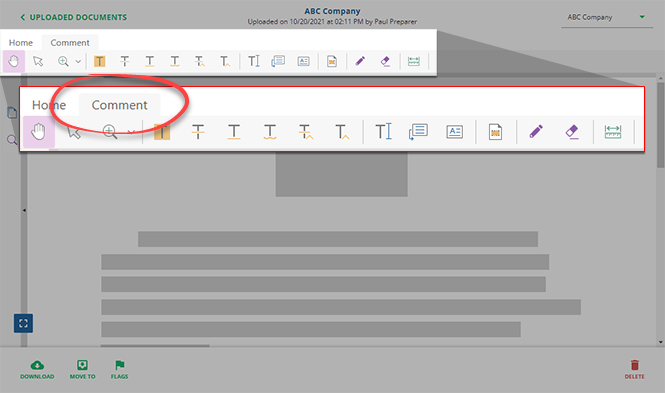
Select
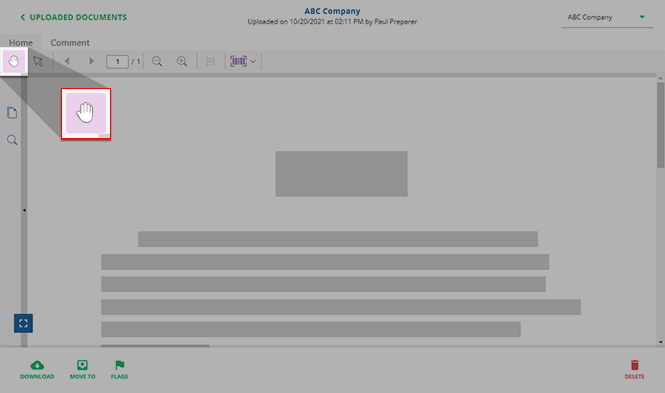
Use  to scroll through a document. Select and hold
  , then drag to move around the document.
Select
to scroll through a document. Select and hold , then drag to move around the document.note
You can also use the scroll wheel on your mouse to scroll through the document.
Zoom
Zoom lets you magnify in and out of the document. Changing the document view makes it easier to read and move through the document.
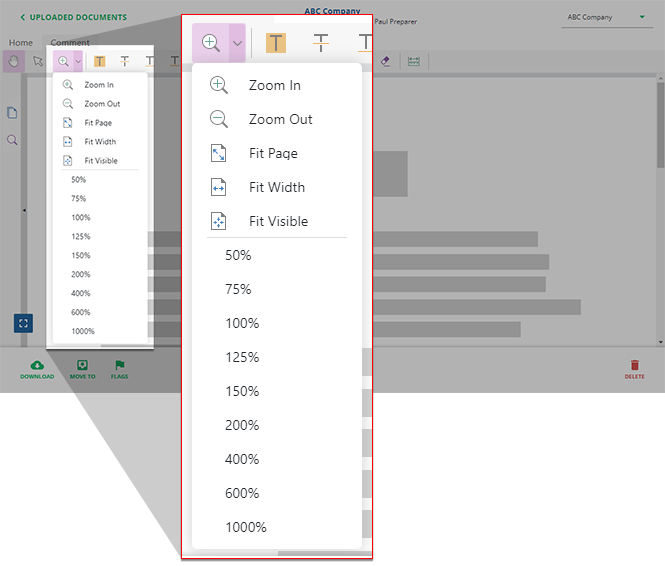
Icon | Description |
|---|---|
 | Magnifies the document to get a close-up view of your file. |
 | Shows more of the page at a reduced size. |
 | Shows the entire document in the Document Viewer panel. The document view will be reduced vertically and horizontally to fit inside the document viewer. This option lets you view the entire document. |
 | Fits the document to the full available width. The document will be magnified to utilize the entire width of the Document Viewer panel. |
% | Magnifies to a particular zoom setting. |
Related Content
-
Document Viewer (PDF Viewer)
Format: Article

