
Assign member engagement permissions to user groups
Follow these steps to configure permissions related to the Assigned Members Only feature:
note
You'll need to enable the Assigned Members Only feature before assigning related permissions.
- SelectFileRoom,Admin,Users, thenUser Group Management.

- SelectEdit
 next to the group you want to assign permissions.
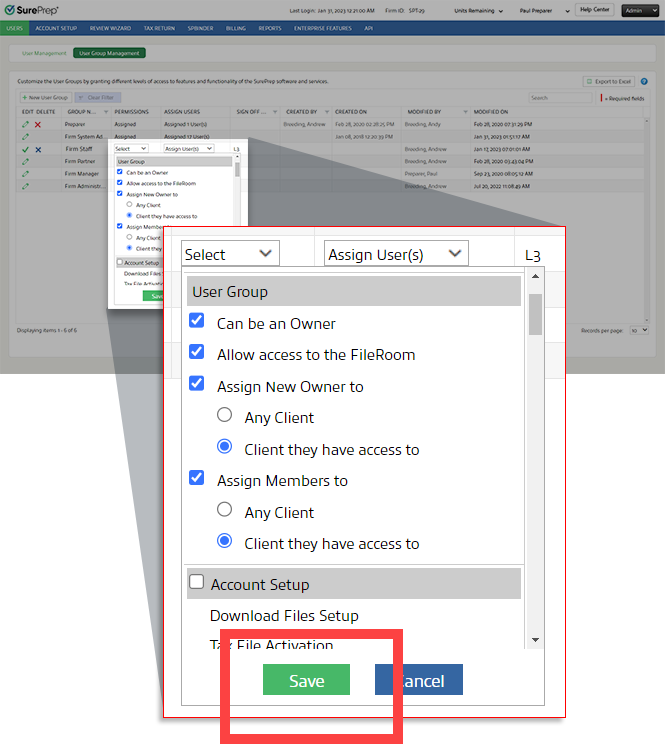
 - On thePermissionscolumn, go to theFirm Staffdropdown and selectSelectto open the permissions menu.

- Under User Groups, select the permissions to assign to this user group.PermissionDescriptionCan be an OwnerAllows user to be selected as an owner of a client.Determines whether users assigned to this group should appear in the Owner dropdown inClient Management.Allow access to the FileRoomAllows access to both FileRoom and PBFX. This permission is selected by default.Assign New Owner toAllows users assigned to this group to assign a new owner to a client using the Owner drop-down on theClient Managementscreen.Select from the following options:
- Any Client- Users can assign a new owner to any client in the firm.
- Client they have access to- Users can only assign new owners if they have access to the client (via Assigned Members, Office Location, or 7216 Consent).
Assign Members toAllows users assigned to this group to add or remove members to a Member Engagement Team in a client’s profile.Select from the following options:- Any Client- Users can add or remove members from any client in the firm.
- Client they have access to- Users can only assign new owners if they have access to the client (via Assigned Members, Office Location, or 7216 Consent).
- SelectSaveto save changes to the Permissions settings.
- Select theSaveicon
 to save all changes to the group.

