
Tax file activation
Follow these steps to set up SurePrep FileRoom integration for exporting data from SurePrep to your tax software.
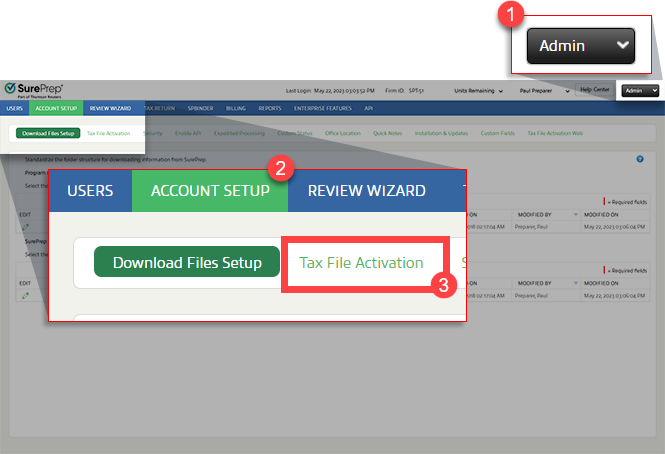
- SelectFileRoom,Admin,Account Setup, thenTax File Activation.
- Open the PBFX file once it completes downloading.
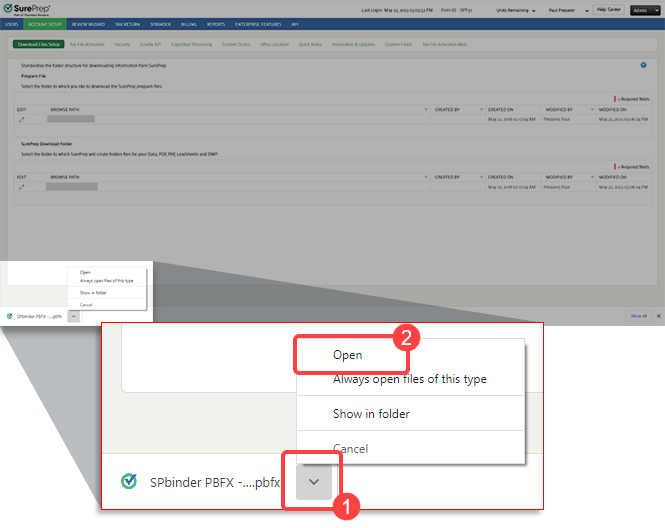 noteThe download window might look different based on your browser. In Chrome and Edge, you can selectAlways open files of this typeto open the PBFX file automatically the next time you need to create a binder or update yourTax File Activationsettings.
 - When theTax File Activationwindow appears, select the tab for your tax software.
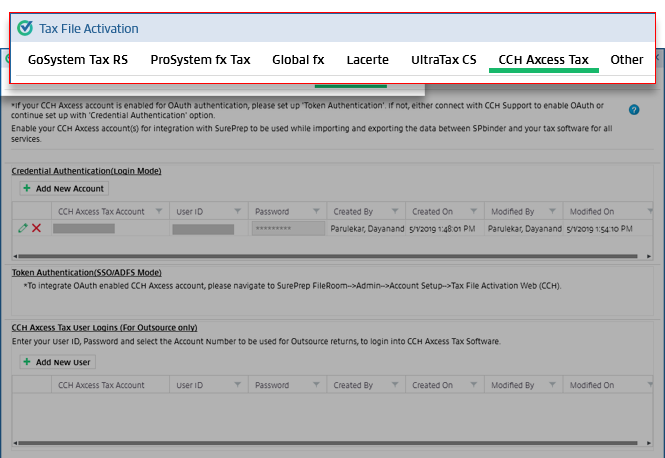 noteOnly SurePrep-supported tax software used by your firm appears in this window. SurePrep only supports GoSystem Tax RS, Lacerte, UltraTax, and CCH Axcess Tax. If your firm uses software other than those supported by SurePrep, select theOthertab.
 - Select the following links to select instructions for your tax software:
- CCH Axcess Tax
- GoSystem Tax RS
- Lacerte
- UltraTax CS or UltraTax (Virtual Office CS)
- Other
After you add the tax software information, selectXto close the window.
Related Content
-
A quick tour (begin here)
Format: Article

