
Bulk create and update users
Use the Bulk Edit feature in Account Admin to create multiple new firm users or edit existing firm users in bulk.
If you prefer to create firm users directly in FileRoom, refer to Create new users individually.
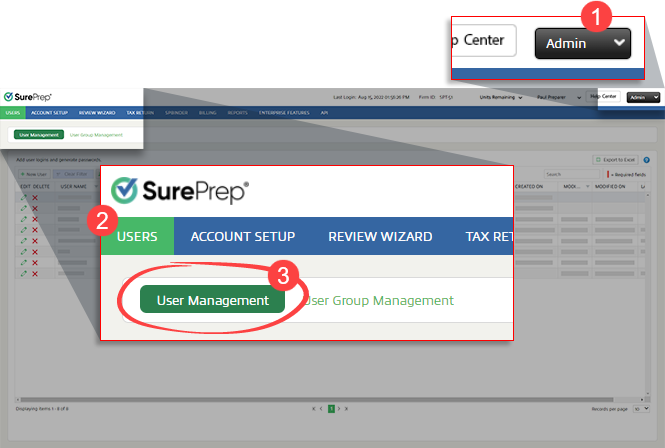
- In FileRoom, go to .
- SelectBulk Importto create new firm users, or selectBulk Editto edit existing firm users.
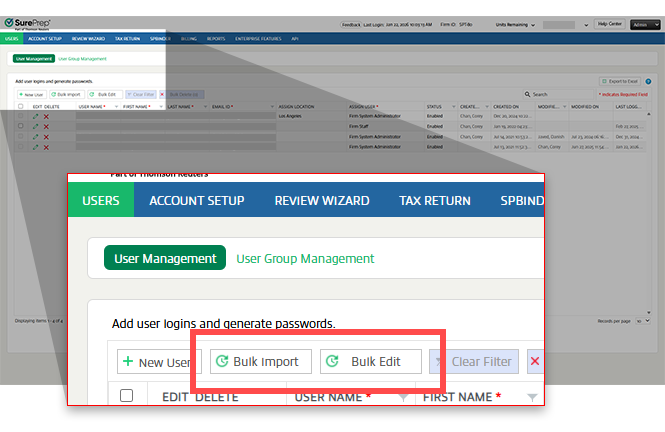
- In theorBulk Editwindow, download an Excel template file:Bulk Import
- SelectDownload Templateto get a template that includes all users in the domain, regardless of any filters applied to the grid.
- In theBulk Editwindow, selectDownload Filtered Templateto get a template that includes only the users that match the filters applied to the grid.
- Fill out the template file. To create new users, enter each user’s username, first name, last name, email address, and user group. To edit existing users, enter the updated information.note
- Complete all mandatory fields. The template marks them with an asterisk (*) in the column header. The system doesn't process submissions with missing required information.
- Enter a unique username and email ID for each user.
- To add multiple office locations or user groups, separate each entry with a comma.
- When you finish the template, return to theBulk EditorBulk Importwindow, selectBrowseto choose your file, then selectUpload.
- After the system processes the file, selectDownloadto get a list of the user accounts it could not create, if any.
Related Content
-
User Management overview
Format: Article

