
Bulk create and update users
Create and update users' information in bulk
You can use the
Bulk Edit
feature in Account Admin
to create multiple new firm users and edit existing firm users in bulk.tip
Those who would prefer to create firm users directly in FileRoom can refer to the
Create new users individually
article in the Related Content
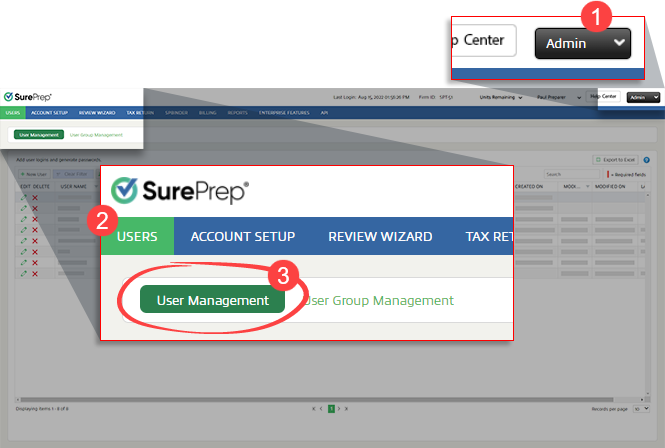
section of this article.- Go toFileRoom,Admin,Users, thenUser Management.
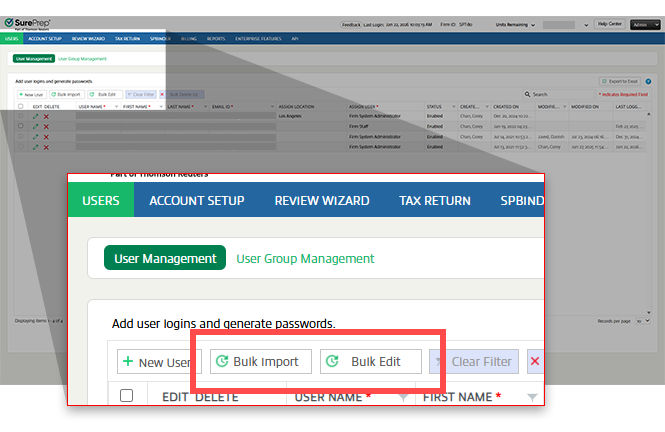
- SelectBulk Importto create new firm users or selectBulk Editto edit existing firm users.
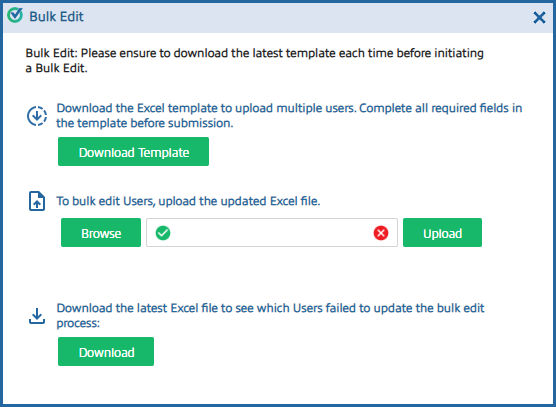
- On theorBulk Editwindow, selectBulk ImportDownload Templateto download an Excel template file.
- To bulk create or bulk edit new users, fill out the template file and enter a new username, first name, last name, email address, and user group.note
- Mandatory fields marked with an asterisk (*) must be accurately completed before submission. Submissions with missing required information will not be processed.
- Username & Email ID must be unique.
- For multiple office locations & user group additions, separate each entry with a comma.
- When you are ready to bulk-create users, go back to theBulk Editwindow, selectBrowse, then selectUpload.
- After the file is processed, you can selectDownloadto see which user accounts failed to be created, if applicable.
Related Content
-
User Management overview
Format: Article
-
Create new users individually
Format:
Article

