Change your password
Show all hidden content
Follow these steps to change your TaxCaddy account password.
tip
If you are unable to log into your TaxCaddy account because you forgot your password, you can reset your forgotten password.
TaxCaddy.com on PC, Mac, or tablet
Follow these steps to update your password using TaxCaddy.com on your PC, Mac, or tablet.
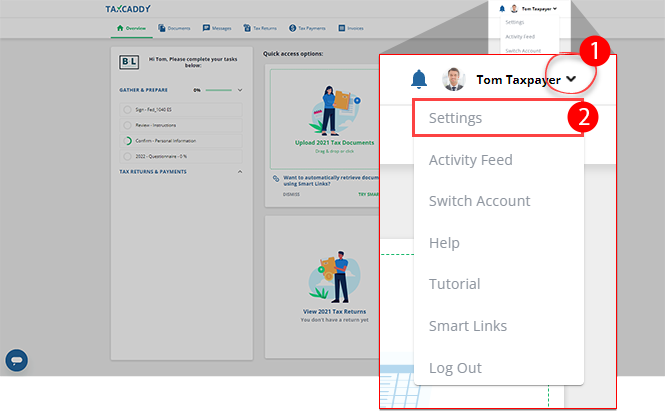
- Sign in to TaxCaddy.com.
- Select theUser Menu, thenSettings.
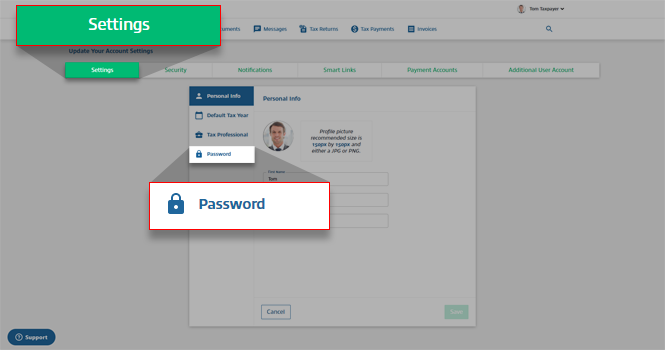
- On theSettingstab, selectPassword.
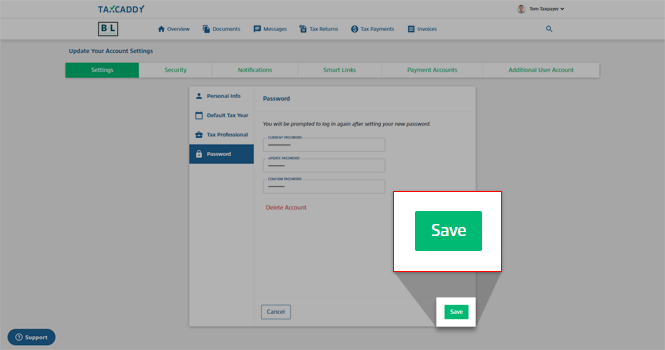
- Enter your current password in theCURRENT PASSWORDfield. Enter a new password inUPDATE PASSWORD, then enter the new password again inCONFIRM PASSWORD.
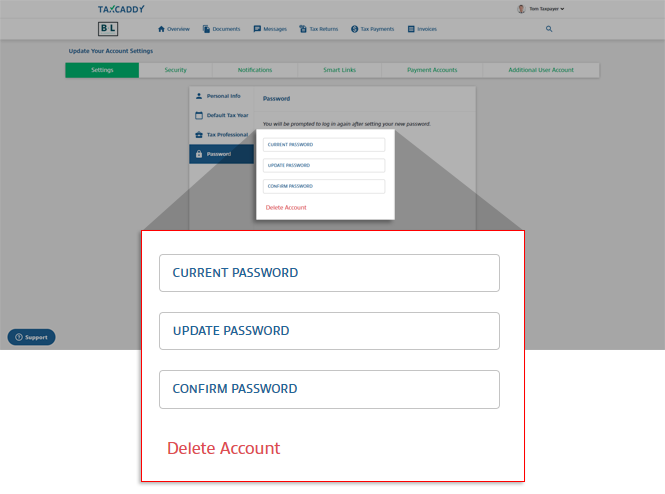
- SelectSave.
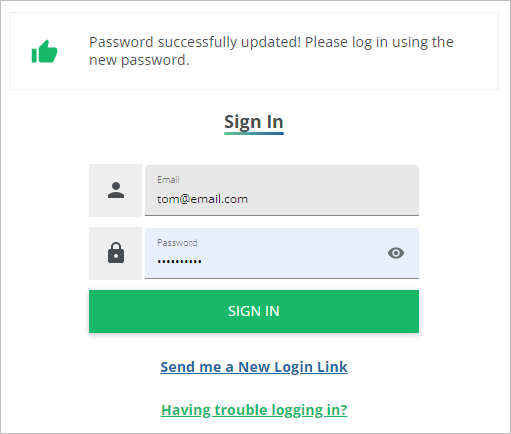
- Your password is updated. TaxCaddy will prompt you to sign in again using the new password.
iOS mobile app
Follow these steps to update your password using the iPhone mobile phone app.
- Sign in to the TaxCaddy mobile app.
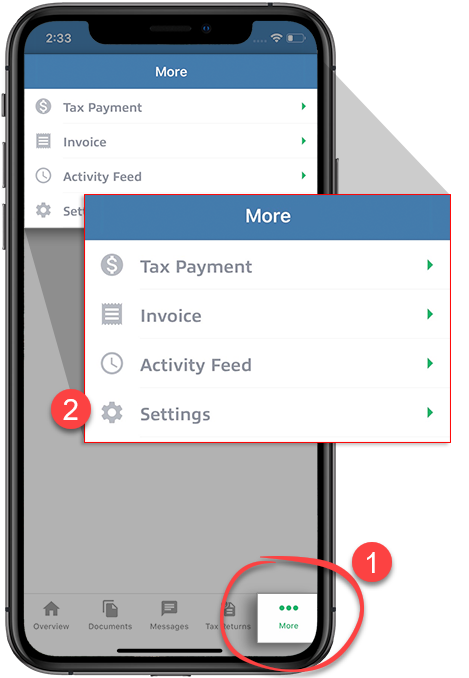
- SelectMoreon the navigation tab bar, thenSettings.
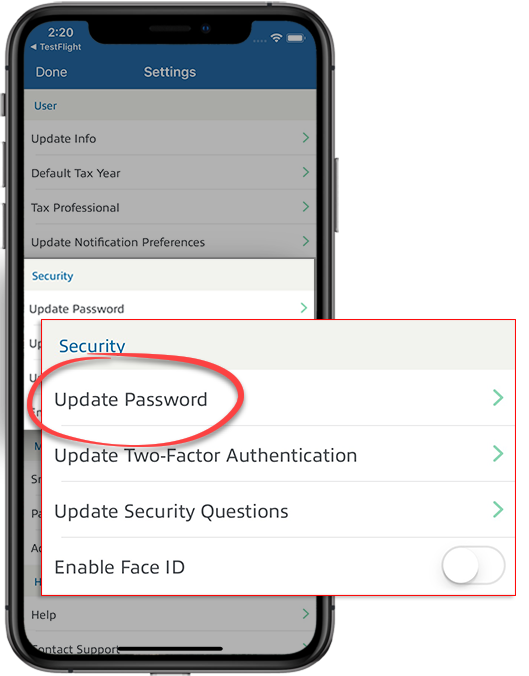
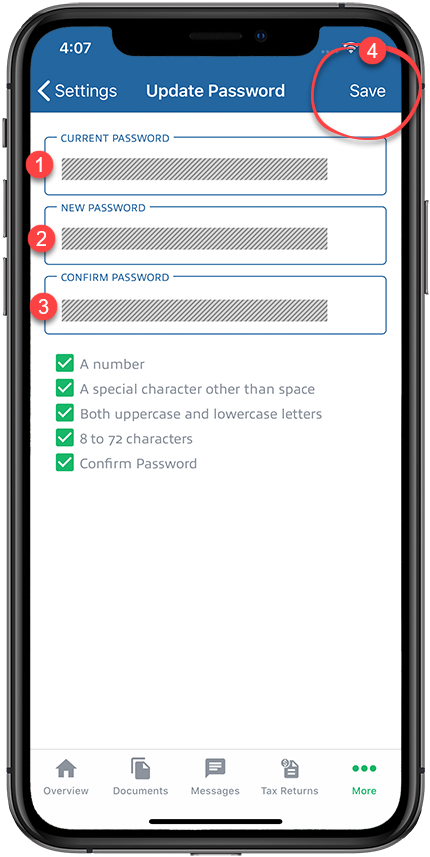
- SelectUpdate Password.
- SelectCurrent Passwordand enter your current password.SelectNew Passwordand enter a new password.SelectConfirm Passwordand enter your new password again. When finished, selectSave.
Android mobile app
Follow these steps to update your password using the Android mobile phone app.
- Sign in to the TaxCaddy mobile app.
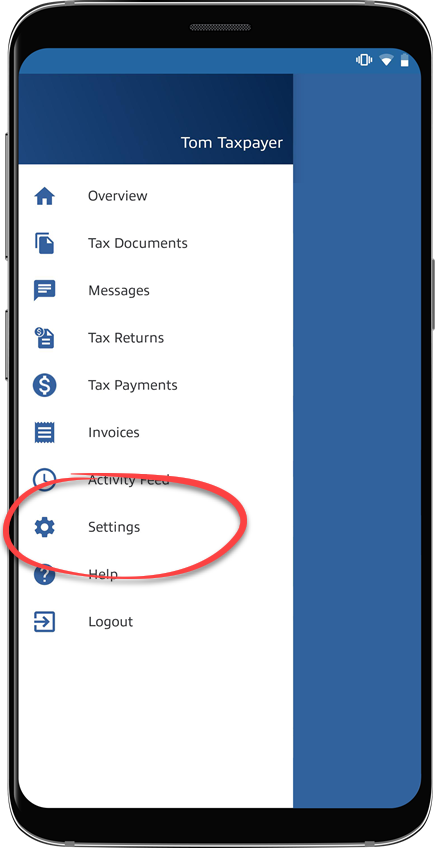
- SelectMenu.

- SelectSettings.
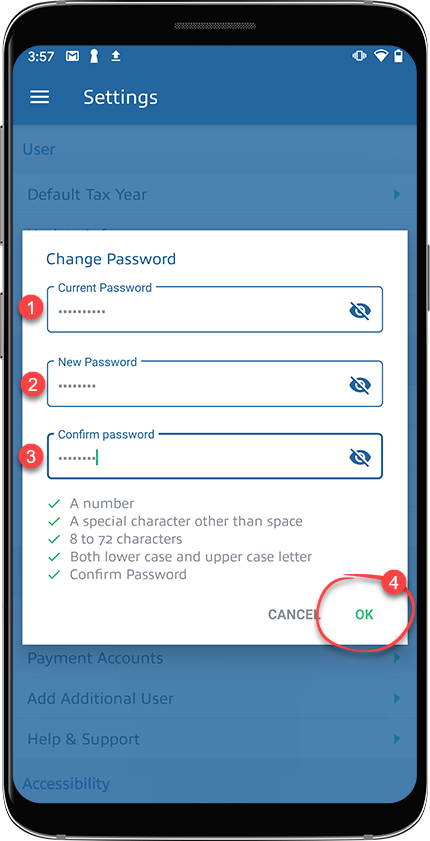
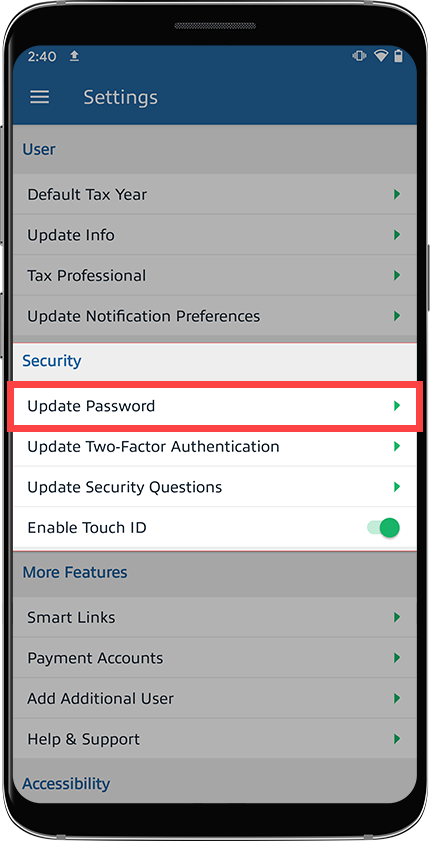
- SelectUpdate Password.
- SelectCurrent Passwordand enter your current password.SelectNew Passwordand enter a new password.SelectConfirm Passwordand enter your new password again. When finished, selectOK.