I can't sign in to TaxCaddy
Show all hidden content
Follow these steps to reset your password if you're having trouble signing in to your TaxCaddy account.
note
After following these instructions, if you're still having difficulty signing in or resetting your password, contact the TaxCaddy Support team for further assistance.
TaxCaddy.com on PC, Mac, or tablet
Follow these steps to reset your password using TaxCaddy.com on your PC, Mac, or tablet.
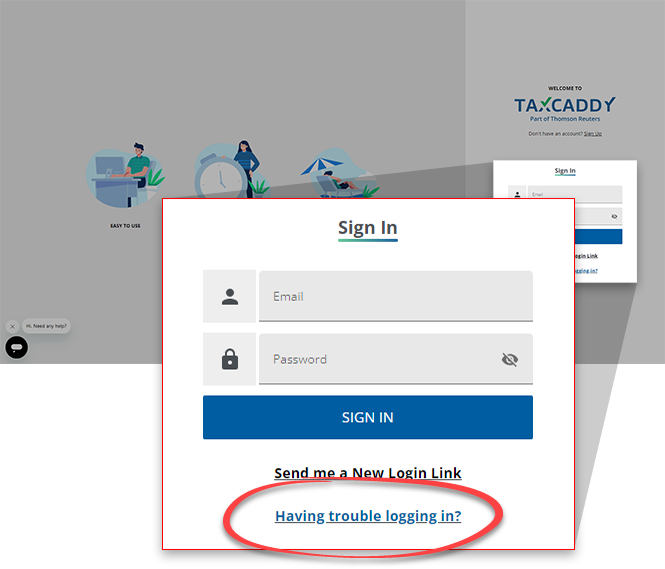
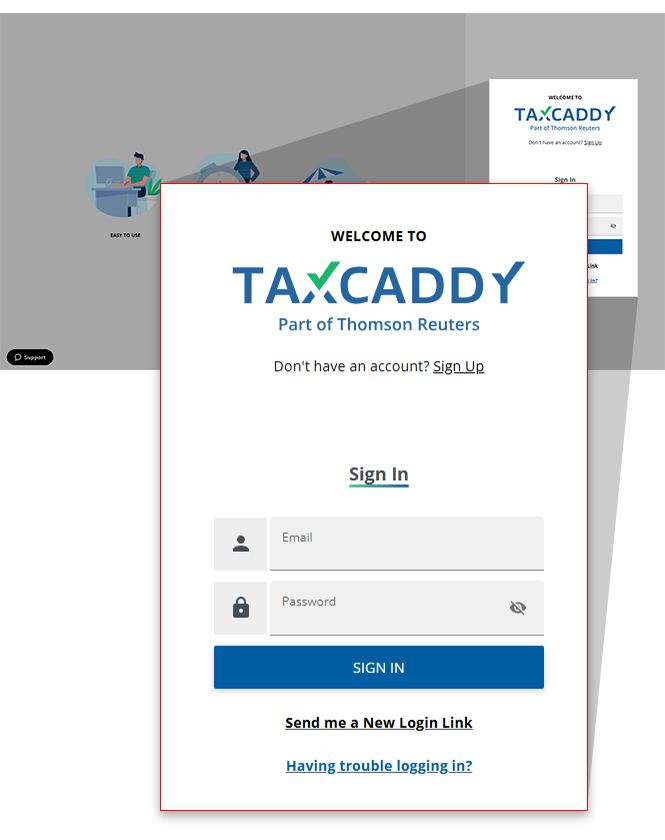
- SelectHaving trouble logging in?.
 If you access TaxCaddy through an email from your tax professional that has now expired, or you can no longer find this invitation link, selectSend me a New Login Link.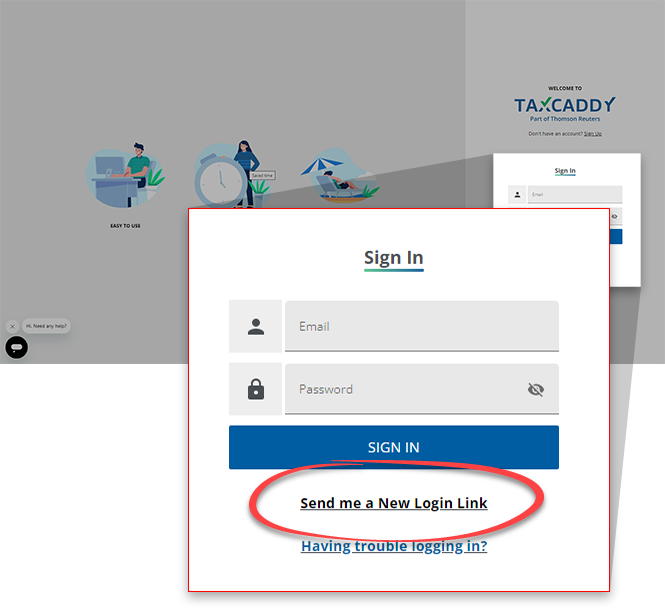
- Enter your email address in the input field, then selectSend.noteThe email address must be associated with your TaxCaddy account.
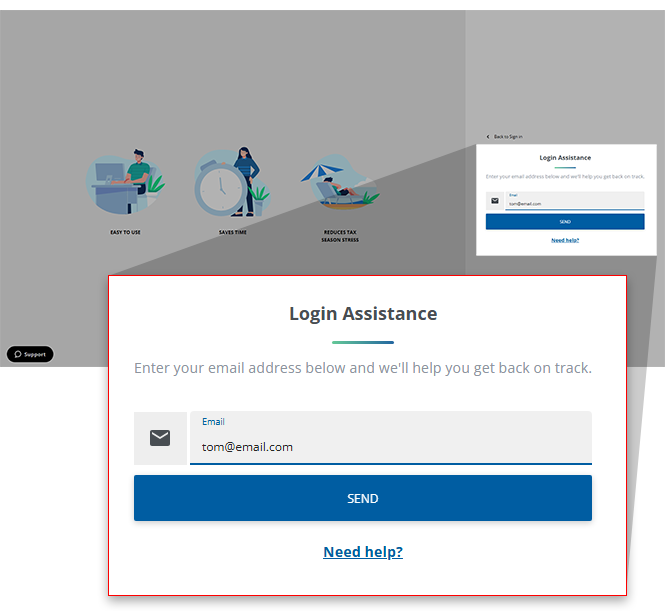
- TaxCaddy confirms if an account exists for that email.
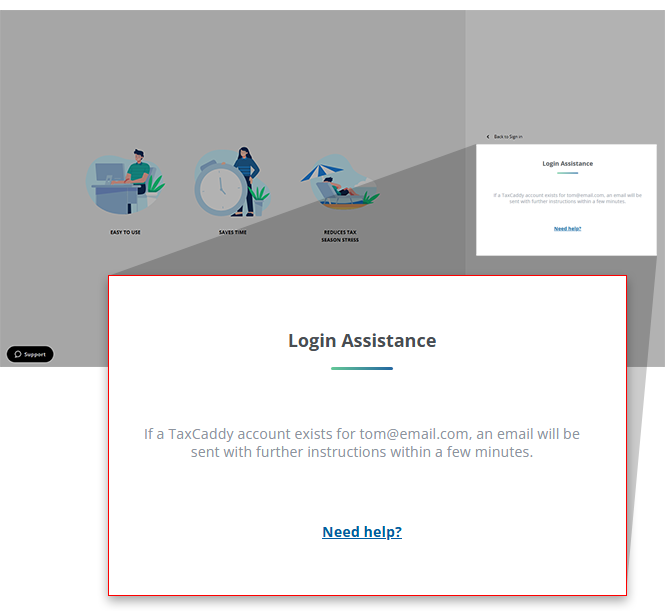
- If you set up a password for your account, TaxCaddy will send you an email to reset your password. Select the link in the email to reset your password before it expires in 30 days. Open your email with the subject line "Reset your TaxCaddy" then selectReset Password.Skip to the next step if you signed in to TaxCaddy without a password using the link sent to your email address.
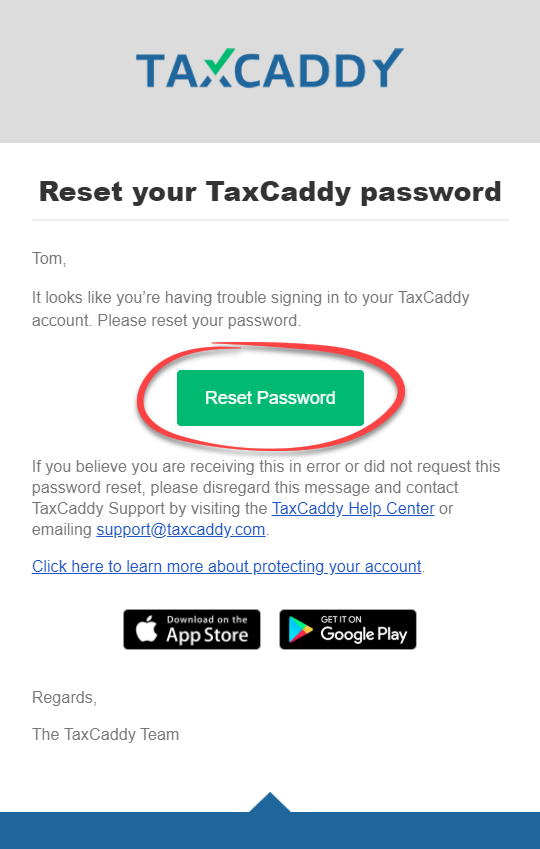 noteResetting a password successfully unlocks an account that has been temporarily locked out due to failed sign in attempts.
 - If you have not set up a password for your TaxCaddy account and signed in to TaxCaddy using the link sent to your email with a temporary SMS verification code sent to your phone, then you will be sent a new email that will let you sign in again for the next 2 weeks.
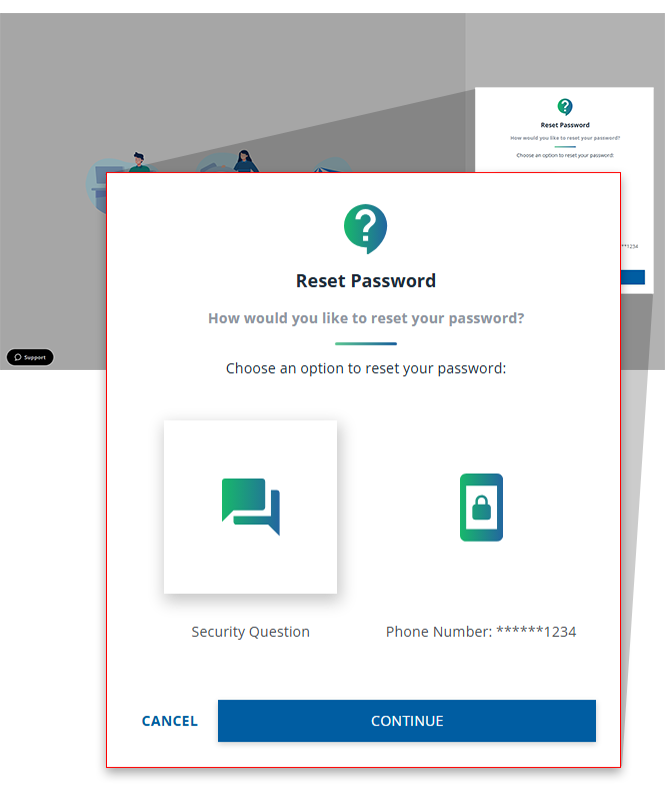
- Skip to the next step if you don't see the following options. You may get an option to select either security questions or a mobile phone (recommended) to reset your password. Select an option, thenCONTINUE.noteYou have a maximum of 3 attempts to reset your password. If you exceed 3 attempts, you won’t be able to reset your password. You'll have to request TaxCaddy Support to reset your password manually.
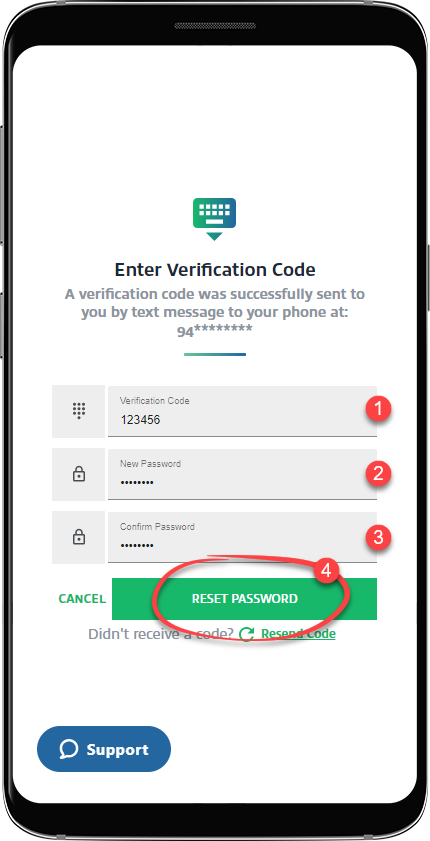
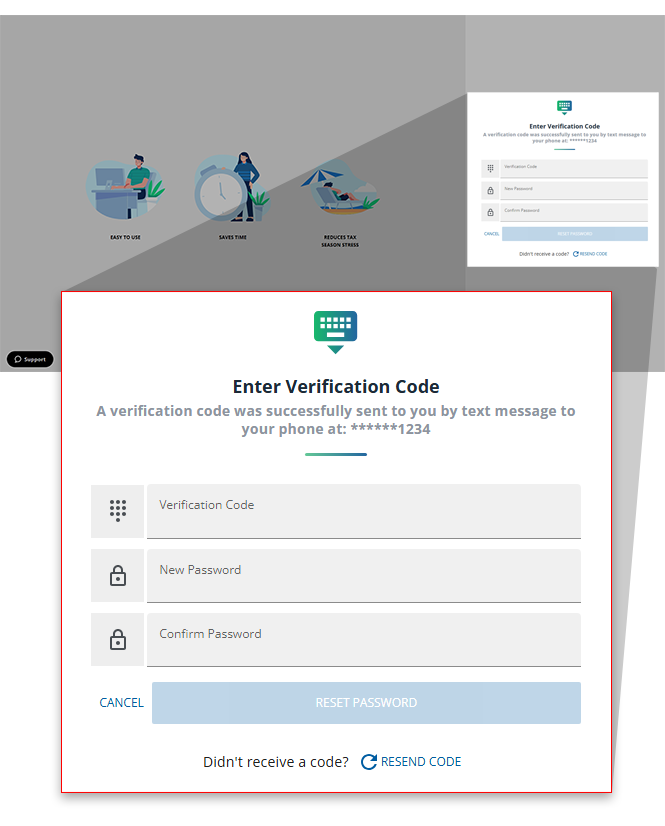
- If you see theEnter Verification Codeoption, provide the verification code texted to your phone number, enter a new password in theNew Passwordfield, then enter the password again inConfirm Password. SelectRESET PASSWORDto reset your password.
 If you choose to use your security question, enter the answer to the security question inAnswer, enter a new password inNew Password, then enter the password again inConfirm Password. SelectRESET PASSWORDto reset your password.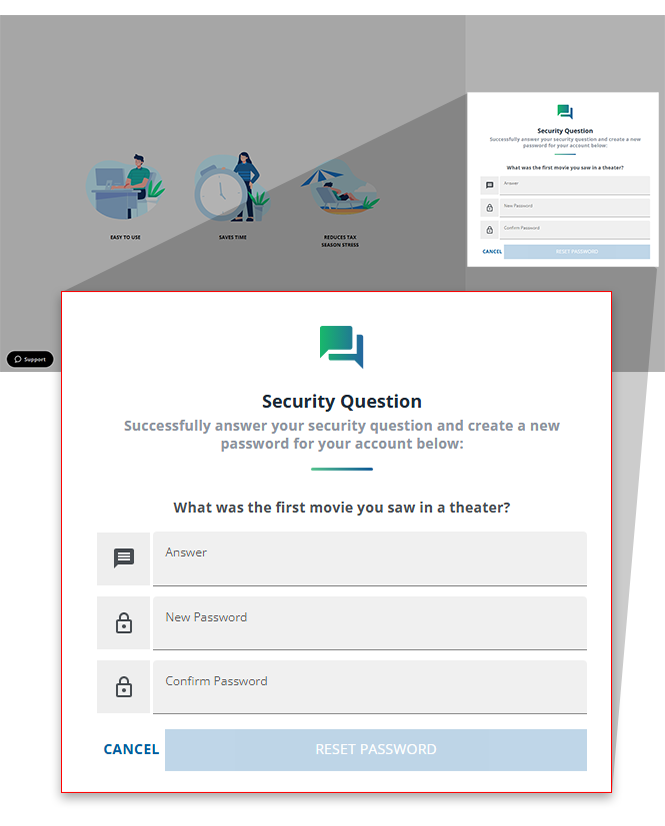
- Sign in to TaxCaddy using the new password.

iOS mobile app
Follow these steps to reset your password using the iPhone mobile phone app.
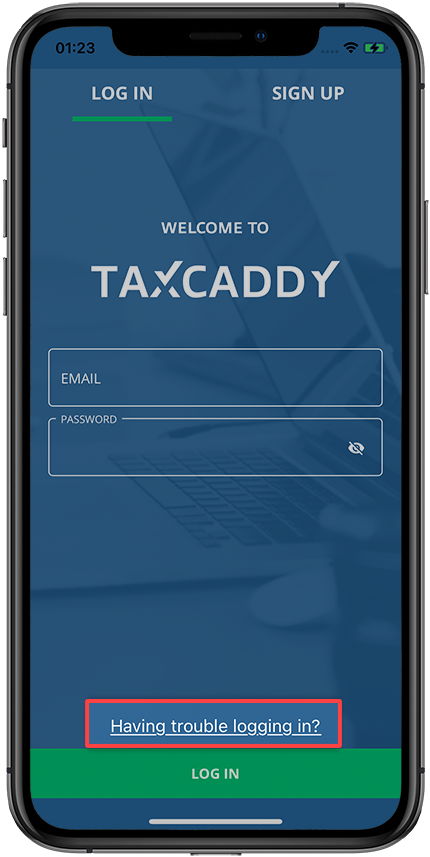
- Open the TaxCaddy mobile app and selectHaving trouble logging in?
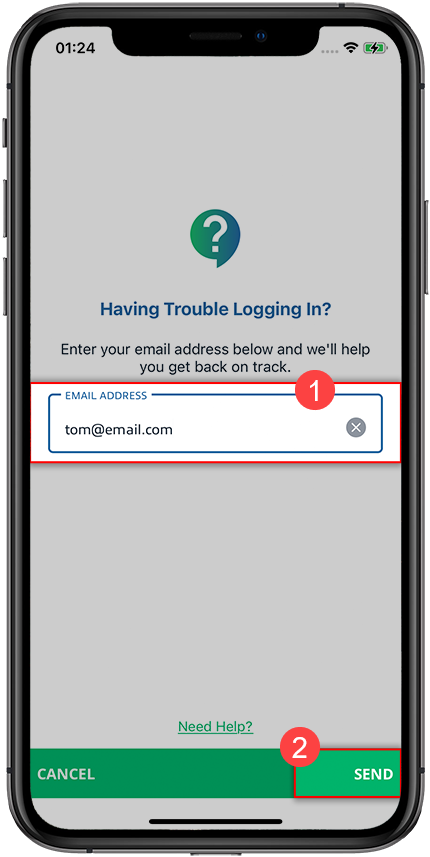
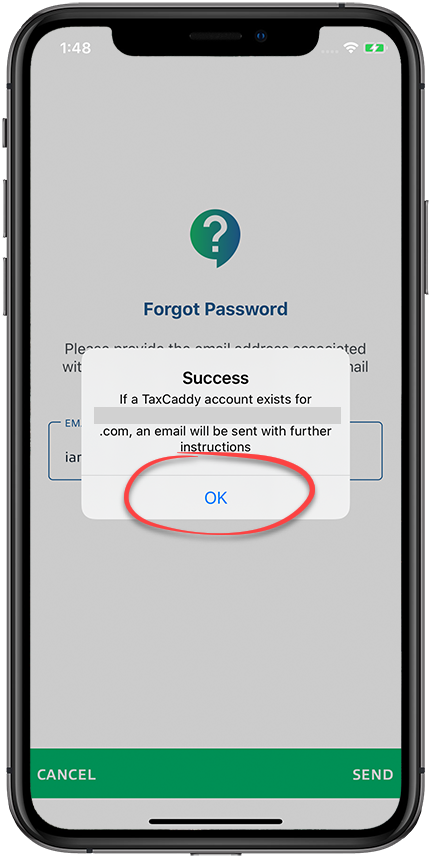
- Enter the email you use with your account and selectSEND.
- SelectOK.
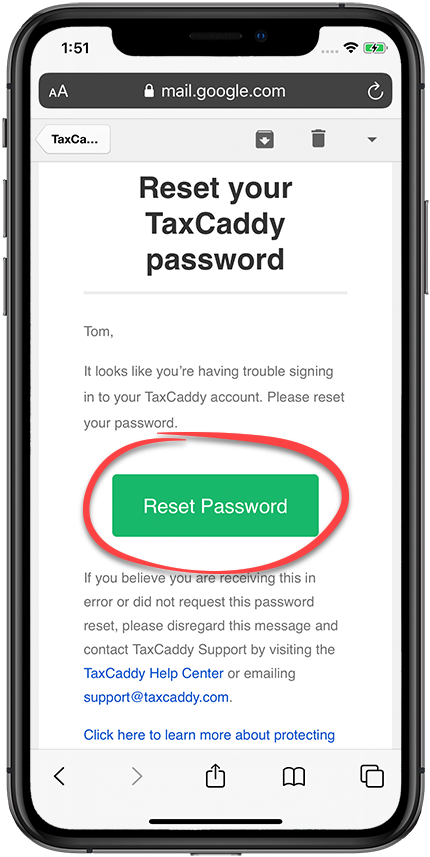
- Follow the link in the email sent to you to reset your password before it expires in 30 days. SelectReset Password.noteResetting a password unlocks an account that has been temporarily locked out due to failed sign in attempts.
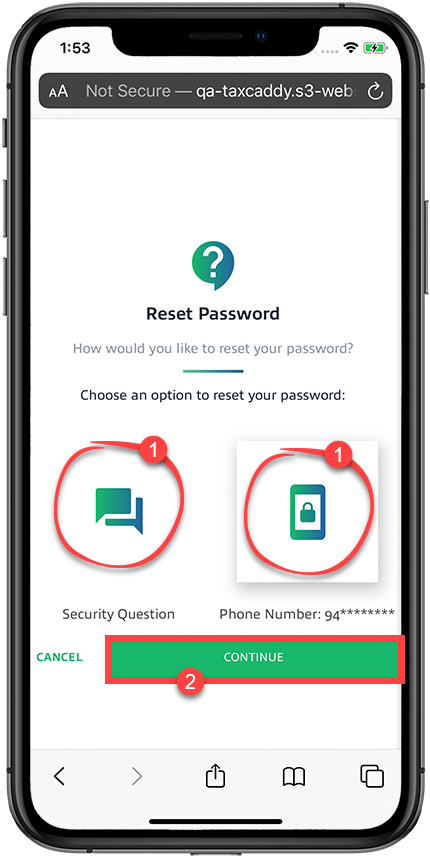
- Skip to the next step if you don't see the following options. You may get an option to select either security questions or a mobile phone (recommended) to reset your password. Select your option, thenCONTINUE.noteYou have a maximum of 3 attempts to reset your password. If you exceed 3 attempts, you won’t be able to reset your password. You have to request TaxCaddy Support to reset your password manually.
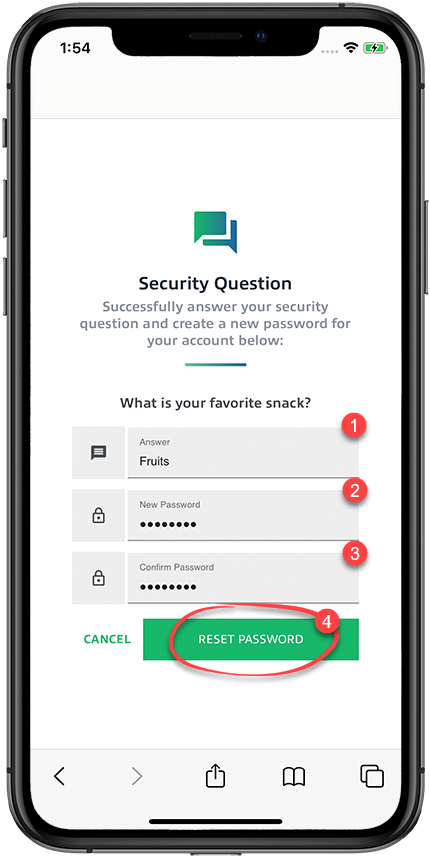
- If you selectedSecurity Question, answer your security question, enter a new password, then selectRESET PASSWORD.noteIf you can't answer your security questions, contact Support or email taxcaddy.support@thomsonreuters.com.
 If you selected to verify your account through phone number, enter the verification code sent to your mobile phone, enter a new password, then selectRESET PASSWORD.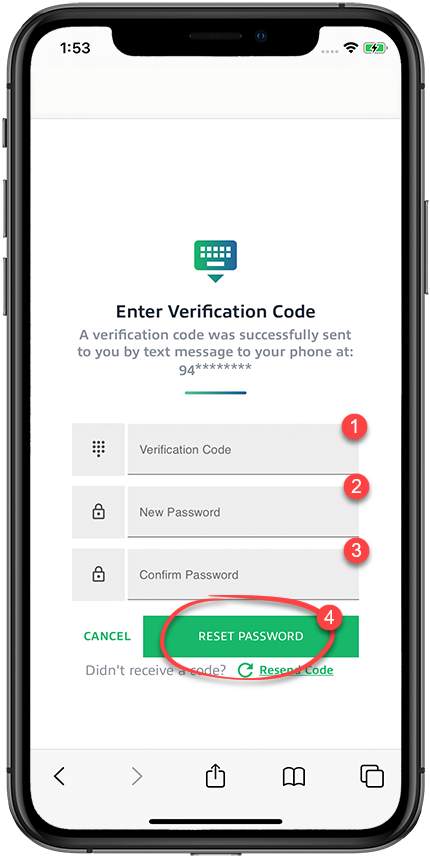
Android mobile app
Follow these steps to reset your password using the Android mobile phone app.
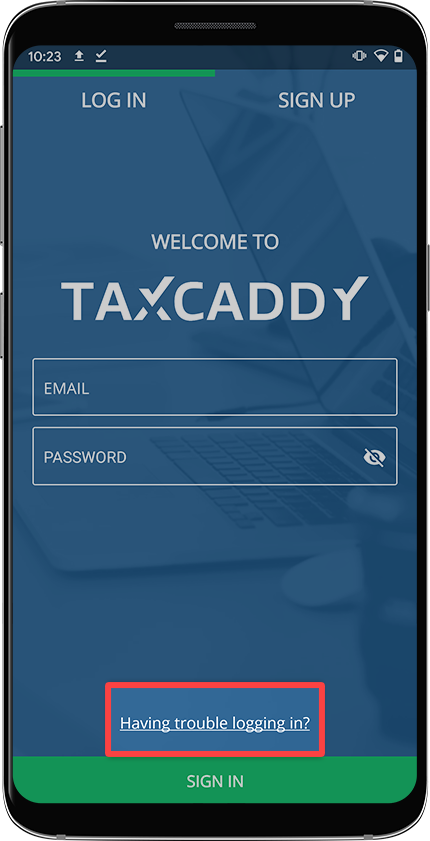
- Open the TaxCaddy mobile app and selectHaving trouble logging in?
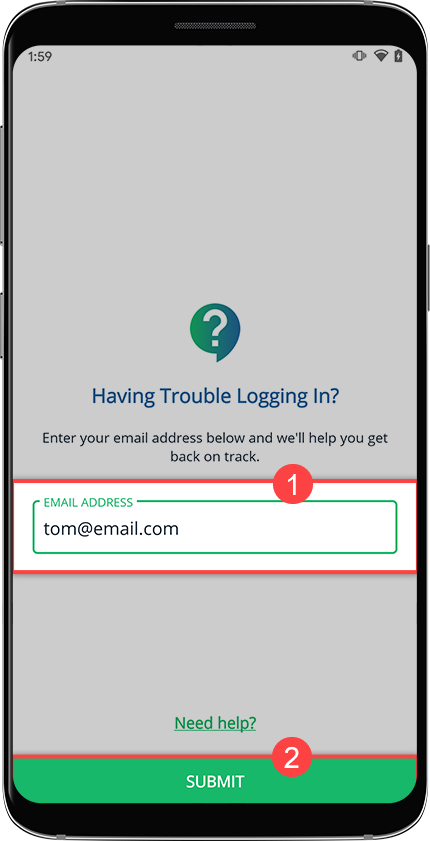
- Enter the email you use with your account and selectSUBMIT.
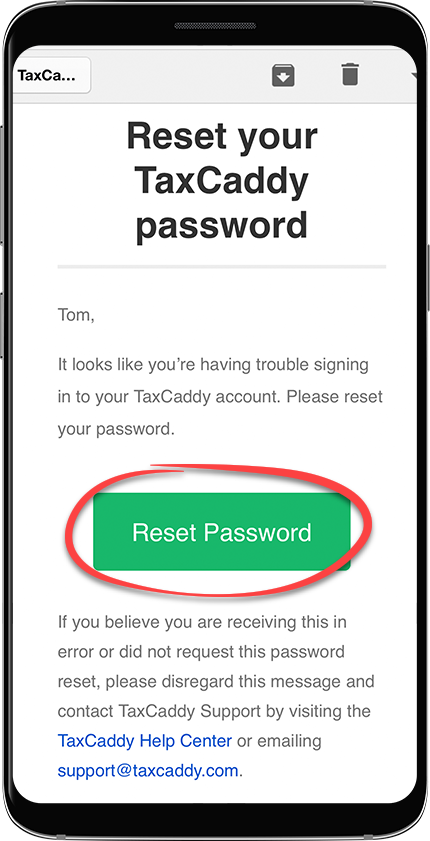
- Follow the link in the email sent to you to reset your password before it expires in 30 days. SelectReset Password.noteResetting a password unlocks an account that has been temporarily locked out due to failed sign in attempts.
- Skip to the next step if you don't see the following options. You may get an option to select either security questions or a mobile phone (recommended) to reset your password. Select an option, thenCONTINUE.
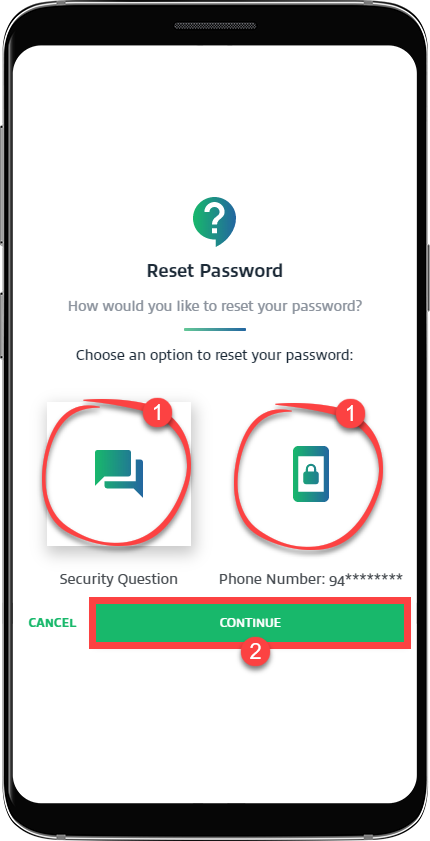 noteYou have a maximum of 3 attempts to reset your password. If you exceed 3 attempts, you won’t be able to reset your password. You'll need to ask TaxCaddy Support to reset your password manually.
 - If you selectedSecurity Question, answer your security question, enter a new password, then selectRESET PASSWORD.
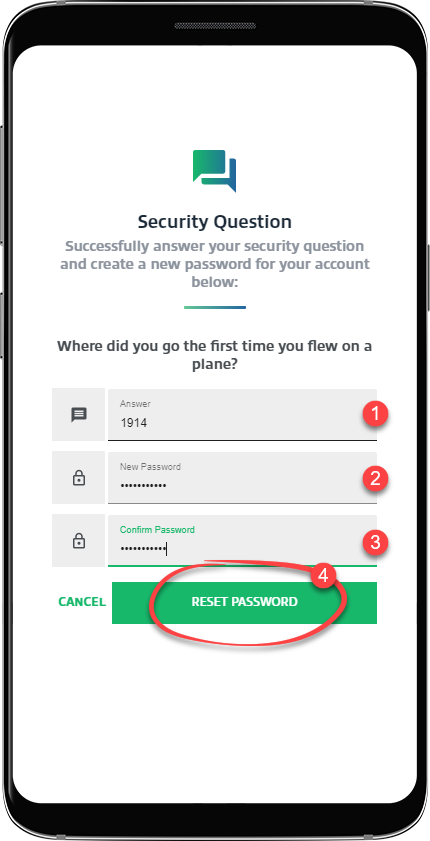 If you selected to verify your account throughPhone Number, enter the verification code sent to your mobile phone, enter a new password, then selectRESET PASSWORD.noteIf you can't answer your security questions, contact Support or email taxcaddy.support@thomsonreuters.com.