
Update security questions
Show all hidden content
We use security questions to verify your identity if you forget your password. You are not required to set security questions for your account. You can also verify your identity using a verification code sent to your mobile phone number.
tip
To safeguard your TaxCaddy account, choose security questions with answers that someone can't guess or find on your social media.
TaxCaddy.com on PC, Mac, or tablet
Follow these steps to update your security questions using TaxCaddy.com on your PC, Mac, or tablet.
- Sign in to taxcaddy.com
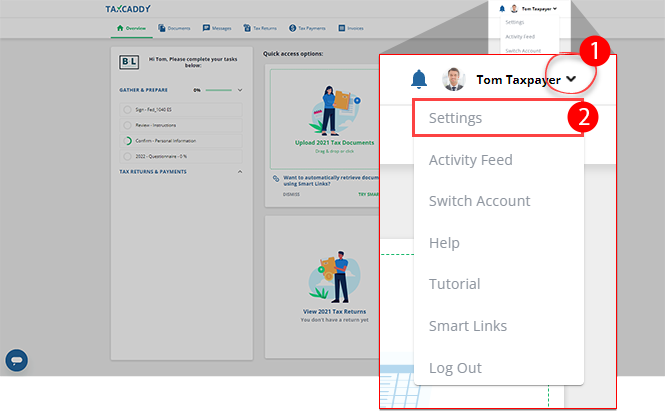
- SelectUser Menu, thenSettings.
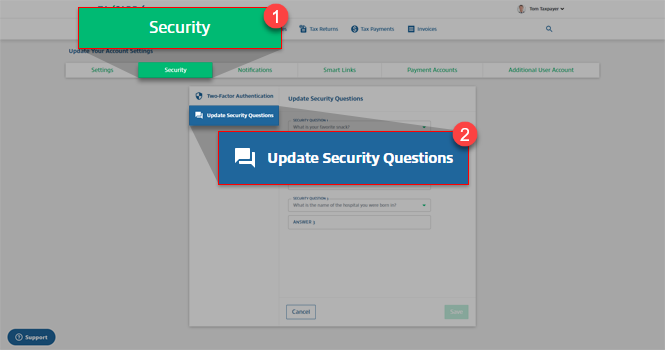
- SelectSecurity, thenUpdate Security Questions.
- If you currently don't have any security questions saved, selectSET SECURITY QUESTIONS.noteIf you are accessing TaxCaddy using a sign-in link from your tax professional, the ability to set security questions isn't available until you create a password for your account.
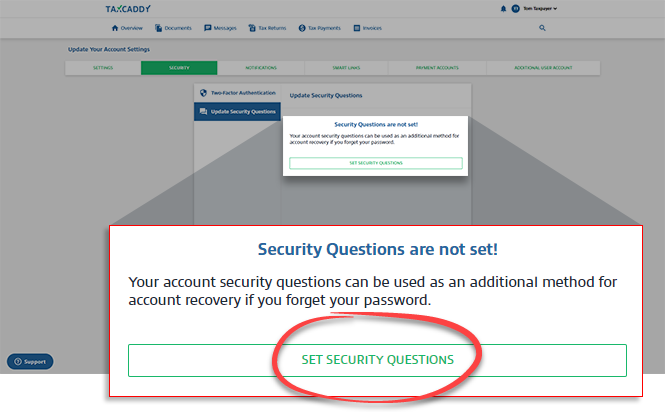 noteSecurity questions are optional. If you don’t have security questions set up for your TaxCaddy account, you can reset your password by verifying the SMS sent to your mobile phone.
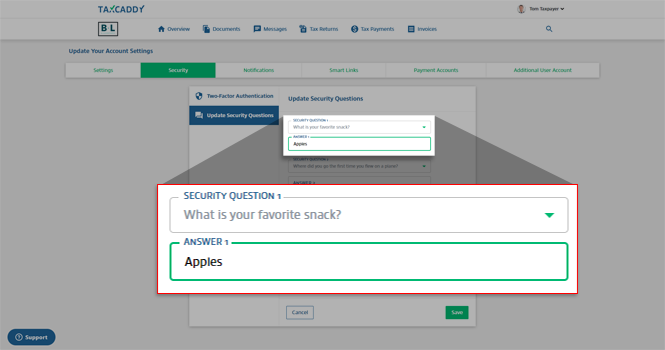
 - Select a question, then select a new question to change that security question. Repeat for all security questions.
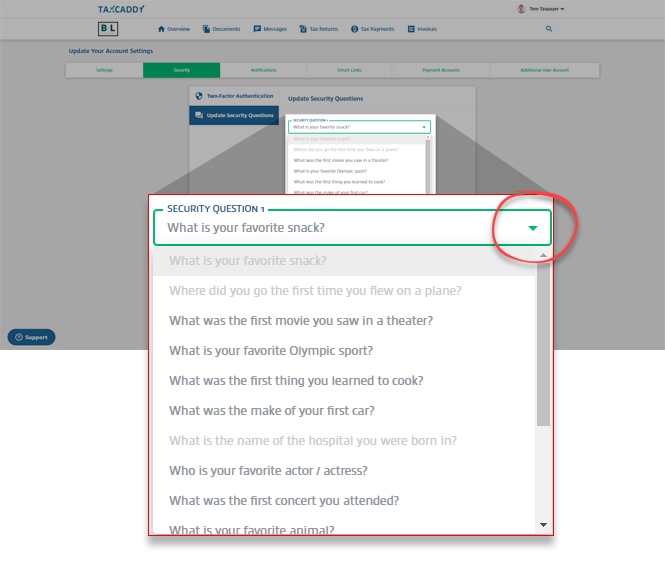
- Enter an answer in the answer fields to set a new answer.
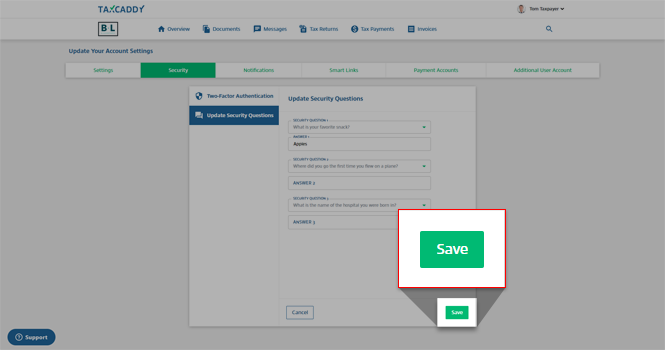
- SelectSave.
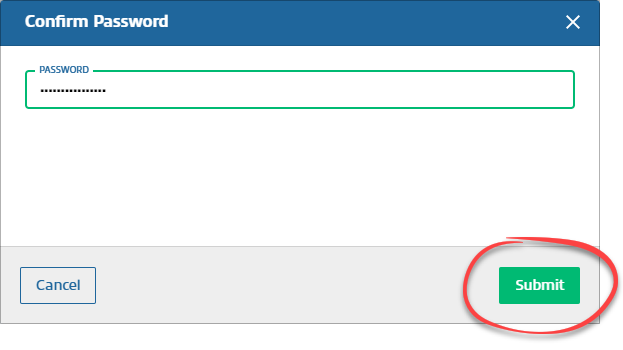
- Confirm your password and selectSubmit.
- TaxCaddy confirms your security questions were updated. You'll also receive an email notification confirming the changes to your security settings.
iOS mobile app
Follow these steps to update your security questions on the iPhone mobile phone app.
- Sign in to the TaxCaddy mobile app.
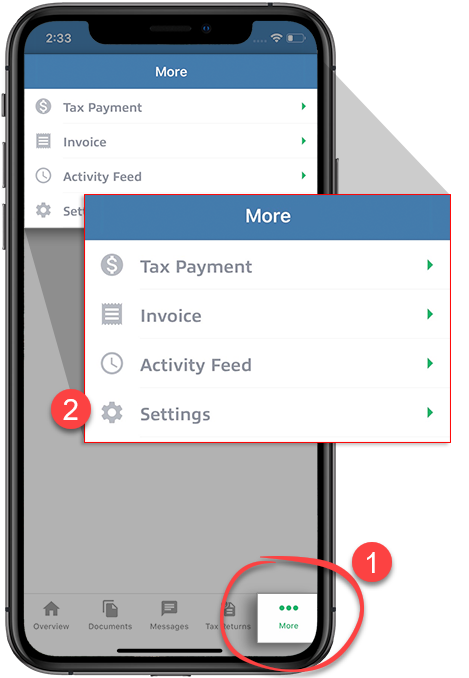
- SelectMoreon the navigation tab bar, thenSettings.
- SelectUpdate Security Questions.noteIf you are accessing TaxCaddy using a sign in link from your tax professional, the ability to update your security questions isn't available until you create a password for your account.
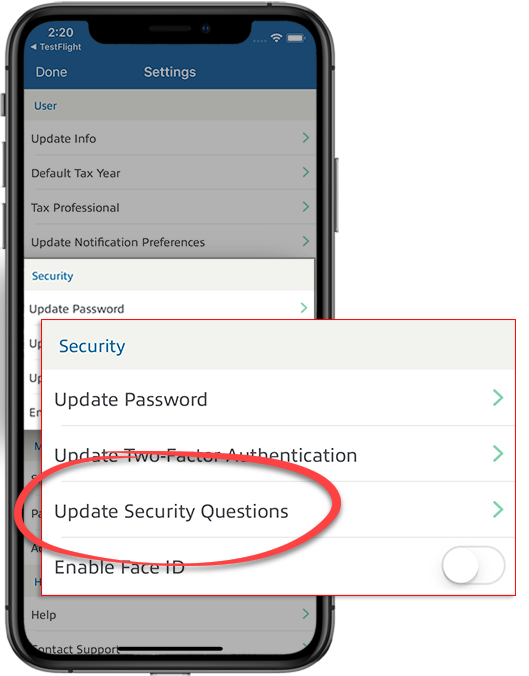
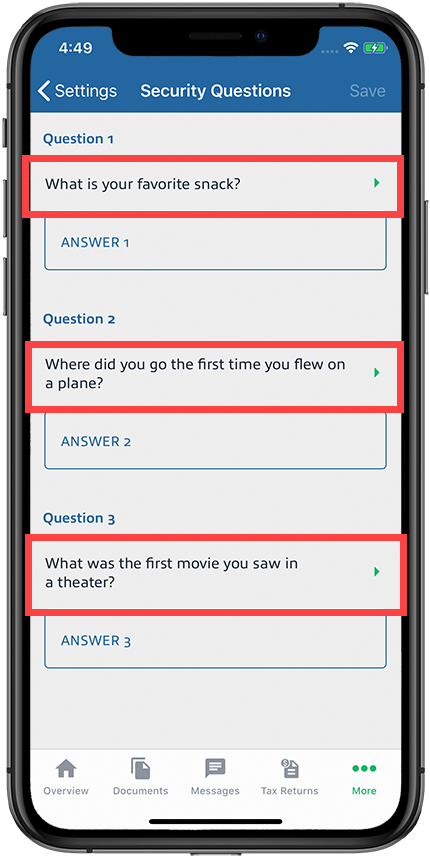
- To select a different question, select the question you want to change.
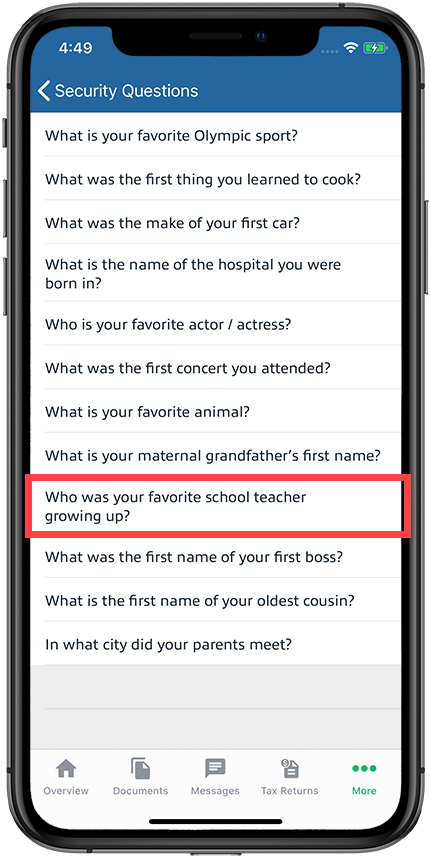
- Select the new question you'd like to use.
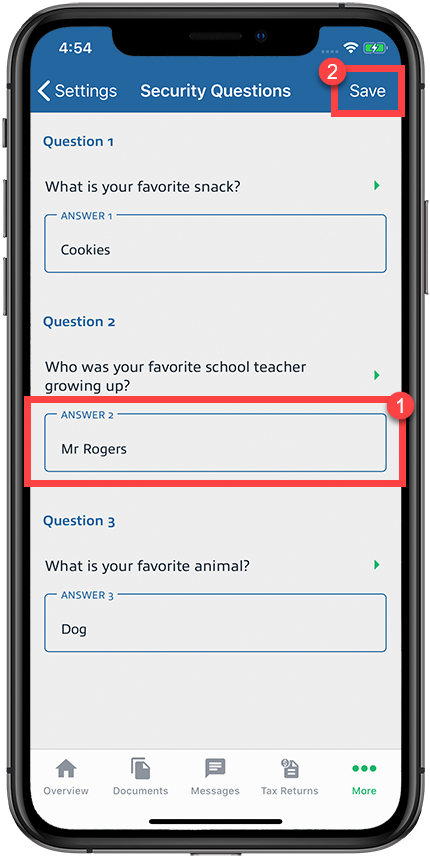
- Select theAnswerfield, enter your answer, then selectSave.
- Enter your password, then selectUpdate.
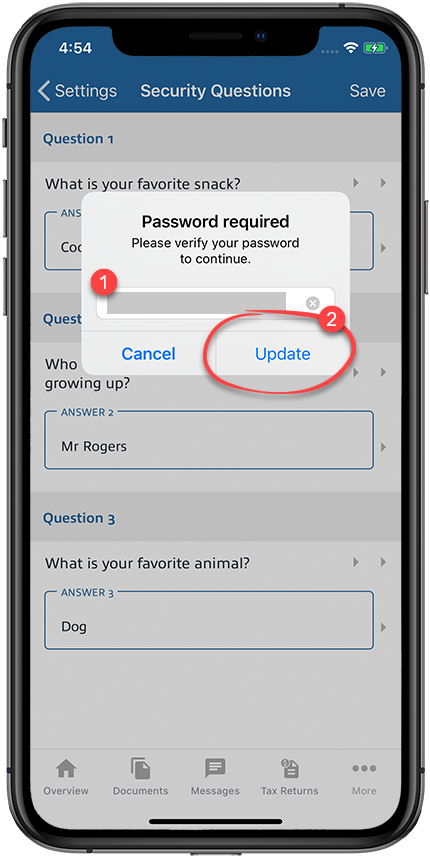
- Your security questions will be updated.
Android mobile app
Follow these steps to update your security questions on the Android mobile phone app.
- Sign in to the TaxCaddy mobile app.
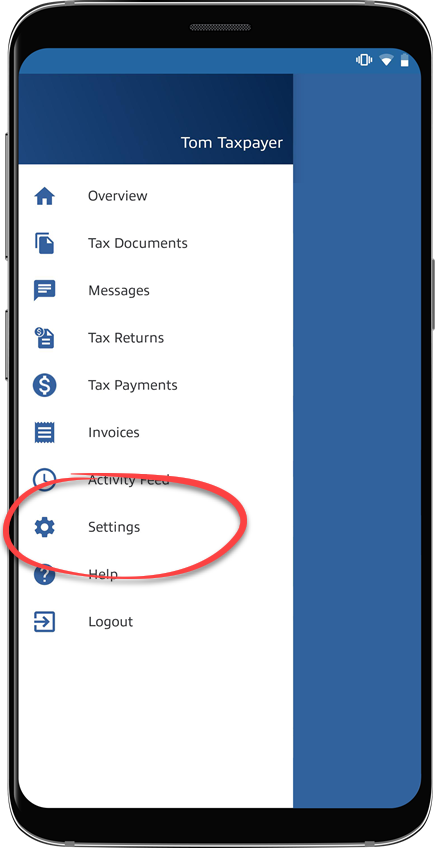
- Select theMenuicon.

- SelectSettings.
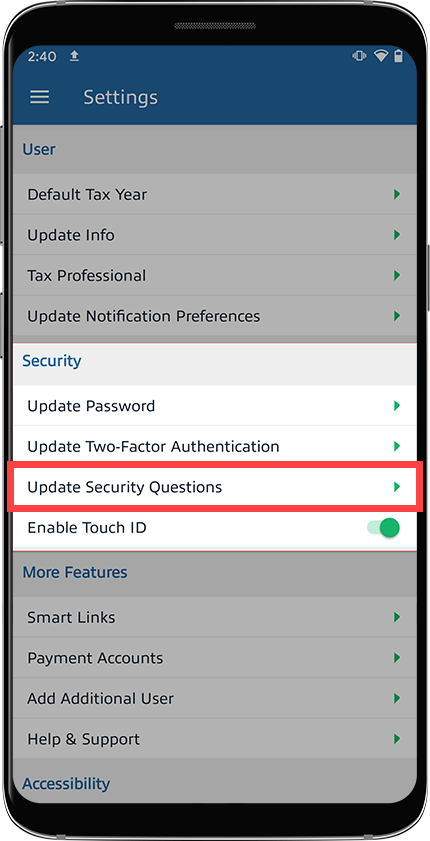
- SelectUpdate Security Questions.noteIf you are accessing TaxCaddy using a sign in link from your tax professional, the ability to update your security questions isn't available until you create a password for your account.
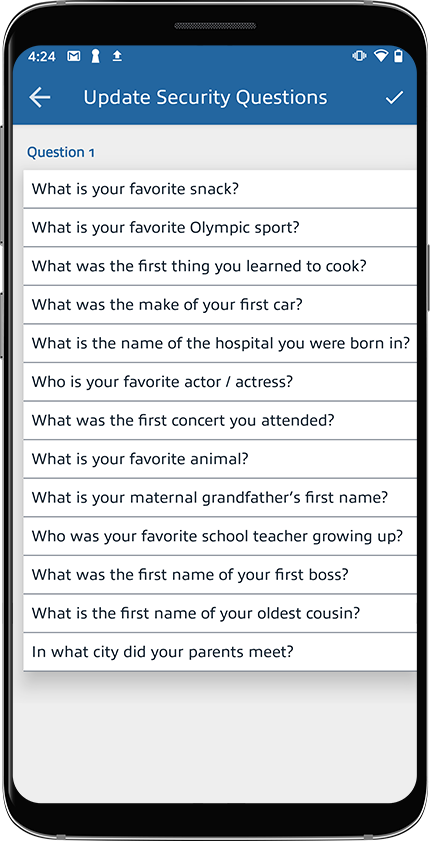
- Select a security question to update that question.
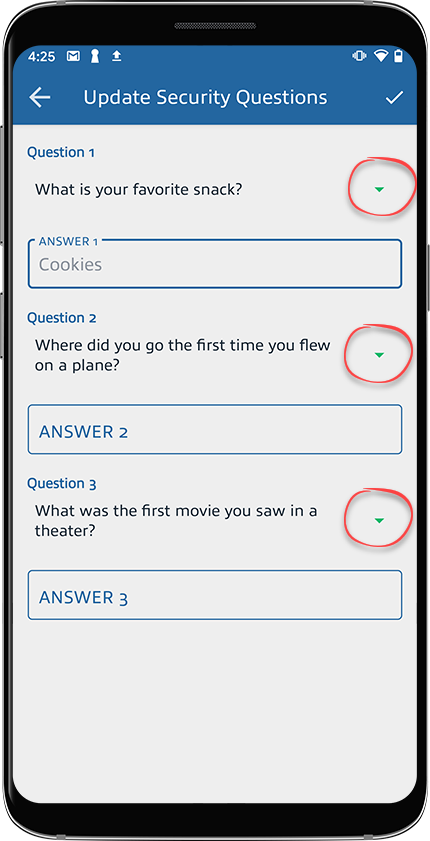
- Select the new question you'd like to use.
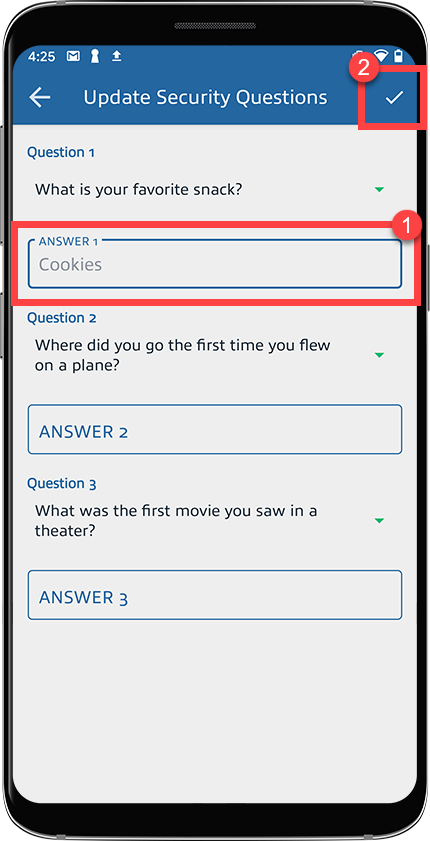
- Select theAnswerfield, enter your answer. When you're finished, select theSAVEicon on the upper right corner.
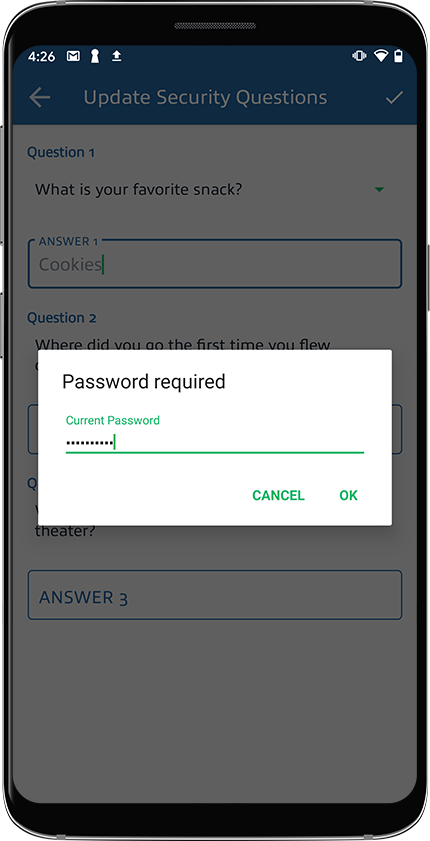
- Confirm your password, and selectOK.
- Your security questions will be updated.

