
Update your phone number
Show all hidden content
We use your mobile phone number for 2-factor authentication. If your phone number changes, you'll need to update it in TaxCaddy.
TaxCaddy.com on PC, Mac, or tablet
Follow these steps to update your phone number using TaxCaddy.com on your PC, Mac, or tablet.
- Sign in to taxcaddy.com
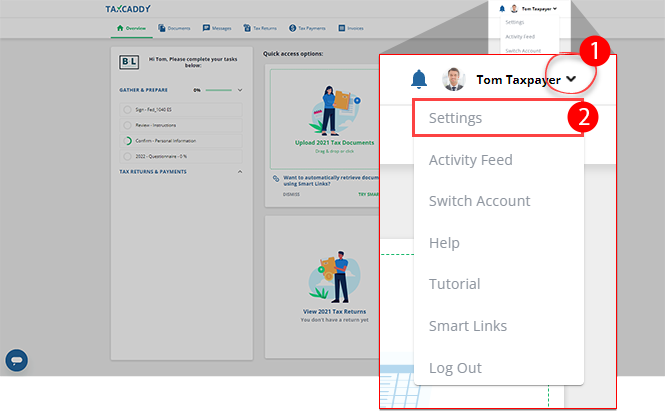
- SelectUser Menu, thenSettings.
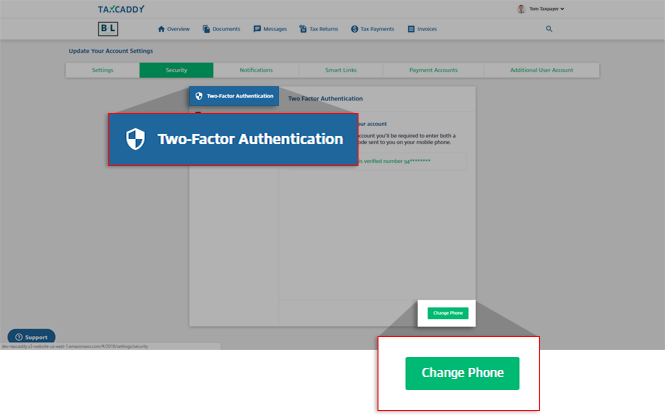
- SelectSecurity.

- UnderTwo Factor Authentication, selectChange Phone.
- Enter your new mobile number and selectSend Verification Code.
 noteDue to local restrictions, some countries may not receive TaxCaddy verification code SMS on their mobile phone when they need to complete tasks (such as sign in or sign documents). Contact TaxCaddy Support if you are experiencing difficulty receiving your verification code.
 - Confirm your password inPassword. Enter the verification code sent to your new phone number via text message in theVerification Codefield. SelectNEXT.
 If you didn't receive a text message on your phone, selectResend code
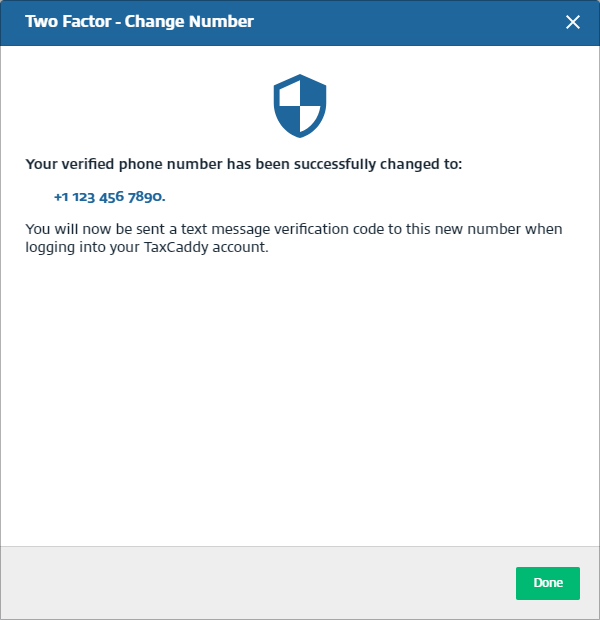
 - Your phone number has now been changed. SelectDone.
iOS mobile app
Follow these steps to update your phone number on the iPhone mobile phone app.
- Sign in to the TaxCaddy mobile app.
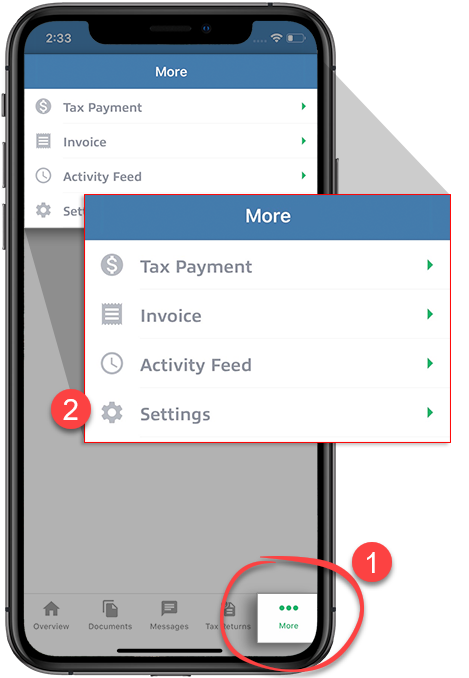
- SelectMoreon the navigation tab bar, thenSettings.
- SelectUpdate Two-Factor Authentication.

- Enter your new number and selectSave.
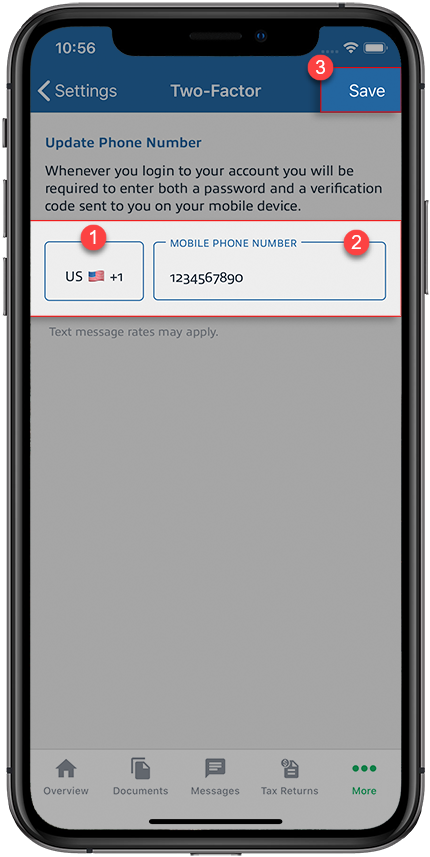 If you need to enter a phone number from another country, select the field with the flag icon, find the country, then select the country code.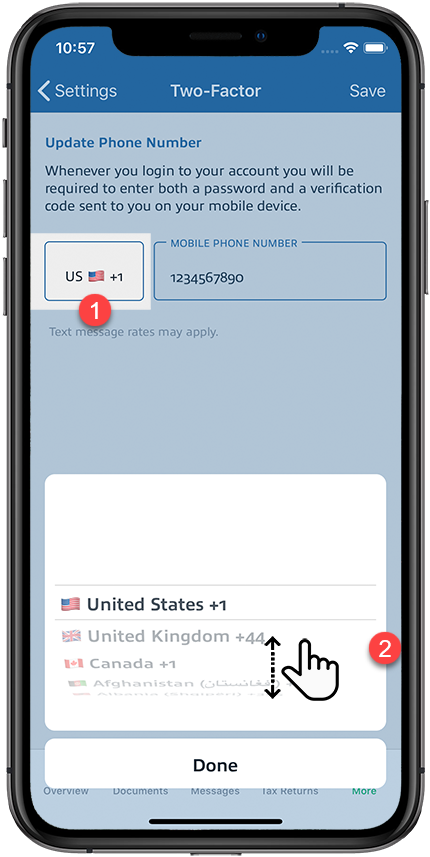
- Enter the verification code that was sent to your new phone number via text message inVERIFICATION CODE. Confirm your password inPASSWORD. SelectSubmit.
 noteDue to local restrictions, some countries may not receive TaxCaddy verification code SMS on their mobile phone when they need to complete tasks (such as sign in or sign documents). Contact TaxCaddy Support if you are experiencing difficulty receiving your verification code.
 - Your phone number has now been changed.
Follow these steps to update your phone number on the Android mobile phone app.
- Sign in to the TaxCaddy mobile app.
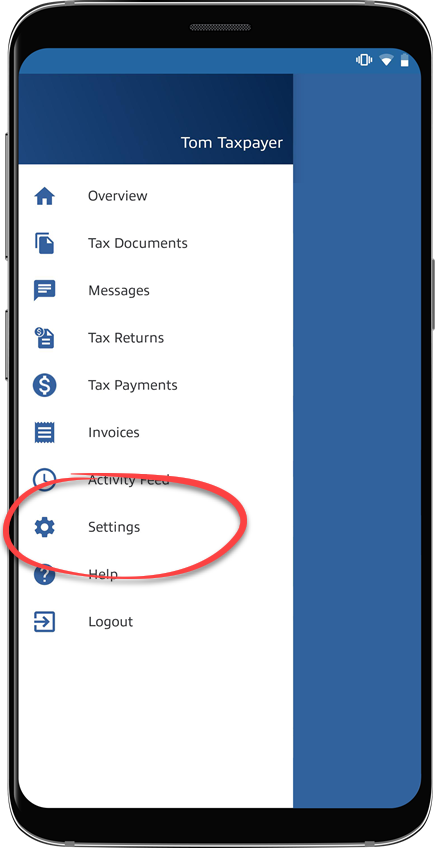
- SelectMenu.

- SelectSettings.
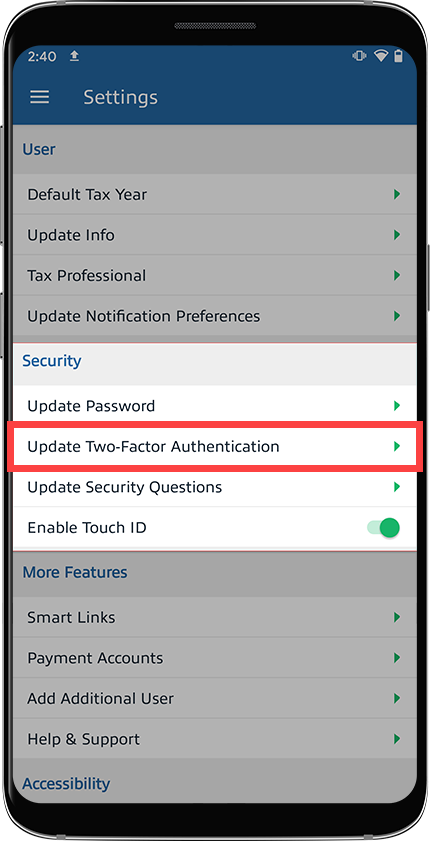
- SelectUpdate Two-Factor Authentication.
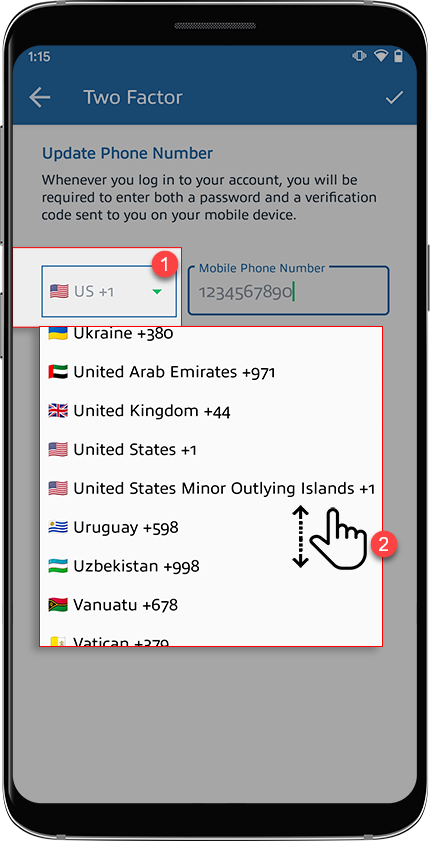
- Enter your new number and selectSave.If you need to enter a phone number from another country, select the field with the flag icon, find the country, then select the country code.
- Enter the verification code that was sent to your new phone number via text message inVerification Code. Confirm your password inPassword. SelectSave.
 noteDue to local restrictions, some countries may not receive TaxCaddy verification code SMS on their mobile phone when they need to complete tasks (such as sign in or sign documents). Contact TaxCaddy Support if you are experiencing difficulty receiving your verification code.
 - Your phone number has now been changed.

