Accessibility with Firm Colors
Show all hidden content
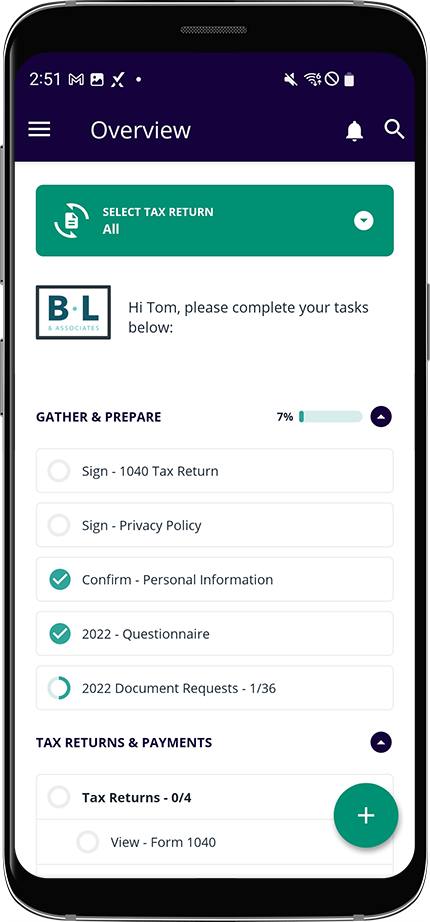
The Firm Colors mode uses a new color scheme to represent the TaxCaddy user interface. This color combination is more accessible for users with low-vision impairments or color-vision deficiencies.
TaxCaddy.com on PC, Mac, or tablet
Follow these steps to turn on color-blind mode.
- Sign in to TaxCaddy.com.
- Select theUser Menu, thenSettings.
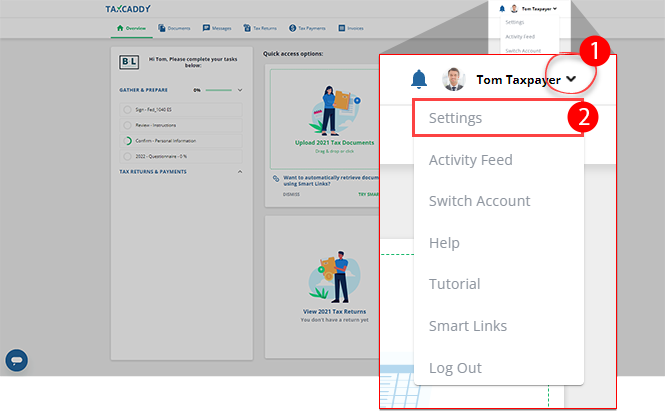
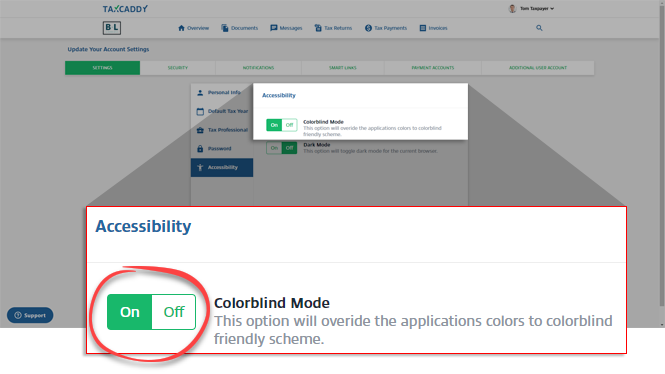
- On theSettingstab, selectAccessibility.

- SelectOnto turn on the color-blind mode. SelectOffto turn off the color-blind mode. TaxCaddy will begin processing the color-blind mode.
- Once enabled, the color-blind mode will appear on all pages.
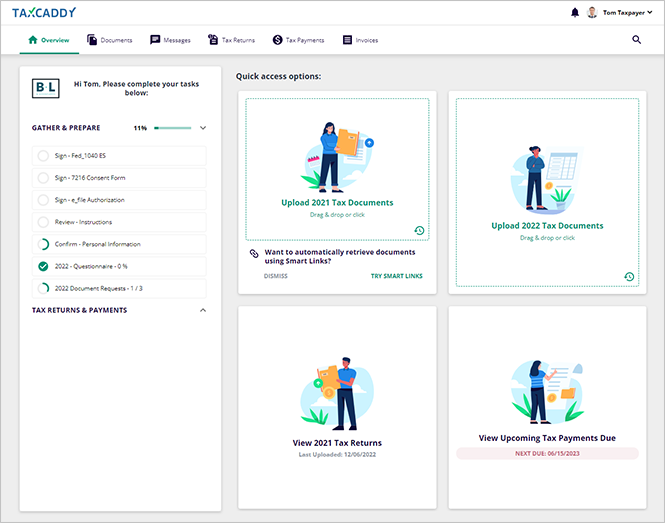 noteThe color-blind mode will override TaxCaddy's and your tax professional color theme.
iOS mobile app
Follow these steps to turn on color-blind mode on your iOS mobile phone app.
- SelectMoreon the navigation tab bar, then selectSettings.
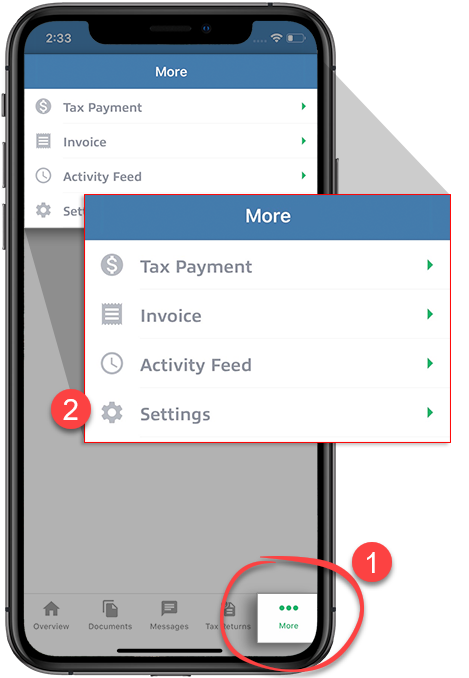
- On theSettingsscreen, go to theAccessibilitycategory and select the switch to turn onColorblind Mode.
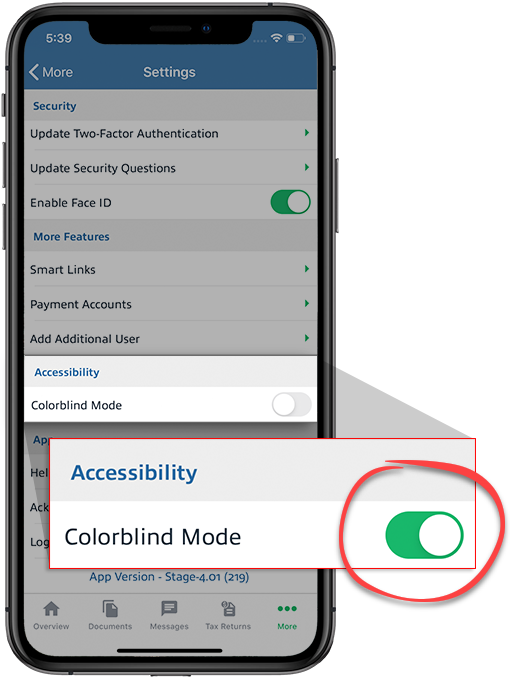 You will be redirected to theOverviewscreen with the Colorblind Mode activated.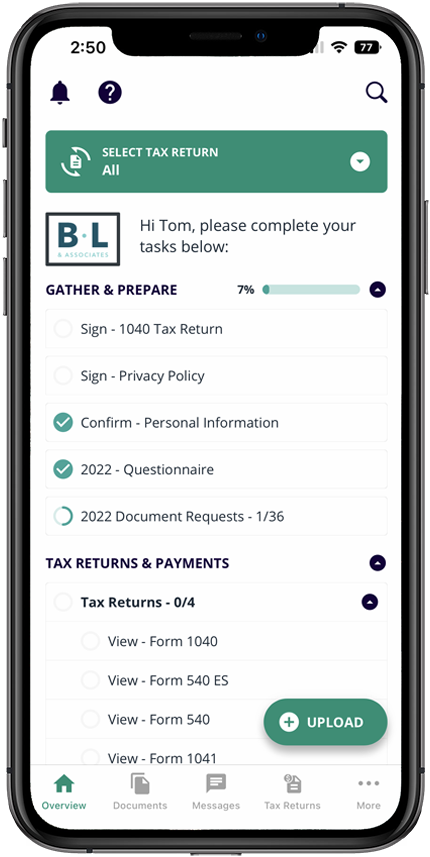
Android mobile app
Follow these steps to turn on color-blind mode on your Android mobile phone app.
- Sign in to the TaxCaddy mobile app.
- Select theMenuicon.
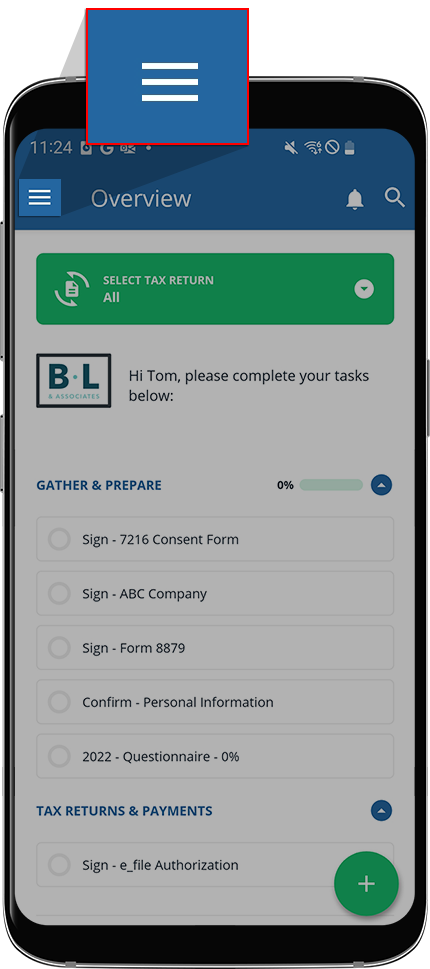
- SelectSettings.
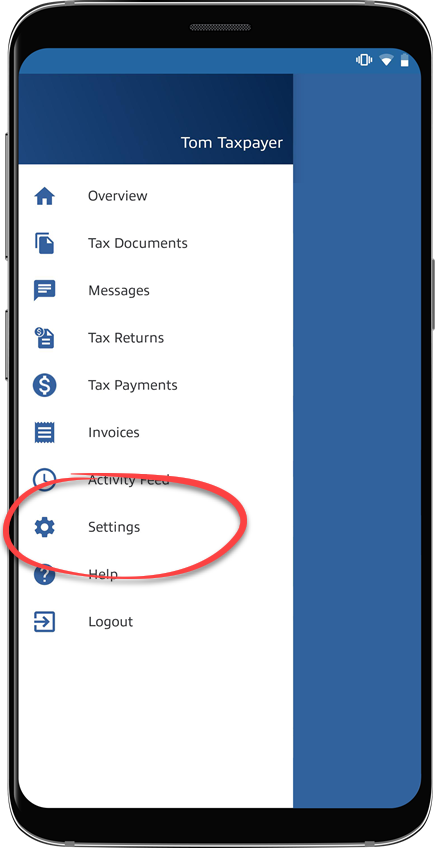
- On theSettingsscreen, go to theAccessibilitycategory and select the switch to turn onColorblind Mode.
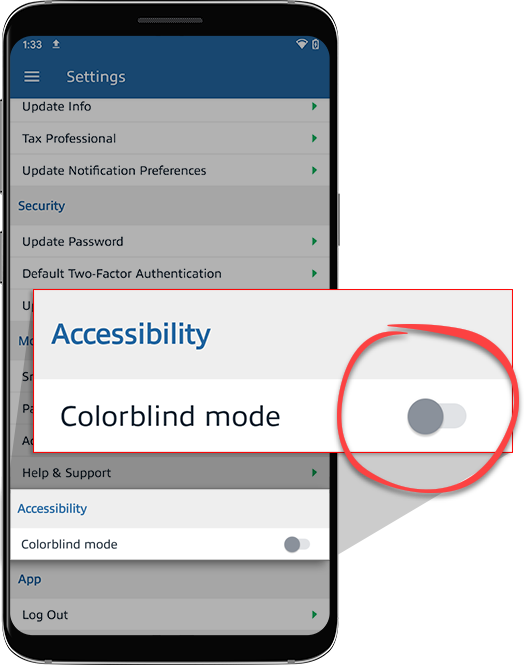 You will be redirected to theOverviewscreen with the Colorblind Mode activated.