
Add a bank account
Show all hidden content
You can add your bank account information to TaxCaddy to make a tax payment or pay an invoice. There are two methods of adding a bank account:
Instant Verification
or Manual Verification
. Add Payment Accounts
TaxCaddy.com on PC, Mac, or tablet
Use the following steps to add your bank account to TaxCaddy.
- Log in to TaxCaddy.com.
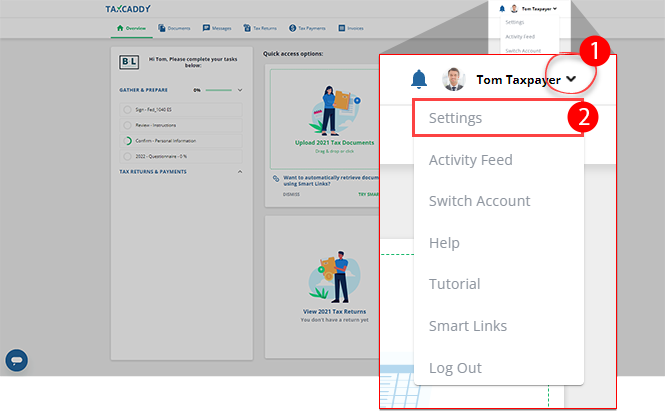
- Select theUser Menu, then selectSettings.
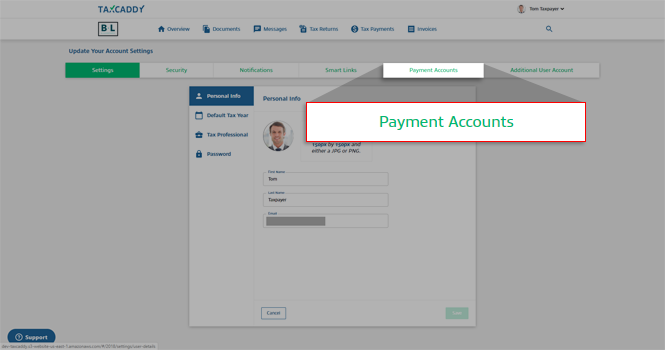
- Select thePayment Accountstab.
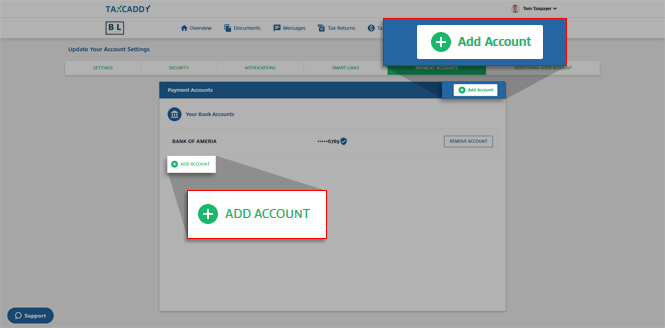
- SelectAdd Accountto add an account.noteThe+Add Accountfeature will only appear if you are currently connected to a tax professional. Users who are not connected to a tax professional will not have the option to add a bank account.
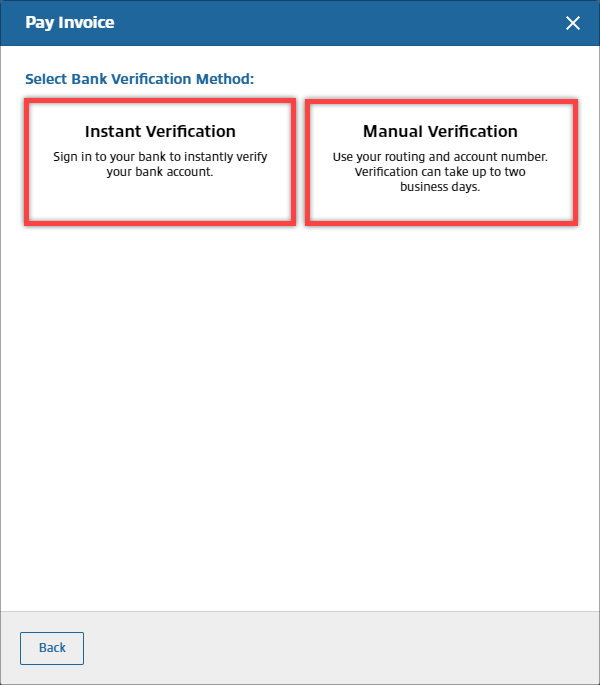
- Select the verification method you want to use to add your bank account:
- Instant Verification- Requires you to sign in to your bank account to verify your bank account.
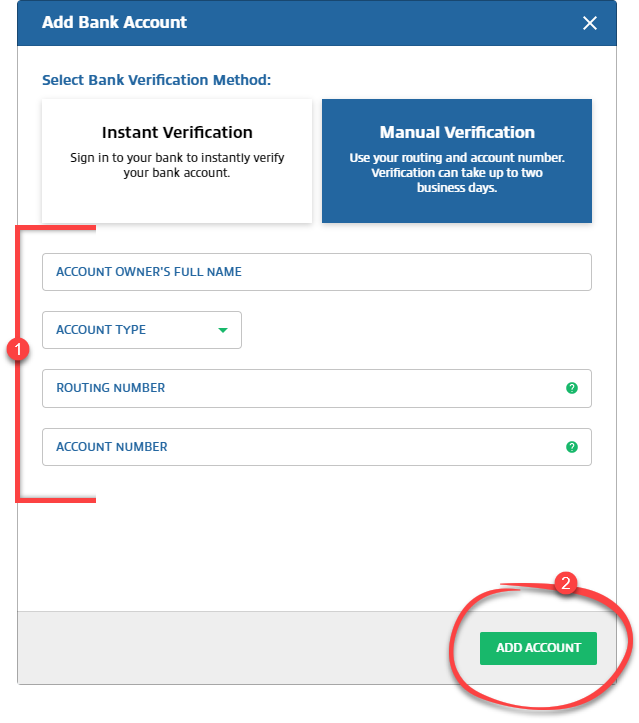
- Manual Verification- Requires you to add your addRouting Number,Account Number,Account Owner's Name, andAccount Type. Once the bank account has been added, you will receive micro-deposits in two business days. Enter the amounts to complete your account verification.
 noteTaxCaddy uses Plaid to add your financial institution Check out information on financial institution support by Plaid.. TaxCaddy Instant Verification method doesn’t support Chase or PNC. Use theManual Verificationmethod if needed.
iOS mobile app
Follow these steps to add your bank account to TaxCaddy on your iOS mobile app:
- Log in to the TaxCaddy mobile app.
- SelectMoreon the navigation tab bar, then selectSettings.
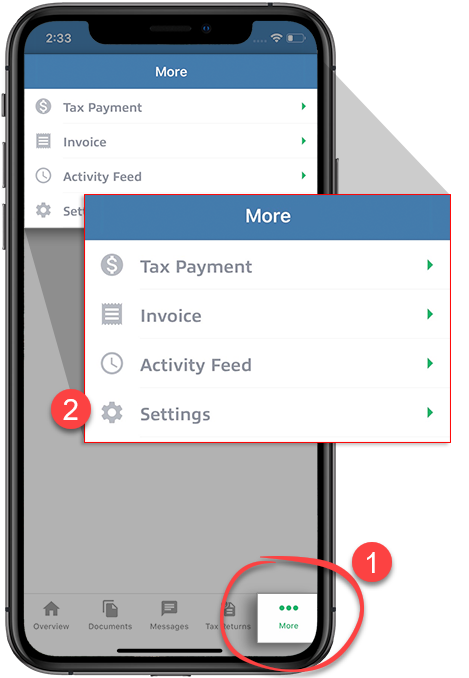
- On theSettingsscreen, selectPayment Accounts.
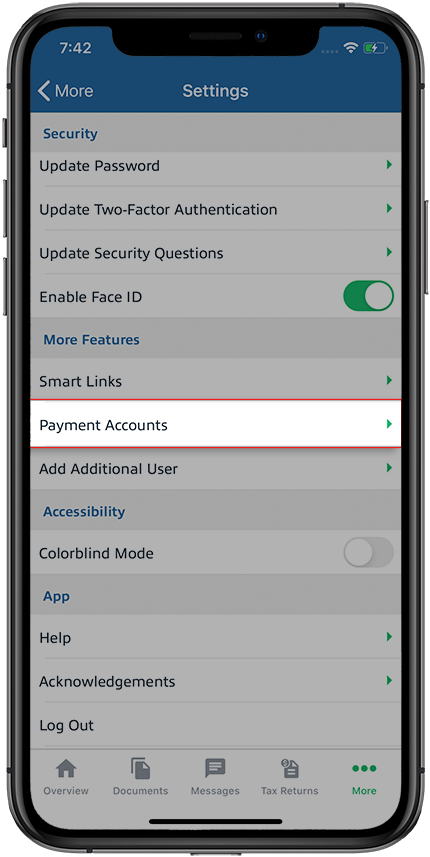
- SelectADD BANK ACCOUNT.
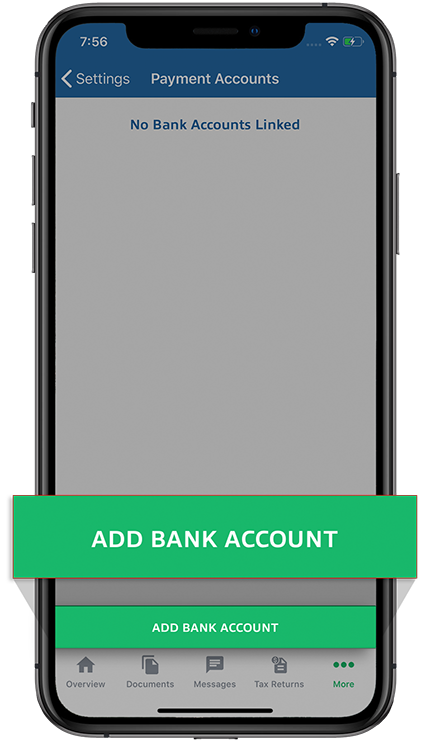
- You can select betweenInstant VerificationorManual Verification.
- Instant Verification- Requires you to sign in to your bank account to verify your bank account.
- Manual Verification- Requires you to add your addRouting Number,Account Number,Account Owner's Name, andAccount Type. Once the bank account has been added, you will receive micro-deposits in two business days. Enter the amounts to complete your account verification.
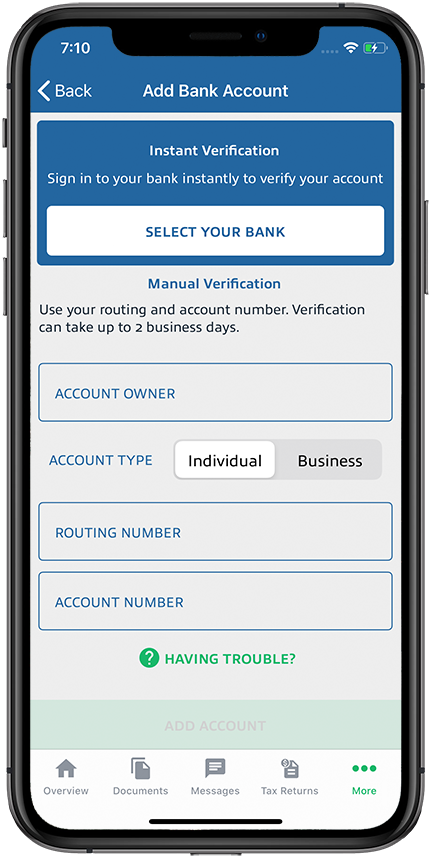 noteTaxCaddy uses Plaid to add your financial institution.Check if your financial institution is supported by Plaid. TaxCaddy Instant Verification method doesn’t support Chase or PNC. Use theManual Verificationmethod if needed.
Android mobile app
Follow these steps to add your bank account to TaxCaddy on your Android mobile phone app.
- Log in to the TaxCaddy mobile app.
- Select theMenuicon.

- SelectSettings.
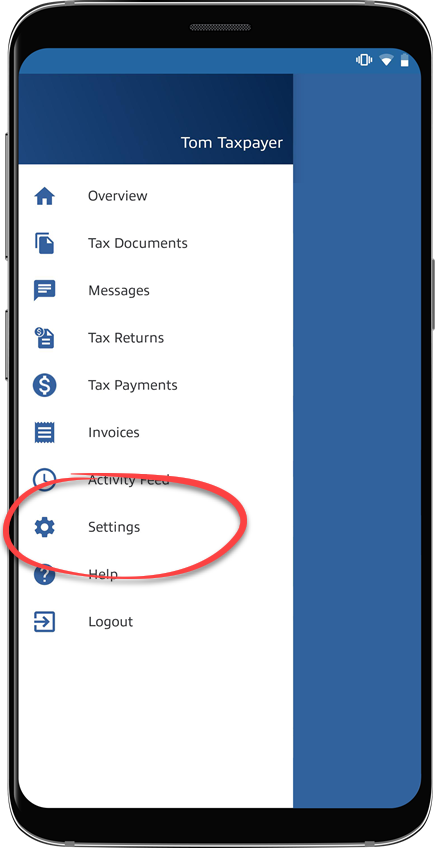
- On theSettingsscreen, selectPayment Accounts. You may need to swipe up/down to see thePayment Accountsoption.
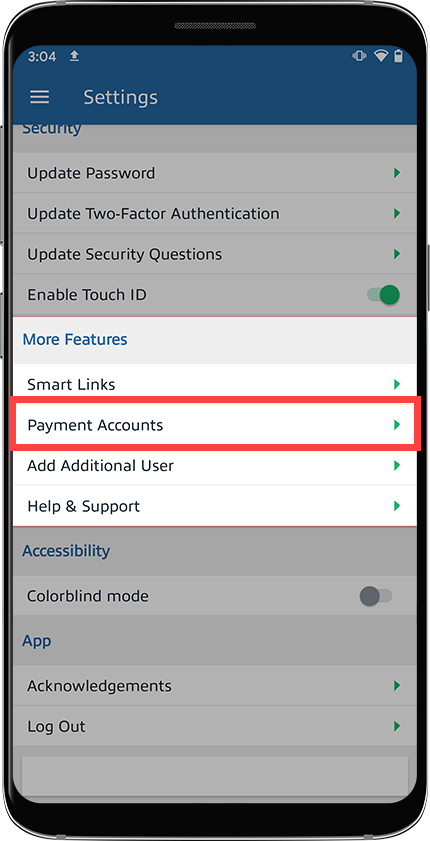
- SelectADD BANK ACCOUNT.
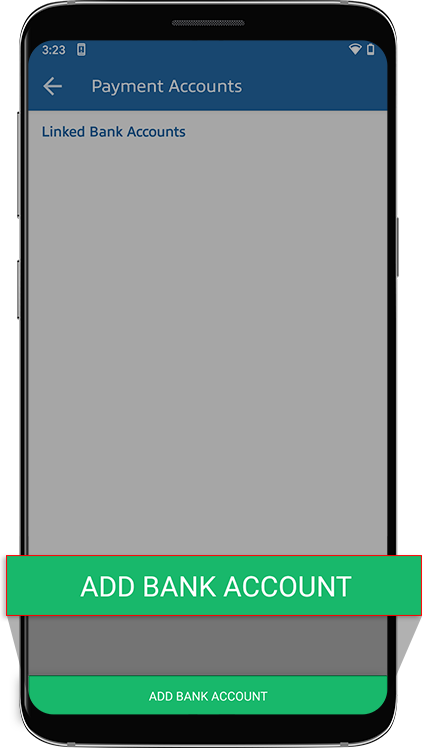
- You can select betweenInstant VerificationorManual Verification.
- Instant Verification- Requires you to sign in to your bank account to verify your bank account.
- Manual Verification- Requires you to add your addRouting Number,Account Number,Account Owner's Name, andAccount Type. Once the bank account has been added, you will receive micro-deposits in two business days. Enter the amounts to complete your account verification.
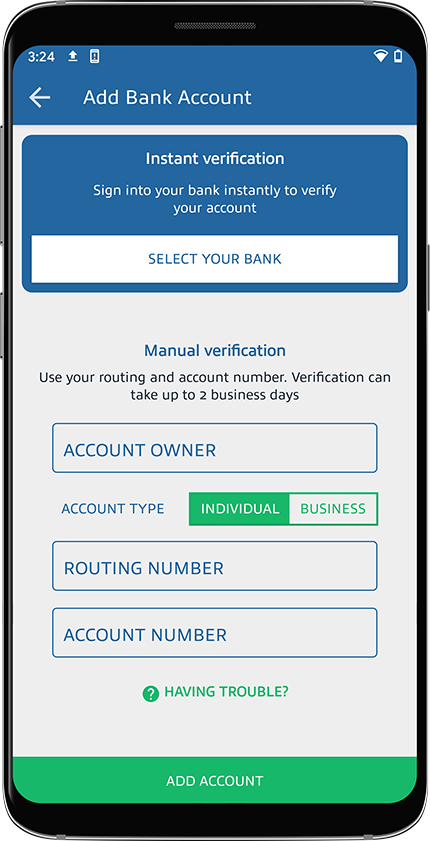 noteTaxCaddy uses Plaid to add your financial institution.Check to see if your financial institution is supported by Plaid. TaxCaddy Instant Verification method doesn’t support Chase or PNC. Use theManual Verificationmethod if needed.
Instant Verification
TaxCaddy.com on PC, Mac, or tablet
Use the following steps to verify your bank account.
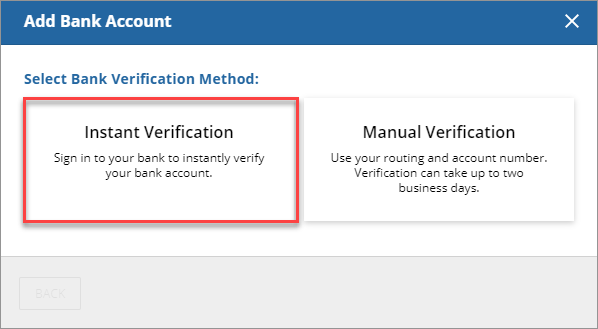
- SelectInstant Verificationto sign in to your bank account.
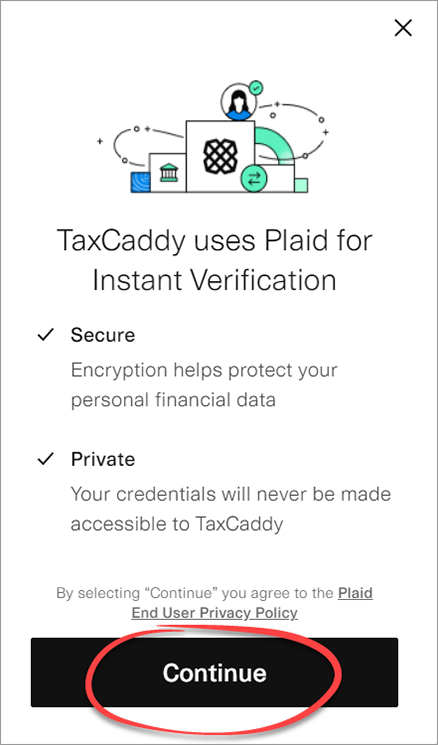
- When the Plaid overview screen appears, selectContinue.
- Go to or use the search bar to find your bank. Select your bank.
 noteTaxCaddy uses Plaid to add your financial institution.Check to see if your financial institution is supported by Plaid. TaxCaddy Instant Verification method doesn’t support Chase or PNC. Use theManual Verificationmethod if needed.
 - Enter your bank's login credentials. SelectSubmit.
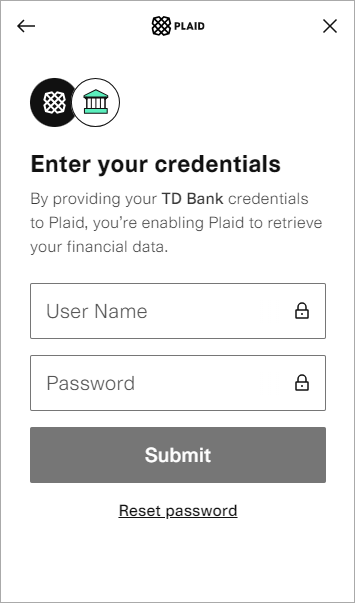 Your login screen may vary based on your selected bank.
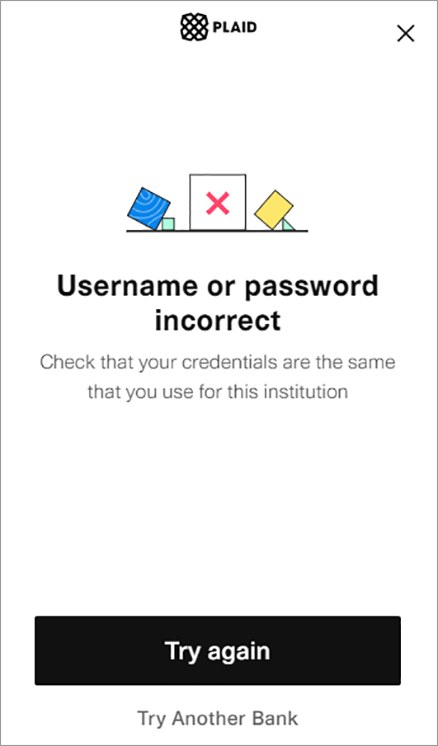
 - You will see an error message if your login credentials were incorrect. SelectTry againand try again.
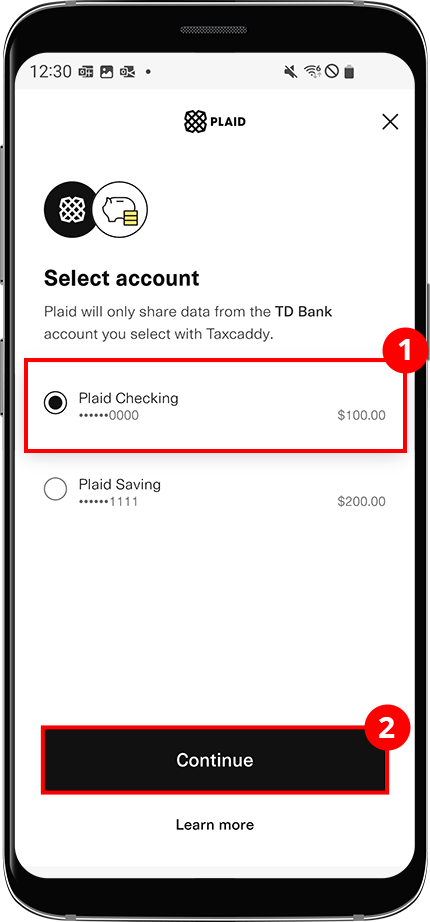
- You will see a list of your accounts once you sign in successfully.
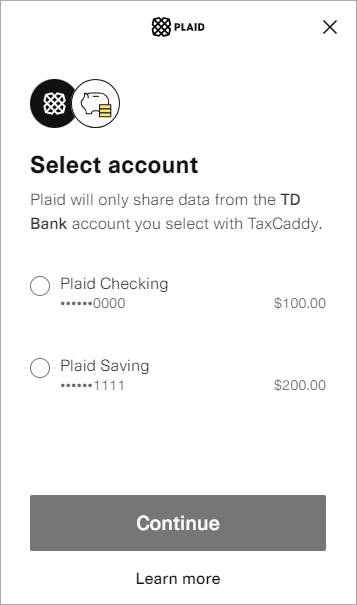
- Select the account name where the payment will be made from, then selectContinue.
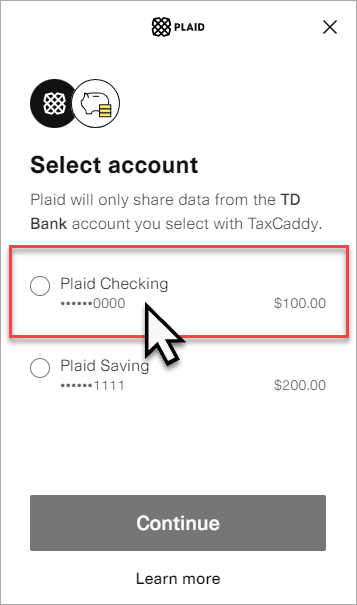
iOS mobile app
Use the following steps to verify your bank account.
- SelectSELECT YOUR BANK.
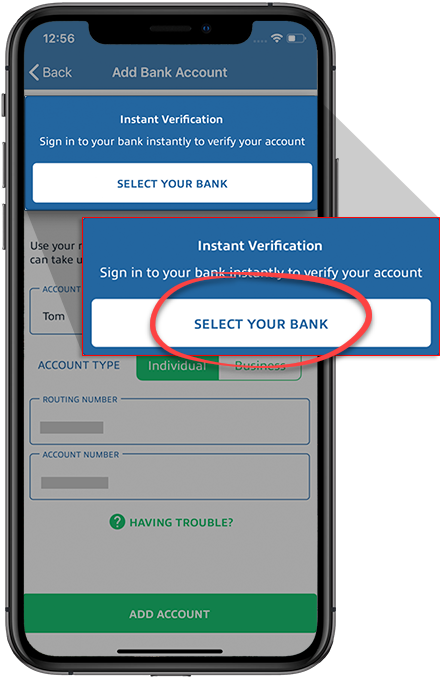
- When the Plaid overview screen appears, selectContinue.
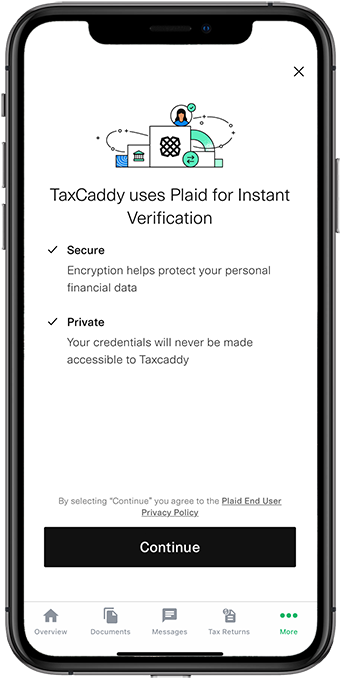
- Scroll down or use the search bar to find your bank. Select your bank.
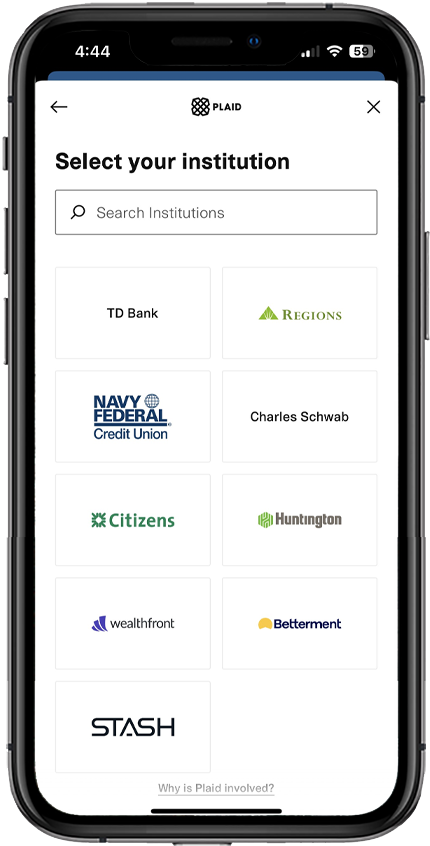 noteTaxCaddy uses Plaid to add your financial institution.Check if your financial institution is supported by Plaid. TaxCaddy Instant Verification method doesn’t support Chase or PNC. Use theManual Verificationmethod if needed.
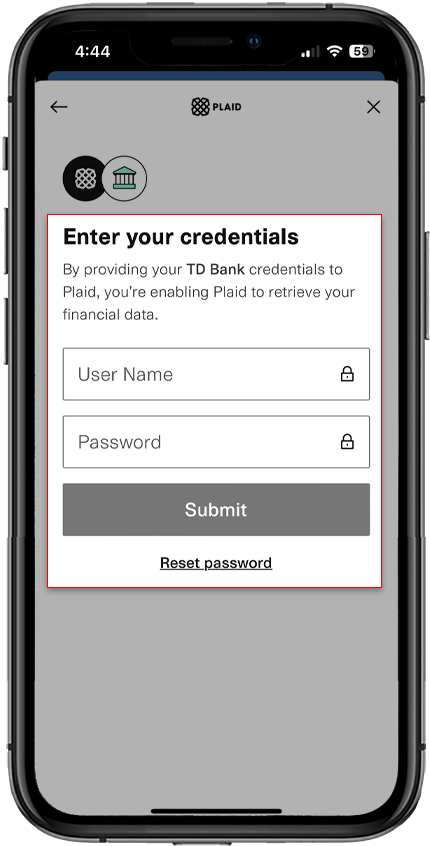
 - Enter your bank's login credentials. SelectSubmit.
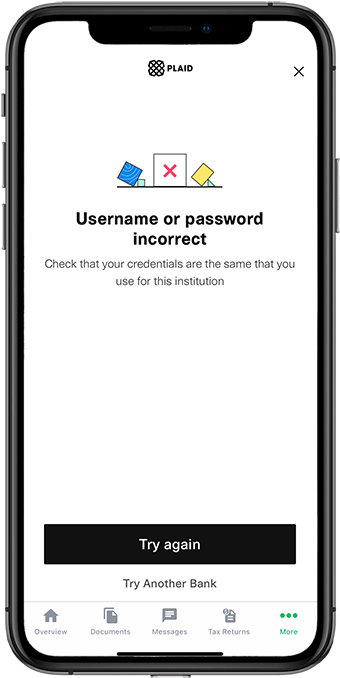
- You will see an error message if your login credentials were incorrect. SelectTry againto try again.
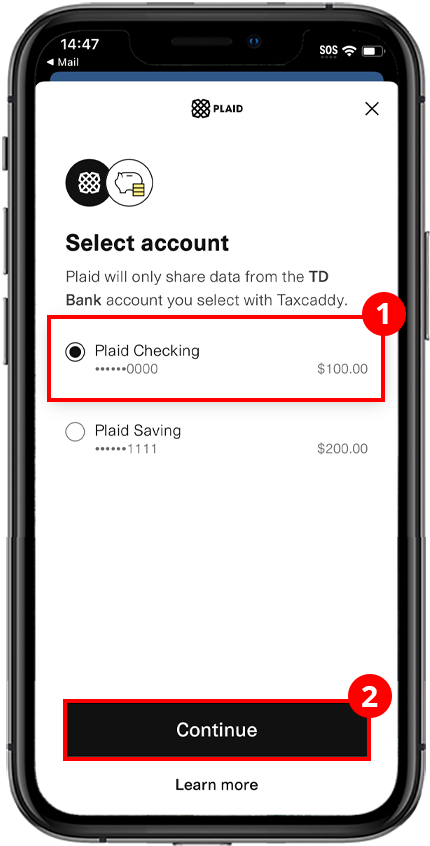
- You will see a list of your accounts once you sign in successfully.
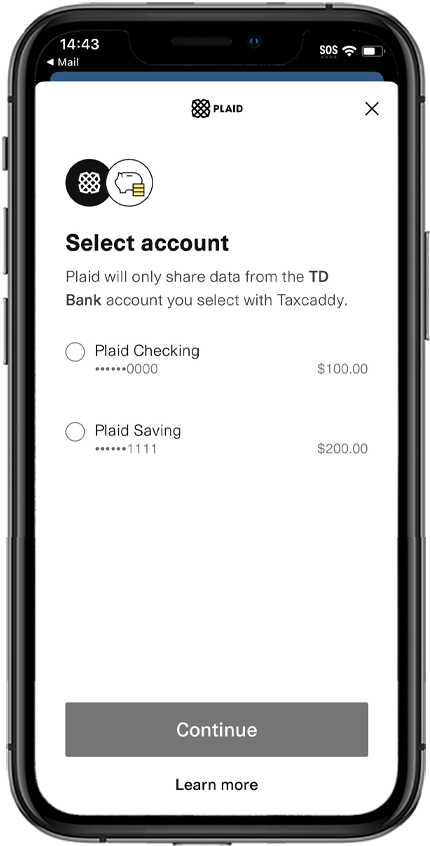
- Select an account to select it for invoice payment. SelectContinue.Once your bank account has been added successfully, you can tap the verified bank account to make a payment.
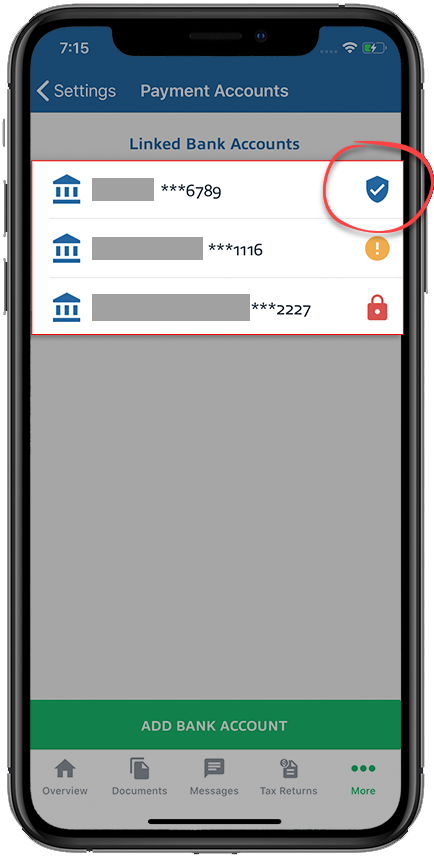 IconsDescription
 Indicates unverified bank accounts
 Indicates verified bank accounts
 Indicates bank account has been locked due to too many attempts
Android mobile app
Use the following steps to verify your bank account.
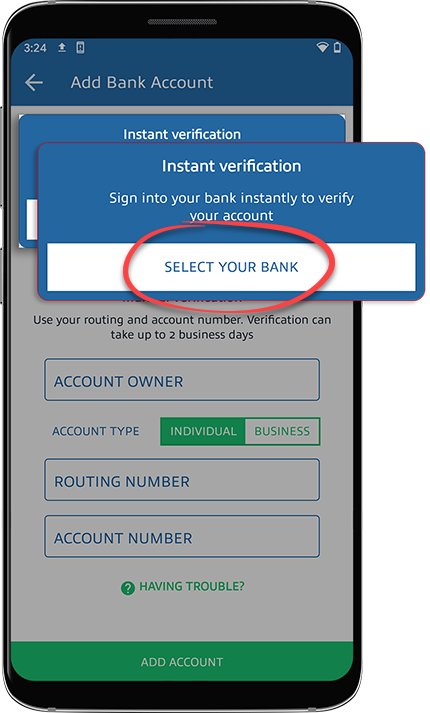
- SelectSELECT YOUR BANK.
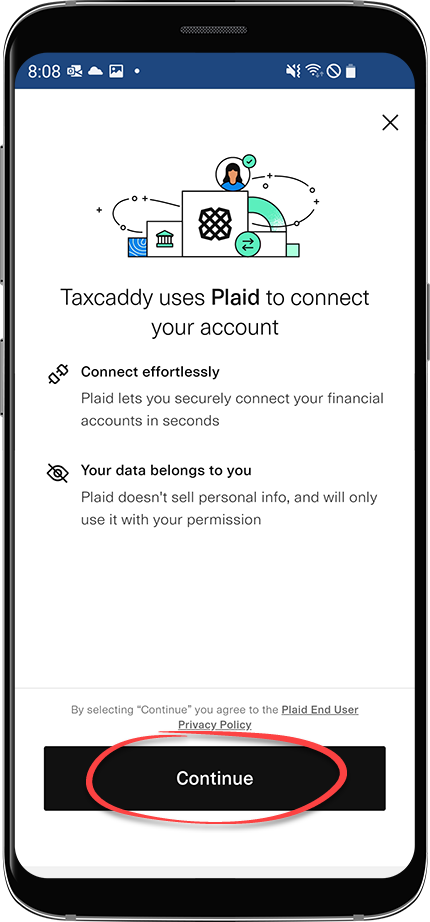
- When the Plaid overview screen appears, selectContinue.
- Scroll down or use the search bar to find your bank. Select your bank.
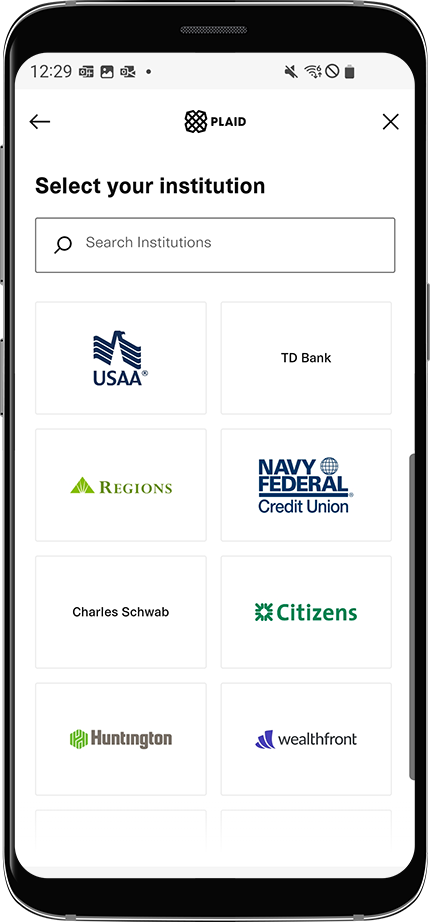 noteTaxCaddy uses Plaid to add your financial institution.Check if your financial institution is supported by Plaid. TaxCaddy Instant Verification method doesn’t support Chase or PNC. Use theManual Verificationmethod if needed.
 - Enter your bank's login credentials. SelectSubmit.
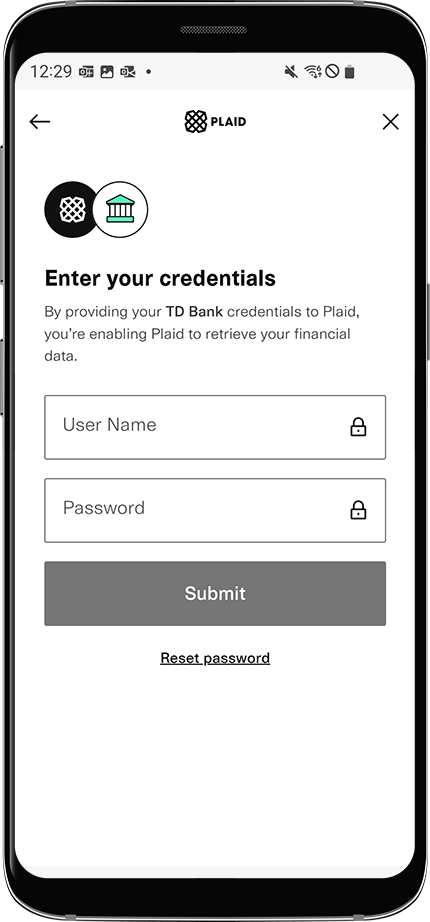
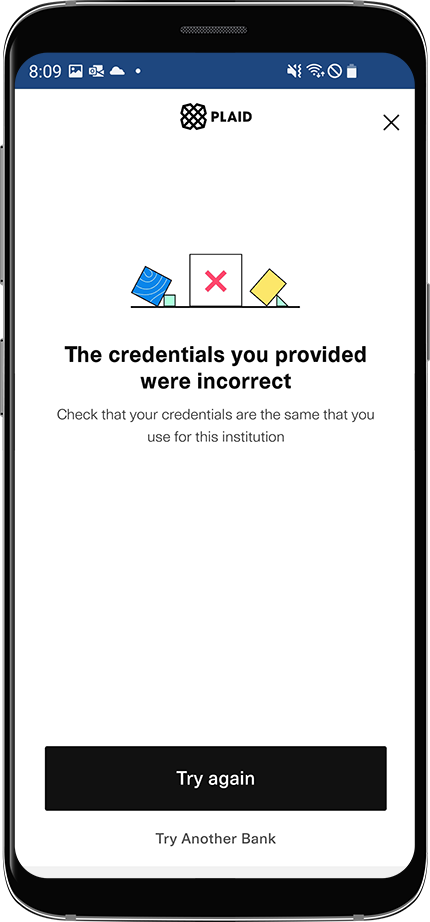
- An error message will appear if your login credentials were incorrect. SelectTry againand try again.
- You will see a list of your accounts once you sign in successfully.
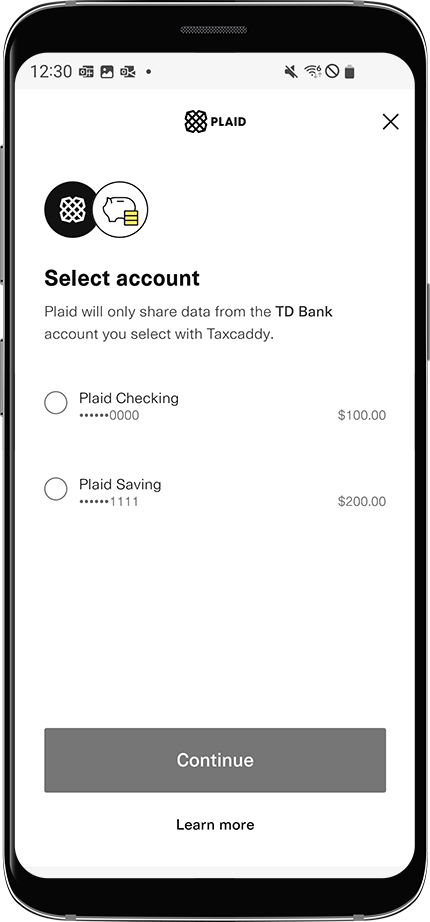
- Select on an account to select it for invoice payment. SelectContinue. Once your bank account has been added successfully, you can select the verified bank account to make a payment.
 IconsDescriptionIndicates unverified bank accountsIndicates verified bank accountsIndicates bank account has been locked due to too many attempts
Manual Verification
TaxCaddy.com on PC, Mac, or tablet
Use the following steps to manually verify your bank account.
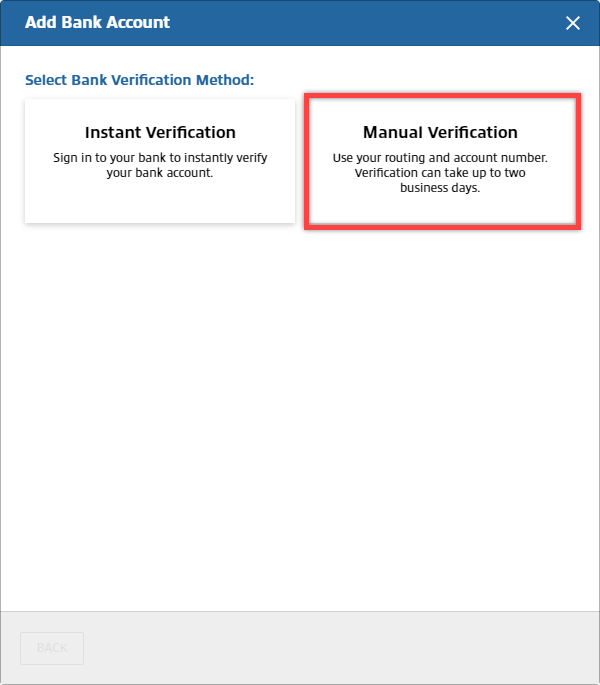
- SelectManual Verificationto add your bank account using routing and account numbers. Manual verification may take up to 2 business days.
- Enter all fields then selectADD ACCOUNT.
 You can select theHelpicon to view an example of how to locate your routing and account number.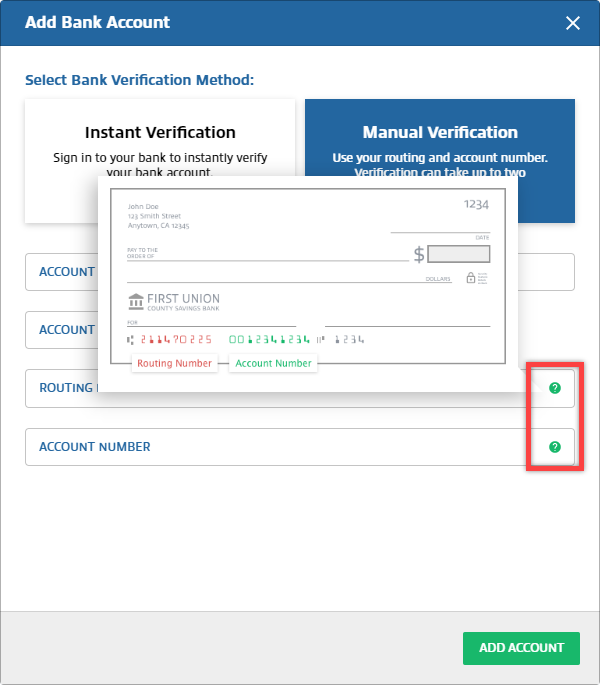
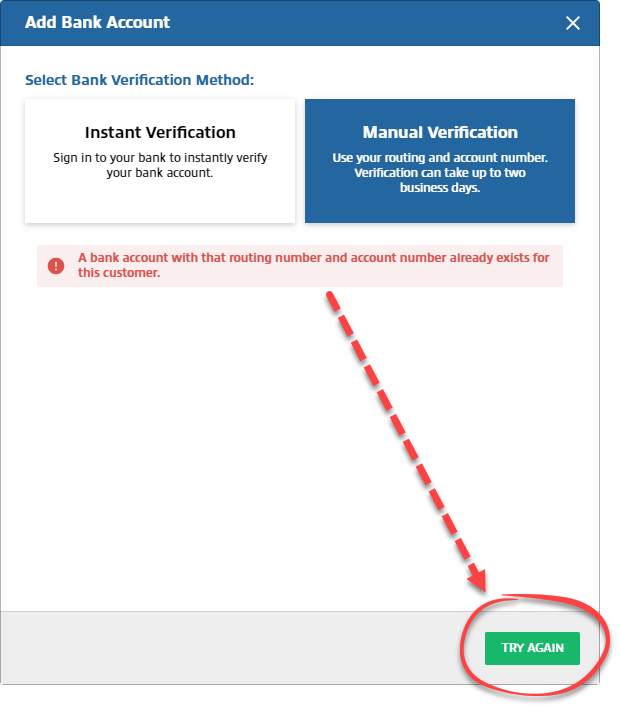
- If you see an error message, selectTRY AGAINand verify all fields.
- Once you have successfully added your bank account, selectDONE.
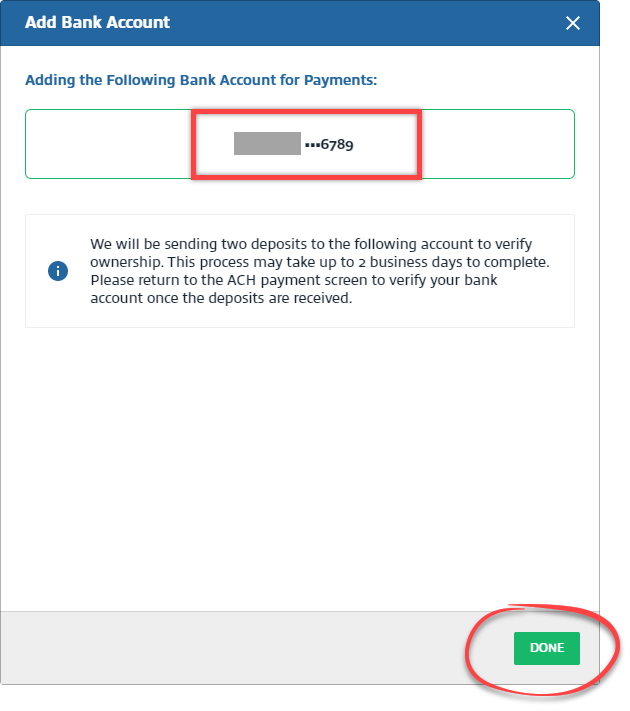
- Once the bank account has been added, it still needs to be verified. You will receive 2 deposits in this bank account, the amounts will be used to authenticate your bank account. This may take up to 2 business days.Once you receive the two payments in your bank account, return to this step again following the steps listed previously. SelectVERIFYon the bank account you added earlier.noteYou only need to manually verify the bank account once after it has been added.
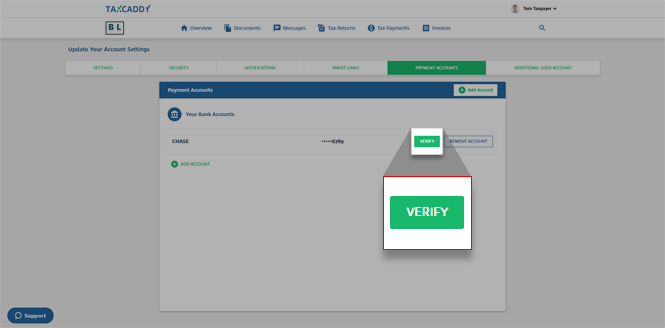 Your screen may vary if you are adding a bank account when paying aTax PaymentorInvoice.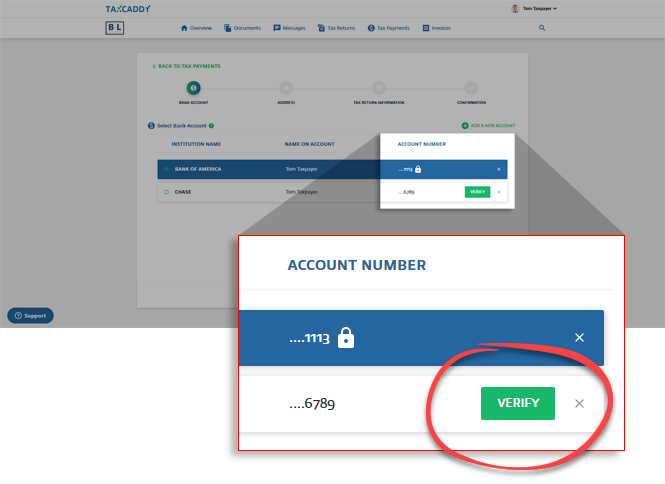
- To verify this account, enter the two bank deposits underVERIFICATION AMOUNT 1andVERIFICATION AMOUNT 2, then selectVERIFY.
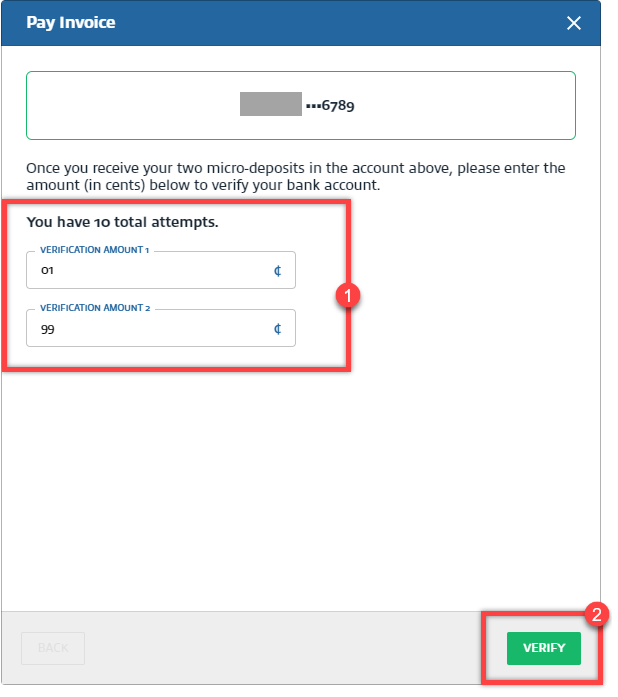
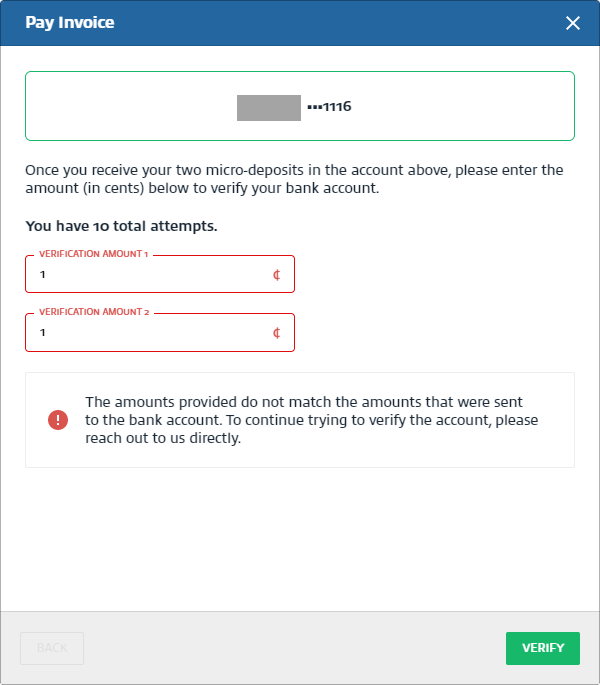
- An error notification appears if the amount you entered is incorrect. Verify the correct amount in your bank account, then selectVERIFYto try again.Your bank account will be locked if you fail to verify your micro-deposits in 10 attempts. If your bank account is locked, you can delete the bank account information and try again. A locked bank account can't be verified or used for payment.
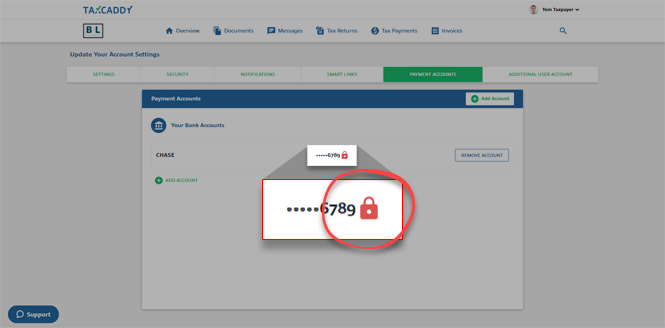 noteContact TaxCaddy support if you are still unable to verify your locked account.
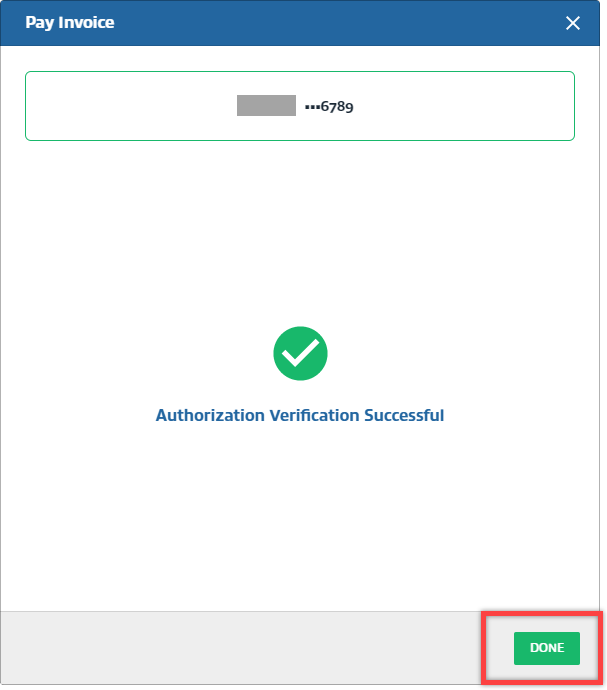
 - SelectDONE.
iOS mobile app
Use the following steps to manually verify your bank account.
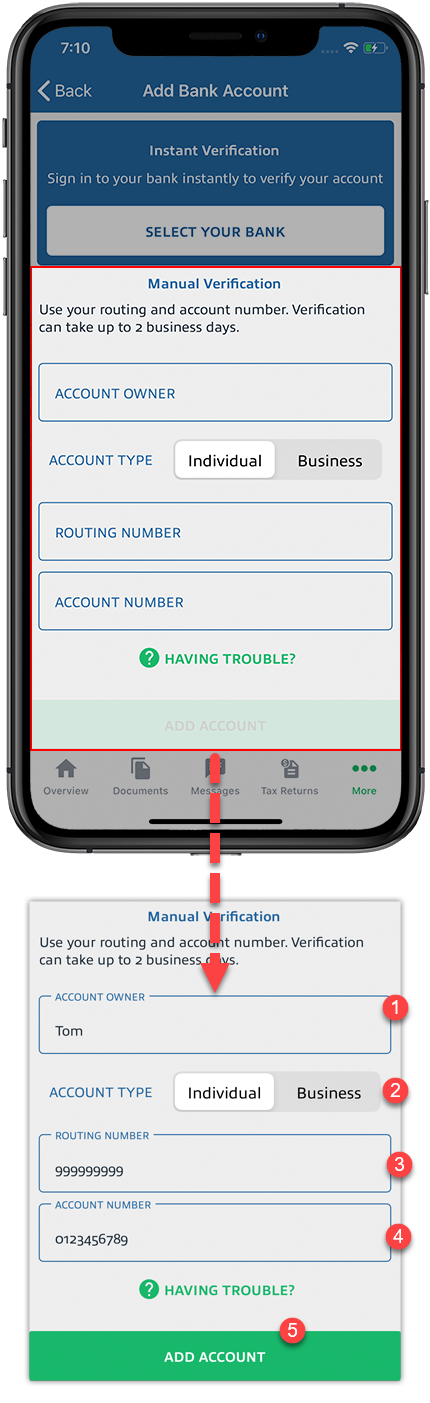
- If you choose to verify the bank account manually, underManual Verificationenter all fields, then selectAdd Account. Verification may take 2 business days.
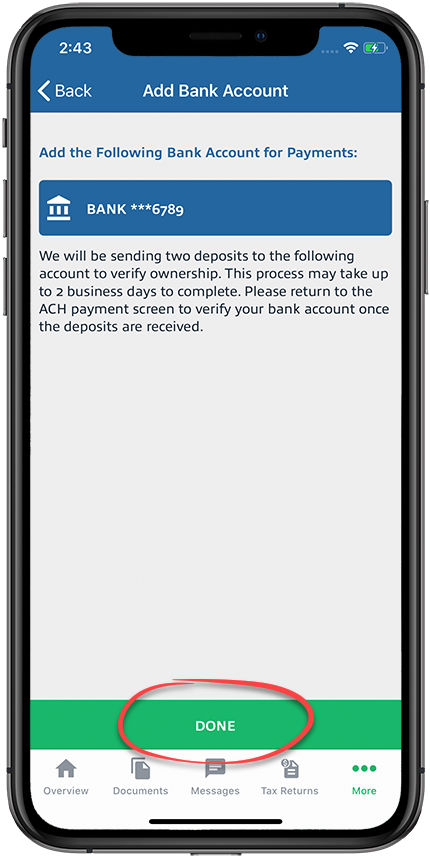
- Once the bank account has been added, it still needs to be verified. You will see 2 deposits in this bank account that will be used to authenticate your bank account. This may take up to 2 business days. SelectDONEto continue.
- You will see the bank account listed underPayment Accounts.
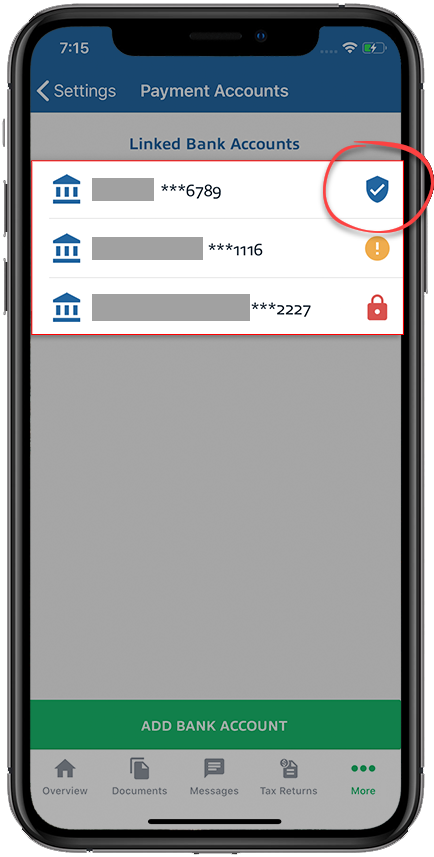
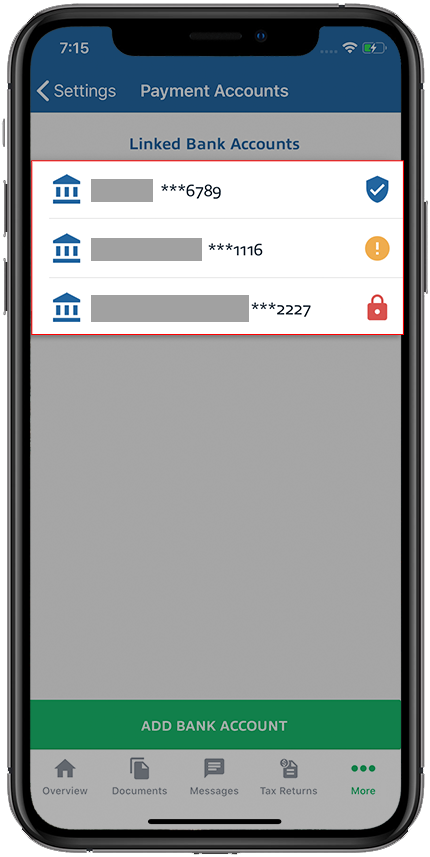 IconsDescriptionIndicates unverified bank accountsIndicates verified bank accountsIndicates unverified bank account has been locked due to too many attemptsOnce you have received the two deposits, Select an unverified bank account to verify it.noteYou only need to verify the bank account once after adding it.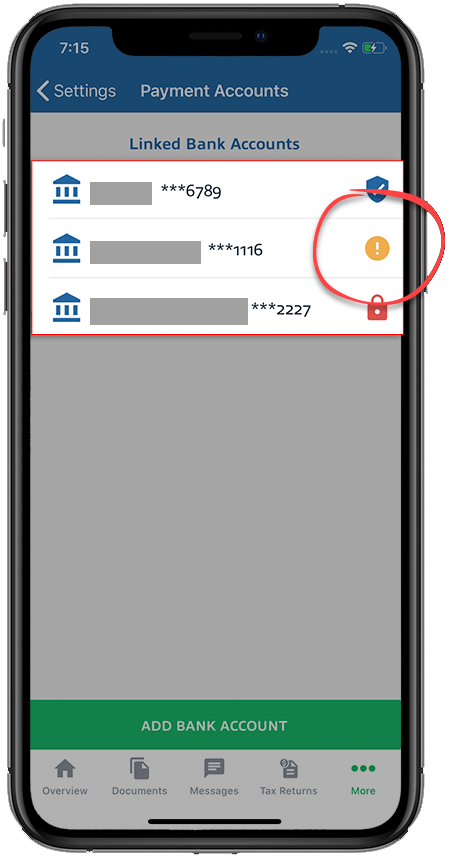
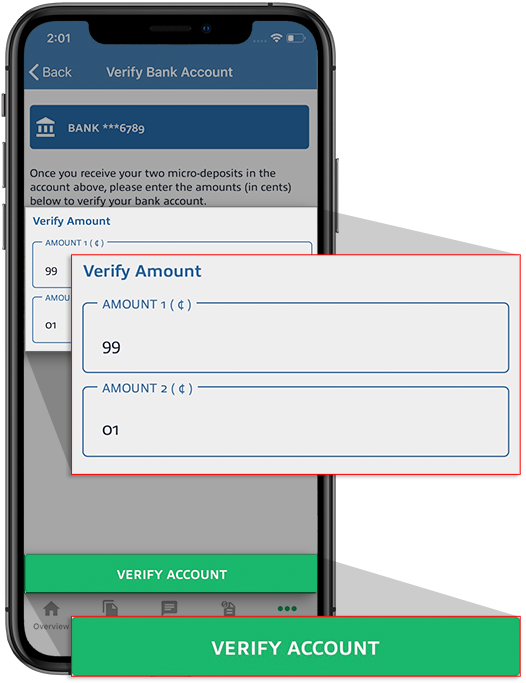
- To verify this account, enter the two amounts deposited in your bank account, then SelectVerify Account.
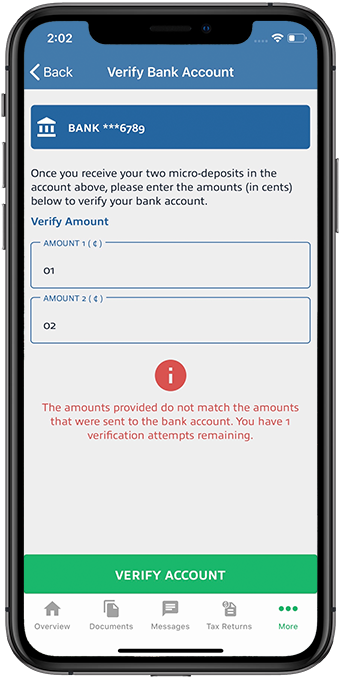
- An error notification appears if the amount you entered is incorrect. Verify the correct amount in your bank account then SelectVERIFY ACCOUNTto try again.noteYour bank account will be locked if you fail to verify your micro-deposits in 10 attempts. If your bank account is locked, you can delete the bank account information and try again. Contact TaxCaddy support if you are still unable to verify your locked account. Alternatively, you can also try using theInstant Verificationmethod.
- Once your bank account has been added successfully, you can select the verified bank account to make a payment.
Android mobile app
Use the following steps to manually verify your bank account.
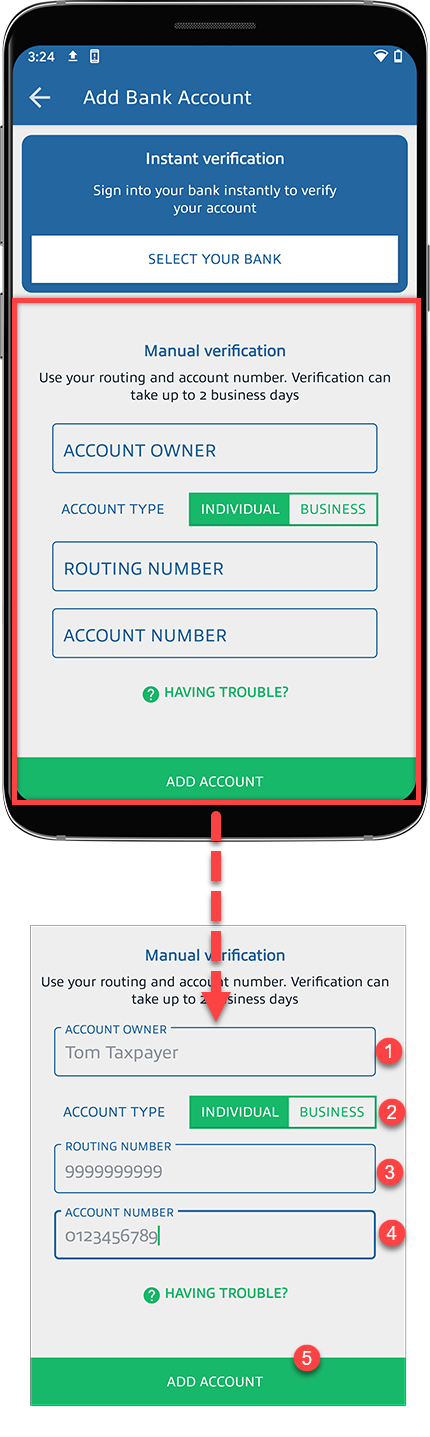
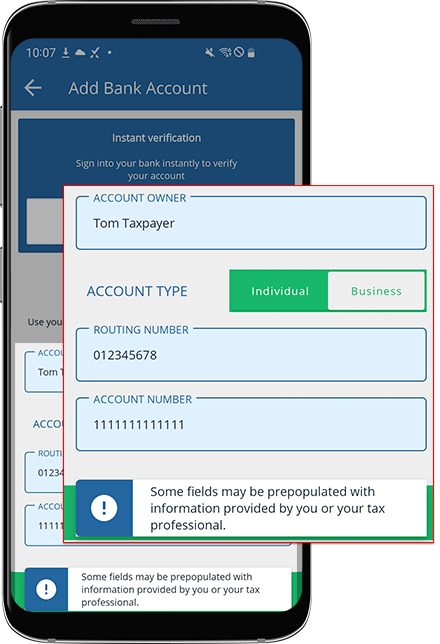
- If you choose to verify the bank account manually, underManual Verificationenter all fields, then SelectAdd Account. Verification may take 2 business days.If you or your tax professional have previously provided your bank account information to TaxCaddy, we will automatically populate your records with the information we have on file. Take a moment to review the information and make any corrections you see fit.
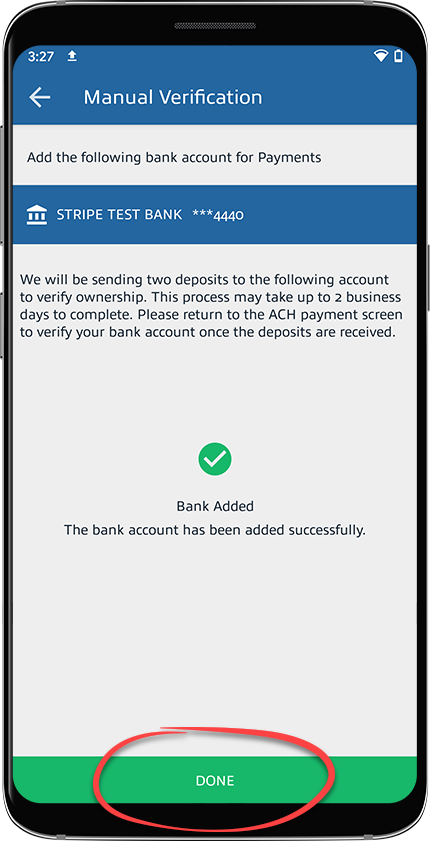
- Once the bank account has been added, it still needs to be verified. You will see 2 deposits in this bank account that will be used to authenticate your bank account. This may take up to 2 business days. SelectDONEto continue.
- You will see the bank account listed underPayment Accounts.
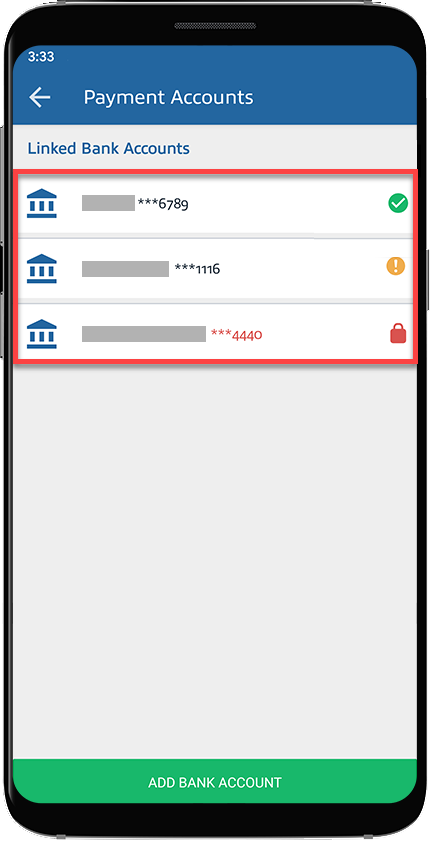 IconsDescriptionIndicates unverified bank accountsIndicates verified bank accountsIndicates unverified bank account has been locked due to too many attemptsOnce you have received the two deposits, Select on an unverified bank account to verify it.noteYou only need to verify the bank account once after adding it.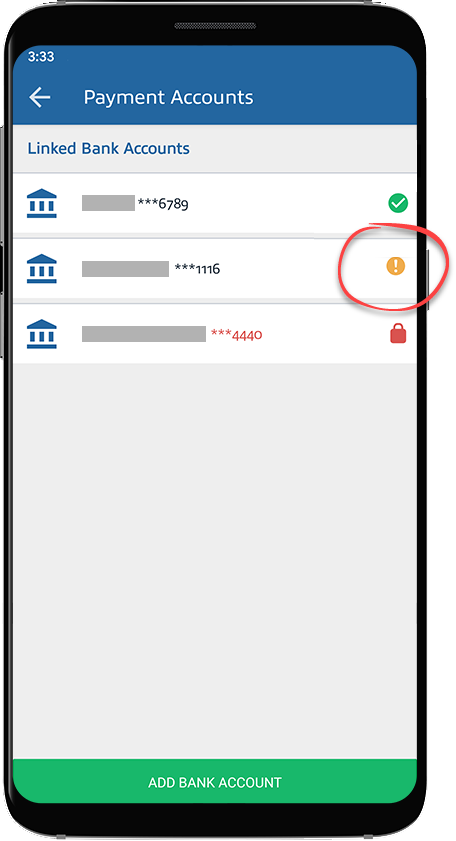
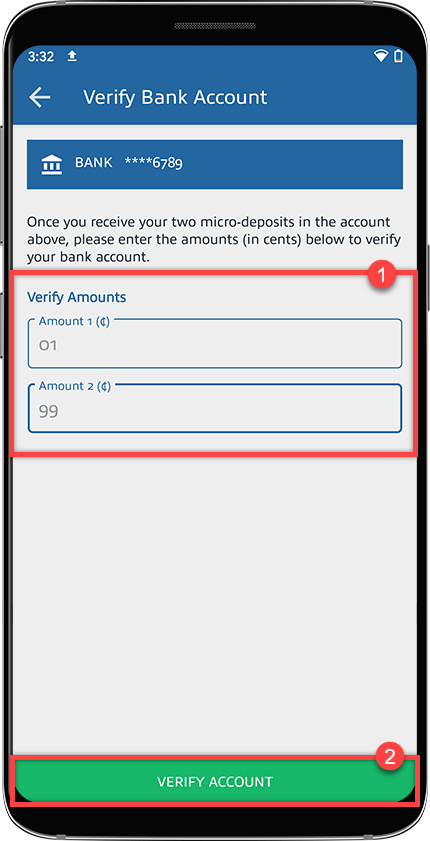
- To verify this account, enter the two amounts deposited in your bank account, then SelectVerify Account.
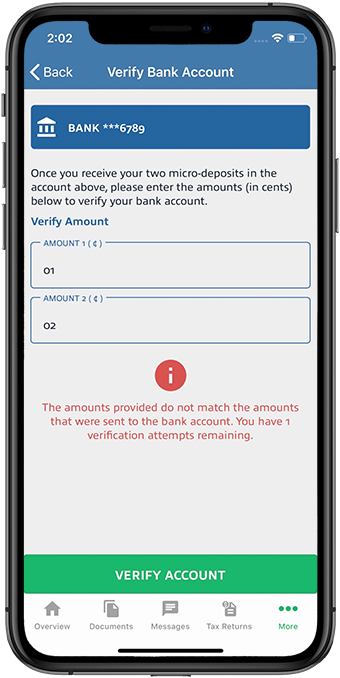
- An error notification appears if the amount you entered is incorrect. Verify the correct amount in your bank account then SelectVERIFY ACCOUNTto try again.noteYour bank account will be locked if you fail to verify your micro-deposits in 10 attempts. If your bank account is locked, you can delete the bank account information and try again. Contact TaxCaddy support if you are still unable to verify your locked account. Alternatively, you can also try using theInstant Verificationmethod.
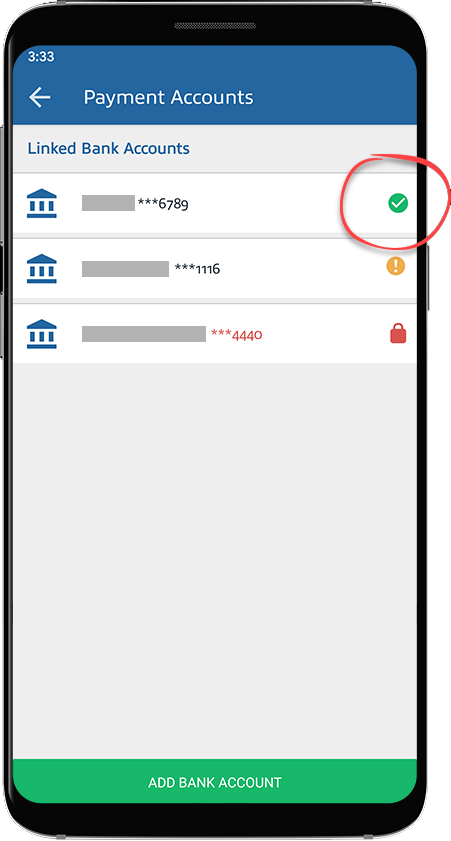
- Once your bank account has been added successfully, you can Select the verified bank account to make a payment.
Related Content
-
Remove bank account
Format: Article,
4 min read
Article,
4 min read

