
Remove bank account
Show all hidden content
You can remove bank account information from TaxCaddy while paying invoices or from the
Settings
screen.note
Once a verified bank account is removed, you will need to authenticate the account information again if you choose to add it back.
TaxCaddy.com on PC, Mac, or tablet
Use the following steps to remove your bank account from TaxCaddy.
- Log in to TaxCaddy.com.
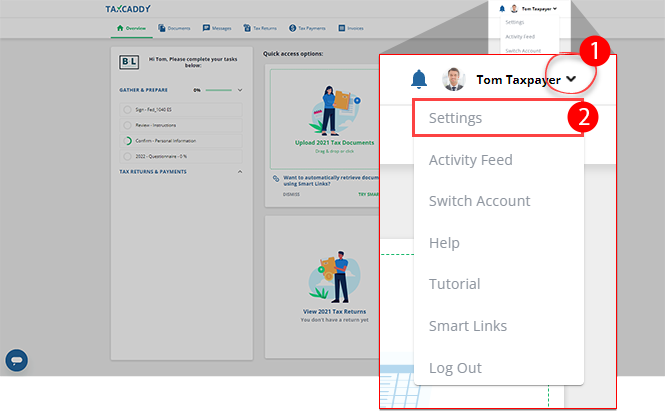
- Select theUser Menu, then selectSettings.
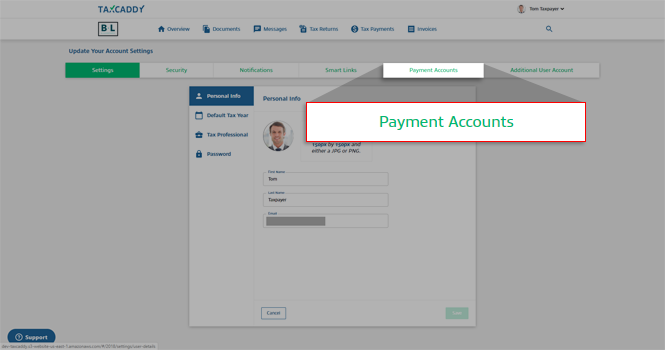
- Select thePayment Accountstab.
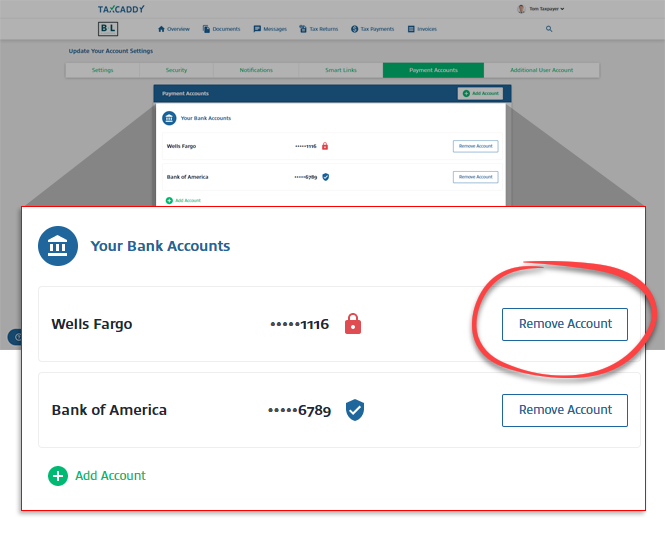
- SelectRemove Accounton the bank account you want to remove.
iOS mobile app
Follow these steps to remove your bank account from TaxCaddy on your iOS mobile app:
- Log in to the TaxCaddy mobile app.
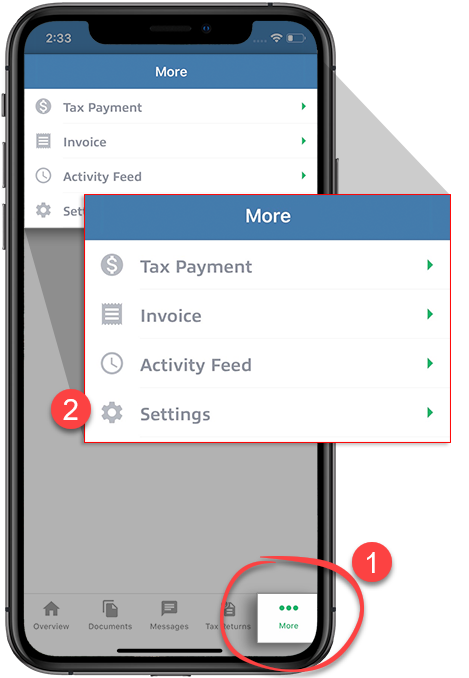
- SelectMoreon the navigation tab bar, then selectSettings.
- On theSettingsscreen, selectPayment Accounts.
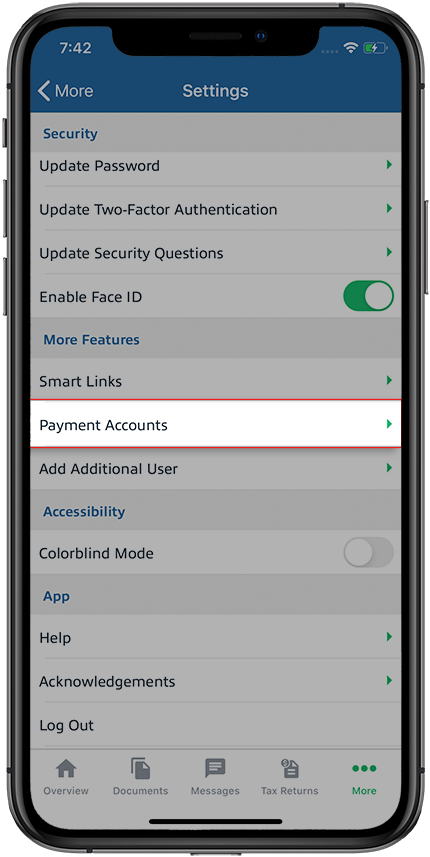
- Drag the bank account to the left.
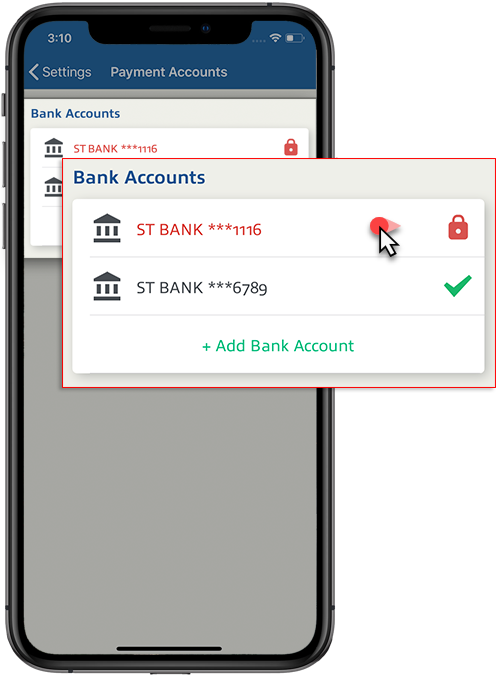
- SelectDeleteto delete the bank account information.
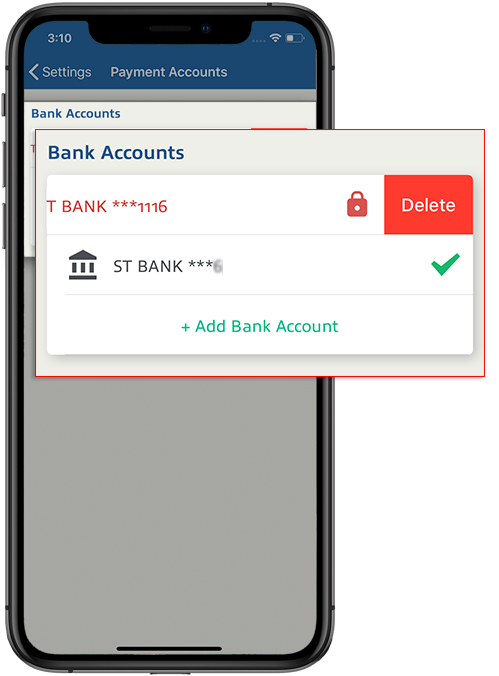
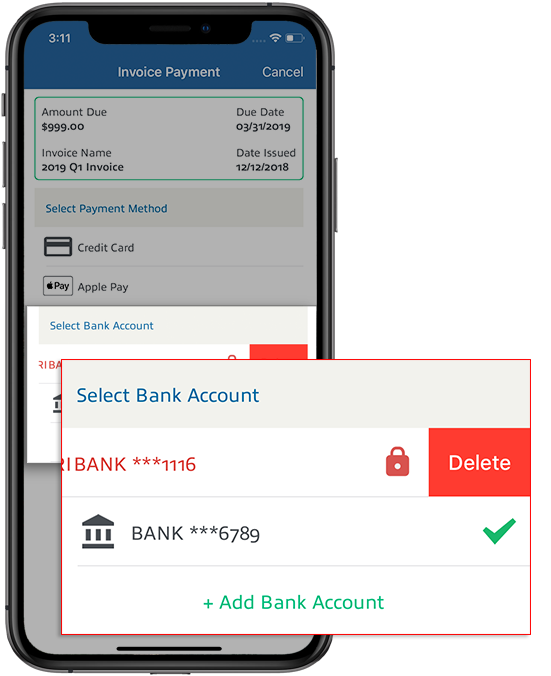
- You can also remove bank account information while paying invoices.
Android mobile app
Follow these steps to remove your bank account from TaxCaddy on your Android mobile phone app.
- Log in to the TaxCaddy mobile app.
- Select theMenuicon.

- SelectSettings.
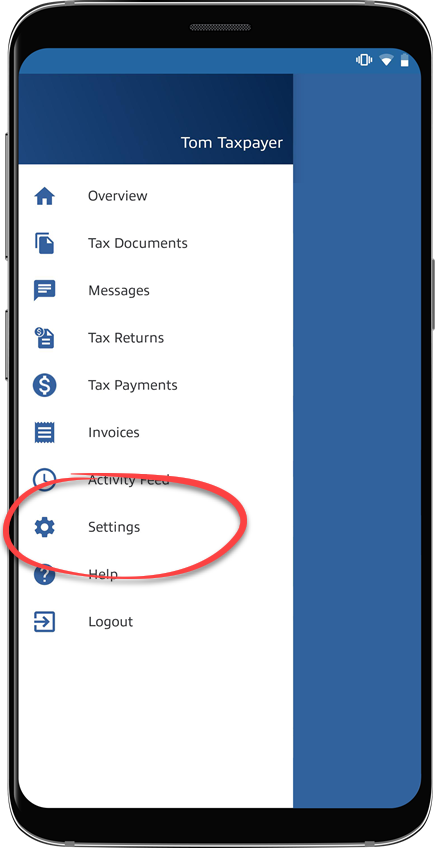
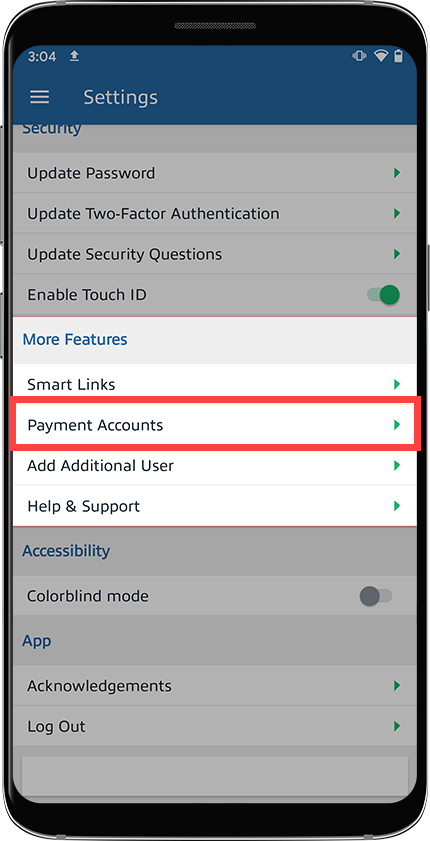
- On theSettingsscreen, selectPayment Accounts. You may need to swipe up/down to find the option.
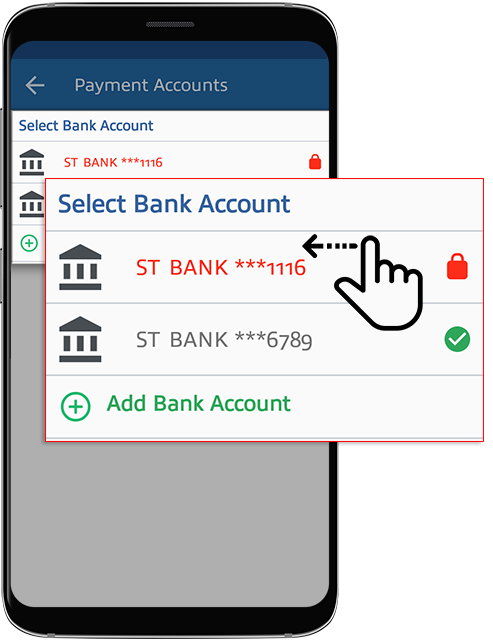
- Swipe the bank account to the left.
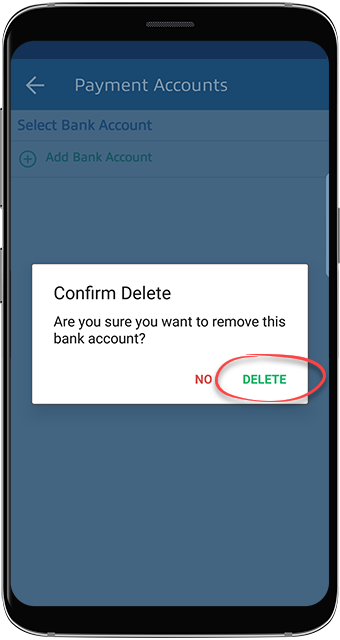
- On the confirmation window, selectDeleteto delete the bank account information.noteYou can also remove bank account information from theInvoicesscreen.
Related Content
-
Add a bank account
Format: Article,
23 min read
Article,
23 min read

