
Add and remove spouse or additional user accounts
Show all hidden content
You have the option to invite your spouse or another person to be an additional user on your TaxCaddy account. Adding an additional (admin) user allows them to do everything you can on your account, except sign documents, mark documents as reviewed, and access your
Settings
(that is, Changing your name, email address, profile picture, password, security questions, or push notification settings). Adding an additional user as a spouse allows them to sign spouse-related documents. You can revoke an additional user's access at any time if they are not connected as a spouse user. If necessary, a spouse user can delete their own account or you can delete your account then create a new TaxCaddy account.important
To connect your spouse to your TaxCaddy account, your spouse must sign up with TaxCaddy using the invitation link sent to their email.
TaxCaddy.com on PC, Mac, or tablet
Follow these steps to add or remove an additional user account using TaxCaddy.com on your PC, Mac, or tablet.
- Log in to TaxCaddy.com.
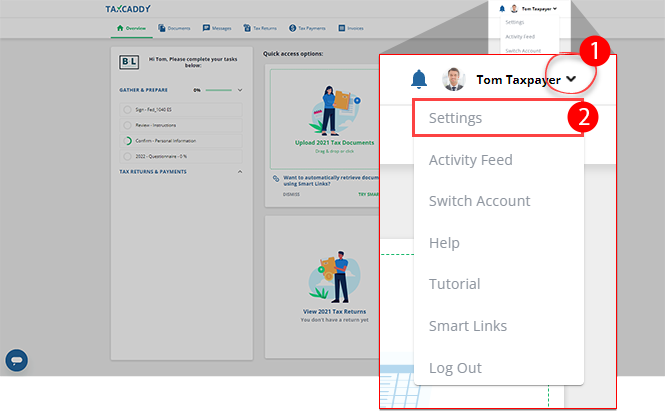
- Select theUser Menuand then selectSettings.
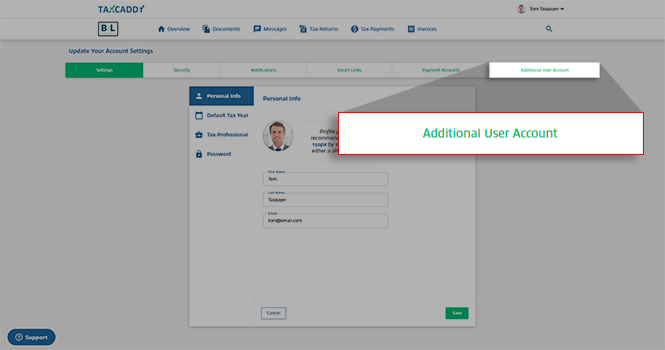
- SelectAdditional User Account.noteAdditional User Accountlink won’t appear if you are a spouse user.
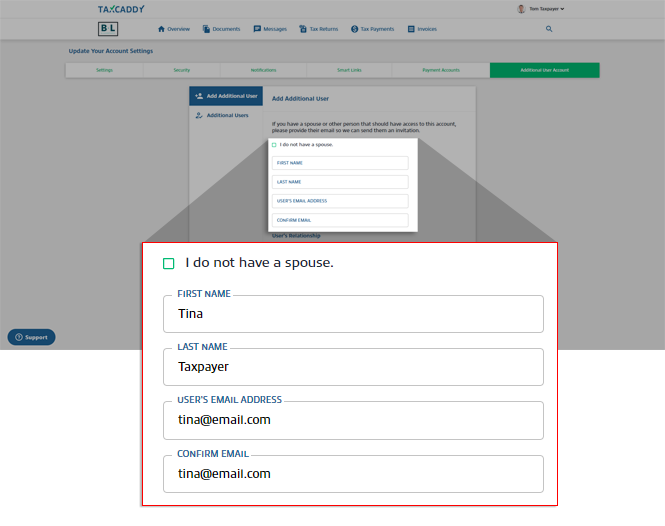
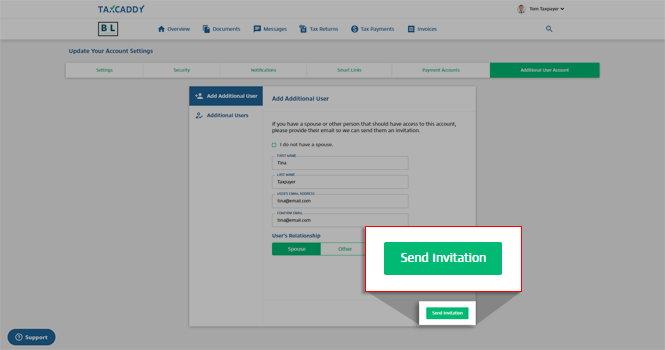
- Under Add an Additional User, type the additional user's information inFirst Name,Last Name,User's Email Address, andConfirm Email.tipIf you have already invited this person to be an additional user but they haven’t yet created their account, you have the option to update and resend the invitation.
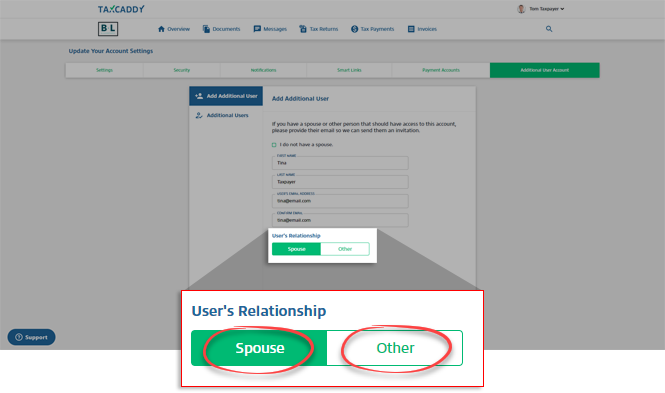
- Select theUser's Relationship.
- Spouse: Allows them to do everything you can on your account. However, a spouse user can only sign spouse-related documents. Spouse user can also mark documents as reviewed. Spouse user won’t be able to access yourSettings.
- Other(Admin user): Allows them to manage your account. Admin user can do everything you can on your account, except sign documents, mark documents as reviewed, and access yourSettings.
 noteYou can add 1 spouse and unlimited additional (admin) users.
 - SelectSend Invitation. You may need to scroll down to see theSend Invitationbutton.To connect successfully, your spouse must use their email invitation to sign up with TaxCaddy. If your spouse doesn’t see an email invitation, they can check their junk/spam folder.
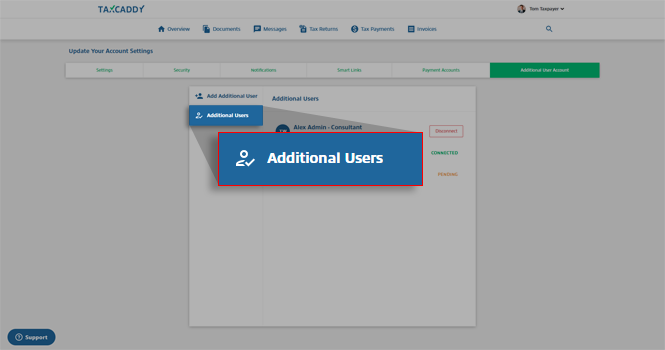
- SelectAdditional Usersto view all additional users.
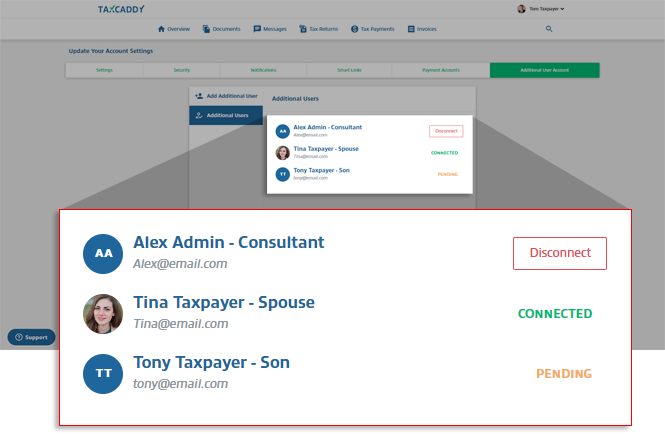
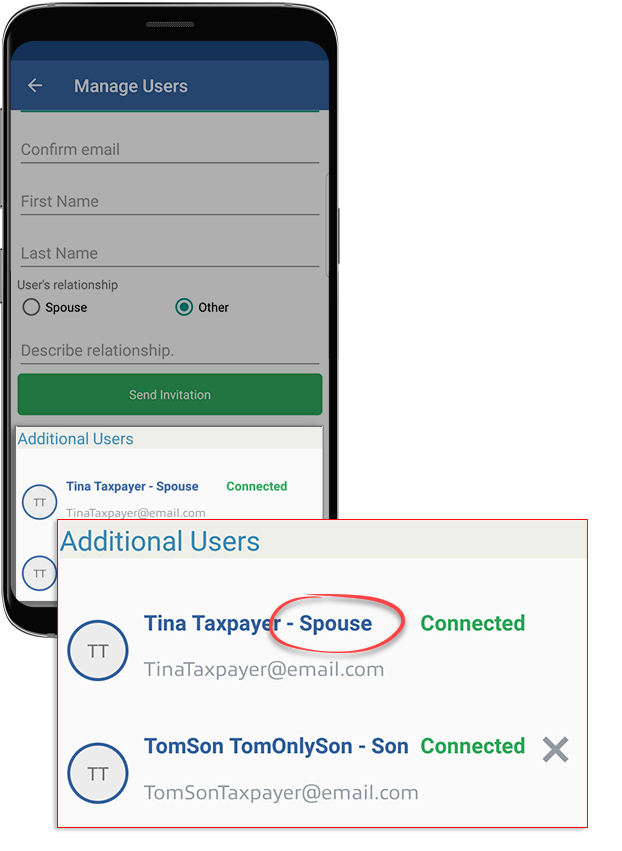
- You can see additional users you've added to your account. A spouse user will haveSpouseadded next to their name (that is, First name Last name -Spouse). Adding a user as a spouse allows them to sign spouse-related documents.
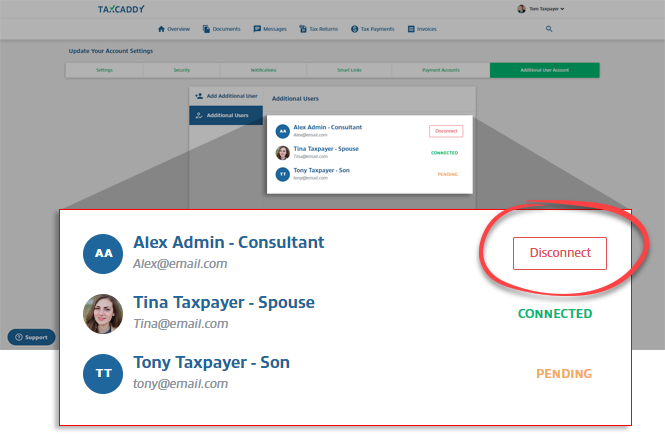
- To revoke a user's access to your account, selectDisconnect.noteDisconnect is only for additional user accounts who are not connected as Spouse. Spouse user can disconnect by deleting their own TaxCaddy account.
 The spouse user will haveSpouseadded next to their name (that is, T....- Spouse). Adding a user as a spouse allows them to sign spouse-related documents.
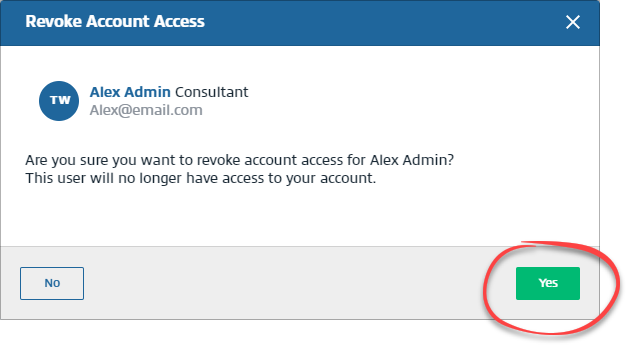
 - On theRevoke Account Accesswindow, selectYesto remove the additional user.
iOS mobile app
Follow these steps to add or remove an additional user account on your iPhone mobile phone app.
- Sign in to the TaxCaddy mobile app.
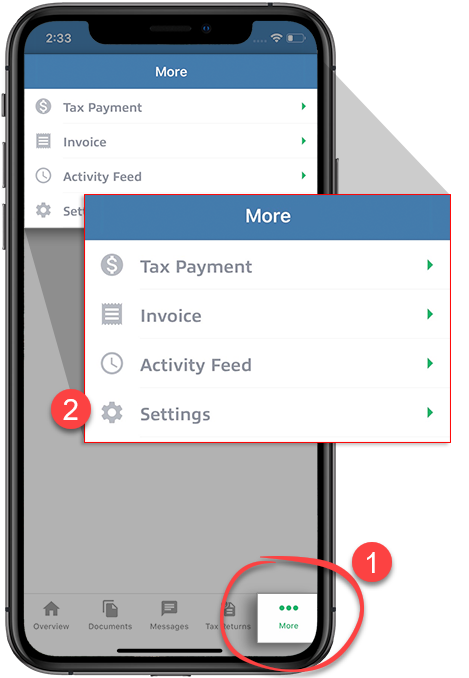
- SelectMoreon the navigation tab bar, then selectSettings.
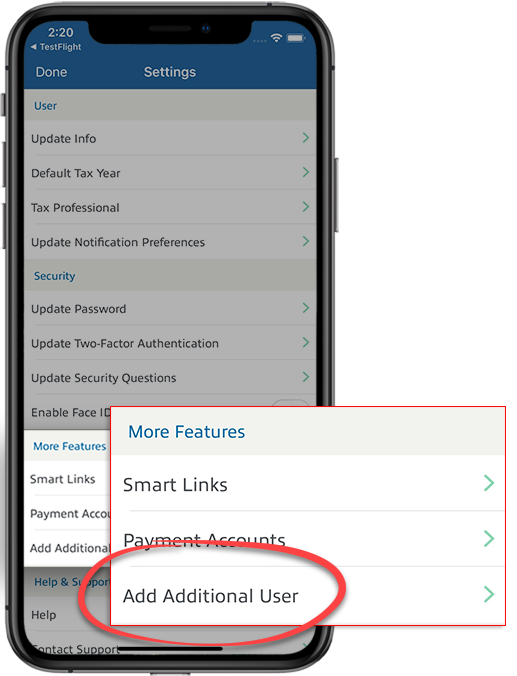
- SelectAdd Additional User.noteAdditional User Accountlink won’t appear if you are a spouse user.
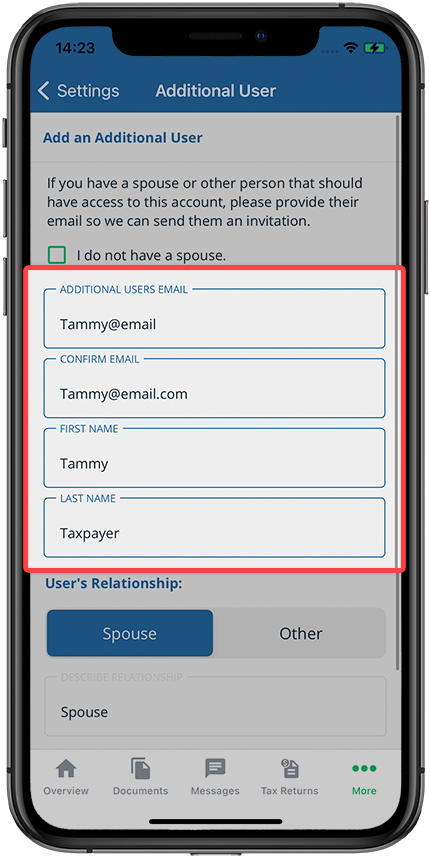
- UnderAdd an Additional User, type the additional user's information inFirst Name,Last Name,User's Email Address, andConfirm Email.
- Select theUser's Relationship.
- Spouse: Allows them to do everything you can on your account. However, a spouse user can only sign spouse-related documents. Spouse user can also mark documents as reviewed. Spouse user won’t be able to access yourSettings.
- Other(Admin user): Allows them to manage your account. Admin user can do everything you can on your account, except sign documents, mark documents as reviewed, and access yourSettings.
noteYou can add 1 spouse and unlimited additional (admin) users.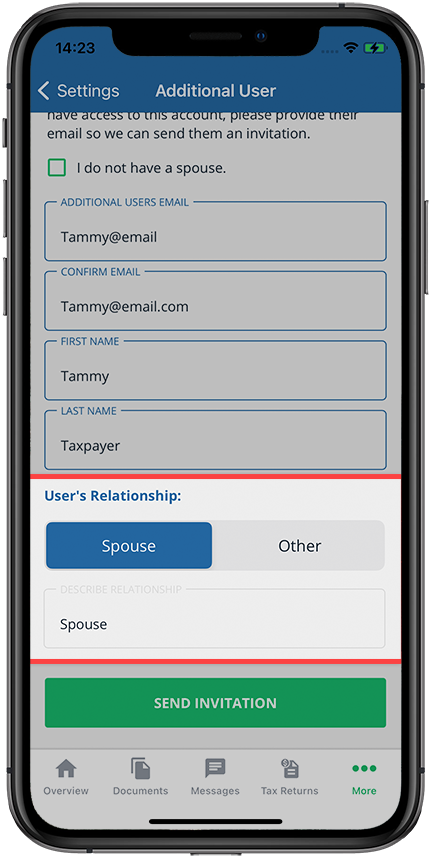
- SelectSEND INVITATION.
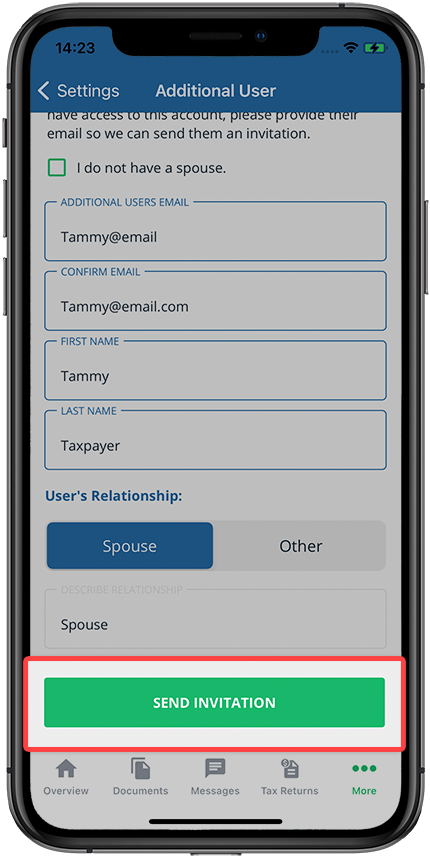
- To remove an additional user, scroll down and Select thexnext to the user.Spouse user will have theSpousesubheader added next to their name. Adding a user as a spouse allows them to sign spouse-related documents.
Android mobile app
Follow these steps to add an additional user account on your Android mobile phone app.
- Select theMenuicon.

- SelectSettings.
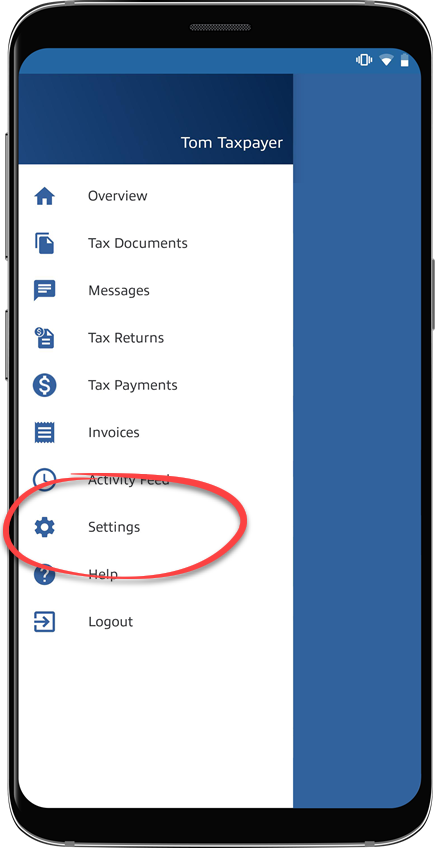
- SelectAdditional Users. You may need to scroll down to see this.noteAdditional User Accountlink won’t appear if you are a spouse user.
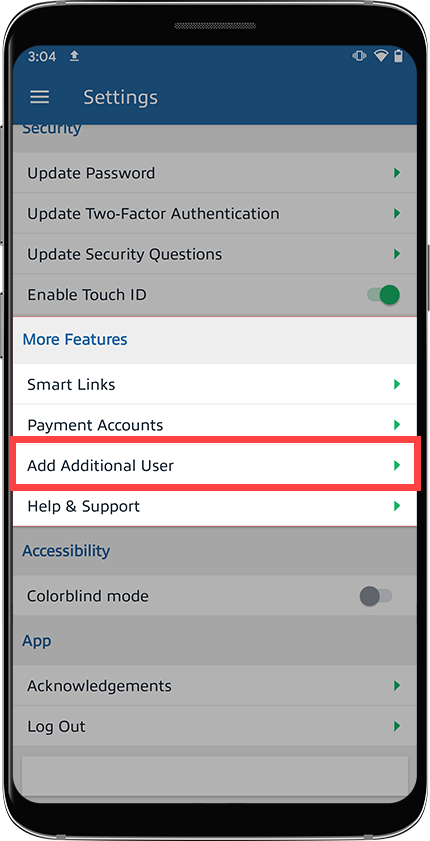
- UnderManage Users, type the additional user's information inFirst Name,Last Name,User's Email Address, andConfirm Email.
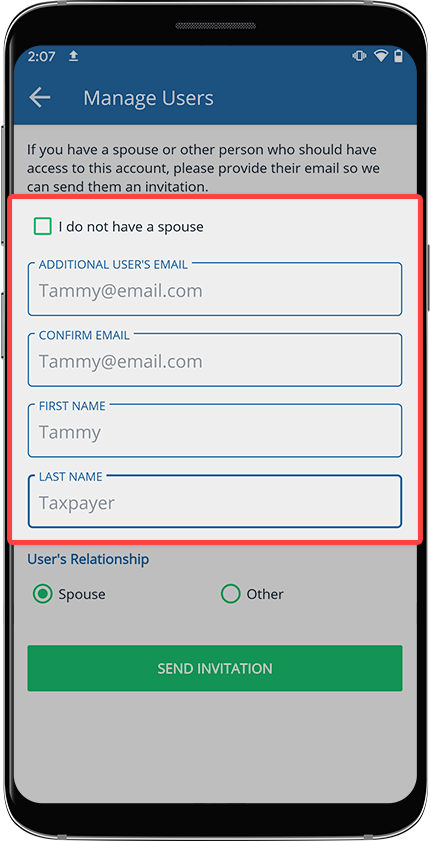
- Select theUser's Relationship.
- Spouse: Allows them to do everything you can on your account. However, a spouse user can only sign spouse-related documents. Spouse user can also mark documents as reviewed. Spouse user won’t be able to access yourSettings.
- Other(Admin user): Allows them to manage your account. Admin user can do everything you can on your account, except sign documents, mark documents as reviewed, and access yourSettings.
noteYou can add 1 spouse and unlimited additional (admin) users.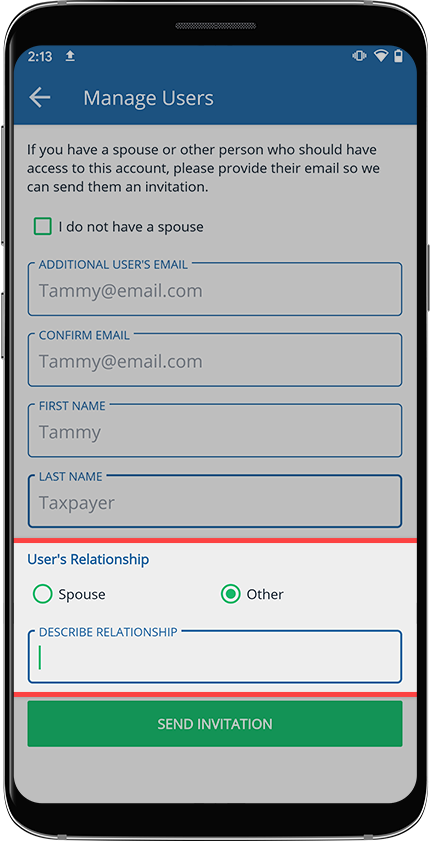
- SelectSEND INVITATION.
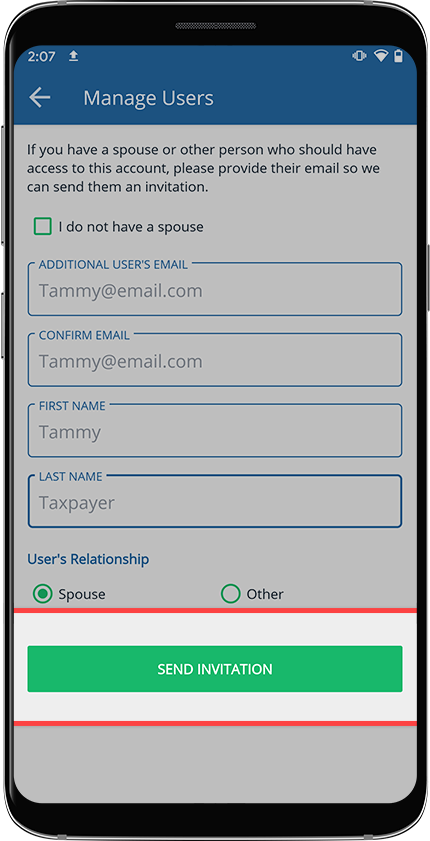
- To remove an additional user, select thexnext to the user on the Settings screen.Spouse user will haveSpouseadded next to their name. Adding a user as a spouse allows them to sign spouse-related documents.
Additional Notes
- Additional users connected to your account can do everything you can do, for example, answer questions on your behalf, upload a document, view tax returns, pay tax payments, and much more. However, additional users can’t do the following:
- Sign documents (Spouse user can sign spouse-related documents)
- Mark documents as reviewed
- Access yourSettings
- If a former spouse must be temporarily added to complete the filing process, they can be added as anOtheraccount. When this happens, their access to your TaxCaddy account can be revoked at your discretion without needing them to initiate the account deletion process.
 noteSpouses added asOtheraccounts won’t be able to complete spousal signature requests. Spouse-related signature requests must be printed, physically signed, then photo-scanned into TaxCaddy.

