
Change the default tax year
Show all hidden content
You can change the default tax year in your settings. If no documents or returns have been uploaded for the new default tax year, you won't see any documents or returns by default. However, documents and returns uploaded for previous tax years won't be removed, and you can still see them by changing the tax year from the menu.
TaxCaddy.com on PC, Mac, or tablet
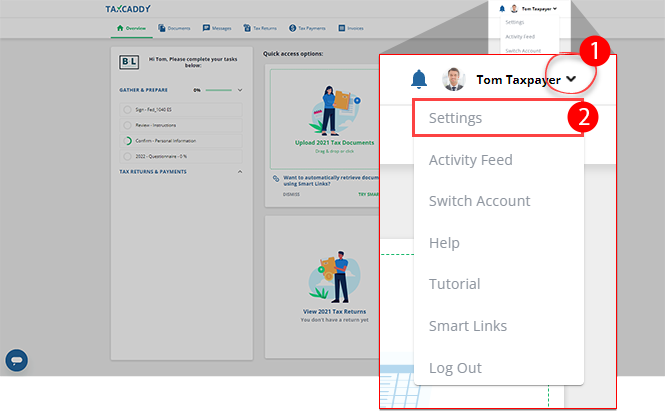
Follow these steps to change the default tax year when using TaxCaddy.com on your PC, Mac, or tablet.
- On theSettingstab, selectDefault Tax Year.

- UnderDefault Tax Year, select the year you'd like to make your default.

- On the confirmation window, selectYes.

iOS mobile app
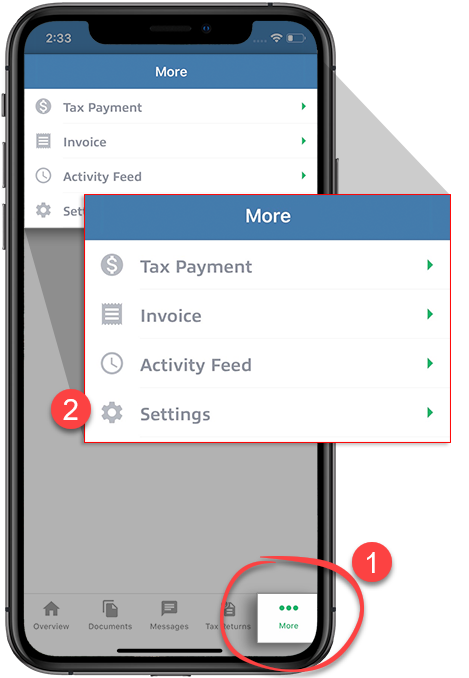
- SelectMoreon the navigation tab bar, then selectSettings.
- SelectDefault Tax Year.

- Select the year you would like to make your default tax year.

- Read the information then selectOK.

Android mobile app
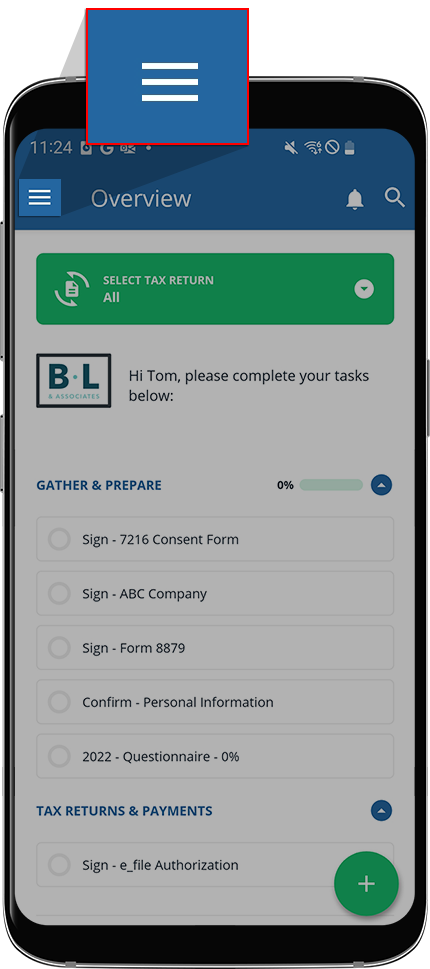
- Select theMenuicon.
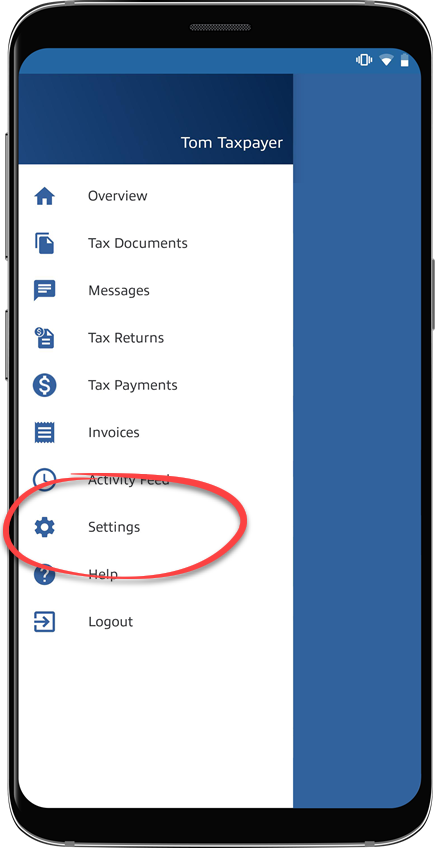
- SelectSettings.
- SelectDefault Tax Year.

- Select the year you would like to make your default tax year, and then selectOK.

- Read the information and selectOK.


