
Dark mode
Show all hidden content
In Dark Mode, TaxCaddy uses a darker color palette for all screens, views, menus, and controls. You will also see a more vibrant foreground content stand out against the darker backgrounds. Dark mode reduces the luminance emitted by device screens, while still meeting minimum color contrast ratios. TaxCaddy Dark Mode also improves visual ergonomics by reducing eye strain, adjusting brightness to current lighting conditions, and facilitating screen use in dark environments.

TaxCaddy.com on PC, Mac, or tablet
Follow these steps to turn on Dark Mode:
- Log in to TaxCaddy.com.
- Select theUser Menu, then selectSettings.
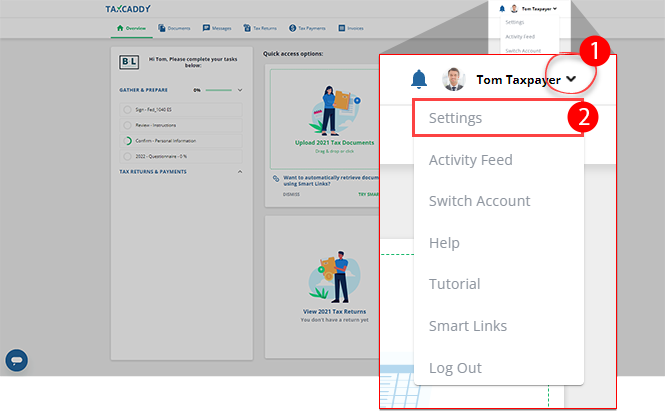
- On theSettingstab, selectAccessibility.

- SelectOnto turn on the Dark Mode. SelectOffto turn off the Dark Mode.

- Once activated, Dark Mode will appear on all pages.
 noteDark Mode color theme may vary based on the tax professional you are connected to.
iOS mobile app
Follow these steps on your iOS mobile phone app:
- SelectSettings.
- SelectDisplay & Brightness.
- SelectDarkto turn on Dark Mode.
- Log in to TaxCaddy to see Dark Mode enabled according to device set up.

Android mobile app
Follow these steps on your Android mobile phone app:
- Select theMenuicon.
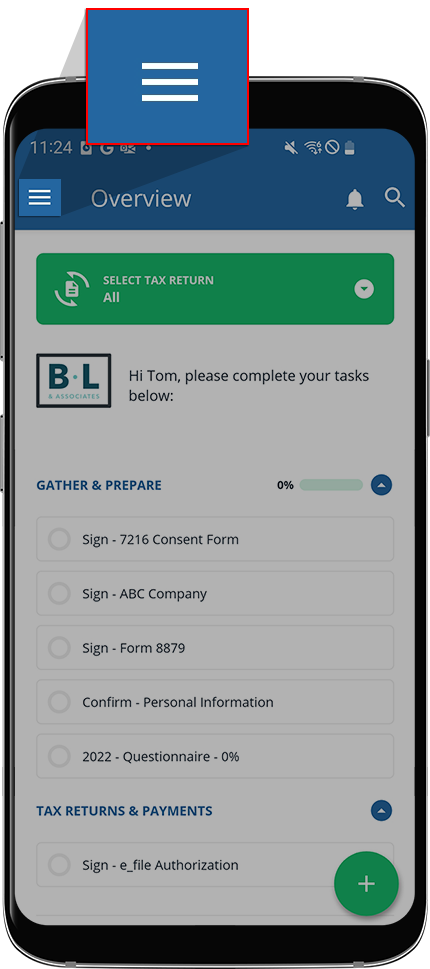
- SelectSettings.
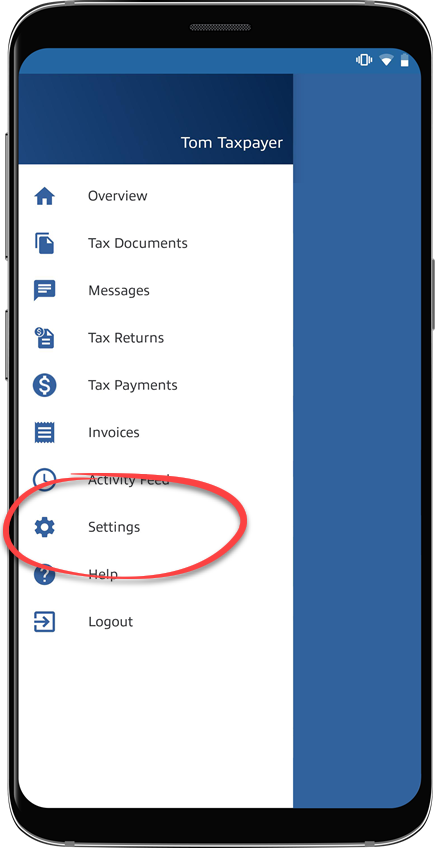
- On theSettingsscreen, scroll down to theAccessibilitycategory, theDark Modeswitch to enable/disable Dark Mode.

- TaxCaddy will immediately begin applying the color-blind theme.


