
Disconnect from your tax professional
Show all hidden content
Follow these steps to disconnect from your tax professional.
TaxCaddy.com on PC, Mac, or tablet
Follow these steps to disconnect from your tax professional when using TaxCaddy.com on your PC, Mac, or tablet.
- Sign in to TaxCaddy.com.
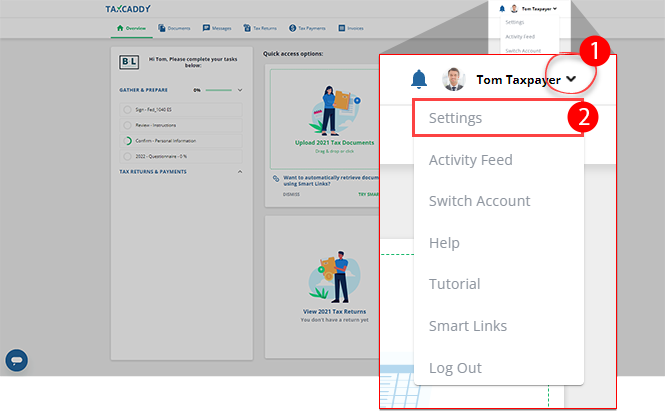
- Select theUser Menu, then selectSettings.
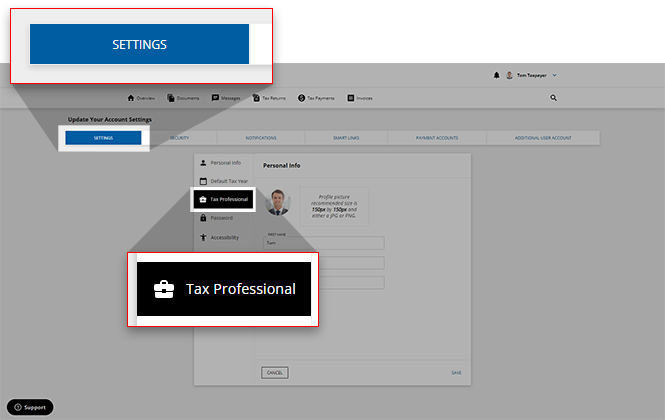
- On theSETTINGStab, selectTax Professional.
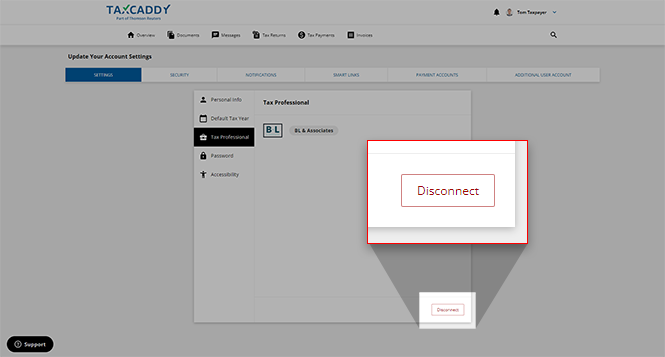
- SelectDisconnectto disassociate from your tax professional.
 noteTheDisconnectfeature will be not available for users who log into their TaxCaddy account using an email access link rather than a password. If you'd like to initiate a disconnect from your tax professional, you will need to create a password for your account before you can do so.
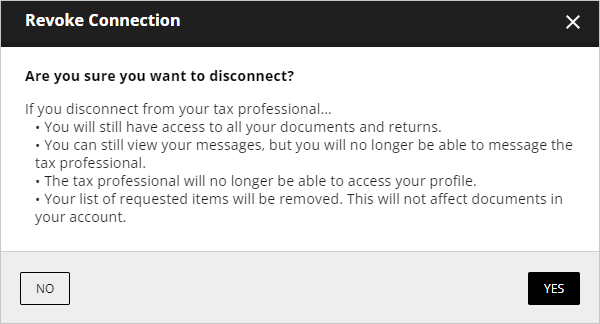
- On theRevoke Connectionwindow, ensure that you understand what will happen, and if you agree, selectYESto verify.
iOS mobile app
Follow these steps to disconnect from your tax professional on your iOS mobile phone app.
- Sign in to the TaxCaddy mobile app.
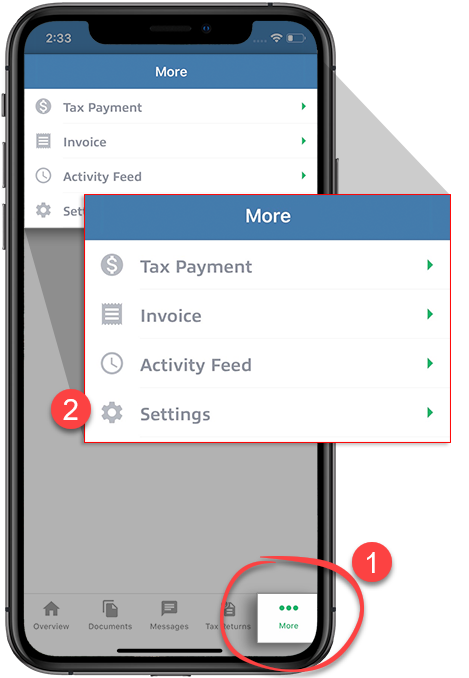
- selectMoreon the navigation tab bar then selectSettings.
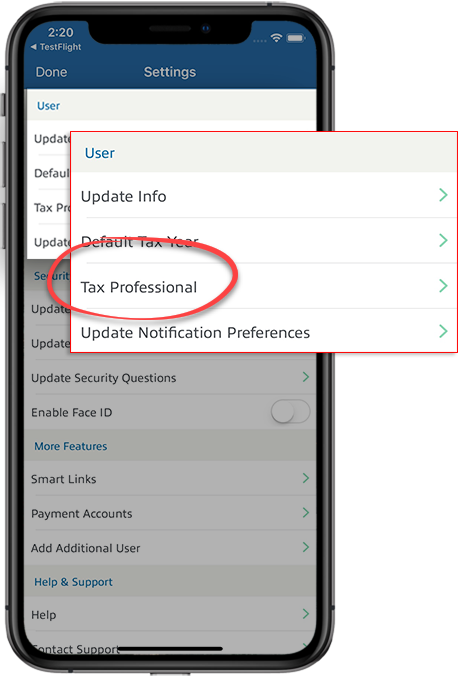
- On theSettingsscreen, under theUsercategory, selectTax Professional.
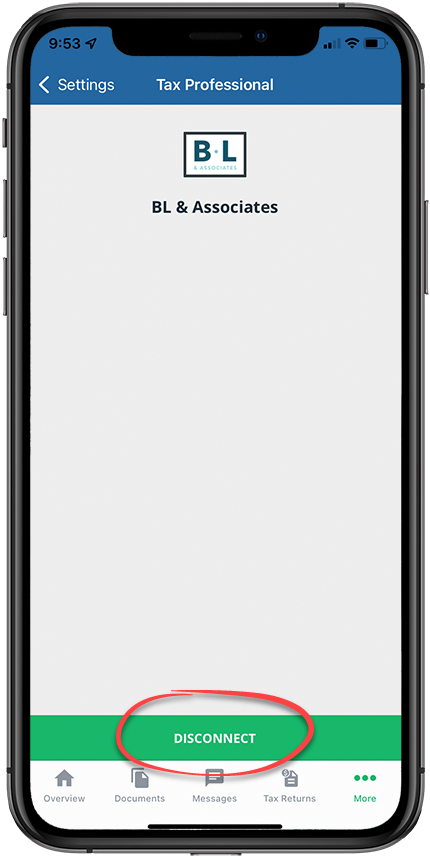
- selectDisconnect.
 noteTheDisconnectfeature will be not available for users who log into their TaxCaddy account using an email access link rather than a password. If you'd like to initiate a disconnect from your tax professional, you will need to create a password for your account before you can do so.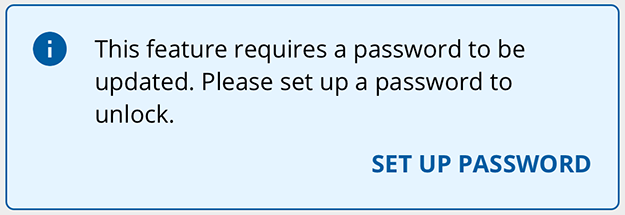
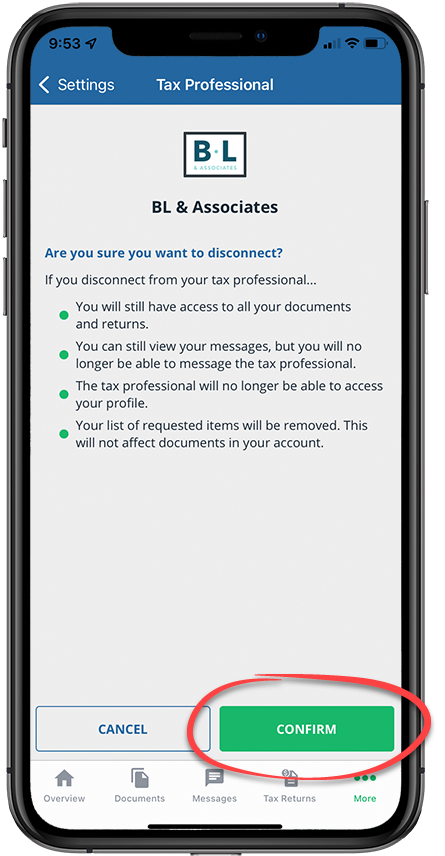
- SelectCONFIRMto disconnect from your tax professional, selectCANCELto leave your tax professional connected.
Android mobile app
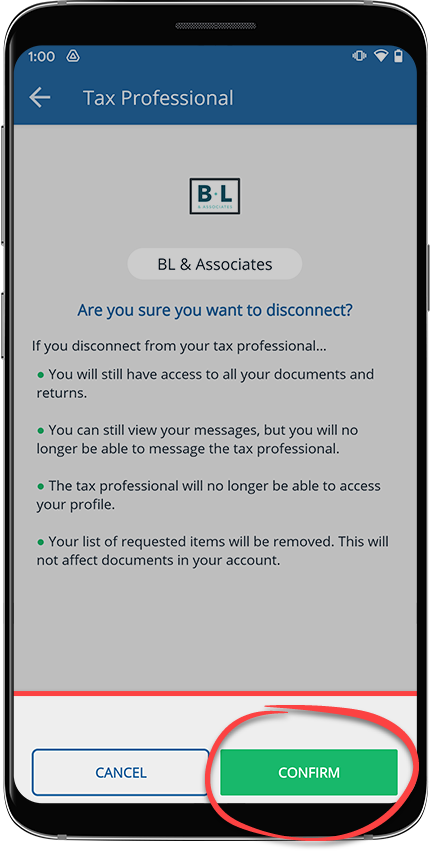
Follow these steps to disconnect from your tax professional on your Android mobile phone app.
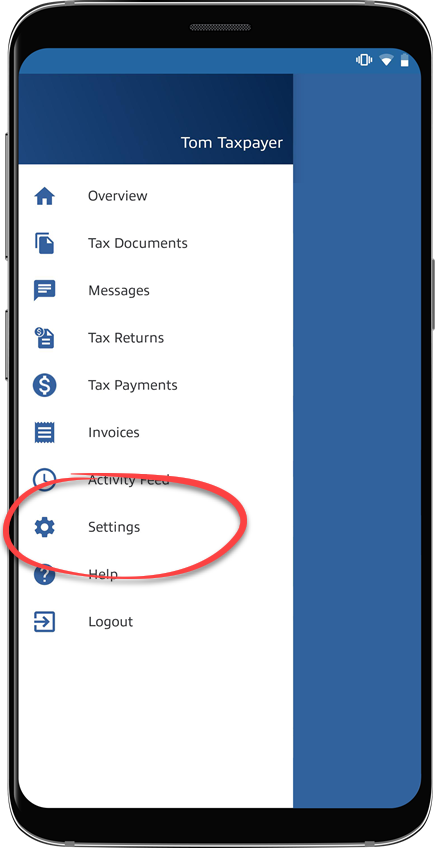
- Select theMenuicon.

- SelectSettings.
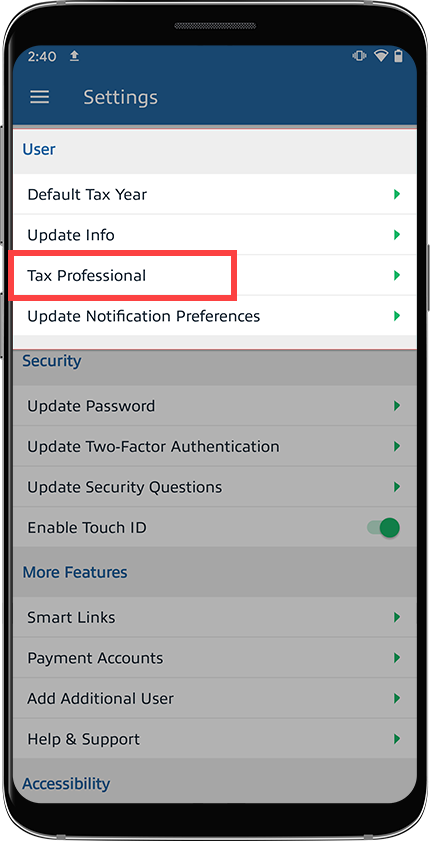
- On theSettingsscreen, under theUsercategory, selectTax Professional.
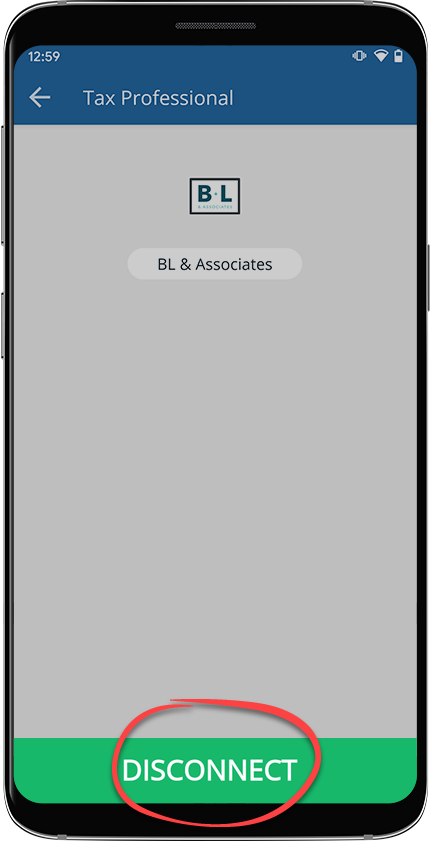
- SelectDISCONNECT.
- SelectConfirmto disconnect from your tax professional, then selectCancelto leave your tax professional connected.
What happens when you switch tax professionals?
If you need to disconnect from your tax professional at one firm and connect to a new tax professional at another firm, your account content won't be available to your former tax professional. The potential new tax professional will have the following access to your account content.
Client profile content | Will your previous firm retain this information? | Will you retain this information? | Can the newly connected firm access this information? |
|---|---|---|---|
Uploaded documents | No | Yes | Yes |
Sign/Review/Upload requests | No | Yes | Yes |
Questionnaire | No | No | No |
Personal Information | No | No | No |
Tax return documents | No | Yes | Yes |
Tax payments | No | Yes | Yes |
Invoices | No | No | No |
Message threads | No | Yes | No |

