
Mobile settings
Show all hidden content
Some tax professional firms may require users to sign in to TaxCaddy directly through their firm's online portal instead of using an email address and password. If you've logged in to TaxCaddy through your firm's portal, then you will need to pair your mobile device to your account if you want to access TaxCaddy while you're on the go.
The sign in process of scanning a QR code with your mobile device is only necessary the first time you sign in to TaxCaddy from a new device. Once you've completed these steps to register your new device, logging in to TaxCaddy can be done with a PIN or with biometrics (for example, Face ID, Fingerprint).
iOS mobile app
Follow these steps to pair your mobile device to your TaxCaddy account:
- Log in to TaxCaddy through your firm portal.
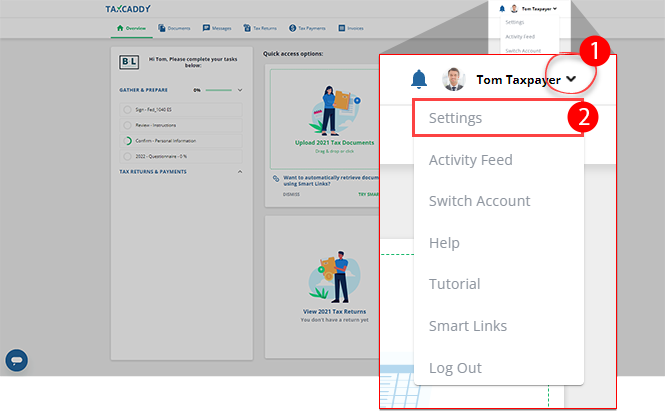
- Select the user menu, then selectSettings.
- SelectMobile Settings.
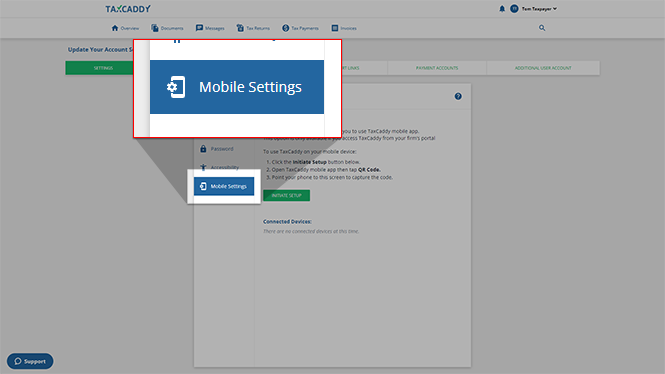 noteYou won't see theMobile Settingstab if your tax firm doesn’t let you sign in through their portal.
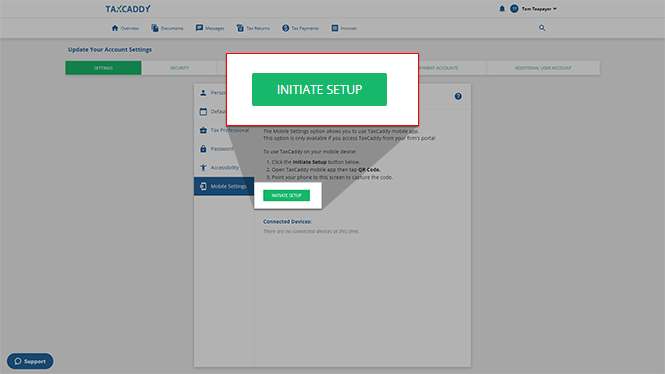
 - UnderMobile Settings, selectINITIATE SETUP.
- TheMobile Device Setupwindow will appear with a QR code that can be scanned using the TaxCaddy Mobile App.
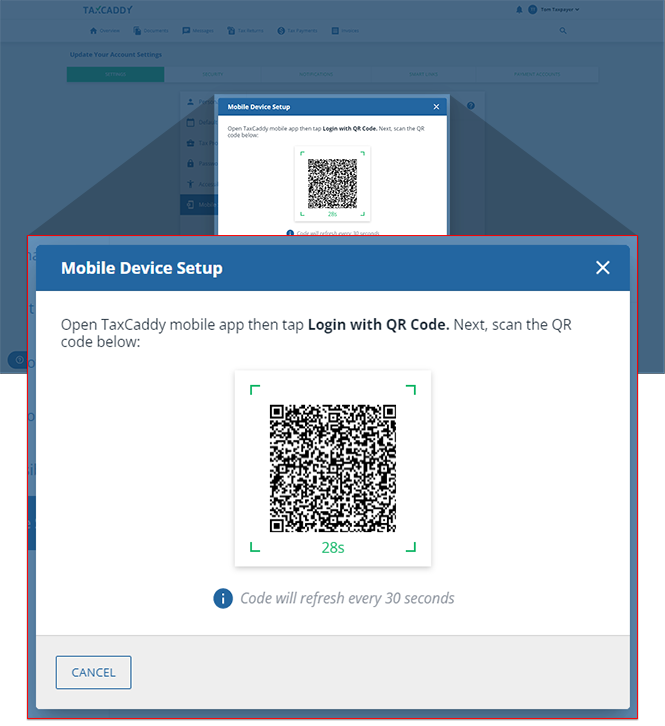
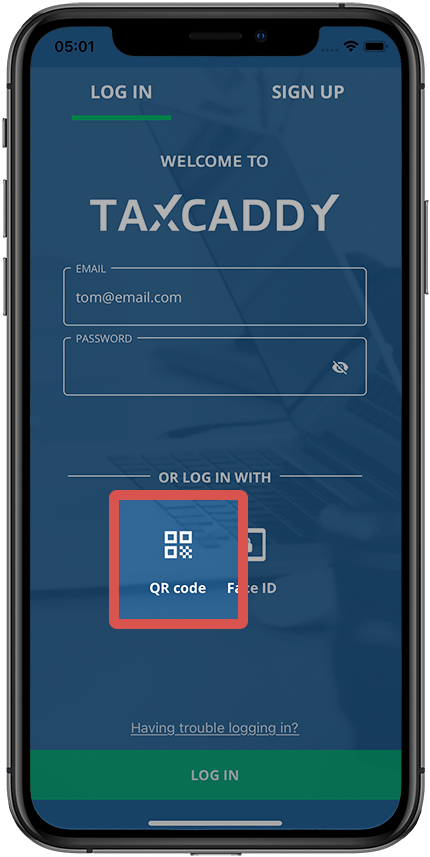
- Open the TaxCaddy Mobile App and selectQR code.
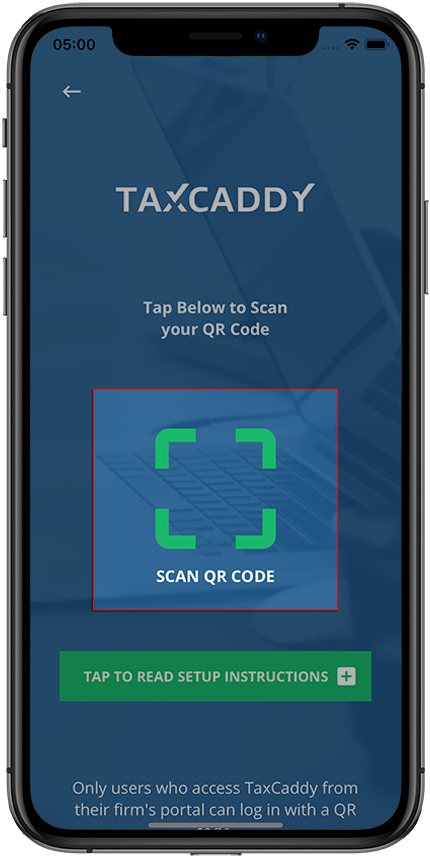
- Select theSCAN QR CODEicon.You can also Select
 Select TO READ SETUP INSTRUCTIONSfor a brief tutorial.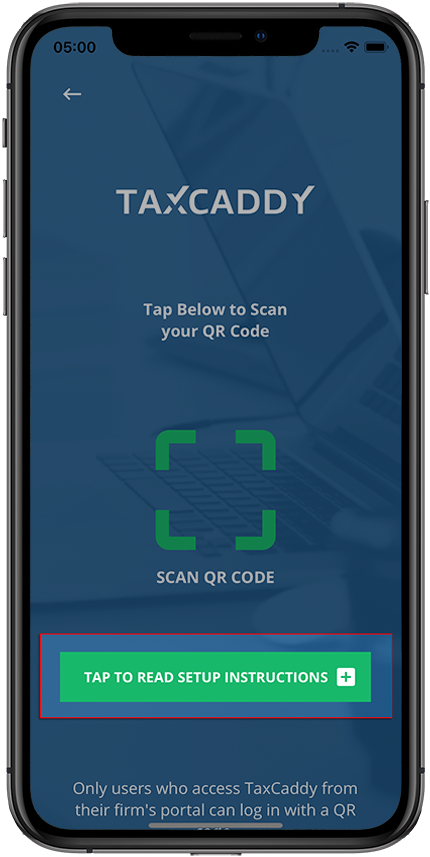
- After the camera is turned on, point your phone to your computer screen to capture the QR code displayed on theMobile Device Setupwindow.You may have to grant the TaxCaddy Mobile App permission to access your device's camera and location to verify the sign in attempt.
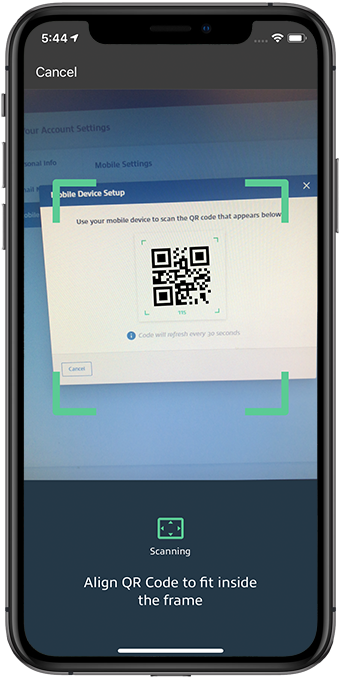
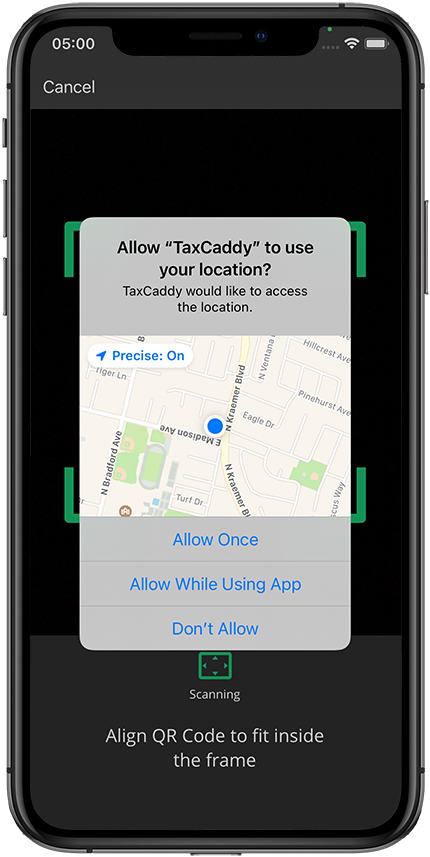
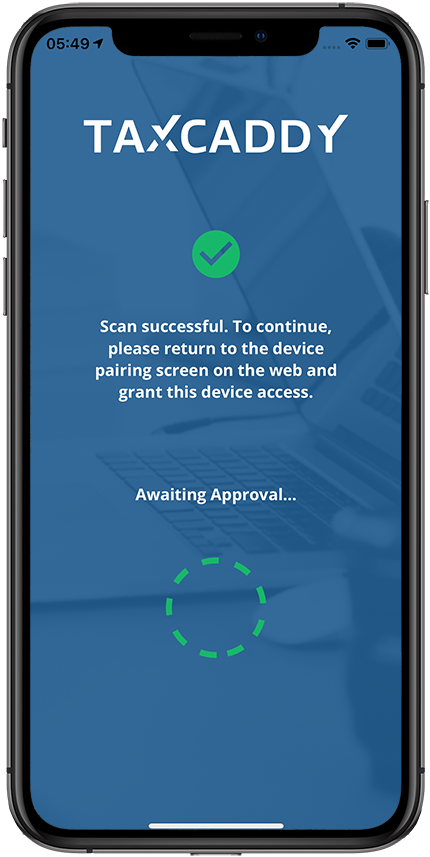
- The TaxCaddy Mobile App will wait for confirmation to be accepted on the web browser. This screen won’t update until you accept the connection request on the web.
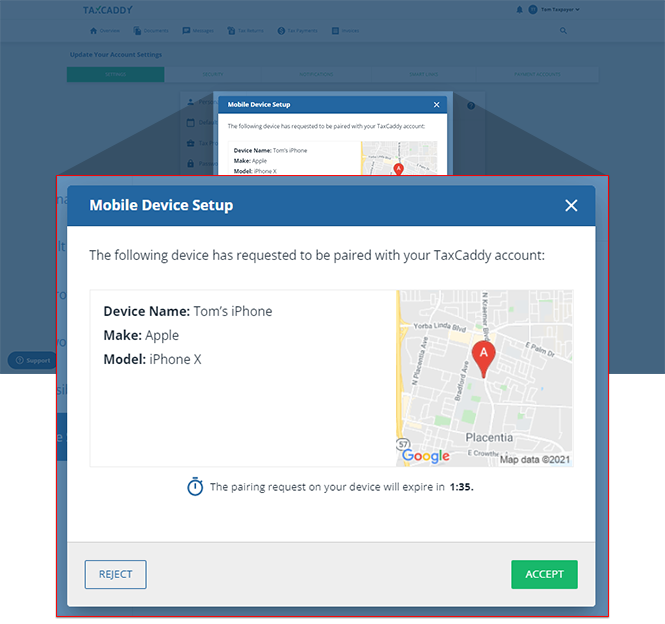
- On theMobile Device Setupwindow, selectACCEPTto authorize the mobile device. SelectREJECTif you want to cancel the connection request.
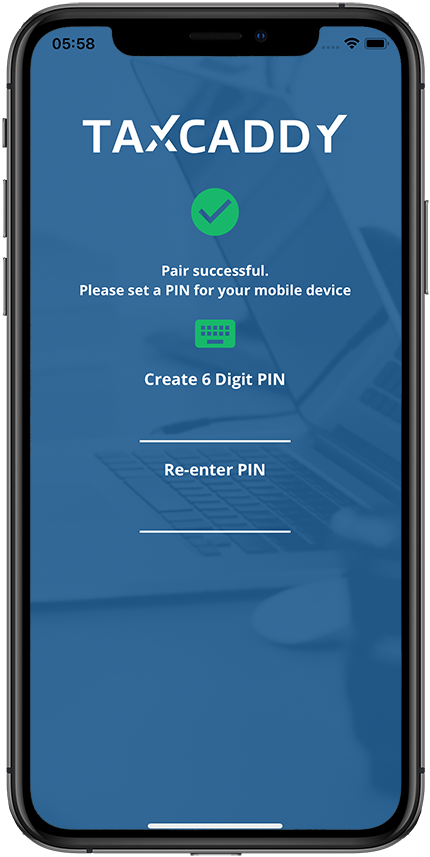
- Once the connection has been successfully established, set up a new PIN code for future logins. We recommend entering a complex 6-digit pin code to ensure security.
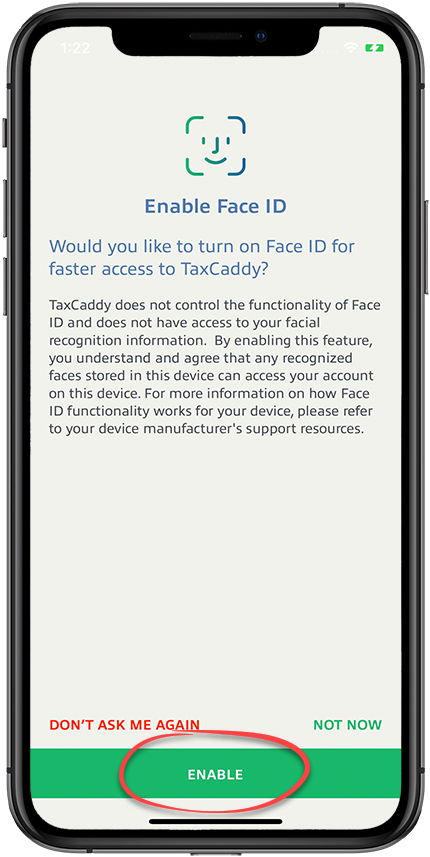
- You have the option to set up biometric (Fingerprint or facial recognition) for faster logins on subsequent visits.
- SelectENABLEto set up biometric sign in.
- SelectDON'T ASK ME AGAINto dismiss the biometric setup screen.
- SelectNOT NOWto dismiss the biometric setup screen.
Android mobile app
Follow these steps to pair your mobile device to your TaxCaddy account:
- Install the TaxCaddy mobile app from the App store.
- Log in to TaxCaddy through your firm portal.
- Select the user menu, then selectSettings.
- On the left column, selectMobile Settings.noteYou won’t see theMobile Settingstab if your tax firm doesn’t let you sign in through their portal.
- UnderMobile Settings, selectINITIATE SETUP.
- TheMobile Device Setupwindow will appear with a QR code that can be scanned using the TaxCaddy Mobile App.
- Open the TaxCaddy Mobile App and select theQR code.
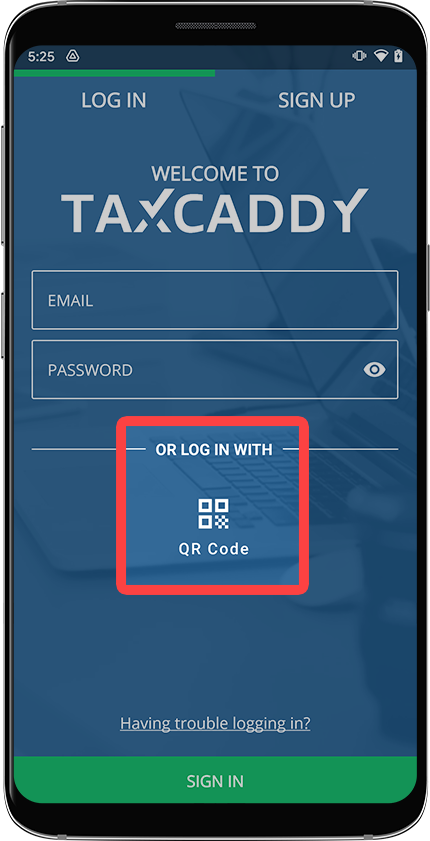
- Select theSCAN QR CODEicon.
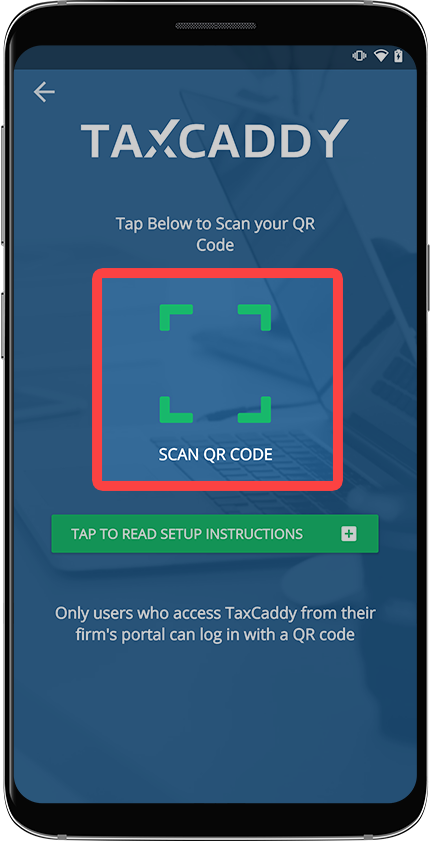
- After the camera is turned on, point your phone to your computer screen to capture the QR code displayed on theMobile Device Setupwindow.You may have to grant the TaxCaddy Mobile App permission to access your device's camera and location to verify the sign in attempt. If you are requested permissions, then select
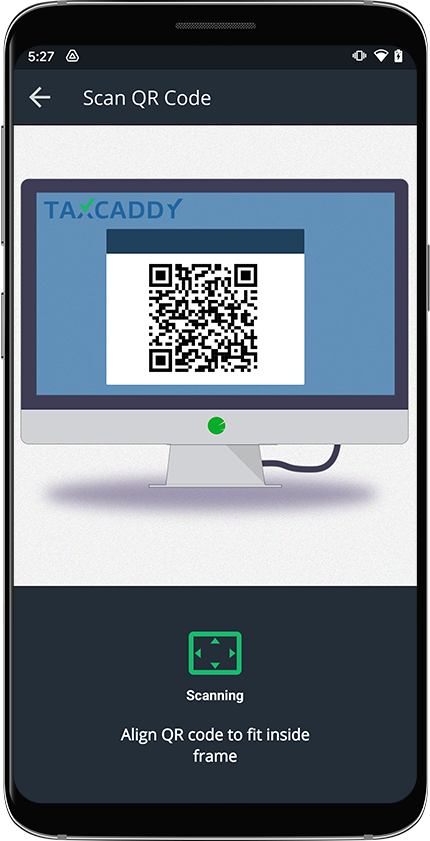 SET PERMISSION.
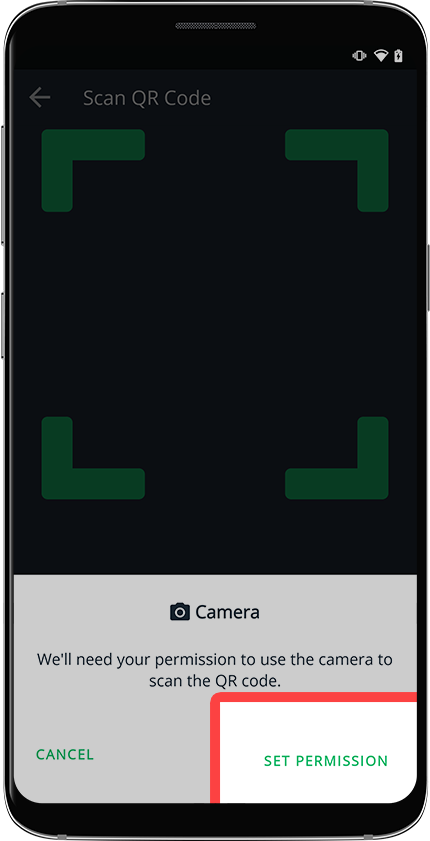 Allow TaxCaddy permission to access the camera.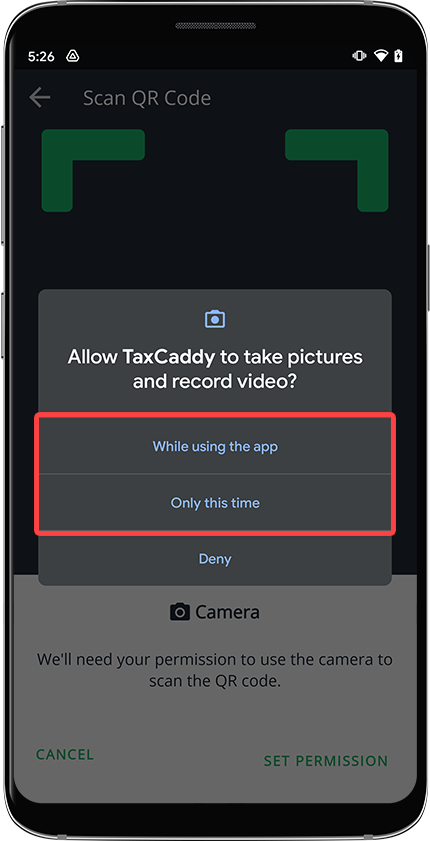
- The TaxCaddy Mobile App will wait for confirmation to be accepted on the web browser. This screen won’t update until you accept the connection request on the web.
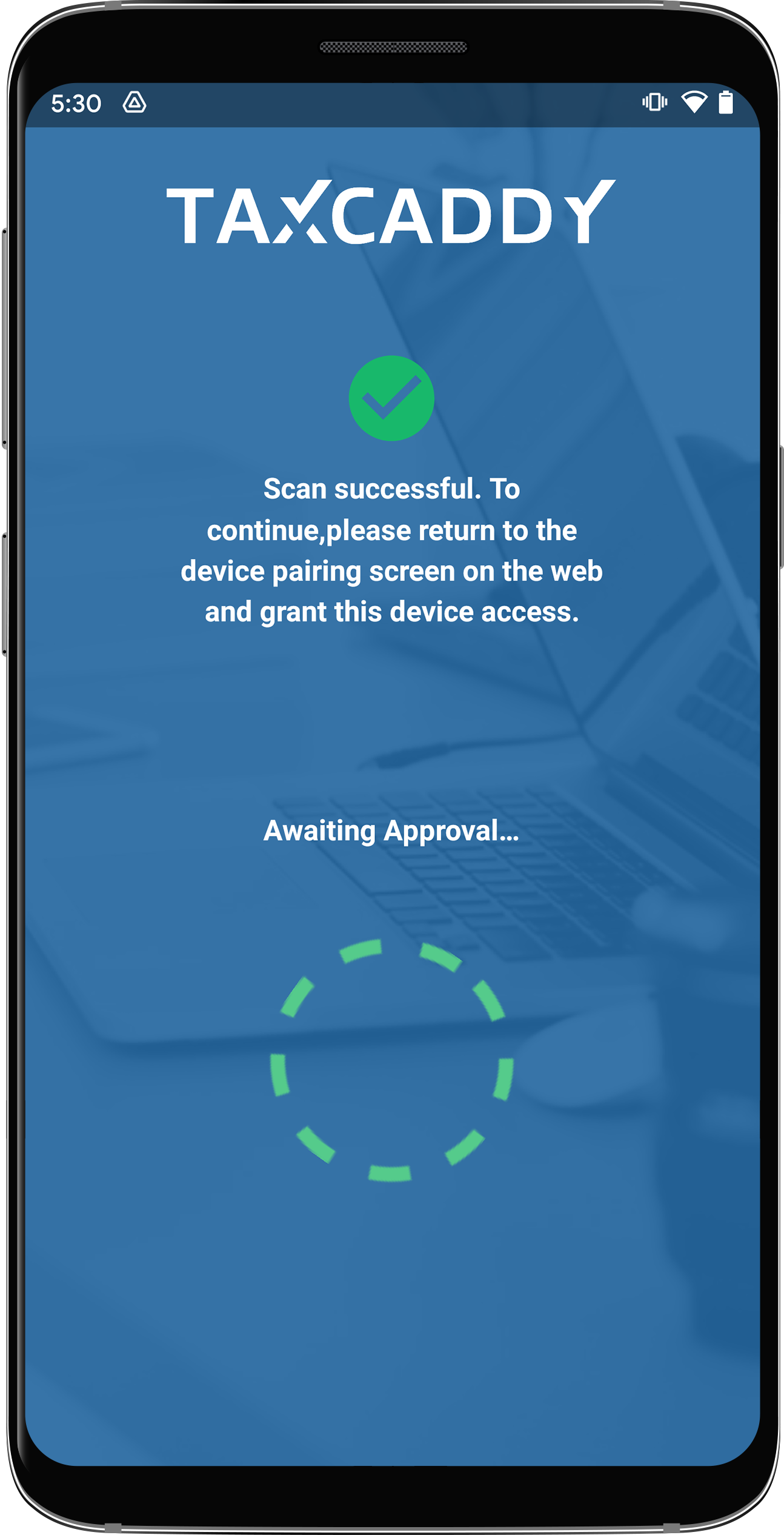
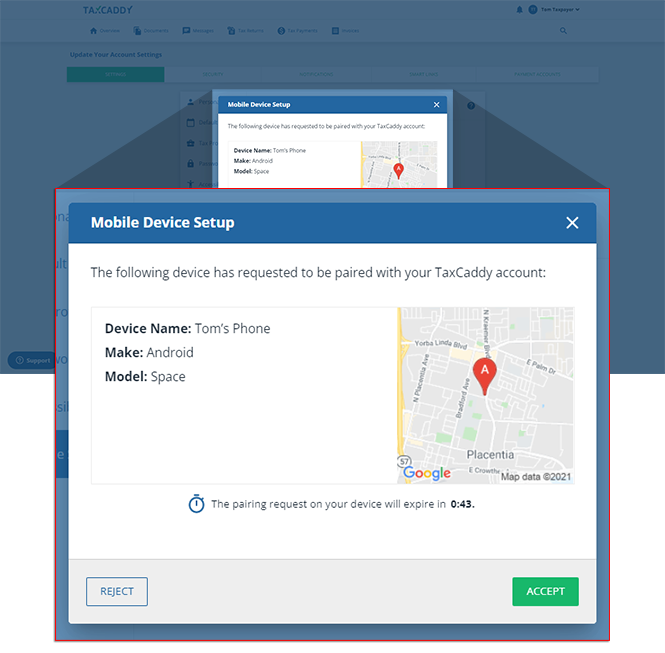
- On theMobile Device Setupwindow, selectACCEPTto authorize the mobile device. SelectREJECTif you want to cancel the connection request.
- Once the connection has been successfully established, set up a new PIN code for future logins. We recommend entering a complex 6-digit pin code to ensure security. Retype your PIN to confirm it.
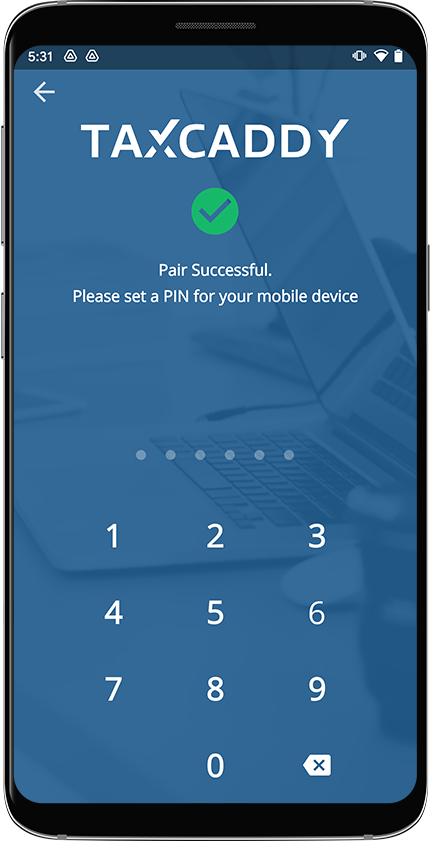
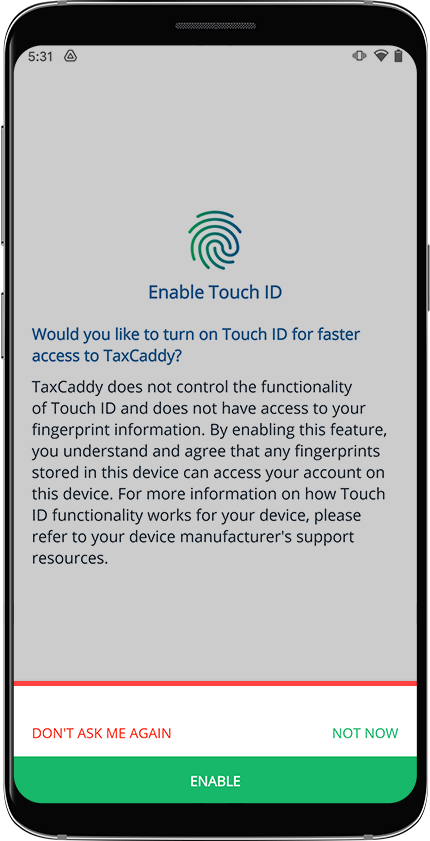
- You have the option to set up biometric (Fingerprint or facial recognition) for faster logins on subsequent visits.
- SelectENABLEto set up biometric sign-in.
- SelectDON'T ASK ME AGAINto dismiss the biometric setup screen.
- SelectNOT NOWto dismiss the biometric setup screen.
Related Content
-
Get the TaxCaddy mobile app
Format: Article,
1 min read
Article,
1 min read

