
Use your biometrics (Touch ID/Face ID) to log in to TaxCaddy on iPhone and Android
Show all hidden content
Biometric sign in lets you log in to TaxCaddy using your fingerprint or Face ID on iPhone and Android mobile phones that support biometric recognition. With biometrics enabled, you can quickly log into your TaxCaddy account without manually entering the password each time. Additionally, you will still have the option to log in to TaxCaddy using your password.
iOS mobile app
Enabling Face ID when logging in for the first time
- Set up Face ID on your iPhone/iPad if it is not already enabled.noteIf you are using a device with Touch ID only, then learn more about using Touch ID on the iPhone and iPad
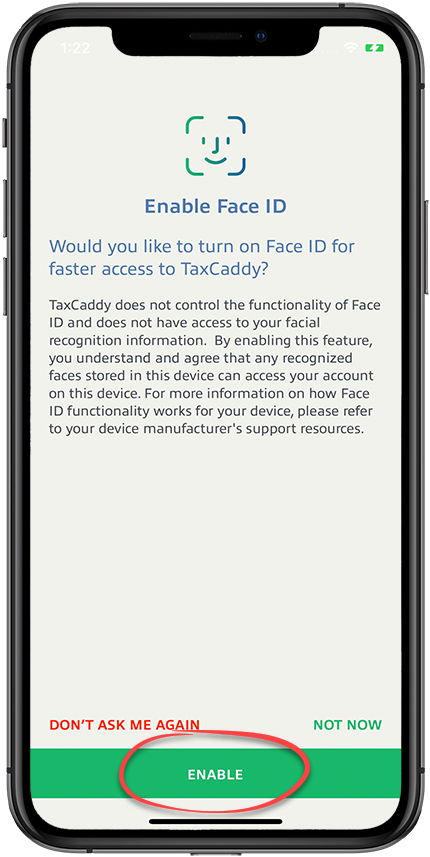
- You will see the option to turn on biometric sign in when you log in for the first time on your device.
- SelectENABLEto let facial recognition for future logins.
- SelectDON'T ASK ME AGAINto skip this step. You won’t receive any future reminders about enabling Face ID.
- SelectNOT NOWto skip this step. You will receive a reminder next time you log in.
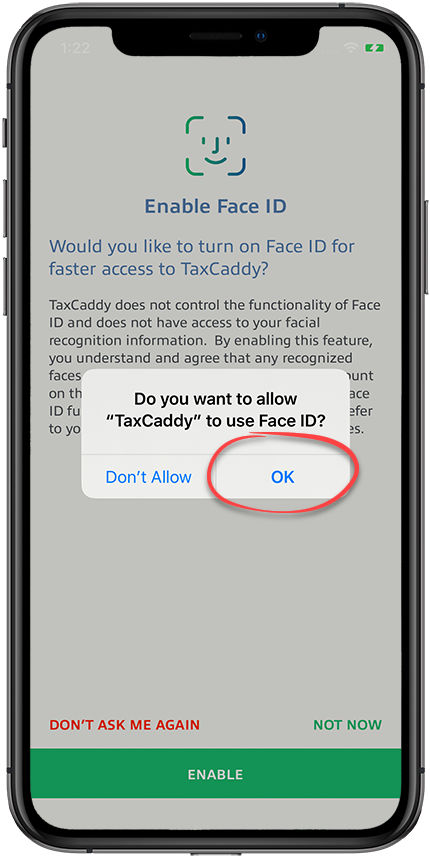
- SelectOK.
Enable/Disable biometric sign in from Settings
Follow these steps to manually enable/disable a biometric sign-in feature.
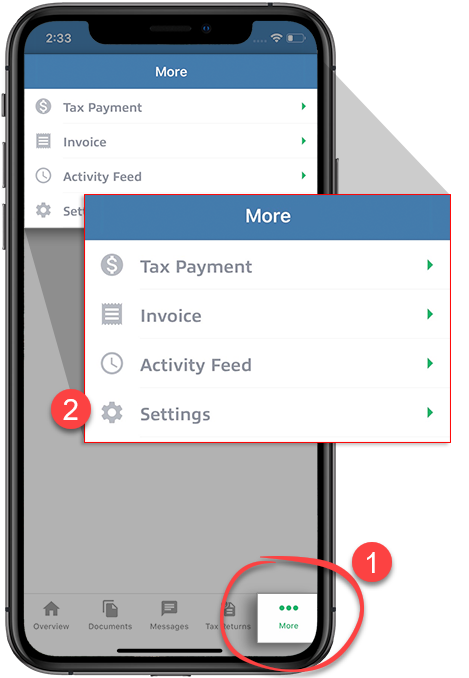
- On the navigation tab bar, selectSettings.
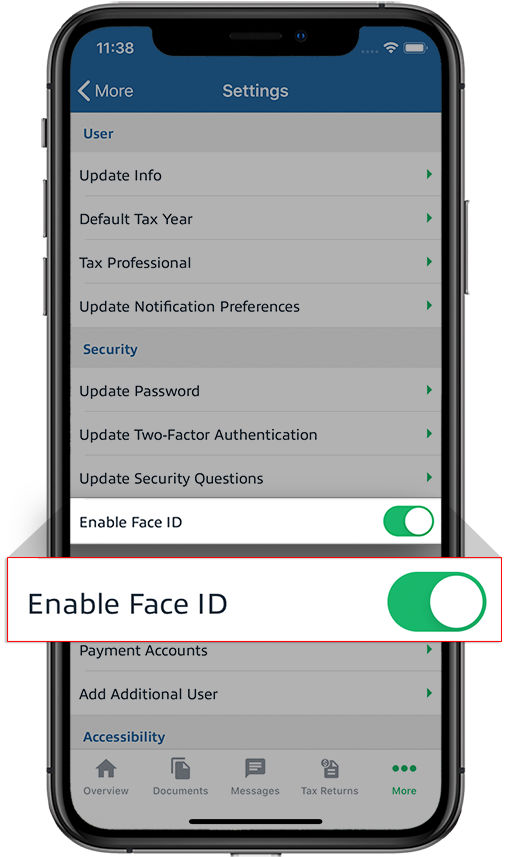
- SelectENABLE FACE IDto turn the Face ID feature on and off.
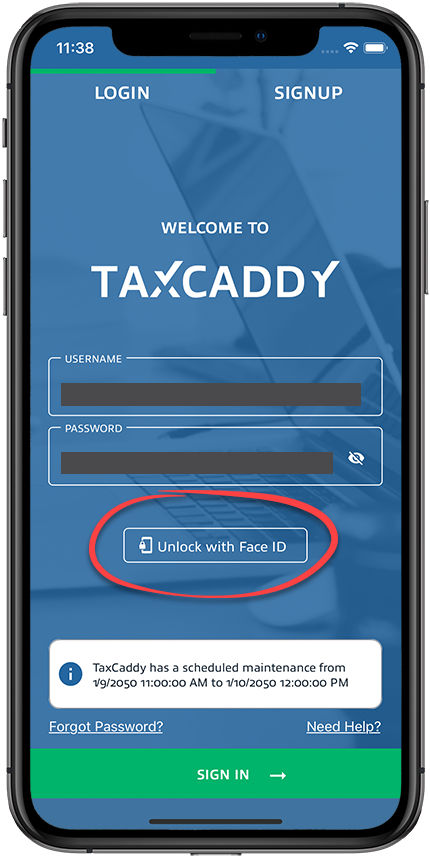
- Next time you log in, you will be logged in with your Face ID. You can also selectUnlock with Face IDto open manually the facial recognition sensor. Alternatively, you can enter your password then selectSIGN IN.
Android mobile app
Enabling Face ID when logging in for the first time
- Set up your Touch ID/Face ID on your phone if you haven't already.
- You will see the option to turn on biometric sign in when you log in for the first time on your device.
- SelectENABLEto allow facial recognition for future logins.
- SelectDON'T ASK ME AGAINto skip this step. You won’t receive any future reminders about enabling Face ID.
- SelectNOT NOWto skip this step. You will receive a reminder next time you log in.
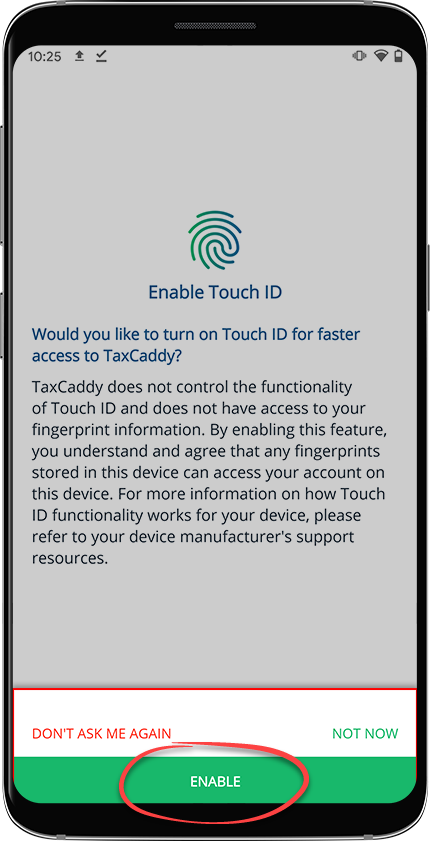
- Next time you log in, you will be prompted to log in with your biometrics. Place your finger on the sensor or scan your face.
Enable/Disable biometric sign-in from Settings
Follow these steps to enable/disable manually a biometric sign-in feature.
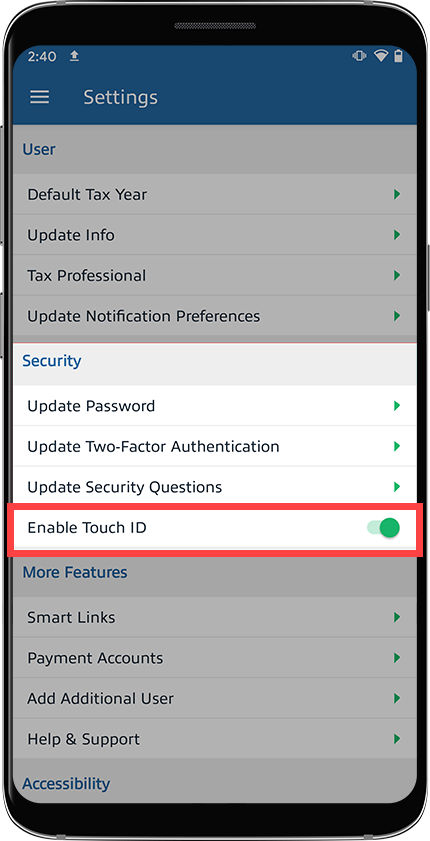
- Select theMenuicon.
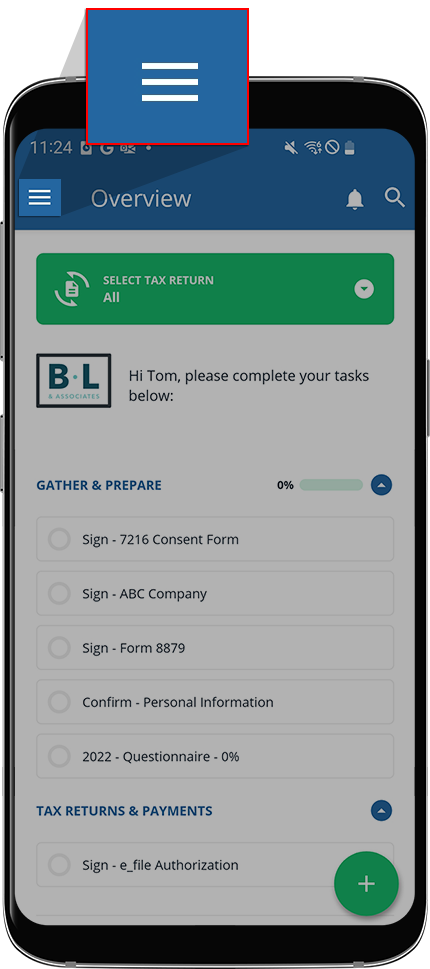
- SelectSettings.
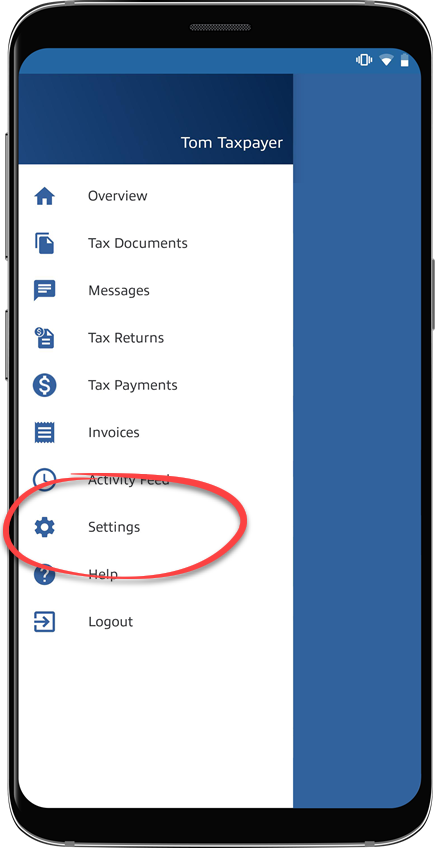
- SelectEnable Touch IDto enable/disable the Face ID feature.
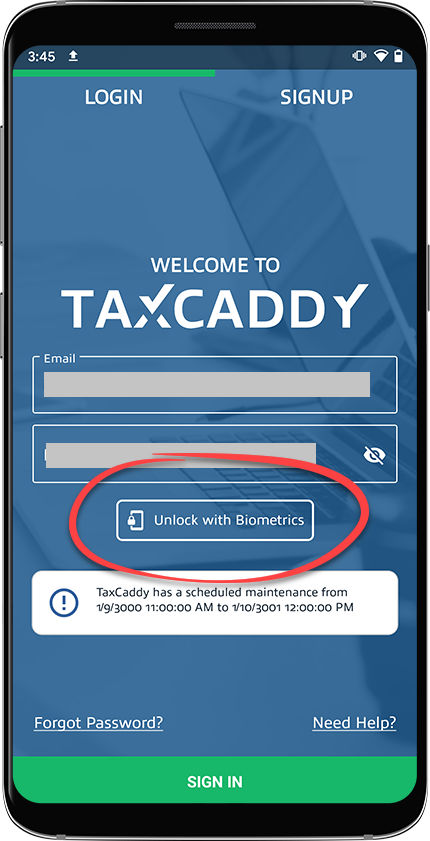
- Next time you log in, you will be logged in with your Face ID. You can also selectUnlock with Biometricsto open manually the Touch/Face ID. You can enter your password, then selectSIGN IN.
Related Content
-
Get the TaxCaddy mobile app
Format: Article,
1 min read
Article,
1 min read

