
Voice commands on mobile
You can use Siri voice command on the iPhone and iPad to perform actions in TaxCaddy. For example, you can say "Hey Siri, send a message with TaxCaddy" at any time to open a new message in TaxCaddy.
note
This feature is currently not available on Android devices.
Adding Siri voice commands
You will see a notification if the action you are about to perform can also be performed with a voice command.
Follow these steps to add a voice command by performing an action:
- Sign in to TaxCaddy.
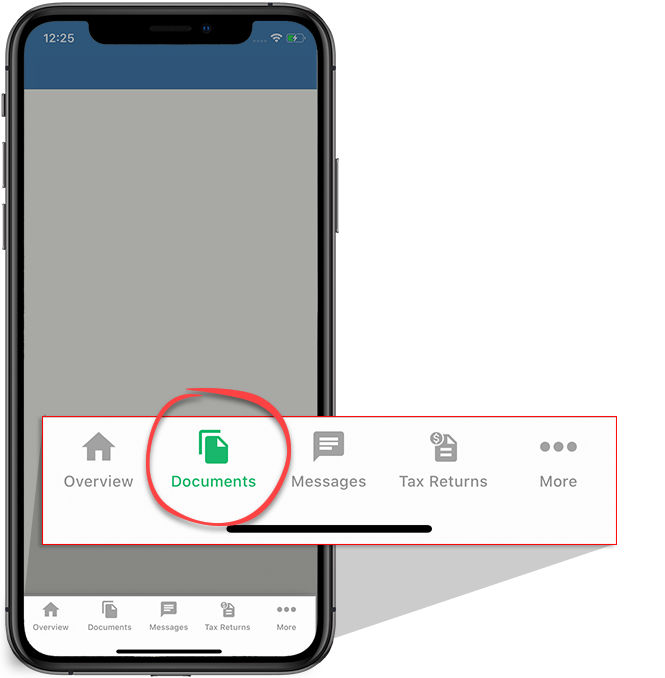
- SelectDocumentson the tab bar.
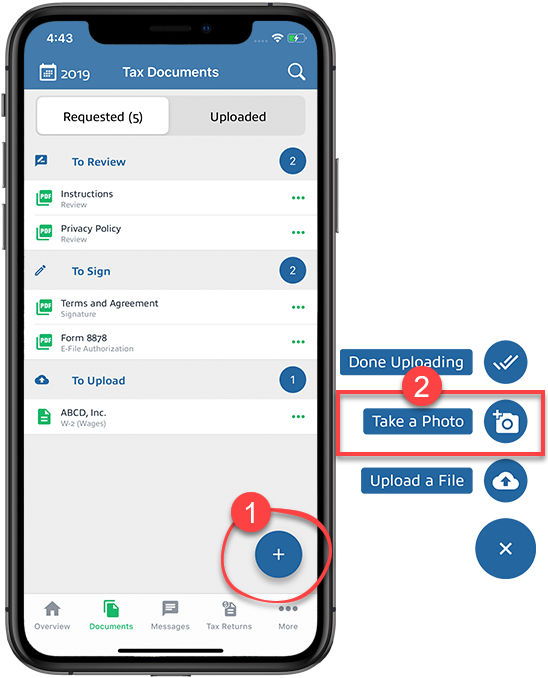
- Select theMenuicon, then selectTake a Photo.
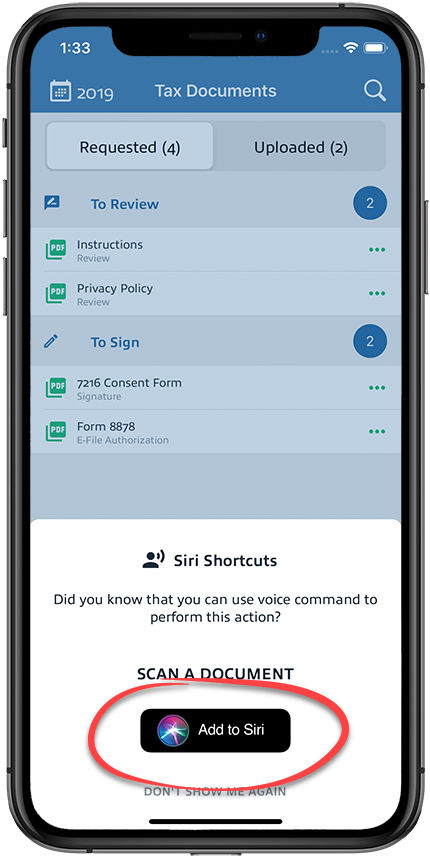
- When theSiri Shortcutwindow appears, selectAdd to Siri. If you don’t see the Siri Shortcut window appear, then you can add the Siri shortcut manually.
 You can selectDon't Show Me Againto dismiss theSiri Shortcutswindow from appearing again. If you want to add the voice command later then you can add it manually.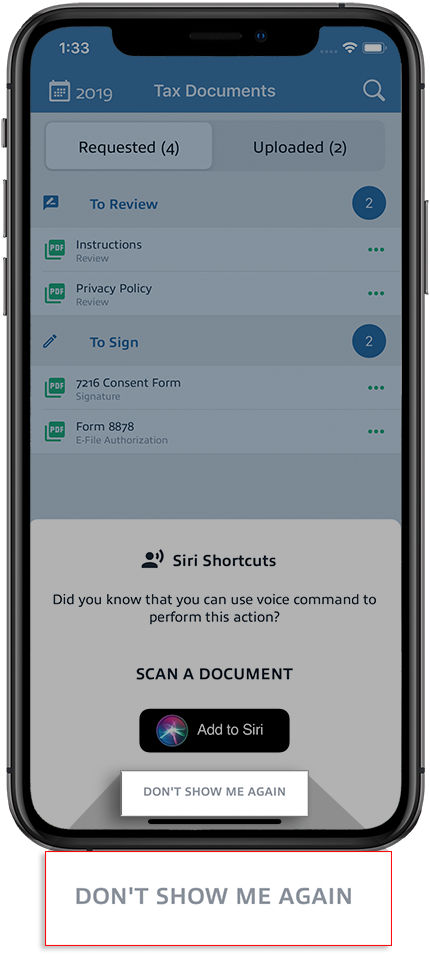
- On theAdd to Siriscreen, your voice command will appear underWhen I say. SelectAdd to Sirito add this voice command.
- Once the voice command is added. You can test by saying "Hey Siri scan with TaxCaddy". IfListen for 'Hey Siri'option is not enabled on your phone then you can press and hold the side button to turn on Siri.
- TaxCaddy will go directly to that action item.
- To view your voice commands, you can go to the home screen, then selectShortcuts.
Manually adding Siri voice commands
If you selected
Don't Show Me Again
to dismiss the Siri Shortcuts
window, then you can manually add it.Follow these steps if you want to add Siri voice commands manually:
- Go to the home screen, then selectShortcuts.
- SelectCreate Shortcut.
- SelectAdd Action.
- SelectApps.
- SelectTaxCaddy.
- Select on a TaxCaddy action you want to create a shortcut for.
- After the shortcut is selected, selectNext.
- Type the voice command you want to use, then selectDone.Example: If you type "Send a message with TaxCaddy" then you can say "Hey Siri, send a message with TaxCaddy" to turn on that action.
List of available voice commands
You can turn on voice commands by saying "Hey Siri" or pressing and holding the side button. After Siri turns on, you can say the following commands:
Voice Commands | Description |
|---|---|
Scan with TaxCaddy | Lets you take a photo of your document then upload the document. Turned on when you select Take a Photo to upload documents. |
Message with TaxCaddy | Lets you send a new message to your tax professional. Turned on when you Select on the New Message icon. |
Example: Say "Hey Siri, scan with TaxCaddy".
Setting up Siri
If Siri is not enabled on your iOS device, then you can follow these steps to turn on Siri.
- Go toSettings, thenSiri & Search.
- Turn onPress Side Button for Sirioption if you want to turn on Siri holding the side button.
- Turn onListen for 'Hey Siri'option if you want to turn on Siri using your voice, without pressing the Side/Home button.
Once Siri is enabled on your device, there are three ways you can turn on Siri:
- Pressing and holding the side button if enabled.
- Saying "Hey Siri".
- Using a Bluetooth headset, such as AirPods.
Related Content
-
Get the TaxCaddy mobile app
Format: Article,
1 min read
Article,
1 min read

