
Update notification preferences
Show all hidden content
TaxCaddy notifies you by email or push notifications when there is an activity in your account. You can customize these features to receive notifications that are pertinent to you. Additionally, your spouse can also set their own email or push notifications.
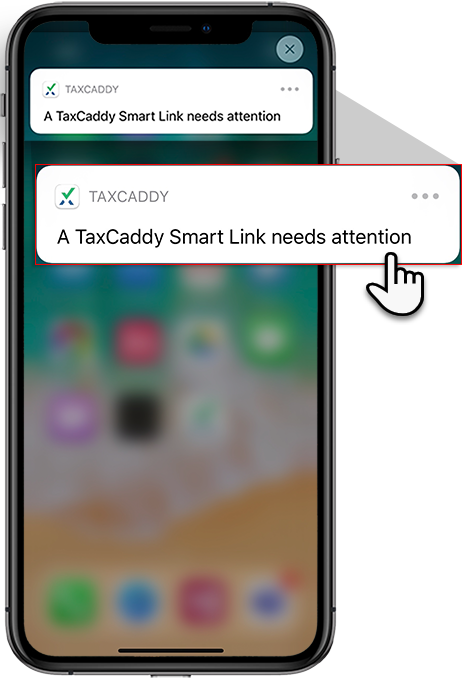
With push notifications, you can receive notifications in your browser or on your phone when there's a new activity. When you select or select on a notification, you'll be taken to the related activity in your account.
TaxCaddy.com on PC, Mac, or tablet
Follow these steps to update your notification preferences using TaxCaddy.com on your PC, Mac, or tablet:
- Sign in to TaxCaddy.com.
- Select theUser Menu, then selectSettings.
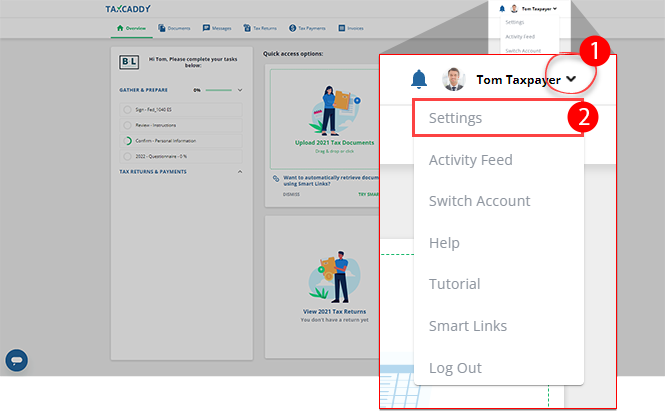
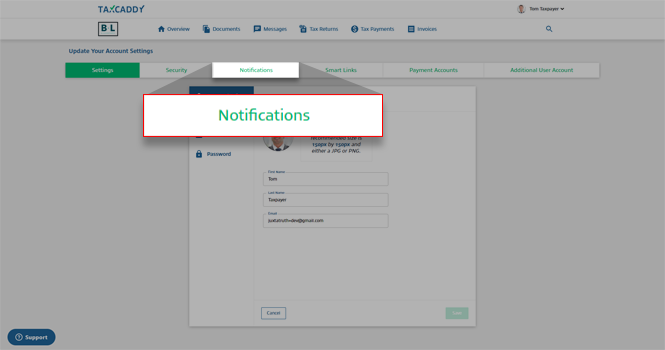
- SelectNotifications.
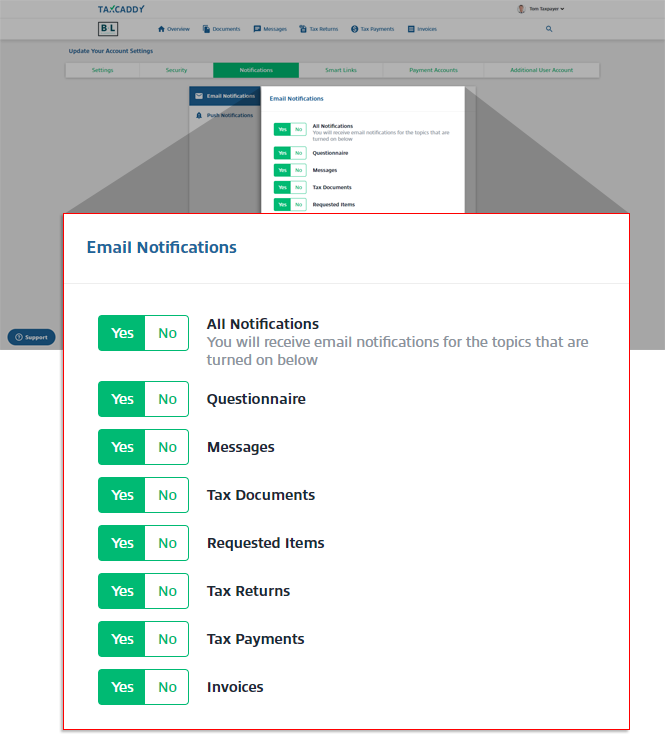
- UnderEmail Notifications, selectYesorNofor the notification options.
- All Notifications- turn on to use the specific email notification settings. Turn off this to turn off all notifications.
- Questionnaire- turn on this to receive notifications when you receive a new questionnaire, when questions are added to the questionnaire, or when you complete your questionnaire.
- Message- turn on this to receive notifications when your tax professional sends you messages.
- Tax Return- turn on this to receive notifications when tax returns are uploaded to your account.
- Tax Documents- turn on this to receive notifications when tax documents are uploaded to your account.
- Requested Item- turn on this to receive notifications when your tax professional sends you a request to review a document, sign a document, or upload a document.
- Tax Payments- turn on this to receive notifications when tax payments are uploaded to your account.
- Invoices- turn on this to receive notifications when invoices are uploaded to your account.
 If you enabled notifications forTax Payments, you may also receive reminder notifications (via email, SMS messaging, and push notifications) when a pending tax payment is approaching its due date.
 - To turn on push notifications, selectPush Notificationson the left panel, then selectYesto subscribe to push notifications orNoto unsubscribe from push notifications.
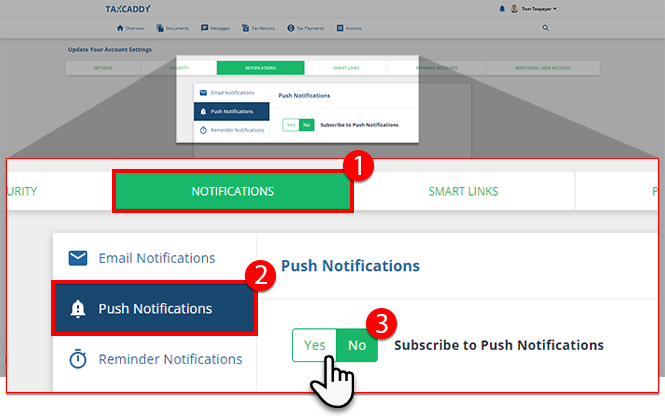 If you see a confirmation window, selectAllow.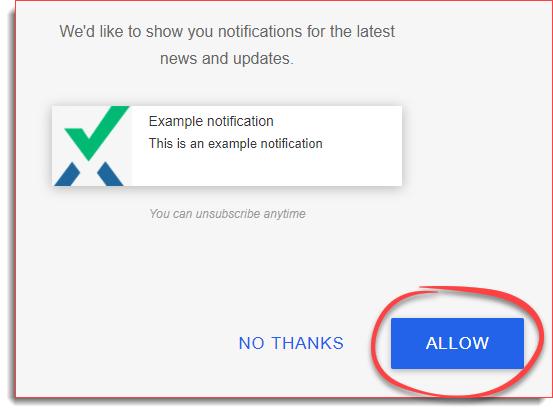
iOS mobile app
Follow these steps to update your notification settings.
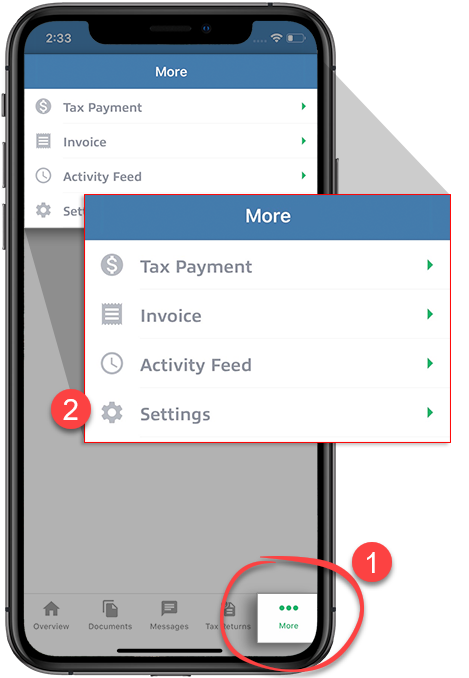
- SelectMoreon the navigation tab bar, then selectSettings.
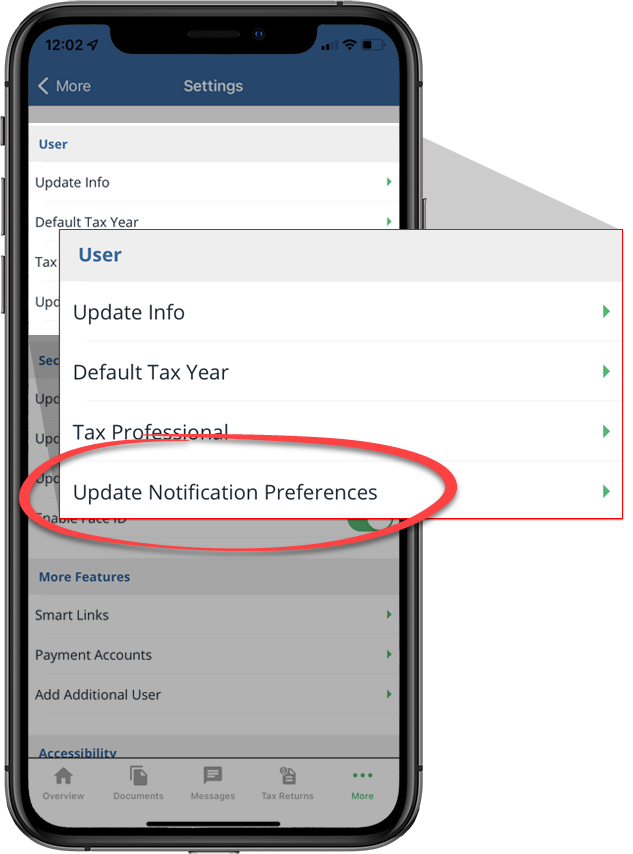
- UnderUser, selectUpdate Notification Preferences.
- UnderEmail Notifications, select an option to switch it on or off.
- All Notifications- turn on this to use the specific email notification settings. Turn off this to turn off all notifications.
- Questionnaire- turn on this to receive notifications when you receive a new questionnaire or when questions are added to the questionnaire.
- Message- turn on this to receive notifications when your tax professional sends you messages.
- Tax Return- turn on this to receive notifications when tax returns are uploaded to your account.
- Tax Documents- turn on this to receive notifications when tax documents are uploaded to your account.
- Requested Item- turn on this to receive notifications when your tax professional sends you a request to review a document, sign a document, or upload a document.
- Tax Payments- turn on this to receive notifications when tax payments are uploaded to your account.
- Invoices- turn on this to receive notifications when invoices are uploaded to your account.
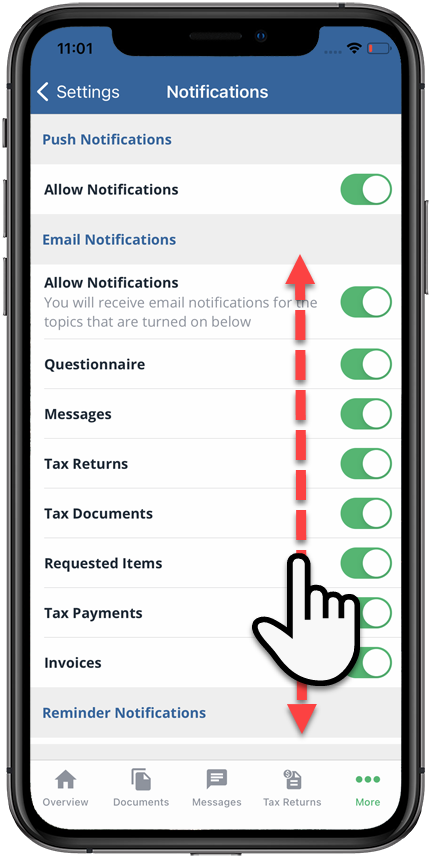 If you enabled notifications forTax Payments, you may also receive reminder notifications (via email, SMS messaging, and push notifications) when a pending tax payment is approaching its due date.
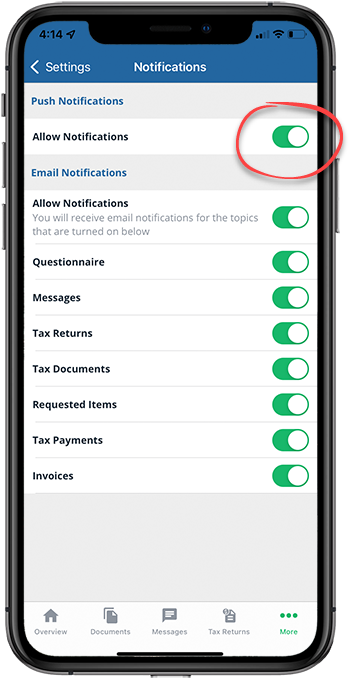
 - If you want to change your push notification settings, select the selection underPush Notifications.
Android mobile app
Follow these steps to update your notification settings:
- Sign in to the TaxCaddy mobile app then select theMenuicon.

- SelectSettings.
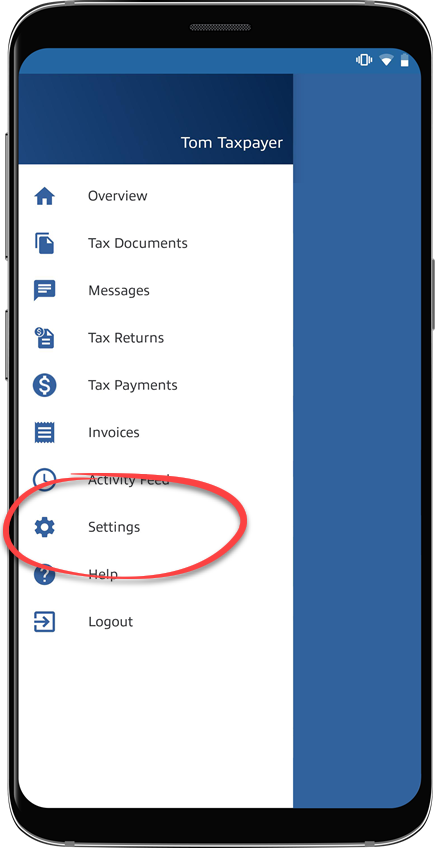
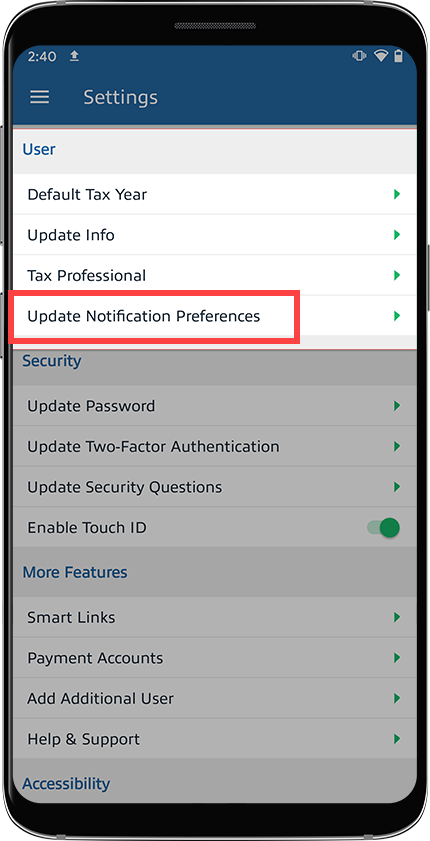
- UnderUser, selectUpdate Notification Preferences.
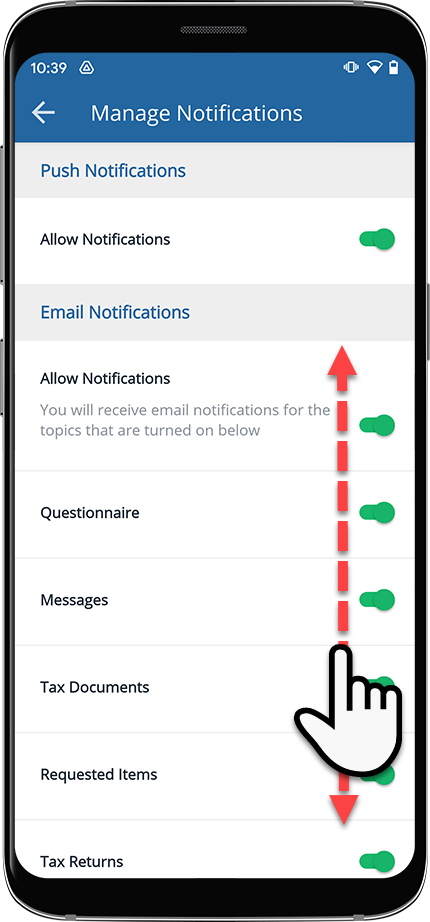
- UnderEmail Notifications, select an option to switch it on or off.
- All Notifications- turn on this to use the specific email notification settings. Turn off this to turn off all notifications.
- Questionnaire- turn on this to receive notifications when you receive a new questionnaire or when questions are added to the questionnaire.
- Messages- turn on this to receive notifications when your tax professional sends you messages.
- Tax Documents- turn on this to receive notifications when tax documents are uploaded to your account.
- Requested Item- turn on this to receive notifications when your tax professional sends you a request to review a document, sign a document, or upload a document.
- Tax Returns- turn on this to receive notifications when tax returns are uploaded to your account.
- Tax Payments- turn on this to receive notifications when tax payments are uploaded to your account.
- Invoices- turn on this to receive notifications when invoices are uploaded to your account.
 If you enabled notifications forTax Payments, you may also receive reminder notifications (via email, SMS messaging, and push notifications) when a pending tax payment is approaching its due date.
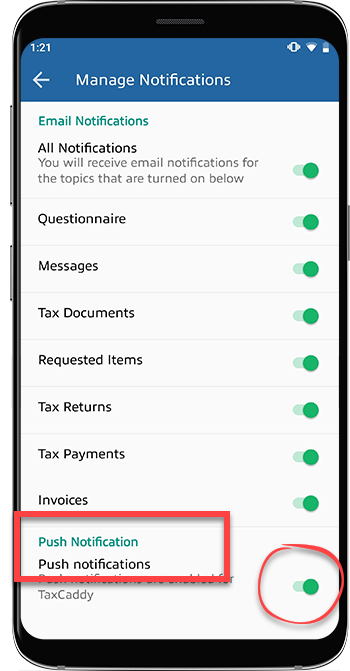
 - If you want to change your push notification settings, select the selection underPush Notifications.
Email notifications
Summary email
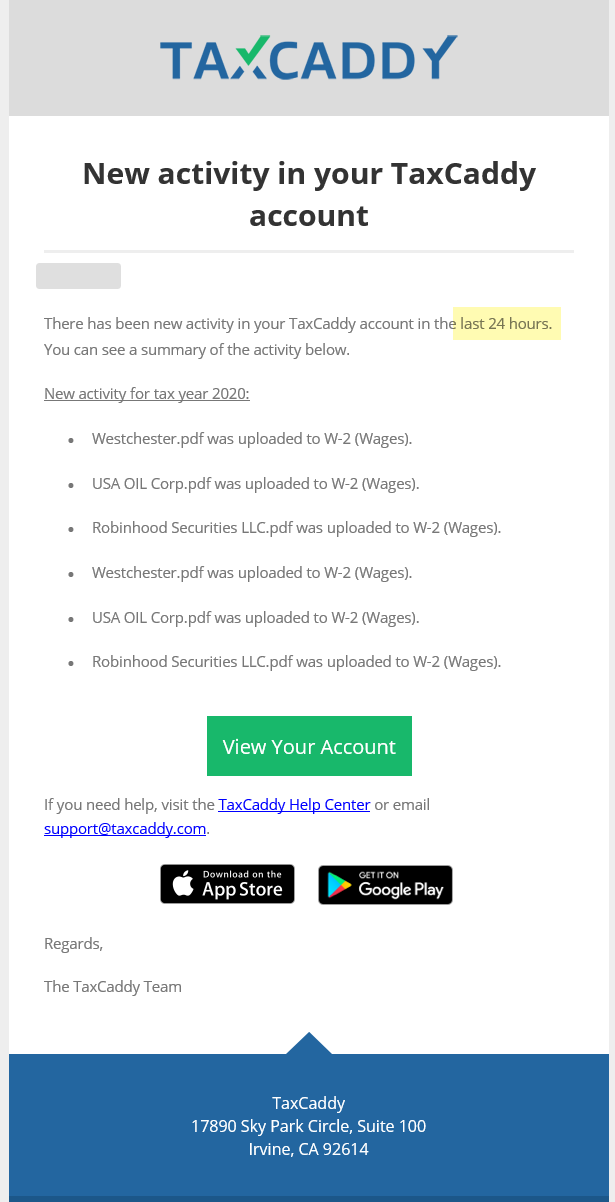
The following activities will be combined in a summary email every 24 hours.
- The questionnaire is added or updated
- Documents uploaded (including Reply with Amount and Complete Form)
- New document review request
- New document upload request
- Tax Returns uploaded
- Invoices updated, deleted, marked as paid, or refunded.
- Tax Summary updates
- Updates to your Done Uploading status
Certain notifications won’t appear in a summary email if you turned off the notifications for those events.
All Notifications
emails Some emails from TaxCaddy contain important or time-sensitive information that demands your attention. When this information must be relayed, TaxCaddy will send you an email to keep you informed, regardless of your email settings. These emails include the following:
Email Title | Description | Received when All Notifications are turned off | Received when All Notifications are enabled |
|---|---|---|---|
Disconnection Notice | You have disconnected from your tax firm. | Yes | Yes |
Your name has been updated | You have updated your first or last name in TaxCaddy. | Yes | Yes |
Email Address Update Requested | You have updated your email address in TaxCaddy. Select the link within the email to verify the new email address. | Yes | Yes |
[Tax Firm] invited you to create a TaxCaddy account | A tax firm has invited you to connect on TaxCaddy. | Yes | Yes |
Your account is now connected | You've accepted a tax firm's request to connect on TaxCaddy. | Yes | Yes |
TaxCaddy Account Deletion After 72 Hours | You have initiated the account deletion process and your account will be officially deleted after a 72-hour window. | Yes | Yes |
TaxCaddy Account Deletion Canceled | You have canceled your account deletion by signing into your TaxCaddy account within the 72-hour period. | Yes | Yes |
Tax Payment Confirmation | You have fulfilled a tax payment using the Pay By Check feature. | Yes | Yes |
Changes to your TaxCaddy security settings | You have made updates to your account's security questions. | Yes | Yes |
Payment Voucher added, deleted, or changed | Your tax professional has added a new tax payment voucher or updated/deleted an existing one. | No | Yes |
New requested items in TaxCaddy | Your tax professional has uploaded a new Requested Item. | No | Yes |
You have a new message | Your tax professional has sent you a message. | No | Yes |
Uploads Completed | You've indicated that you're done uploading your tax documents for the selected tax year. | No | Yes |
Related Content
-
Reminder notifications
Format: Article,
5 min read
Article,
5 min read

