
Update your user info (profile picture, name, and email address)
Show all hidden content
important
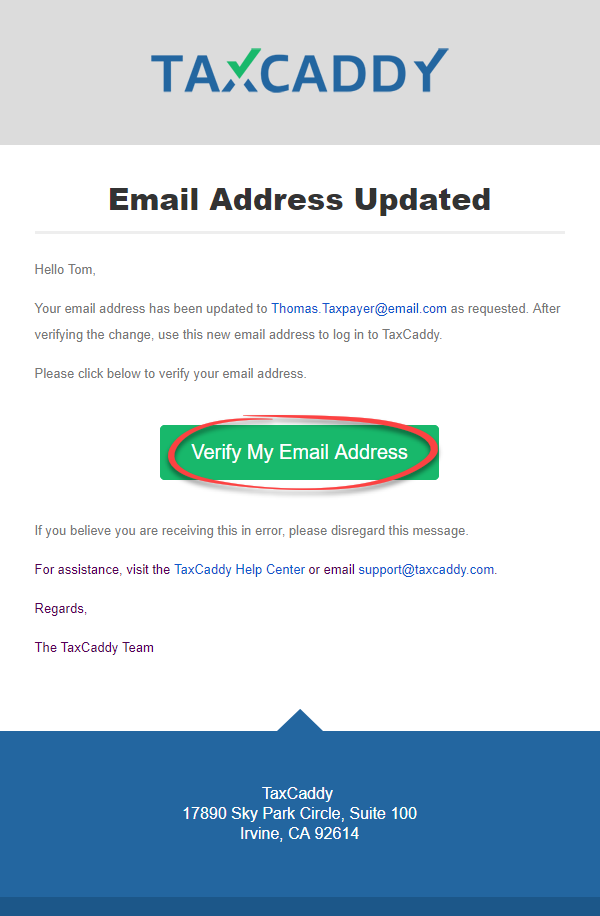
When you update your email address in TaxCaddy, you will receive a verification email at your new email address. You must the
Verify My Email Address
button in the email to verify your new email address. If you don't verify your new email address, then your email address won’t update in TaxCaddy.TaxCaddy.com on PC, Mac, or tablet
Follow these steps to update your profile picture when using TaxCaddy.com on your PC, Mac, or tablet.
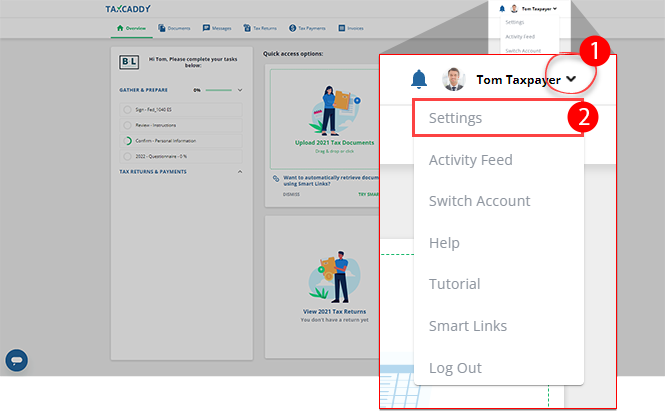
- Personal Infoshould be selected by default.noteIf you are accessing TaxCaddy using a sign in link from your tax professional, the ability to update your Personal Info records won't be available until you create a password for your account.
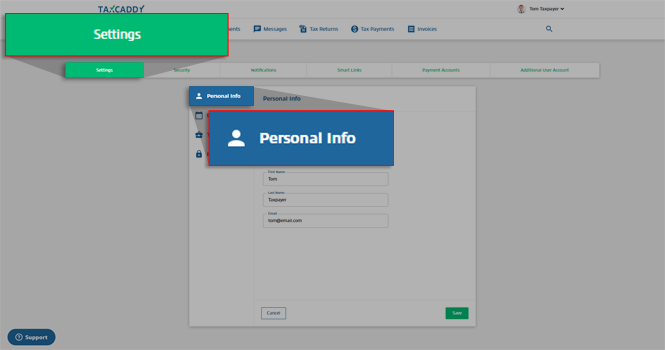
- To update your profile picture, select the profile picture placeholder.

- Select an image from your device. Profile picture-recommended size is 150px by 150px and either a JPG or PNG.
- You can rotate your image, zoom in, and zoom out to adjust your profile image. Once you're satisfied, selectSave.
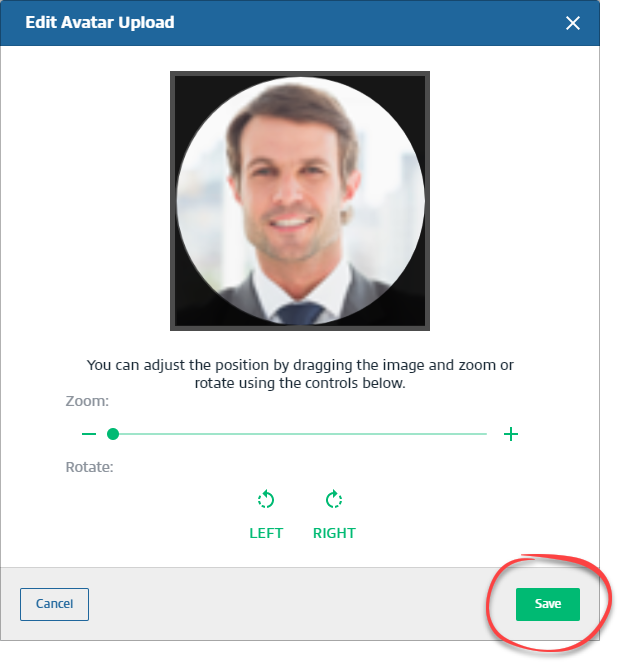
- The image is now uploaded and saved.
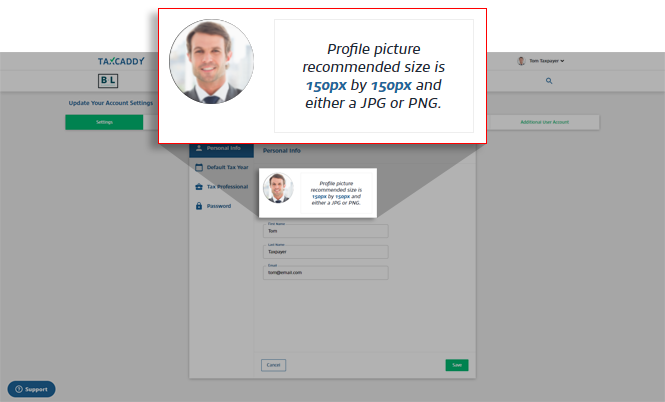
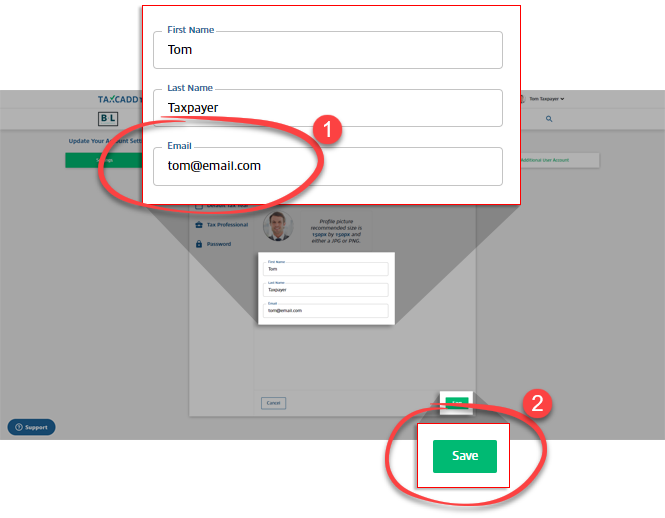
- To update your name or email address, select in the fields, enter the updated information, and selectSave.noteIf you update your email address, you will receive a verification email at your new address. Select theVerify My Email Addressbutton in the email to change your email address.
- Verify your password then selectSubmit.

- If you changed your email address, you will receive a verification email at your new address. SelectVerify My Email Addressto change your email address. If you don't verify your new email address, your address won't be changed.noteThe link sent to verify your email address expires in 30 days.
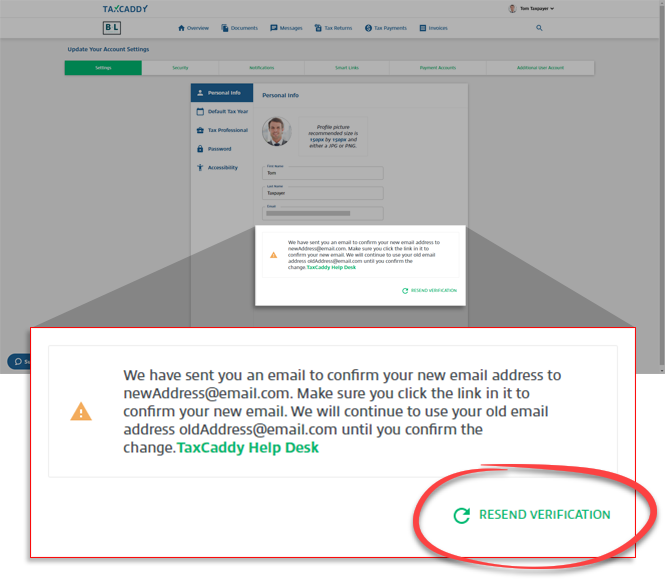
- If you didn’t receive a verification email after changing your email address, then selectRESEND VERIFICATIONto send the verification email again.
iOS mobile app
Follow these steps to update your user info when using the iPhone mobile phone app.
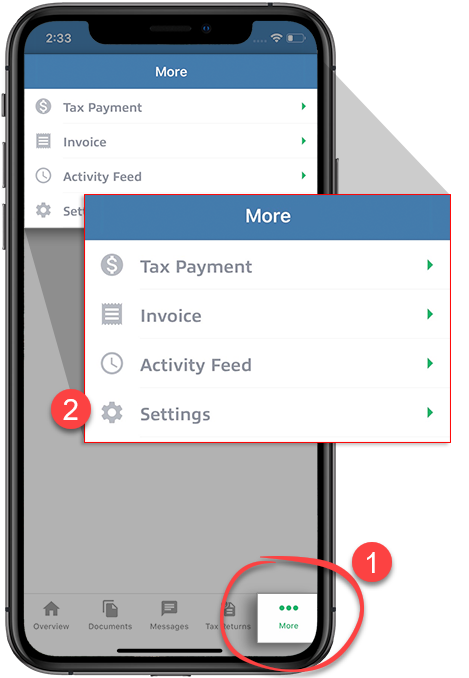
- SelectMoreon the navigation tab bar, then selectSettings.
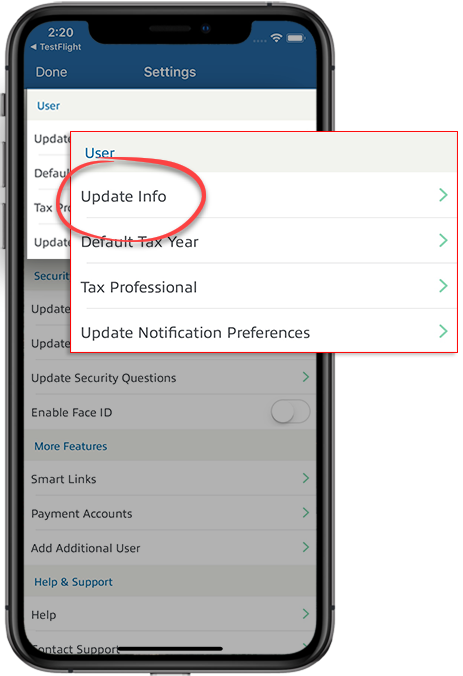
- Under theUsersection, selectUpdate Info.noteIf you are accessing TaxCaddy using a sign in link from your tax professional, the ability to change yourUpdate Inforecords won't be available until you create a password for your account.
- To update your profile picture, select and hold the profile picture placeholder.
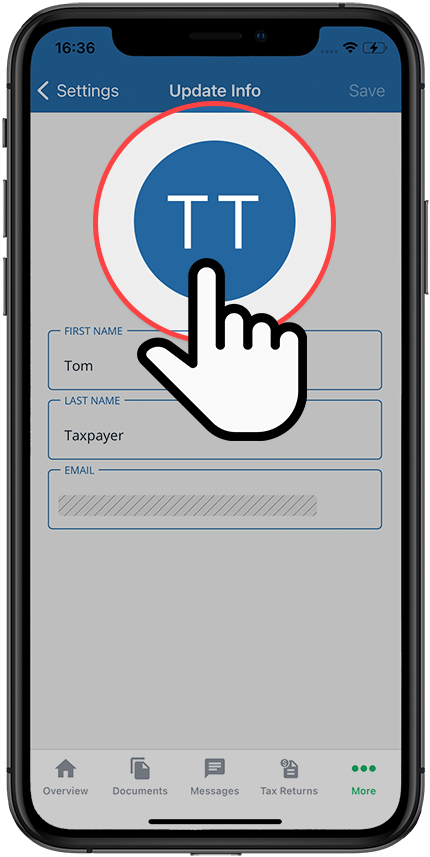 If you only want to update your profile picture, you can select and hold the picture on theOverviewscreen.
- Select a photo from your device.
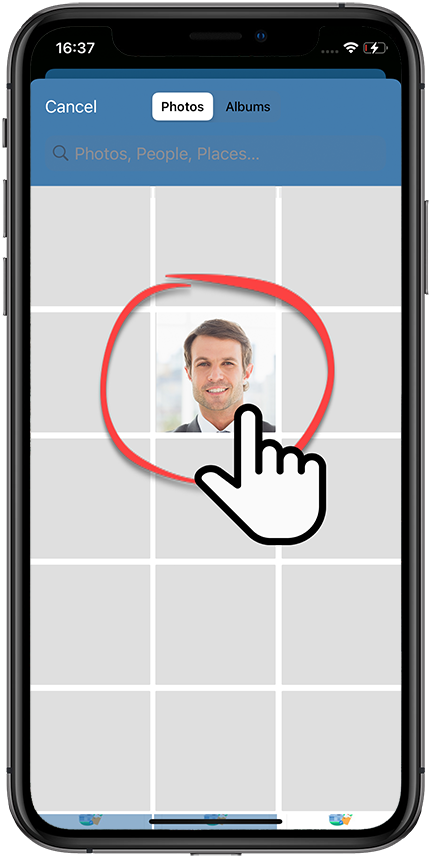
- The new profile picture will replace the previous image.
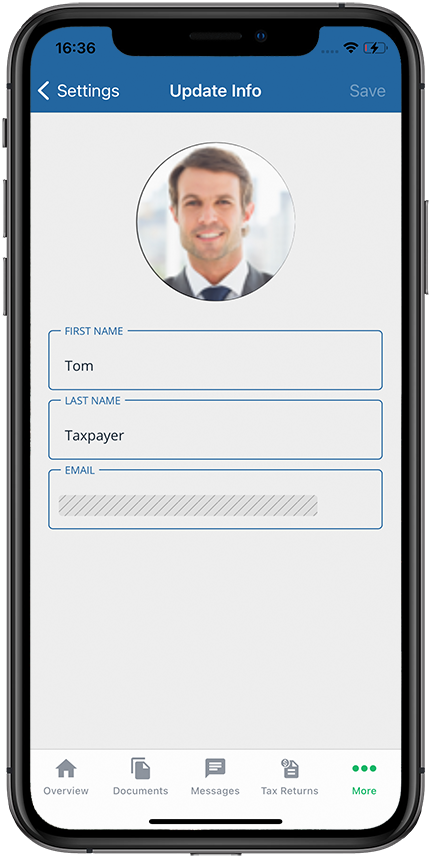
- To update your name or email, Select in the fields, enter the updated information, then selectSave.noteIf you update your email address, you will receive a verification email at your new address. Select theVerify My Email Addressbutton in the email to change your email address.

- Enter your password, then selectUpdate.
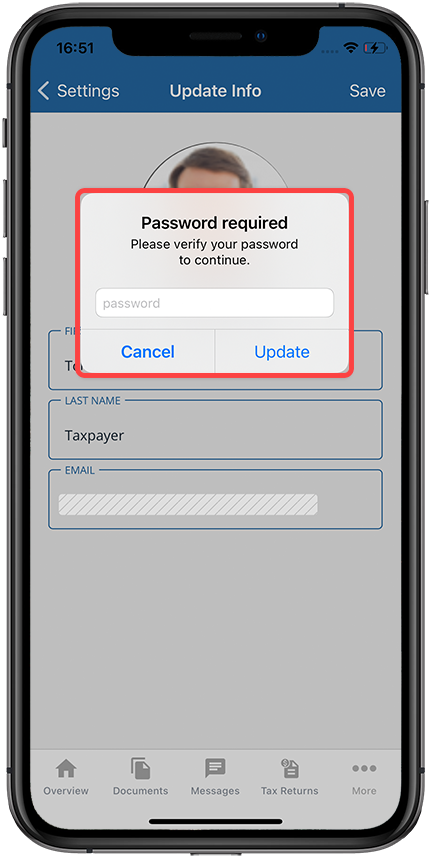
- If you changed your email address, you will receive a verification email at your new address. SelectVerify My Email Addressto change your email address. If you don’t verify your new email address, your address won't be changed.noteThe link sent to verify your email address expires in 30 days.
Android mobile app
Follow these steps to update your profile picture when using the Android mobile phone app.
- Sign in to the TaxCaddy mobile app, then select theMenuicon.

- SelectSettings.
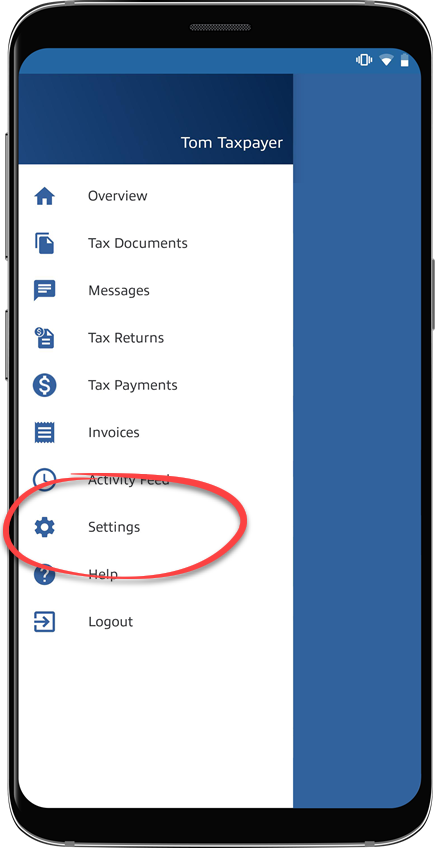
- SelectUpdate Info.noteIf you are accessing TaxCaddy using a sign in link from your tax professional, the ability to change yourUpdate Inforecords will be not available until you create a password for your account.

- To update your profile picture, select and hold the profile picture placeholder.
 If you only want to update your profile picture, you can select and hold the picture on theOverviewscreen.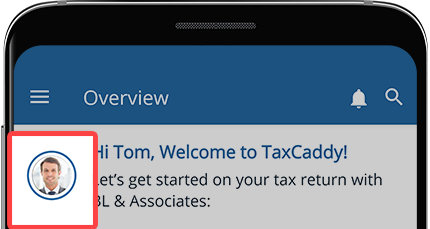
- Select a photo from your device.
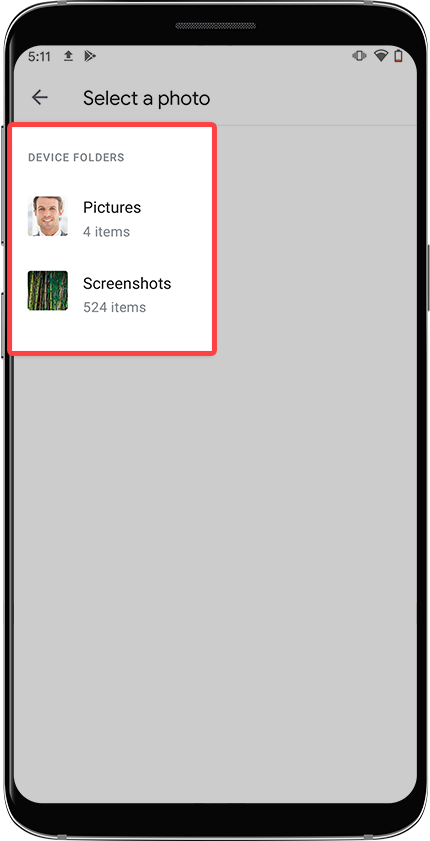
- Adjust your image by using zoom, pinch, and drag gestures, then selectSAVE.

- The new profile picture will replace the previous image.

- To update your name or email, enter the updated information into the fields, then select the check mark.noteIf you update your email address, you will receive a verification email at your new address. Select theVerify My Email Addressbutton in the email to change your email address.

- Enter your password, then selectOK.

- If you changed your email address, you will receive a verification email at your new address. SelectVerify My Email Addressto change your email address. If you don’t verify your new email address, your address won't be changed.noteThe link sent to verify your email address expires in 30 days.

