Document Viewer overview (PDF Viewer)
When viewing uploaded documents, tax returns, tax payments, and invoices, TaxCaddy will open these documents in the Document Viewer panel.
Show all hidden content
TaxCaddy.com on PC, Mac or tablet
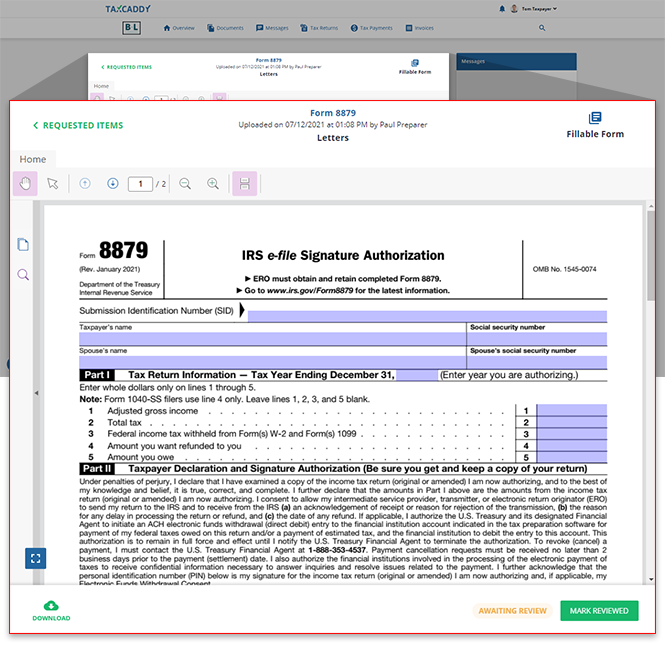
Document Viewer lets you view, review, and sign documents uploaded by you and/or your tax professional.
Header
The header shows the document name, uploaded date, and the document uploader. You can select the link on the left to go back to the previous page. The
Fillable Form
icon indicates that the current document has fillable form fields that can be filled out.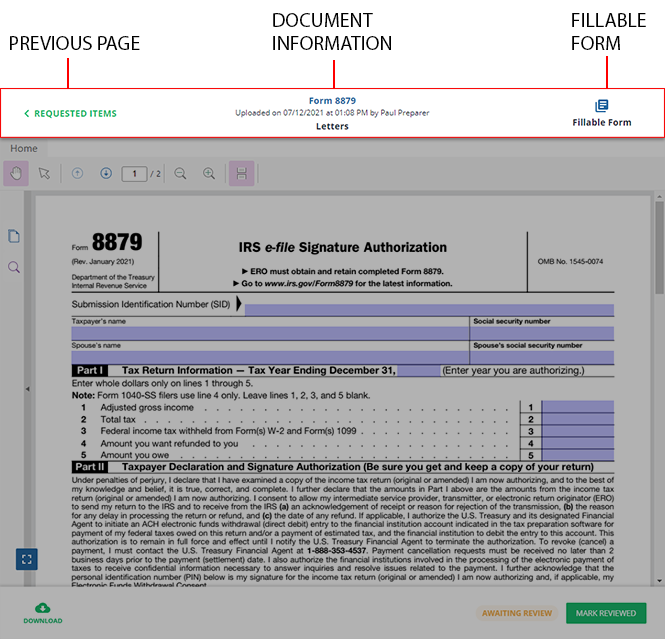
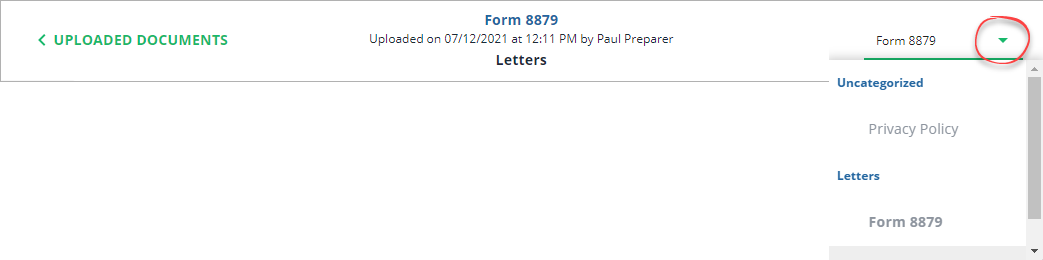
When viewing certain documents (like uploaded documents, invoices, and tax returns) you can use the dropdown on the right to switch between different documents without going back to the previous screen.
When viewing a
Sign
/Review
request or tax return document in the Overview
screen's document viewer, you will also see the Message
icon at the top of the panel. Use this icon to send your tax professional a message specifically about the open request. 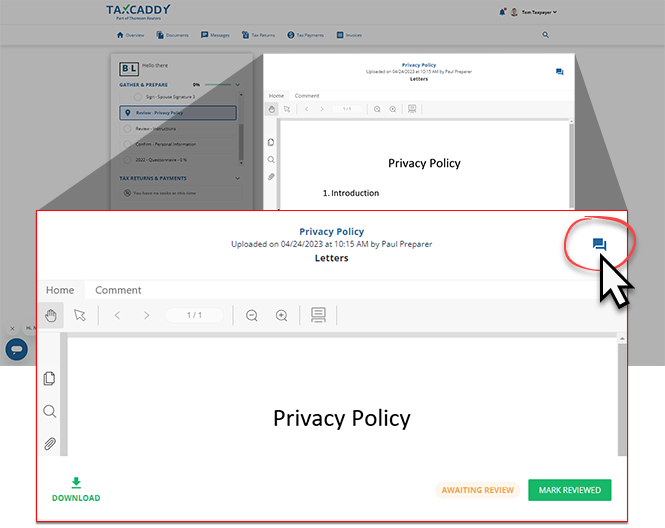
Side Panel
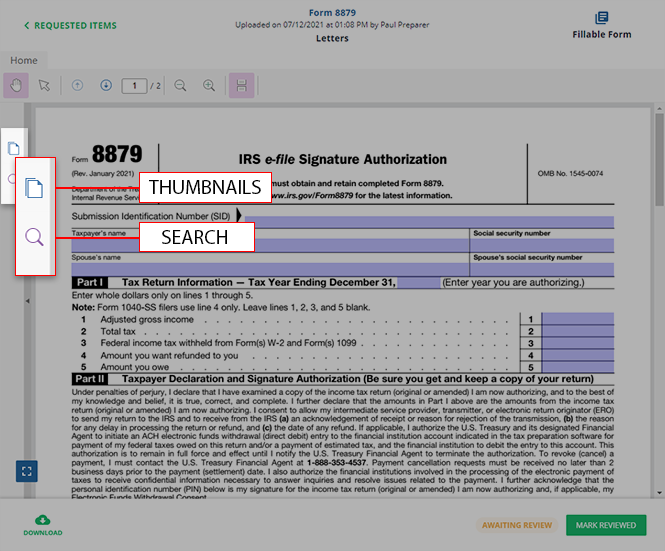
The side panel helps you navigate a multi-page document by viewing thumbnails of each page of the current document. You can also use the search feature to find keywords or phrases.
Footer
The footer lets you download documents and perform actions on the document (like sign, review, and pay). You can also view the current document status next to the
Download
button.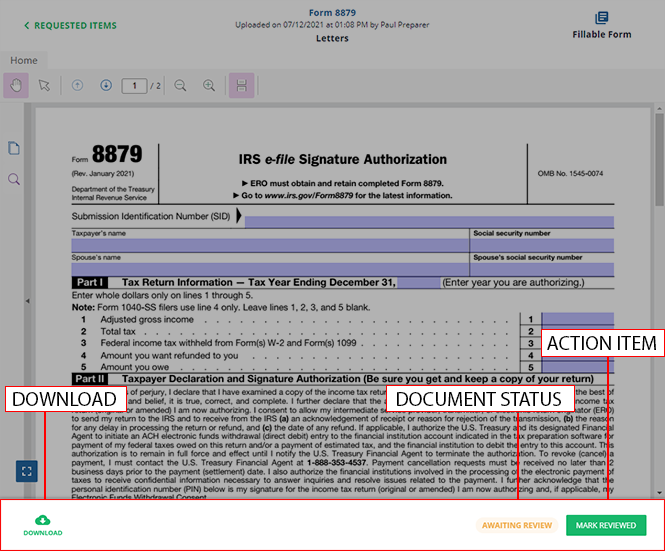
Icon | Description |
|---|---|
 | Download the document |
 | Move the document to another category |
 | Delete the document |
 | Pay the selected invoice or mark the tax payment voucher as paid |
Document Viewer's footer varies based on the document's status and purpose.
Review document
Before completion:

After completion:

Sign document
Before completion:

After completion:

Invoice
Before completion:

After completion:

note
A document will be secured in read-only mode once it has been signed or reviewed.
iOS mobile app
Document Viewer lets you view, review, and sign documents uploaded by you and/or your tax professional.
Header
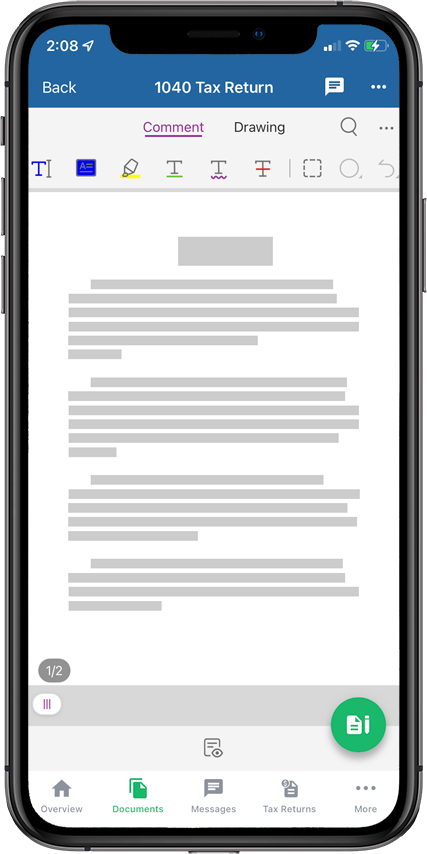
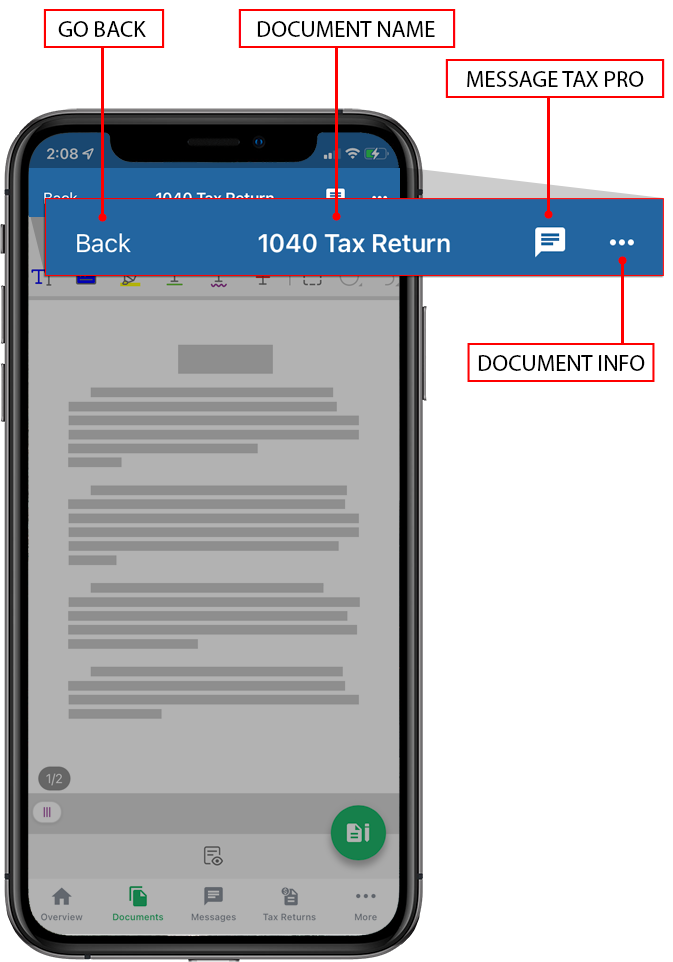
The header shows the document name and also lets you message your tax professionals. You can tap the ellipsis to view additional information.
PDF Viewer panel
The Document Viewer panel contains the
View Settings
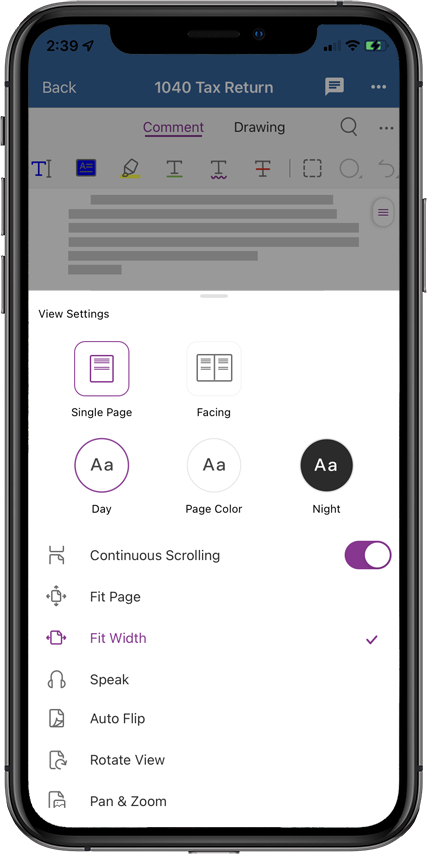
icon. Tap this icon to see your different display options when viewing a document.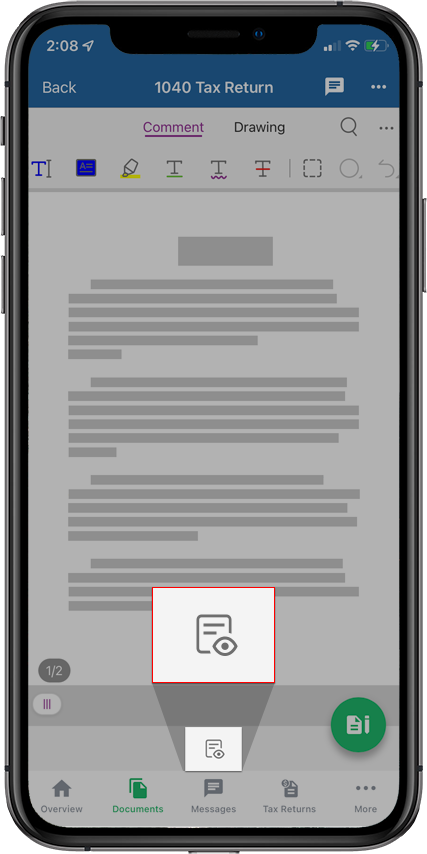
From here, you can browse the settings that improve your reading experience.
Floating icon
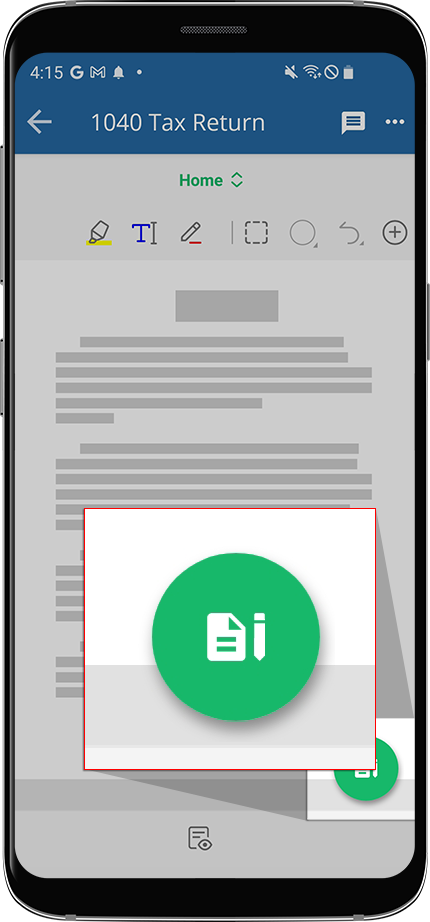
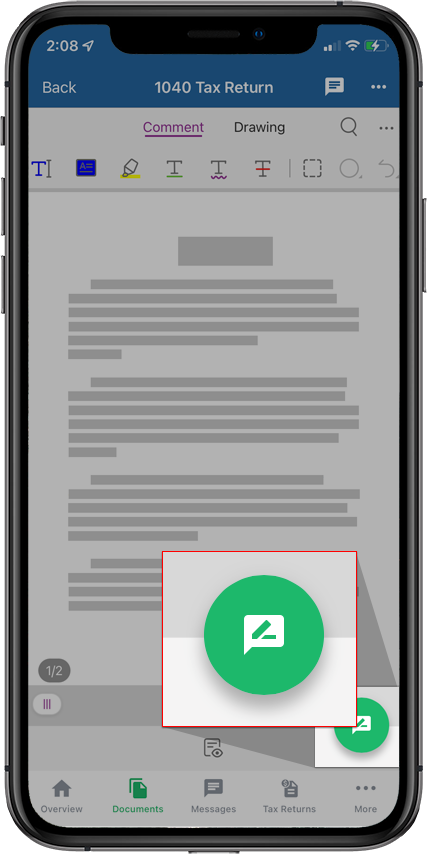
The floating icon lets you perform actions on the document (like sign, review, and pay). It varies based on the document's status and purpose.
Android mobile app
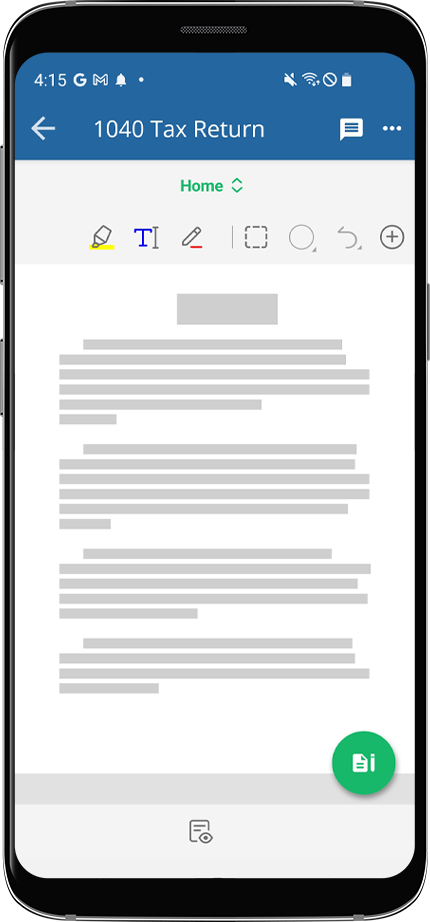
The Document Viewer lets you view, review, and sign documents uploaded by you and/or your tax professional.
Header
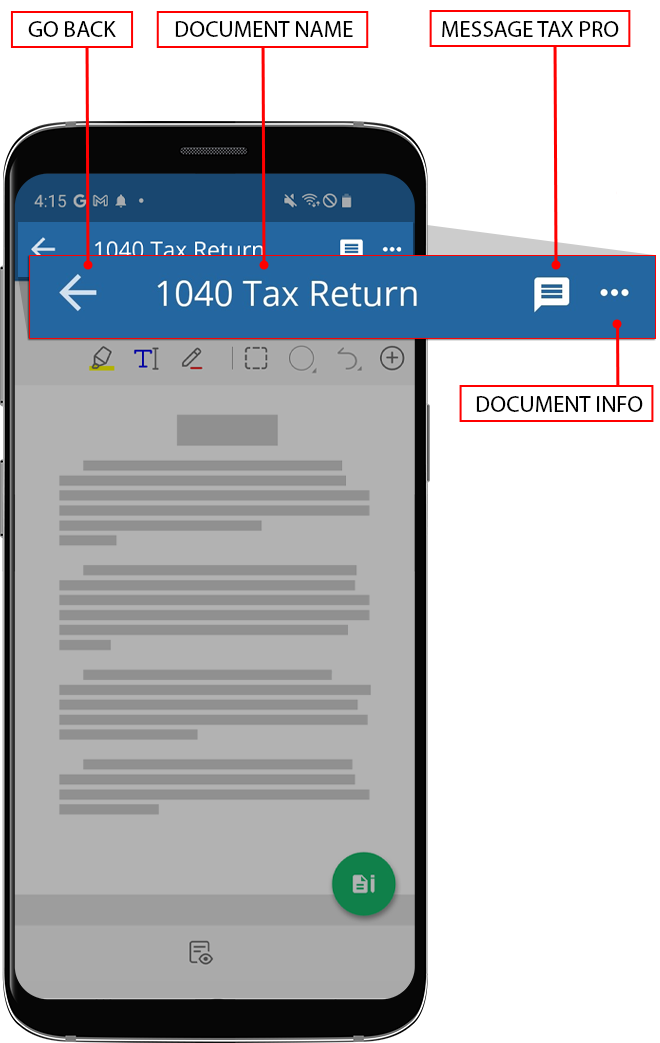
The header shows the document name and also lets you message your tax professionals. You can tap the ellipsis to view additional information. You can tap the arrow on the left to go back to the previous screen.
Floating icon
The Document Viewer panel contains the
View Settings
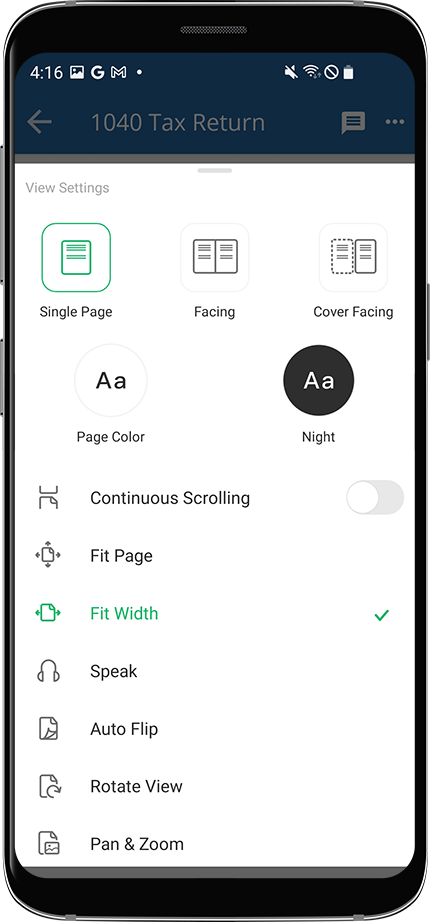
icon. Tap this icon to see your different display options when viewing a document.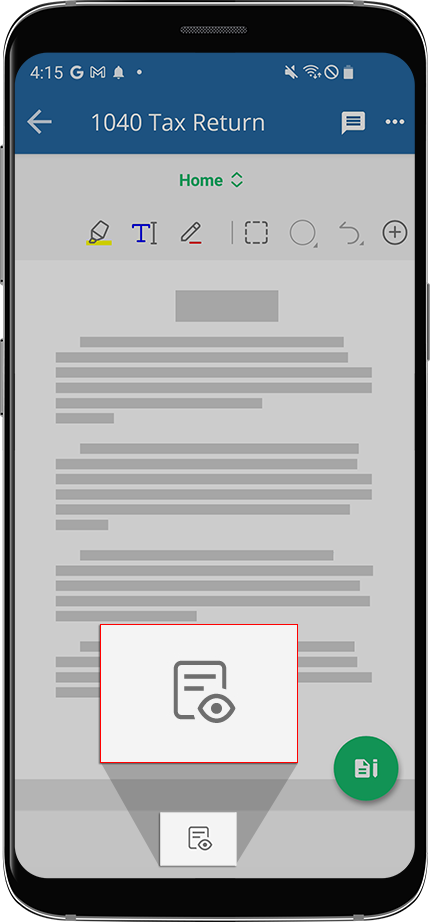
From here, you can browse the settings that improve your reading experience.
Floating icon
The floating icon lets you to perform actions on the document (like sign, review, and pay). It varies based on the document's status and purpose.