
Delete documents
Show all hidden content
TaxCaddy.com on PC, Mac, or tablet
Follow these steps to delete a document when using TaxCaddy.com on your PC, Mac, or tablet.
- Sign in to TaxCaddy.com.
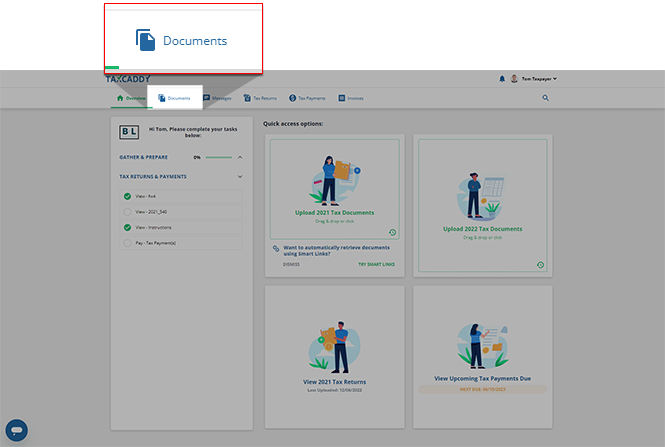
- From thescreen, selectOverviewDocuments.
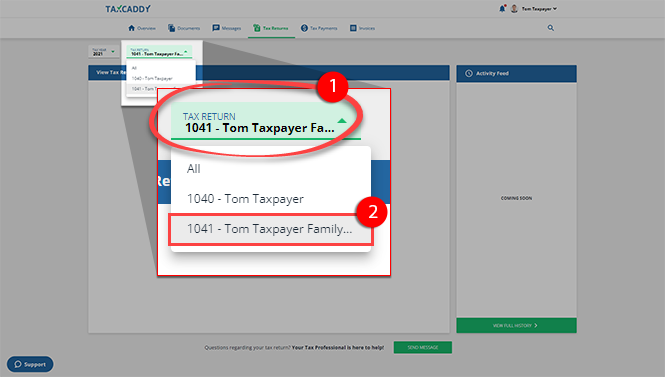
- If your tax professional has enabled 1041 tax return profiles on your account for trust/estate, you can select the correct profile from theTAX RETURNdropdown.
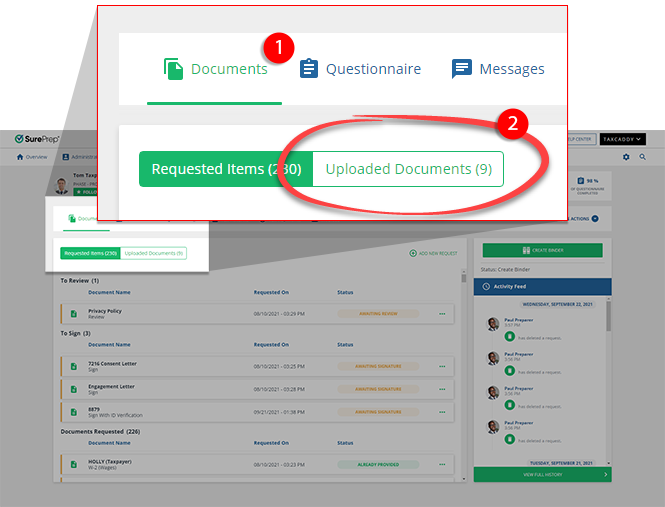
- SelectUploaded Documents.
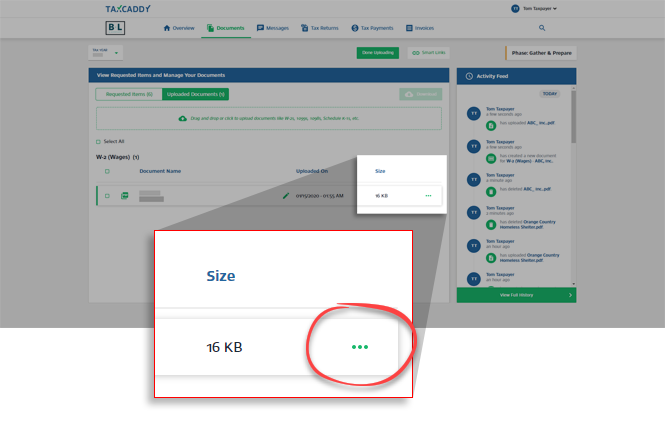
- Select theMenuicon on the document tile.
- SelectDelete.

- A window asking if you are sure you want to delete this document. SelectYes. The document is removed from the account.

iOS mobile app
Follow these steps to delete a document using the iPhone mobile phone app.
- Sign in to the TaxCaddy mobile app.
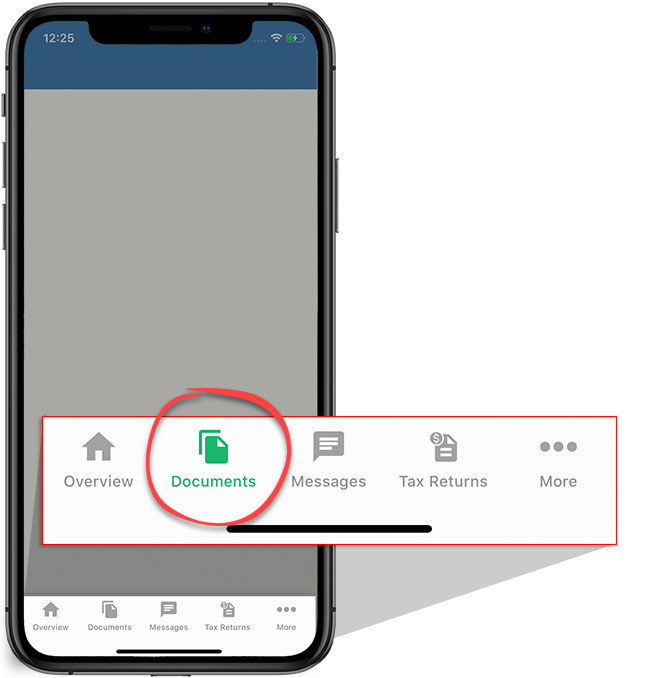
- Tap theDocumentsicon on the navigation bar.
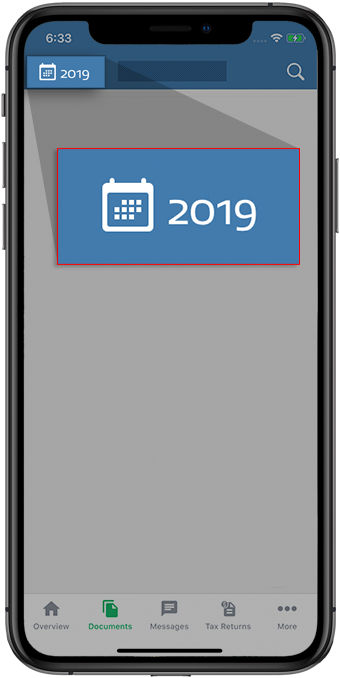
- Select the tax year.
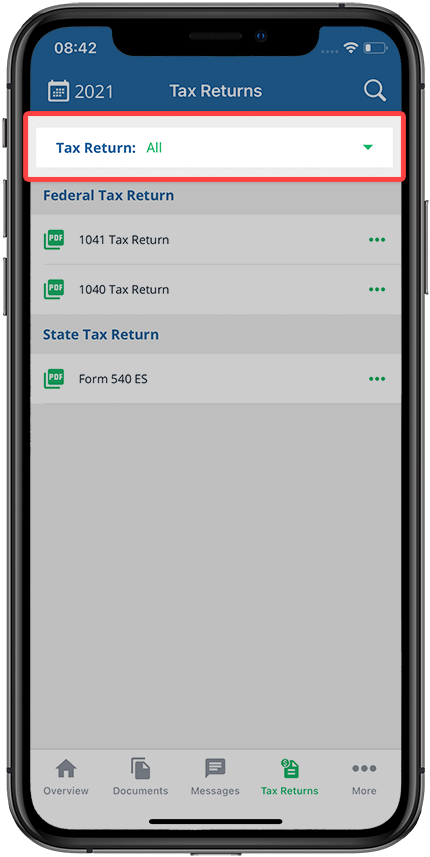
- If your tax professional has enabled 1041 tax return profiles on your account for trust/estate, use theTax Returndropdown to select the tax return profile.
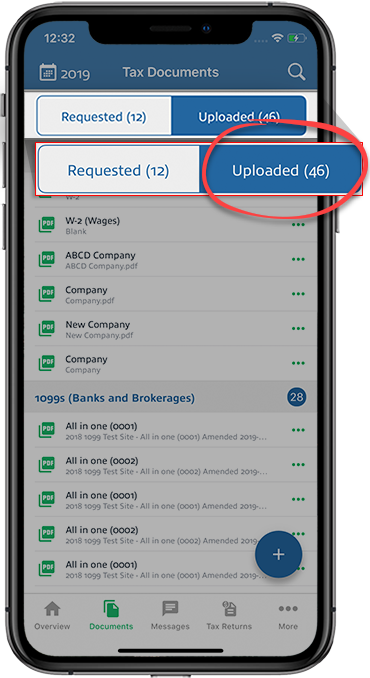
- Go to theUploadedtab to view uploaded documents.
- Select theMenuicon next to the document you want to rename.
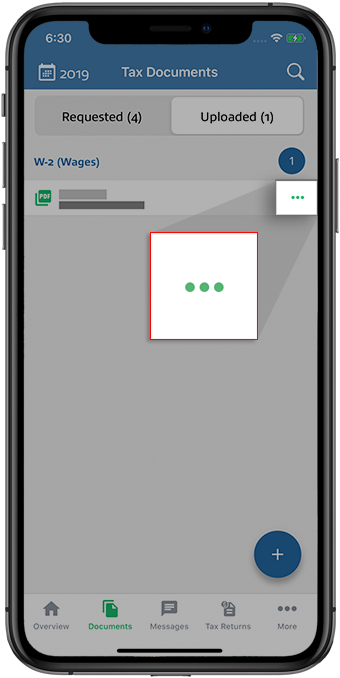
- SelectDelete.

- A window appears asking if you are sure you want to delete this document. SelectYes. TaxCaddy confirms the document was deleted.

Android mobile app
Follow these steps to delete a document using the Android mobile phone app.
- Sign in to the TaxCaddy mobile app.
- Select theMenuicon.
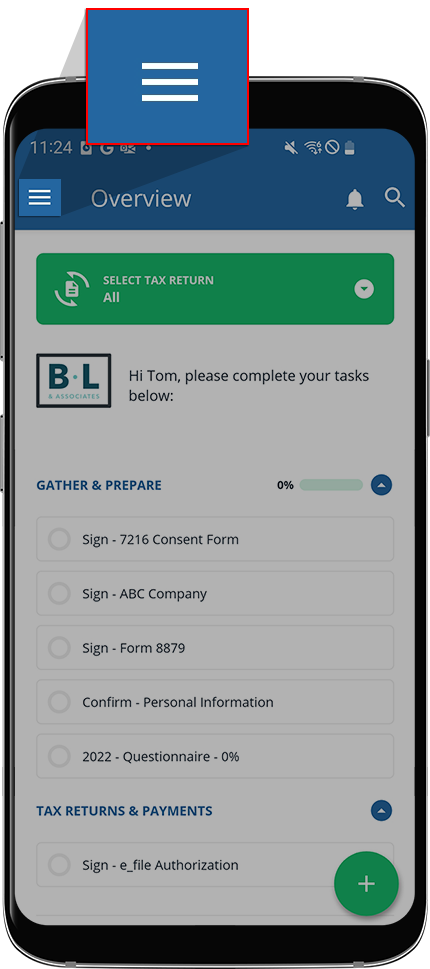
- SelectTax Documents.
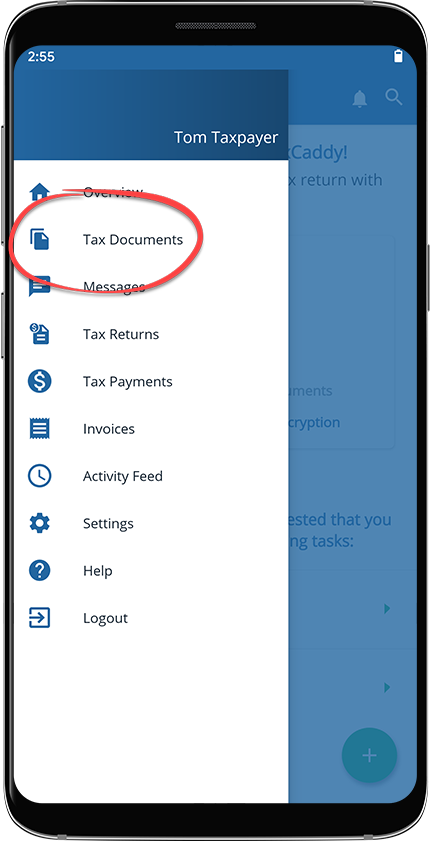
- If your tax professional has enabled 1041 tax return profiles on your account for trust/estate, use theTax Returndropdown to select the tax return profile.
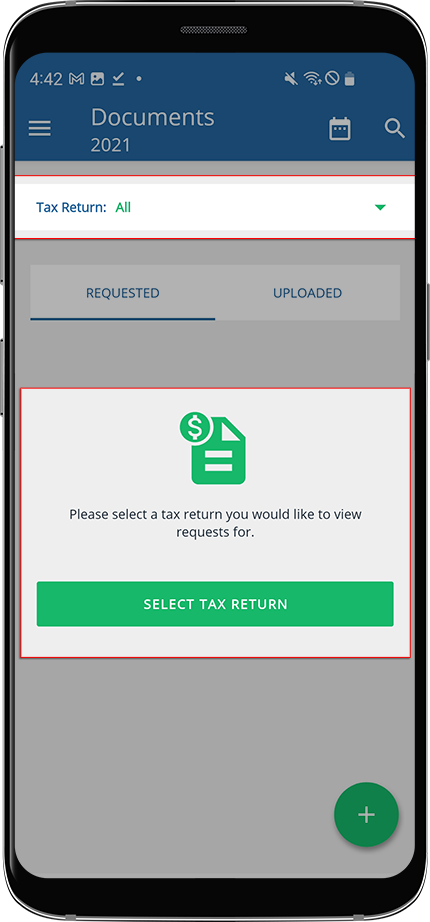
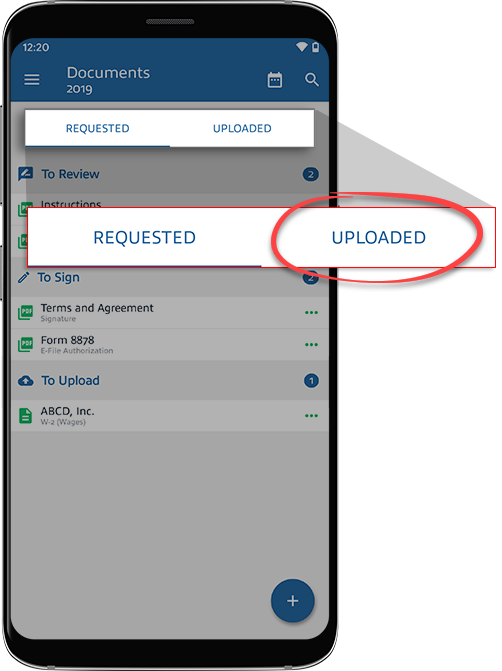
- SelectUPLOADED.
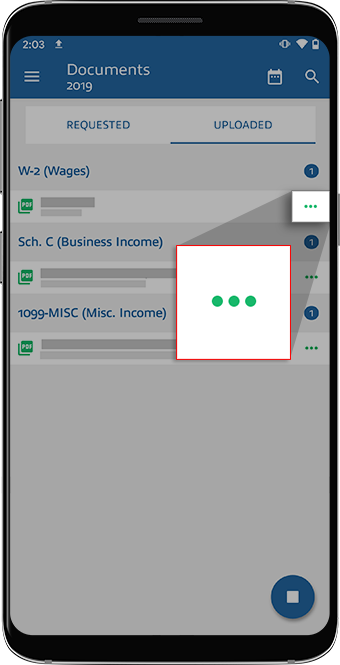
- Select theMenuicon next to the document you want to delete.
- SelectDelete.

- A window appears asking if you are sure you want to delete this document. SelectOK. TaxCaddy confirms the document was deleted.


