
Done uploading
Show all hidden content
Remember to inform your tax professional when you are done uploading documents for the selected tax year. After completing all of your pending tasks, your account's
Task List
progress won’t reach 100% until you've notified your tax professional you are done uploading tax documents for this tax year.Once completed, an email will be sent to your tax professional informing them that you have uploaded all of your requested documents.
note
After indicating that you're done uploading once, the
Done Uploading
button will no longer be available. If your tax professional decides that you're not finished uploading tax documents and reverts your status to incomplete, the button will be available to select again once you’ve uploaded any additional documents.TaxCaddy.com on PC, Mac, or tablet
Follow these steps to inform your Tax Professional that you are done uploading documents for this Tax Year:
- Sign in to TaxCaddy.com.
- On theOverviewscreen, you will see aTask List, with yourUploadrequests listed as[Tax Year] Document Requests.Your progress in completing all of yourUploadtasks will be denoted with theProgressicon. Once you've completed all your document requests, you will see theBellicon appear.
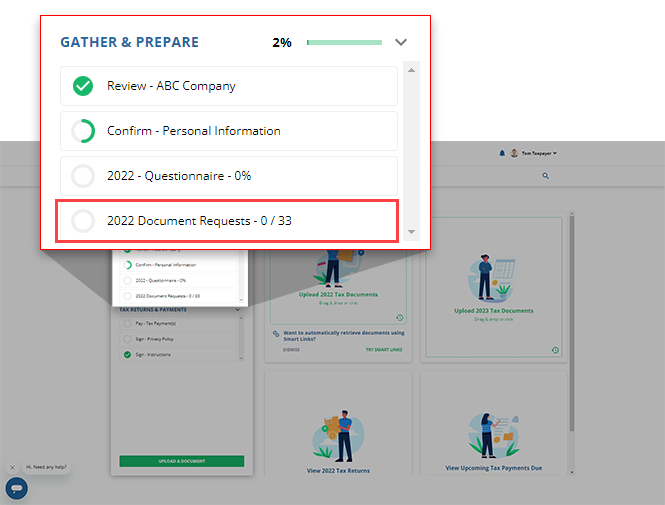
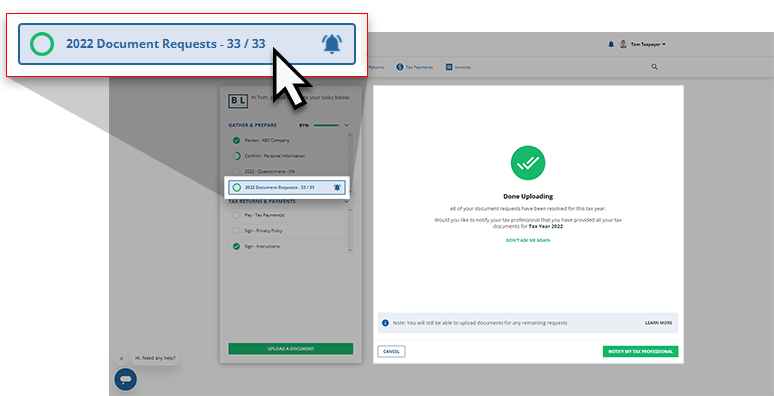
- Once you've addressed all of your document requests, select[Tax Year] Document Requeststo open theDone Uploadingscreen next to yourTask List.If you haven’t yet completed all of your document requests, but still want to notify your tax professional that you are done uploading, select
 [Tax Year] Document Requests, then selectI'M DONE UPLOADINGto view theDone Uploadingscreen.
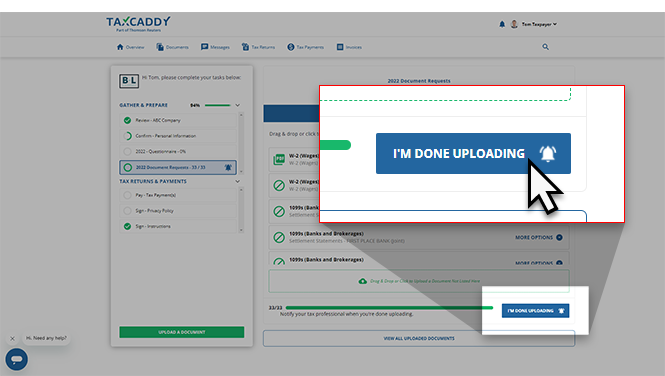 noteYou need at least 1 document uploaded to your profile to be able to use theI'M DONE UPLOADINGfeature, otherwise you will see the following error notification:You cannot use this feature until you have fulfilled a document request.
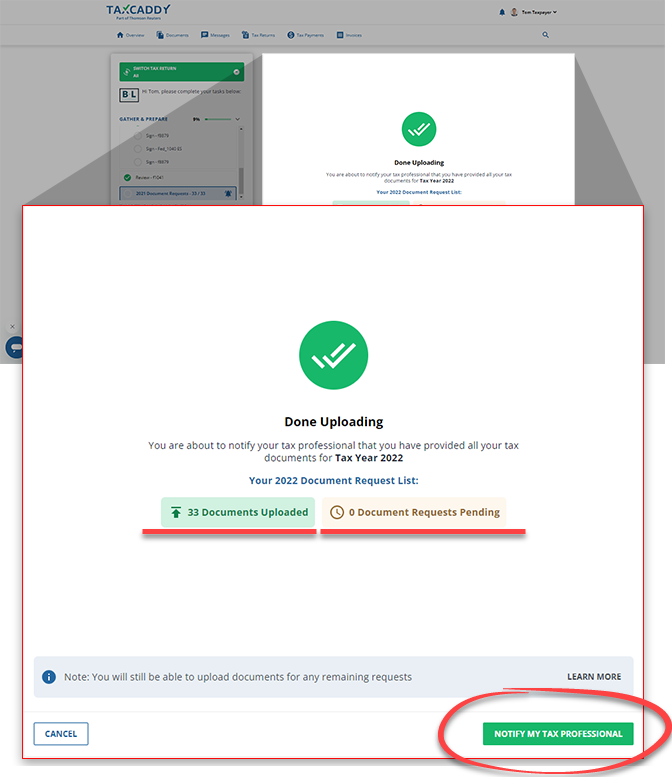
- Once you've completed all your requests, selectNOTIFY MY TAX PROFESSIONALto notify your tax professional (via email) that you have uploaded all your requested documents. If you don’t see this screen, skip to the next step.
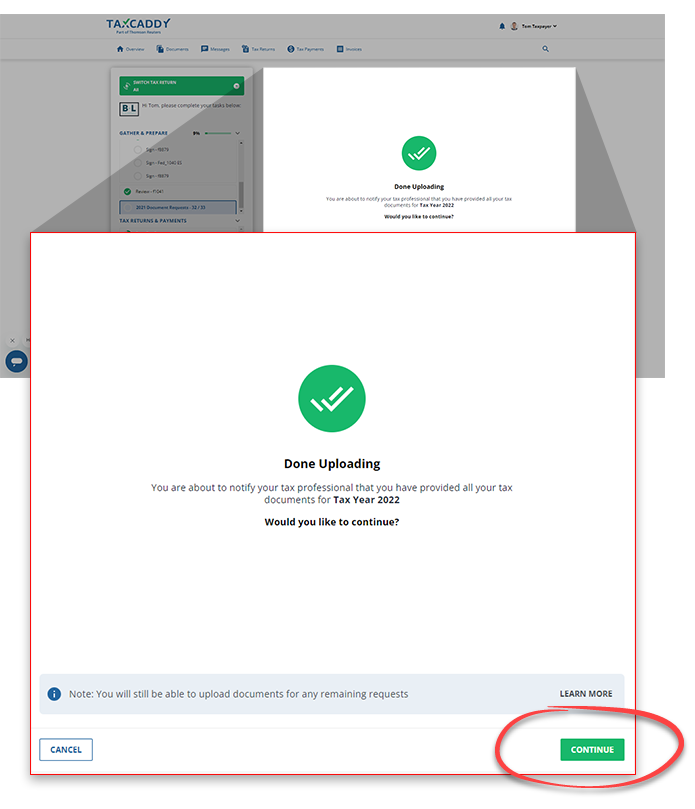
- You will see the following screen only if you still have pending document requests. SelectCONTINUEto address the remaining documents before sending your tax professional the done uploading notification.
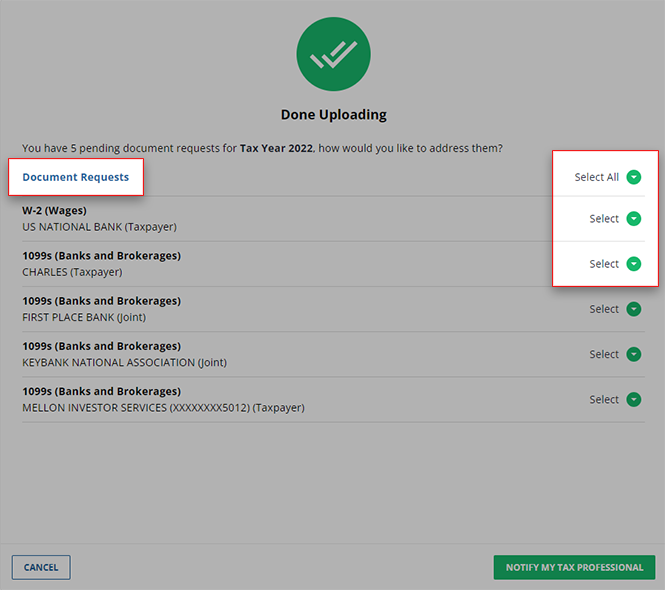
- To continue, address any pending items listed in theDocument Requestslist. You can address each item individually or all at once.To address each item individually, useSelect.To address all items at once with the same option, useSelect Allat the beginning of the list.
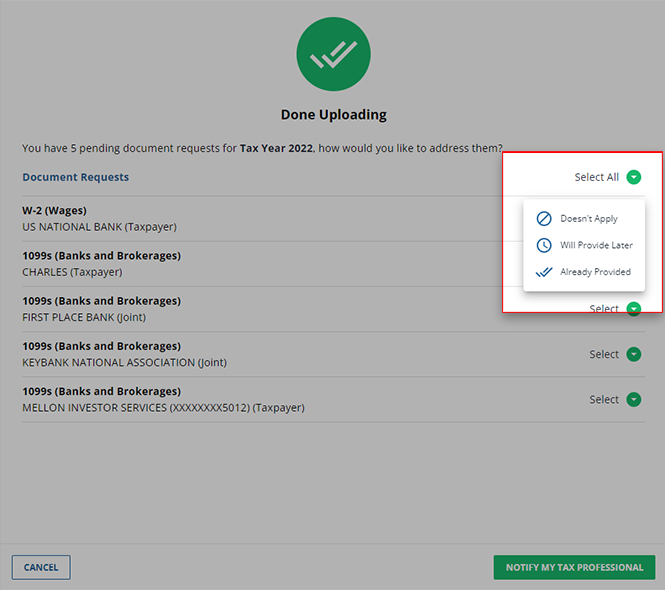
- Select the option that addresses your pending document request:
- Doesn't Apply: Indicates within theDocument Requeststhat this request doesn’t apply.
- Will Provide Later: Keeps the selected document in theDocument Requestsection.
- Already Provided: Marks the document as already provided.
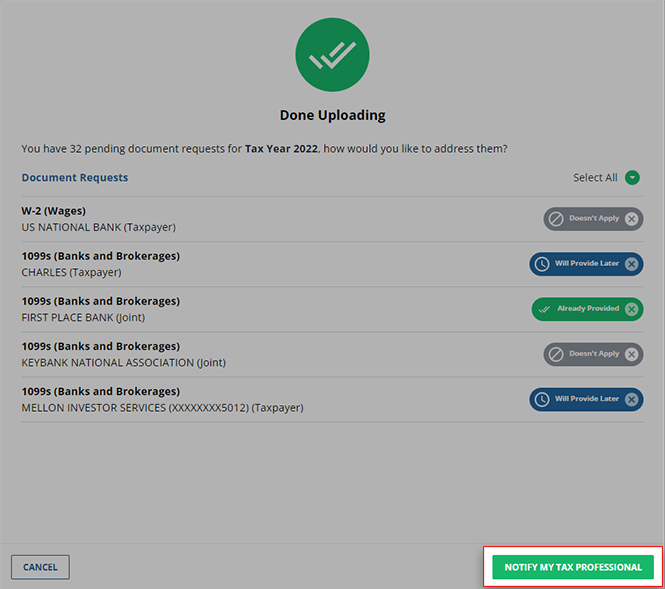
- SelectNOTIFY MY TAX PROFESSIONALto inform your tax professional that you have finished uploading documents. Once you selectNOTIFY MY TAX PROFESSIONAL, it can't be undone on your end. However, you can still upload additional documents at any time. Your tax professional will receive an email notification if you upload additional documents.noteOnce you selectNOTIFY MY TAX PROFESSIONAL, an email notification will be sent to your tax professional, and you will no longer be able to use theI'M DONE UPLOADINGfeature unless your tax professional alters your status themself.
- You will see a success message appear once the done uploading notification has been sent to your tax professional.
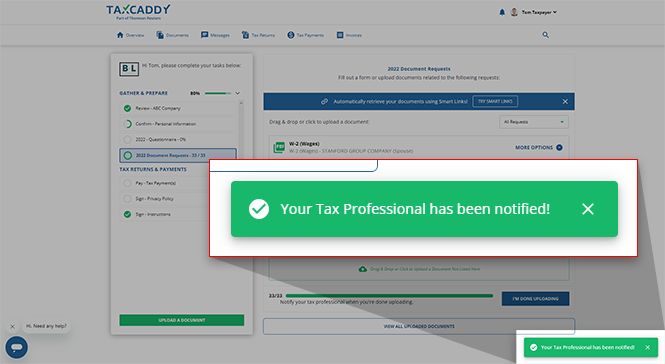
- You may also see theDone Uploadingwindow appear automatically when a tax professional or a spouse uploaded one or more last remaining requested items before your current TaxCaddy session.
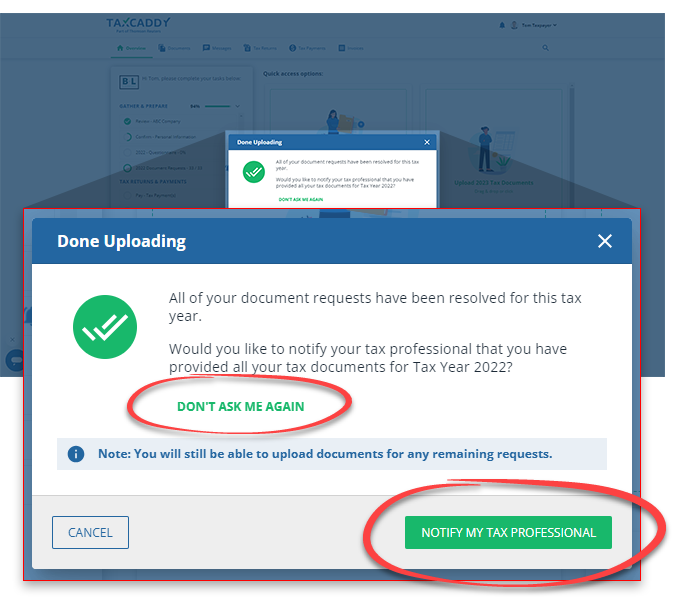
- SelectDON'T ASK ME AGAINif you don’t want to receive further reminders about notifying your tax professional.
- SelectNOTIFY MY TAX PROFESSIONALto notify your tax professional (via email) that you have uploaded all of your requested documents.
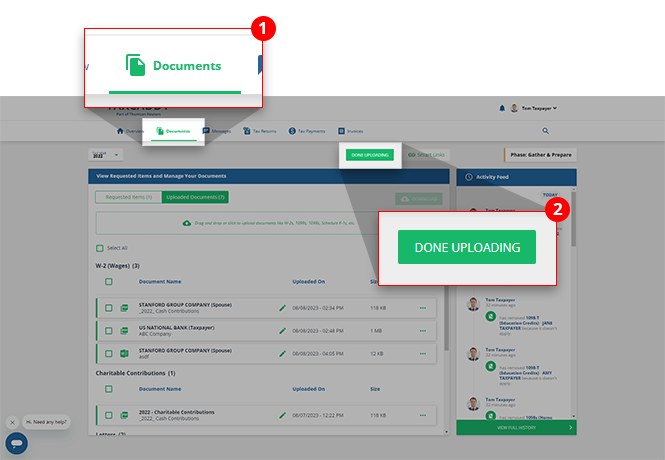
- Alternatively, you can use theDONE UPLOADINGfeature found in theDocumentstab to notify your tax professional that you are done uploading documents for the selected tax year.
iOS mobile app
Follow these steps to inform your tax professional that you are done uploading documents on the iPhone mobile phone app.
- Sign in to the TaxCaddy mobile app.
- Document requests that your tax professional has uploaded to your account will appear on thescreen.Overview
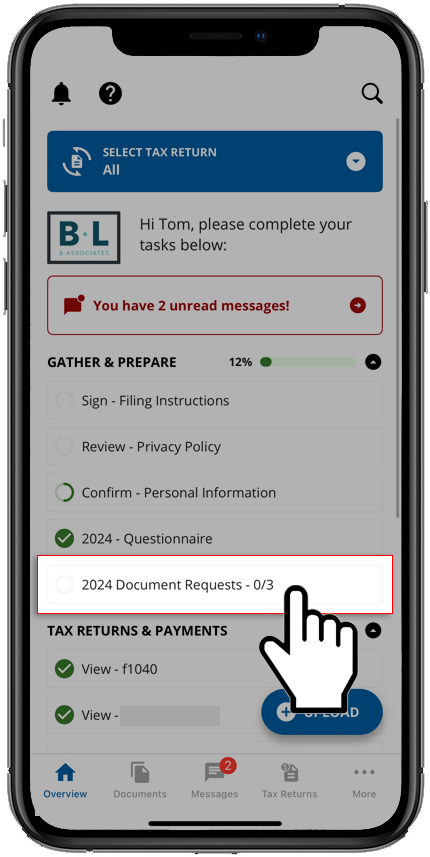
- Once a list of your requests appears, select[Tax Year] Document Requeststo go to a list of your pending document requests.
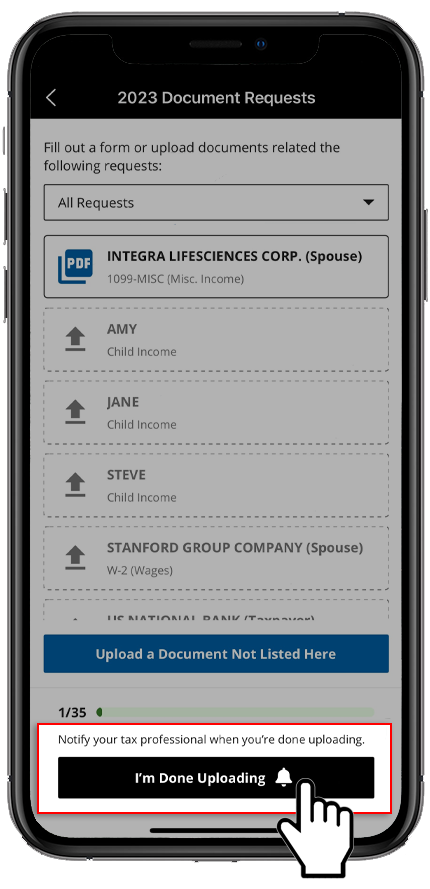 noteSelectI'm Done Uploadingto inform your tax professional that you are done uploading all tax documents. You will not be able to use theI'm Done Uploadingfeature if you haven't yet uploaded a document for the selected tax year. If you try using this feature before uploading a document, you will see an error message indicating so.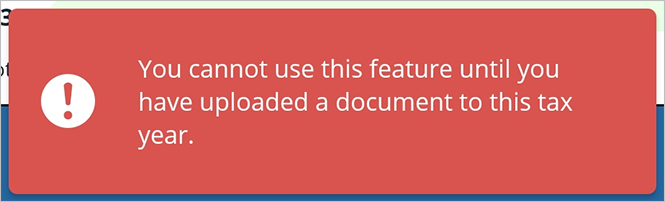
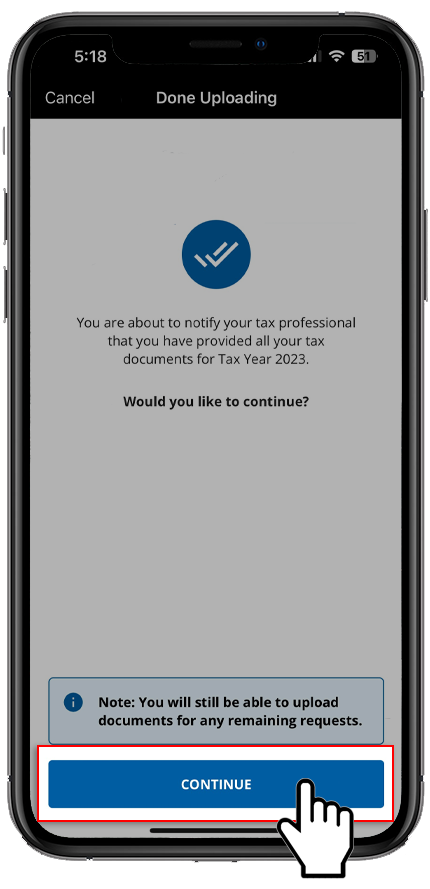
- You'll see a screen asking you to confirm your choice to be done uploading. This sends an email notification to your tax professional. SelectCONTINUEif you'd like to proceed.
- If you have any remaining document requests, they will appear on theDone Uploadingscreen. You can either keep the remaining requested documents or remove them. Select theArrowicon to review your options with this request:
- Doesn't Apply: This request doesn’t apply to you. This will remove it from your pending requests.
- Will Provide Later: Keeps the selected document in the document request list.
- Already Provided: You've already fulfilled this request. This will remove it from your pending requests.
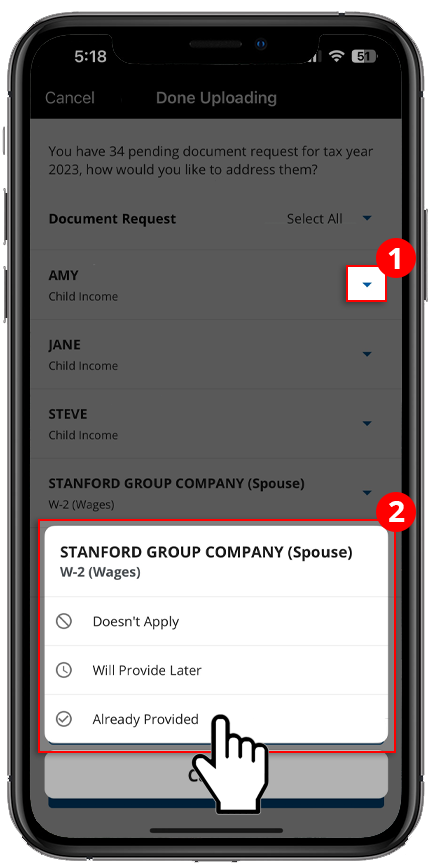 If you'd like to mark all of documents the same, open theSelect Alldropdown then make your selection.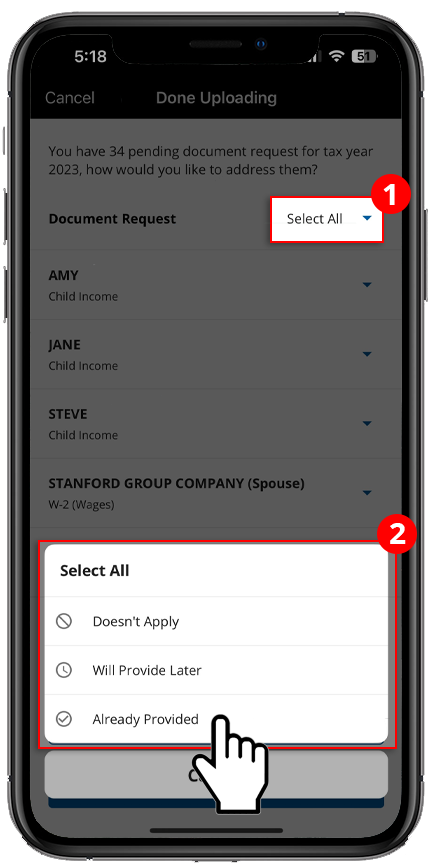
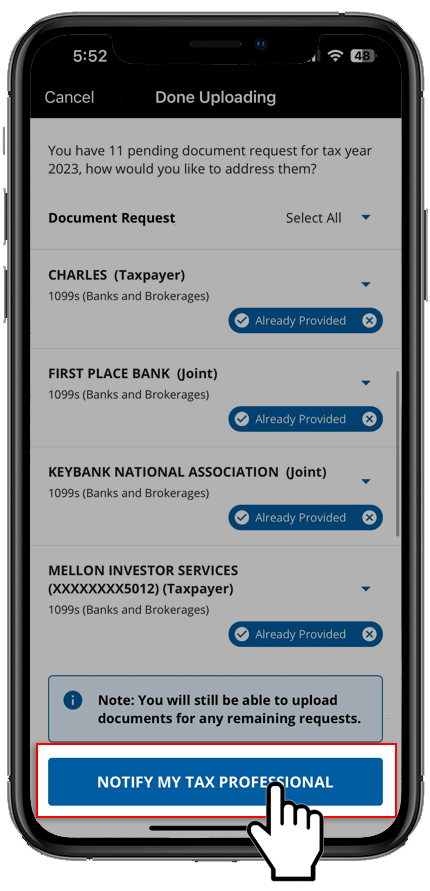
- Once you've made your selections for all listed requests, selectNOTIFY MY TAX PROFESSIONALto send an email notification informing your tax professional that you are done uploading all requested documents. Once selected, it can't be undone. However, you can still upload additional documents at any time.noteTheDone Uploadingfeature can only be used once per tax year. Once you selectYes, let my Tax Pro know, theDone Uploadingbutton will no longer be available on theDocumentsscreen.
- If you have no remaining document request,Done Uploadingpanel will appear automatically on theDocumentsscreen once you complete uploading the final requested item:
- SelectDon't ask me againto dismiss the window permanently.
- SelectNo, ask me laterto dismiss the window for this session.
- SelectYes, notify Tax Proto notify your tax professional. An email notification will be sent to your tax professional.
Once you selectYes, notify Tax Pro, it can't be undone. However, you can still upload additional documents at any time.noteTheDone Uploadingfeature can only be used once per tax year. Once you selectYes, notify Tax Pro, theDone Uploadingbutton will no longer be available.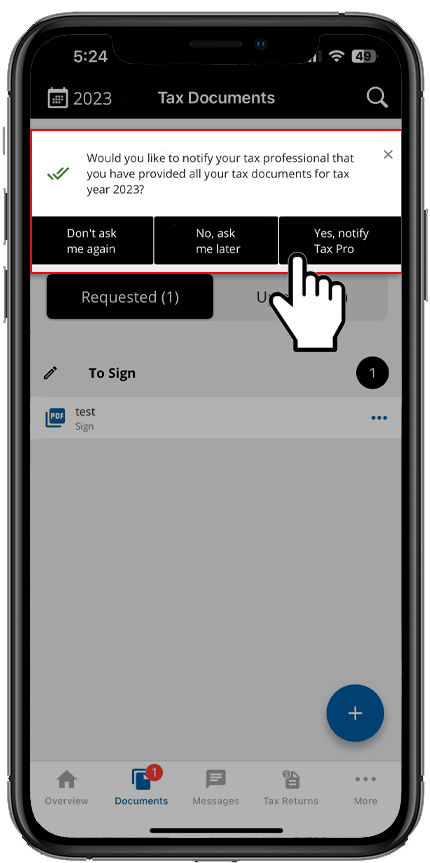 You will also see a notification icon appear next to theDocumentsicon if theDone Uploadingwindow is pending.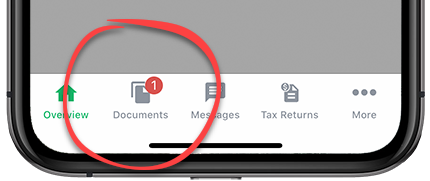
Android mobile app
Follow these steps to inform your tax professional that you are done uploading documents on the Android mobile phone app.
- Sign in to the TaxCaddy mobile app.
- Document requests that your tax professional has uploaded to your account will appear on thescreen.OverviewSelect
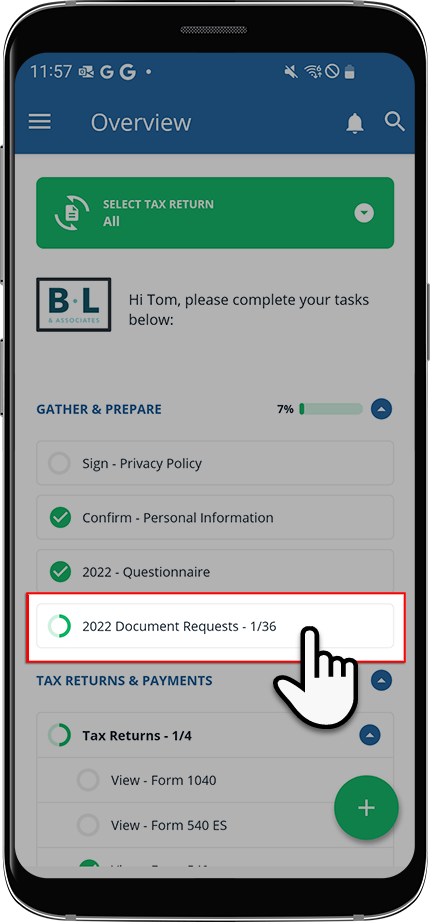 [Tax Year] Document Requeststo go to a list of your pending document requests.
 - Once a list of your requests appears, selectI'm Done Uploadingto inform your tax professional that you are done uploading all tax documents.
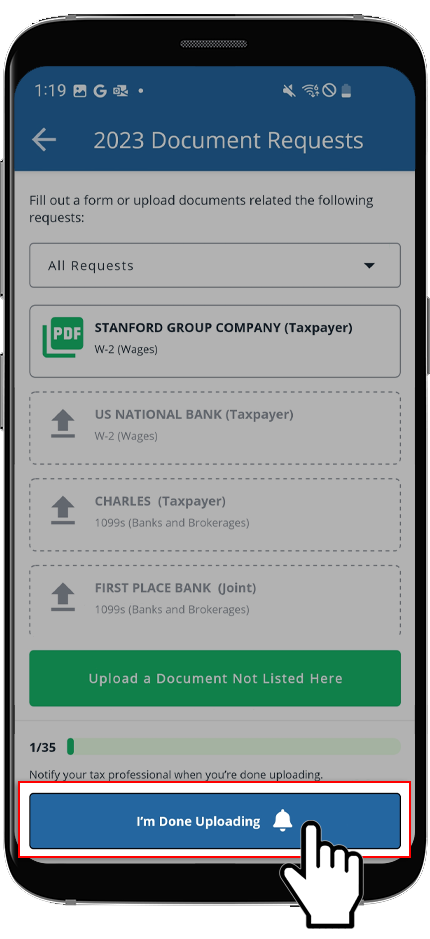 noteYou will not be able to use theI'm Done Uploadingfeature if you haven't yet uploaded a document for the selected tax year. If you try using this feature before uploading a document, you will see an error message indicating so.
 - You'll see a screen asking you to confirm your choice to be done uploading. This sends an email notification to your tax professional. SelectCONTINUEif you'd like to proceed.
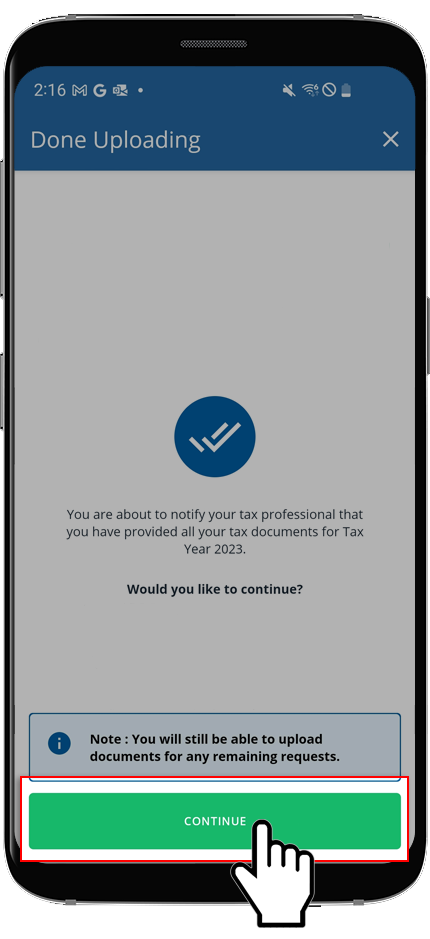
- If you have any remaining document requests, they will appear on theDone Uploadingscreen. You can either keep the remaining requested documents or remove them.Select theArrowicon to review your options with this request:
- Doesn't Apply: This request doesn’t apply to you. This will remove it from your pending requests.
- Will Provide Later: Keeps the selected document in the document request list.
- Already Provided: You've already fulfilled this request. This will remove it from your pending requests.
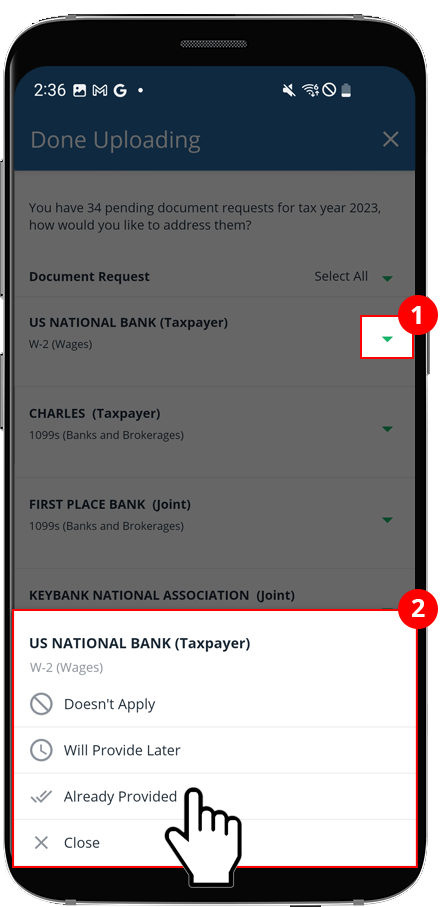 If you'd like to mark all of the documents the same, open theSelect Alldropdown then make your selection:
- Doesn't Apply: This request doesn’t apply to you. This will remove it from your pending requests.
- Will Provide Later: Keeps the selected document in the document request list.
- Already Provided: You've already fulfilled this request. This will remove it from your pending requests.
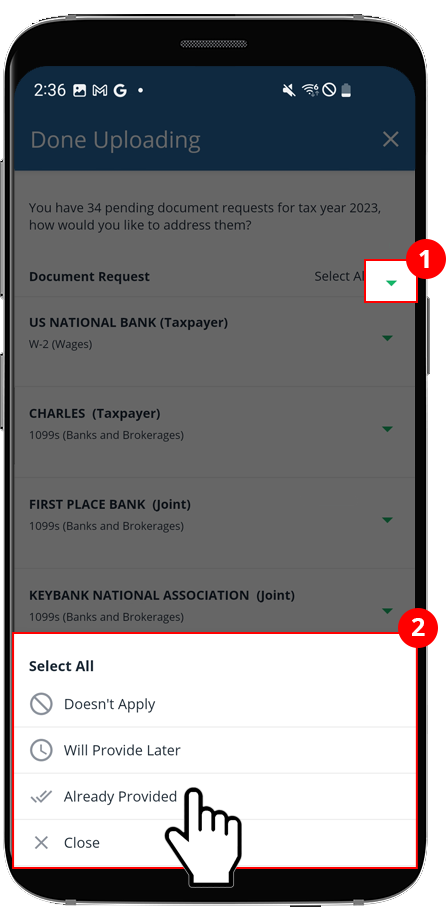
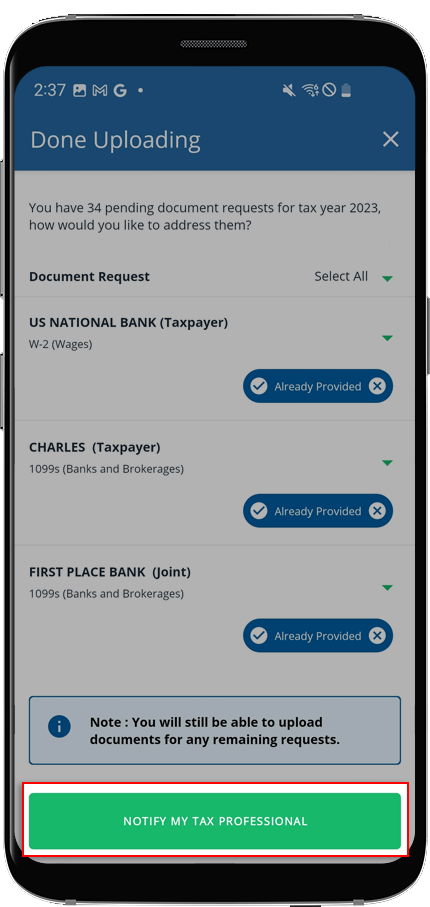
- Once you've made your selections for all of the listed requests, selectNOTIFY MY TAX PROFESSIONALto send an email notification informing your tax professional that you are done uploading all requested documents. Once selected, it can't be undone. However, you can still upload additional documents at any time.noteTheDone Uploadingfeature can only be used once per tax year. Once you selectNOTIFY MY TAX PROFESSIONAL, theDone Uploadingbutton will no longer be available.
- If you have no remaining document requests, theDone Uploadingpanel will appear automatically on theDocumentsscreen once you complete uploading the final requested item:
- SelectDon't ask me againto dismiss the window permanently.
- SelectNo, ask me laterto dismiss the window for this session.
- SelectYes, notify Tax Proto notify your Tax Professional. An email notification will be sent to your Tax Professional.
Once you selectYes, notify Tax Pro, it can't be undone. However, you can still upload additional documents at any time.noteTheDone Uploadingfeature can only be used once per tax year. Once you selectYes, notify Tax Pro, theDone Uploadingbutton will no longer be available.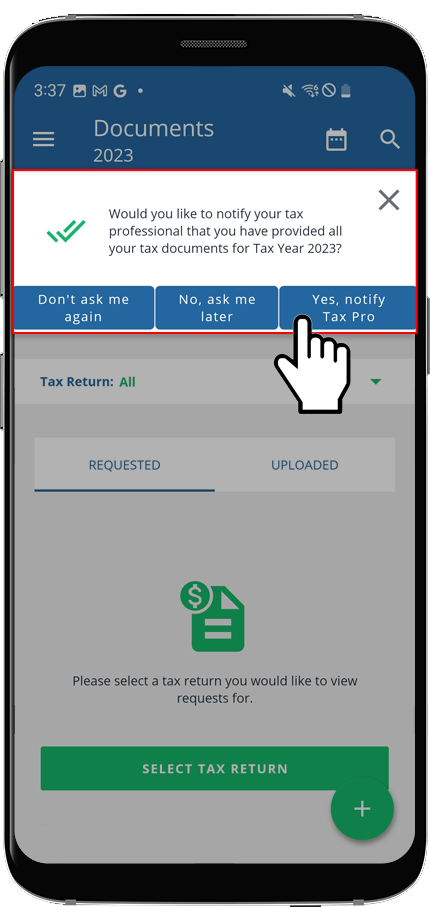
note
The
Done Uploading
button does not appear under the following conditions:
- You have already used the Done Uploading feature once for the current tax year.
- You have no documents uploaded to the current tax year.
- You are currently not connected to a tax professional.
- You are looking at the current calendar year instead of the tax year.

