Move documents to other categories, tax years, or tax return types
Show all hidden content
Moving documents lets you assign documents to their respective categories if they were uploaded without a category or erroneously uploaded to the wrong category. For example, if a W-2 is incorrectly uploaded as a 1099-MISC then you can move the document to make the correction.
TaxCaddy.com on PC, Mac, or tablet
Follow these steps to recategorize a document using TaxCaddy.com on your PC, Mac, or tablet.
- Sign in to TaxCaddy.com.
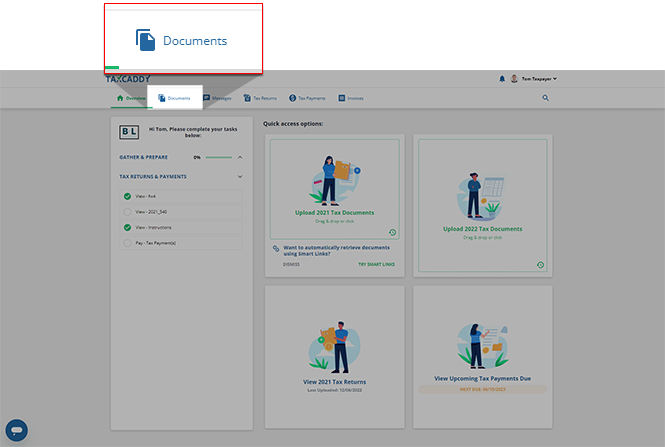
- SelectDocuments.
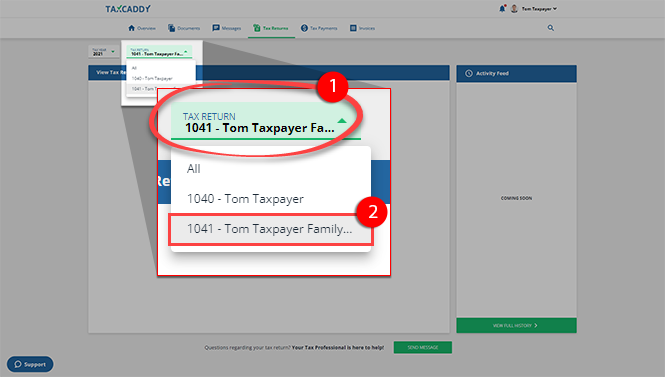
- Skip this step if theTAX RETURNmenu is not available. If your tax professional has enabled 1041 tax return profiles on your account for trust/estate, select aTAX RETURNprofile to narrow down the document list.
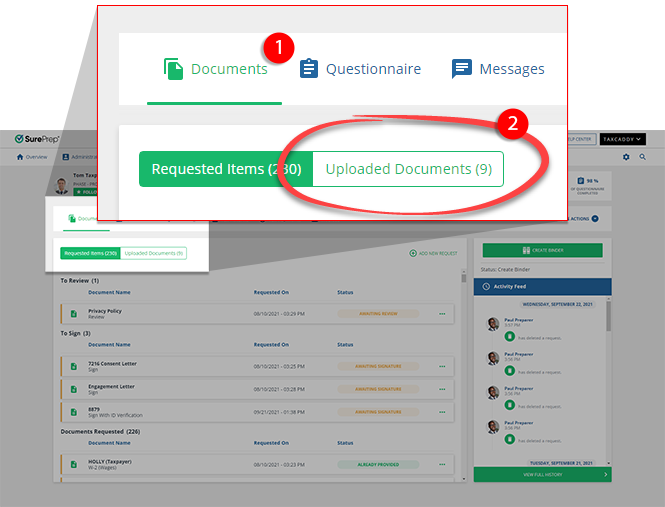
- SelectUploaded Documentsto view documents previously uploaded to your selected tax return.
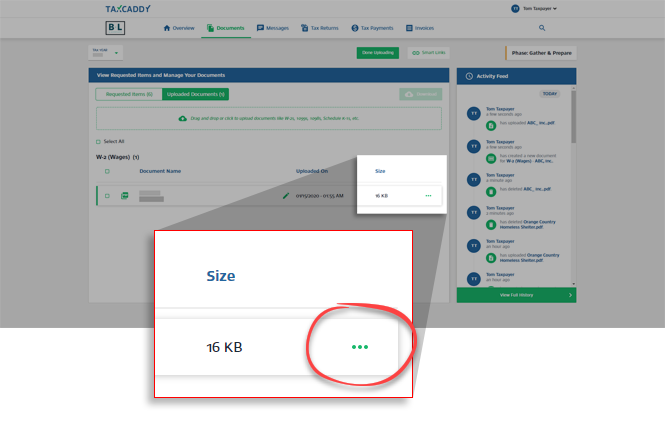
- Select theMenuicon.
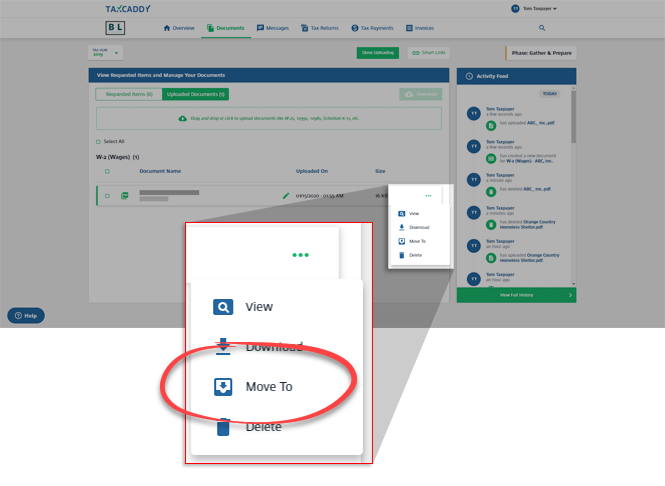
- SelectMove To.
- Select theTax YearandTax Returnif applicable. Select aCategoryfrom the list or, alternatively, selectShow Alland then enter a category name into thesearch box.
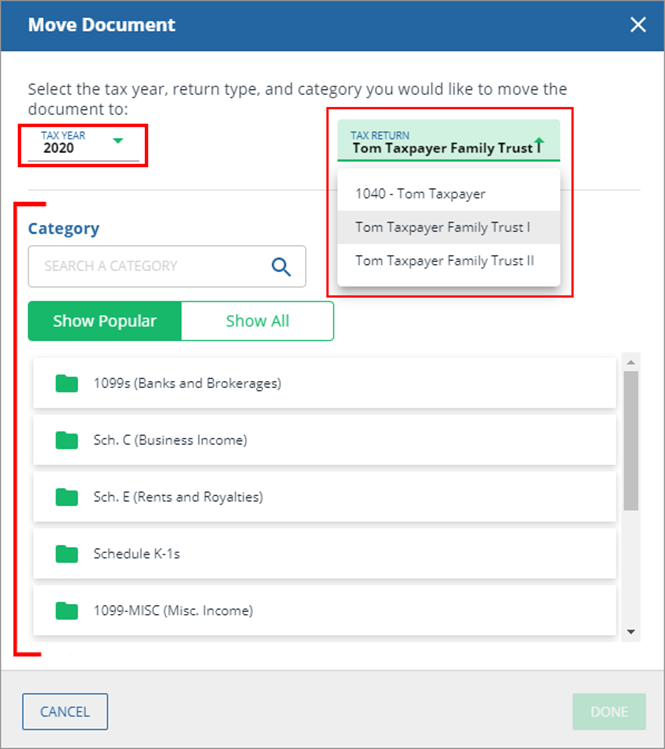 noteSome categories only apply to 1040 tax return types and won’t appear when moving a 1041 specific document and vice versa.
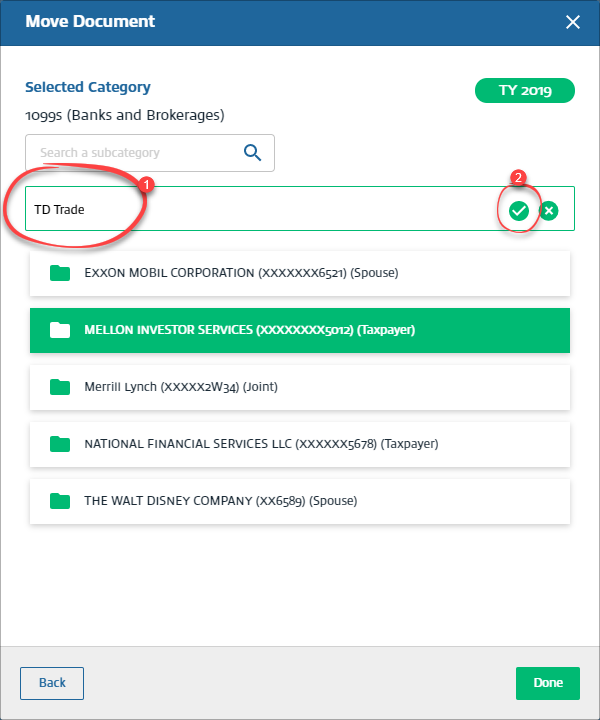
 - To use an existing subcategory for the document, select a subcategory. To add a new subcategory, selectAdd New.
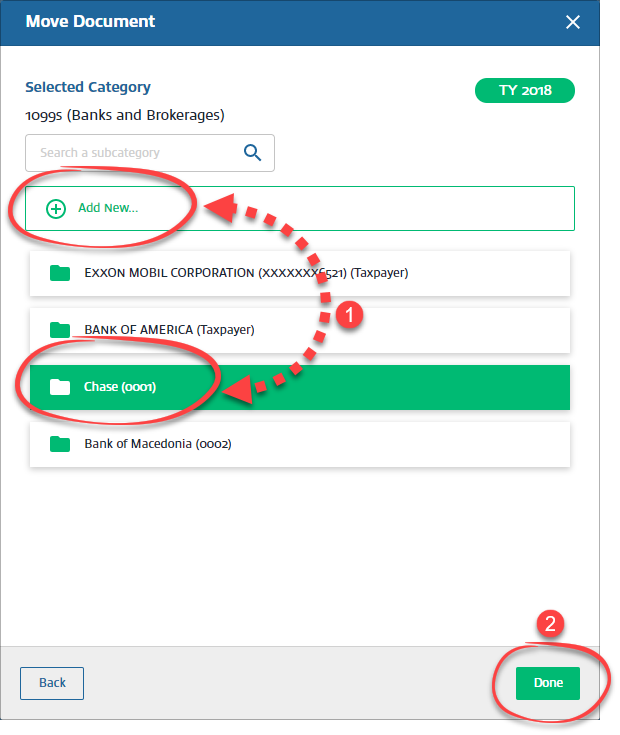
- If you're creating a new subcategory, enter a new subcategory name and select the checkmark to save the new subcategory.
- Select thesubcategoryand selectDone.
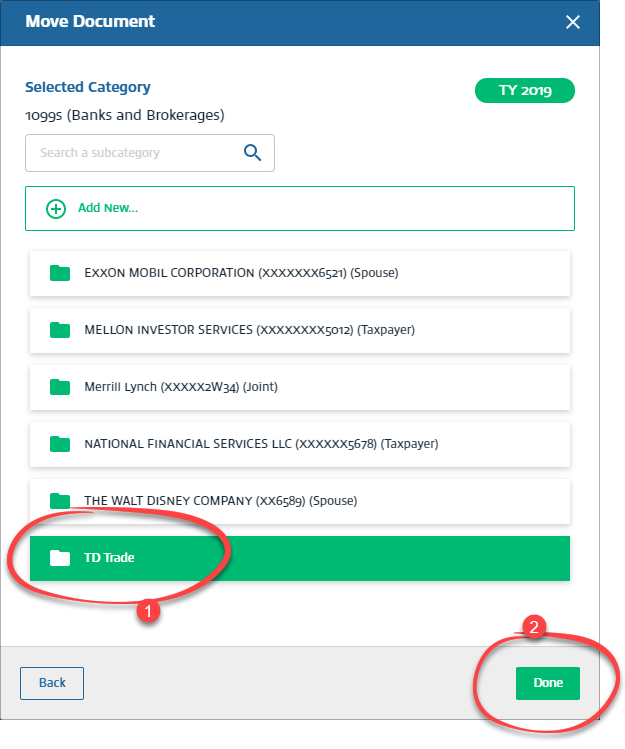
- You will see a confirmation message after the document is moved.
iOS mobile app
Follow these steps to recategorize a document using the iPhone mobile phone app.
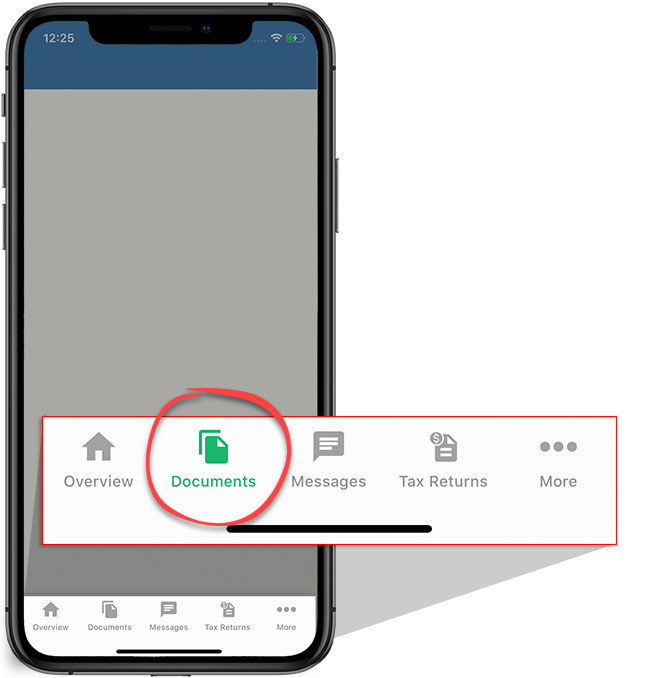
- Sign in to the TaxCaddy mobile app then selectDocumentson the tab bar.
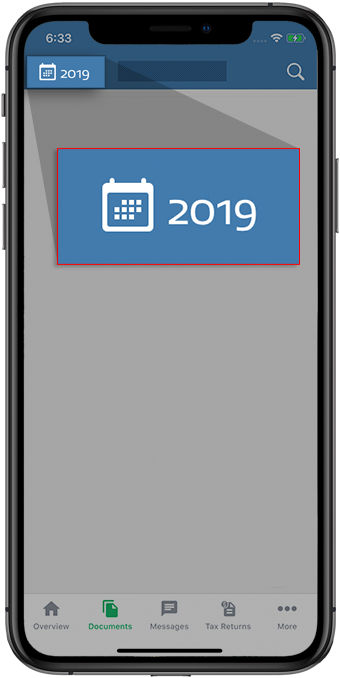
- Select a year to view documents for a particular tax year.
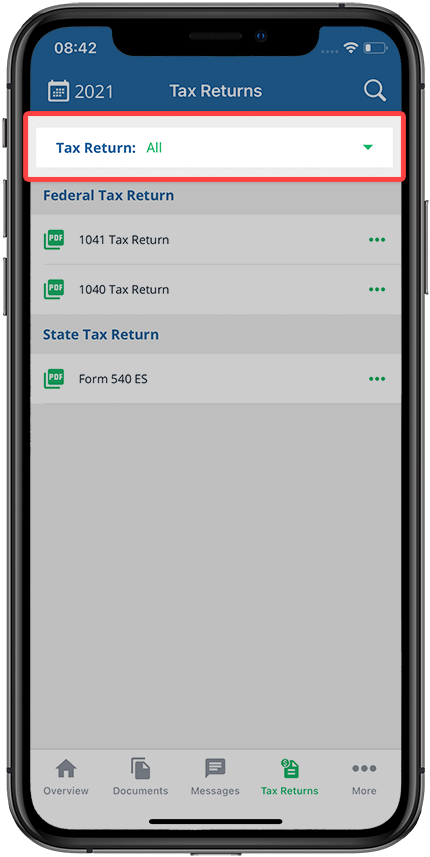
- If your tax professional has enabled 1041 tax return profiles on your account for trust/estate, select theTax Returndropdown to select the tax return profile.
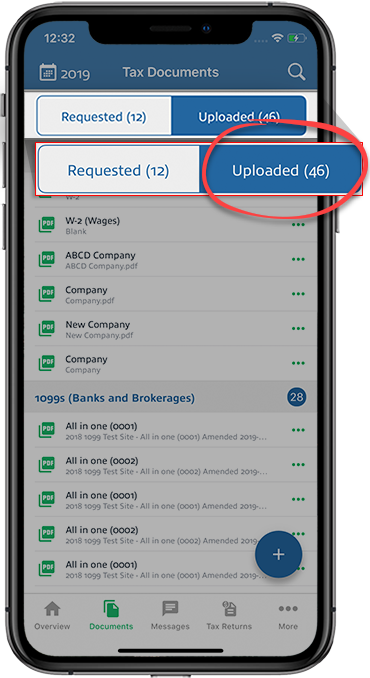
- SelectUploadedto see your uploaded documents.
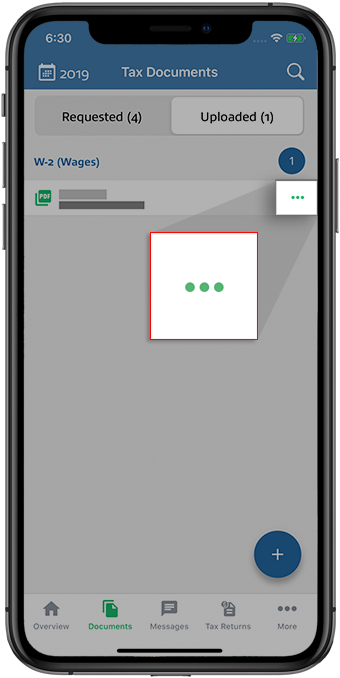
- Your documents are displayed under their categories. Select theMenuicon next to the document you want to move.
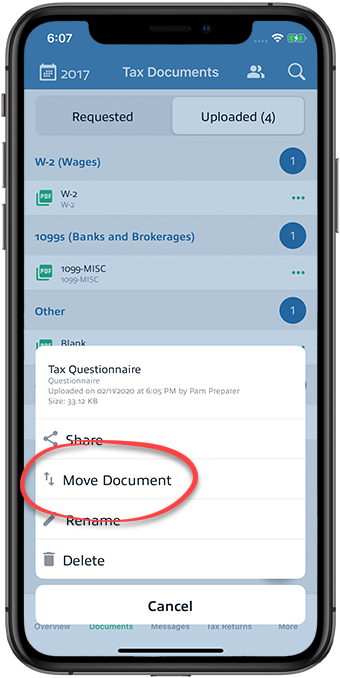
- SelectMove Document.
- Select the year to move the document to another tax year.If your tax professional has enabled 1041 tax return profiles on your account, select the correct
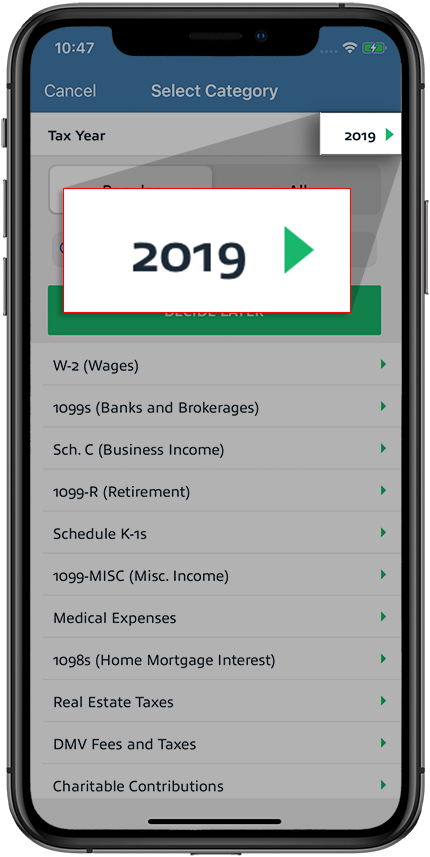 Tax Returnin addition to theTax Yearbefore selecting theCategory.
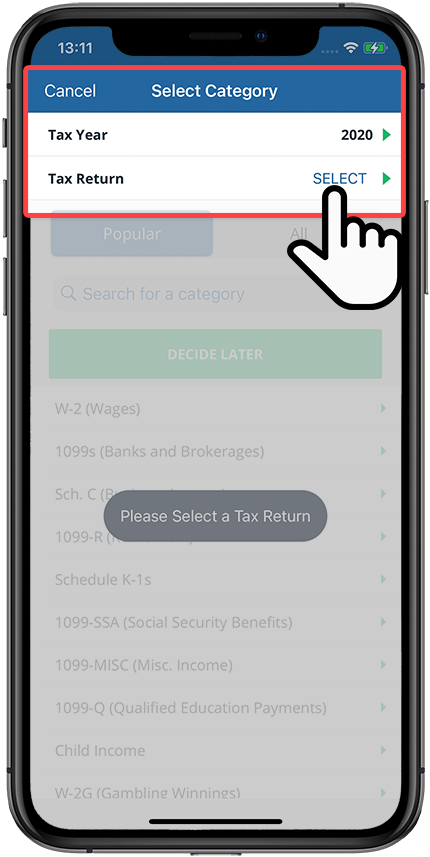 noteSome categories only apply to 1040 tax return types and won’t appear when moving a 1041 specific document and vice versa.
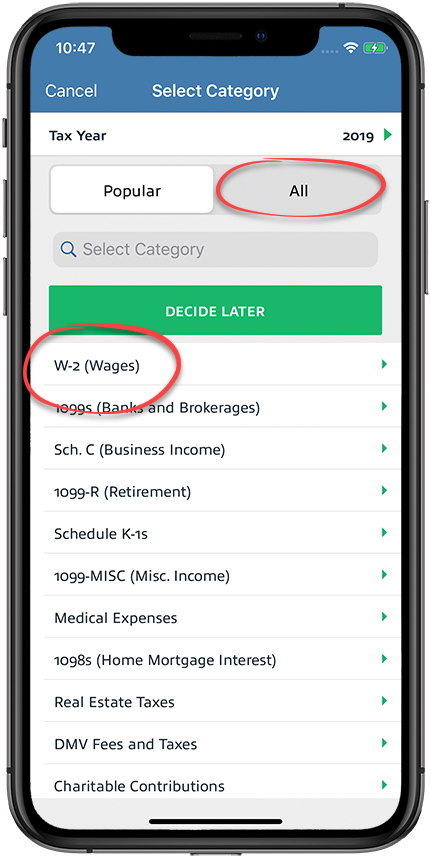
 - Select a category from the list or selectAll.You can also enter a category name in the search field.
- Select a subcategory or select theAdd Newicon to add a new category.
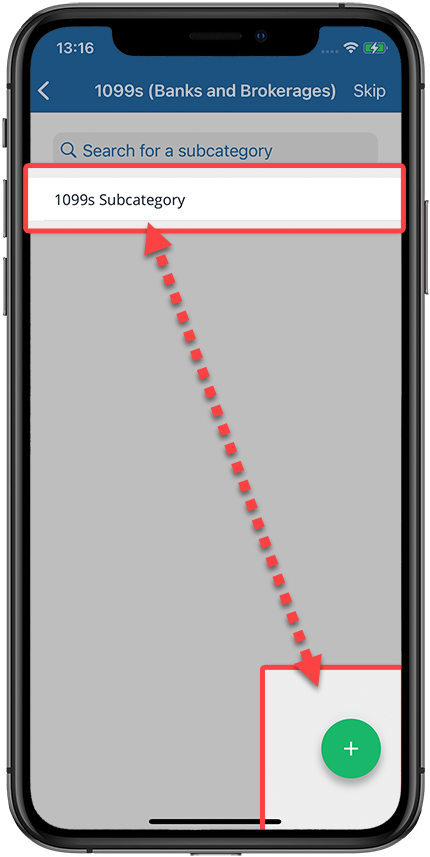 If you selected to add a new category, enter the new category name then selectNext.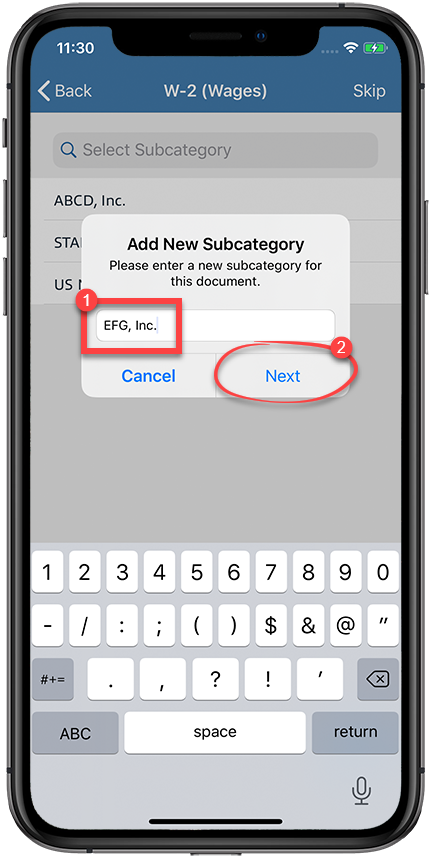
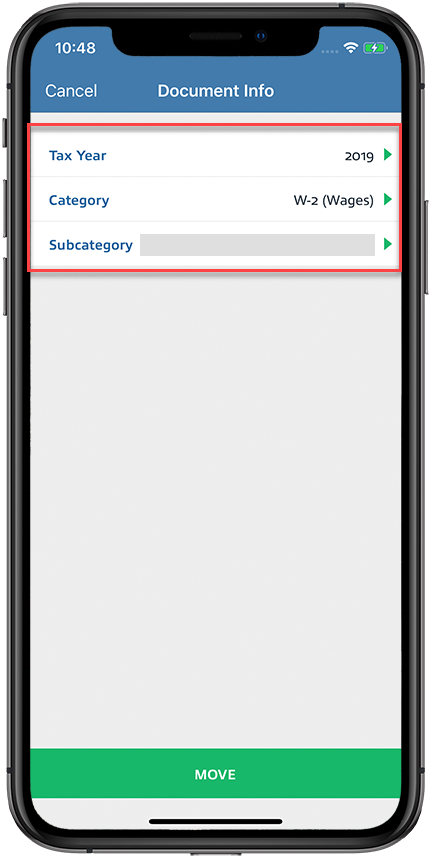
- You'll see the tax year, category, and subcategory on this screen.
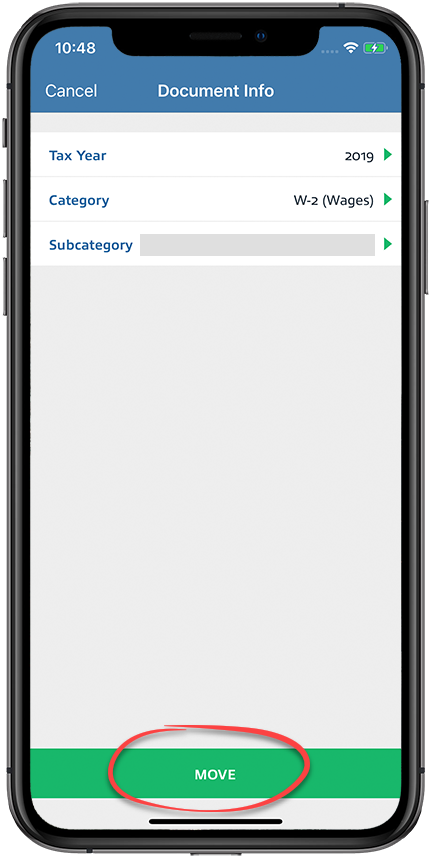
- SelectMove.
Android mobile app
Follow these steps to recategorize a document using the Android mobile phone app.
- Sign in to the TaxCaddy mobile app.
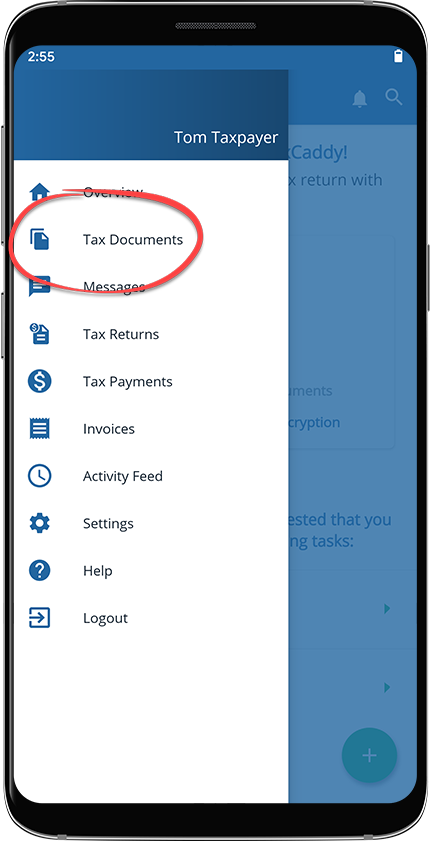
- Select theMenuicon.

- SelectTax Documents.
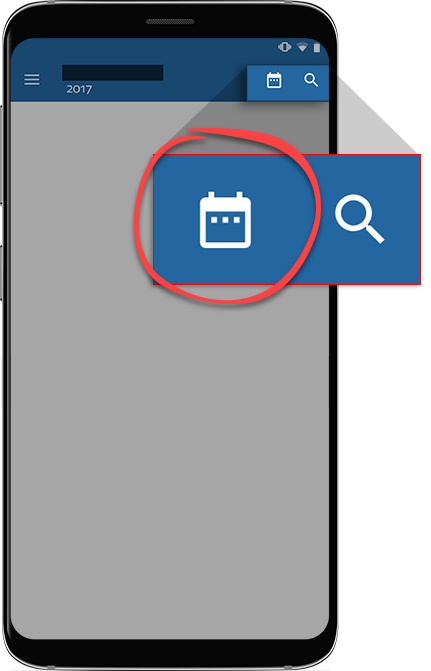
- To view documents for a particular tax year, select theTax Yearicon.
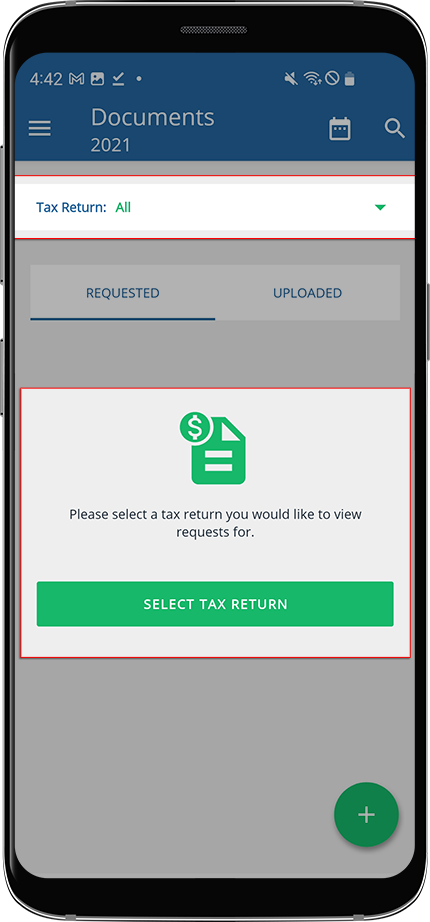
- If your tax professional has enabled 1041 tax return profiles on your account for trust/estate, select theTax Returndropdown to select the tax return profile.
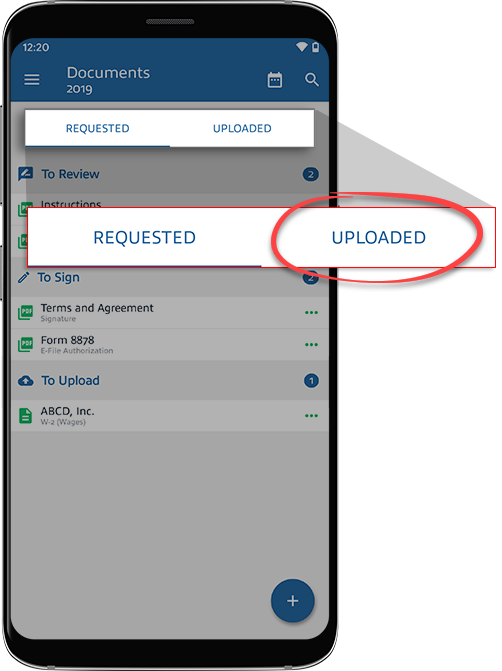
- SelectUploadedto see your uploaded documents.
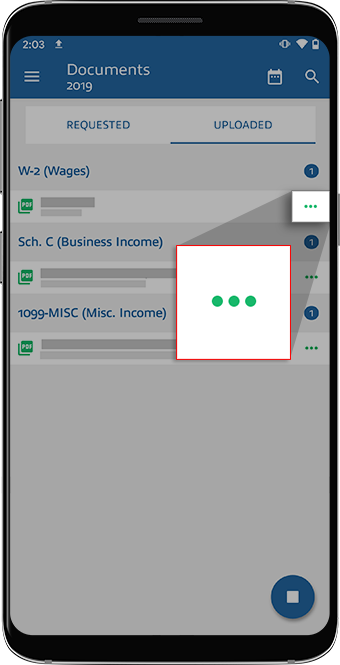
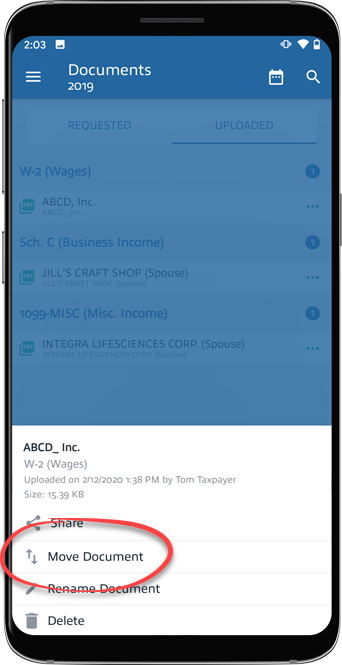
- Select theMenuicon next to the document you want to move.
- SelectMove Document.
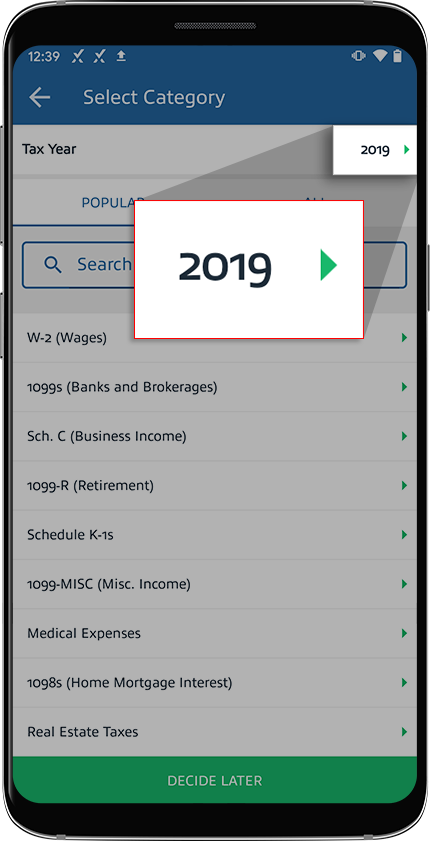
- To move the document to another tax year, select the tax year.If your tax professional has enabled 1041 tax return profiles on your account, select the correct
 Tax Returnin addition to theTax Yearbefore selecting theCategory.
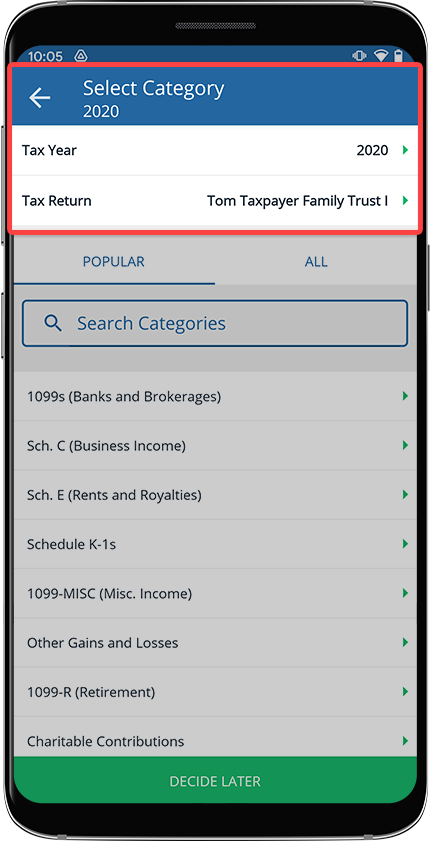 noteSome categories only apply to 1040 tax return types and won’t appear when moving a 1041 specific document and vice versa.
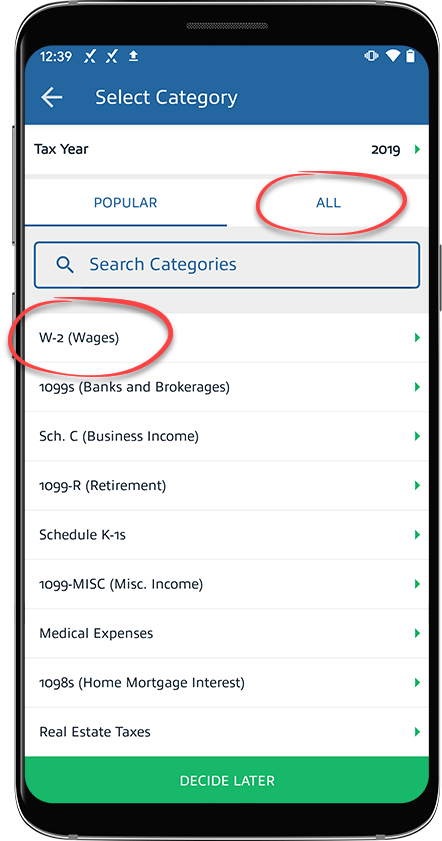
 - Select a category from the list or selectALL. You can also enter a category name in the search field.
- Select a subcategory or theAdd Newicon to add a new category.
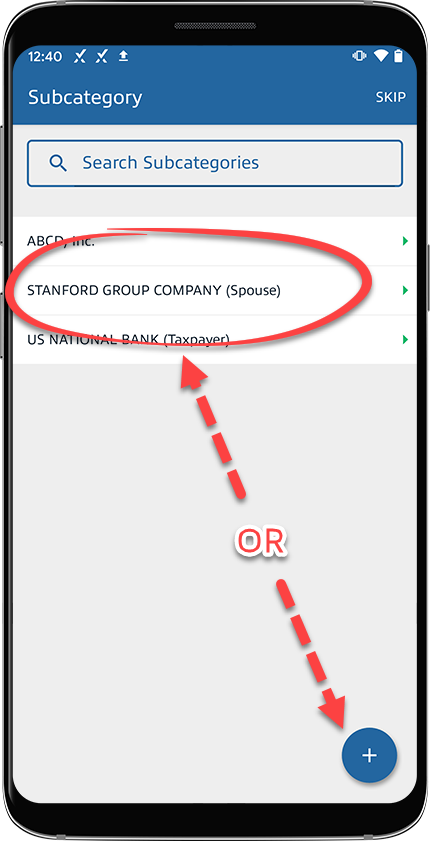 If you selected to add a new category, enter the new category name and selectNext.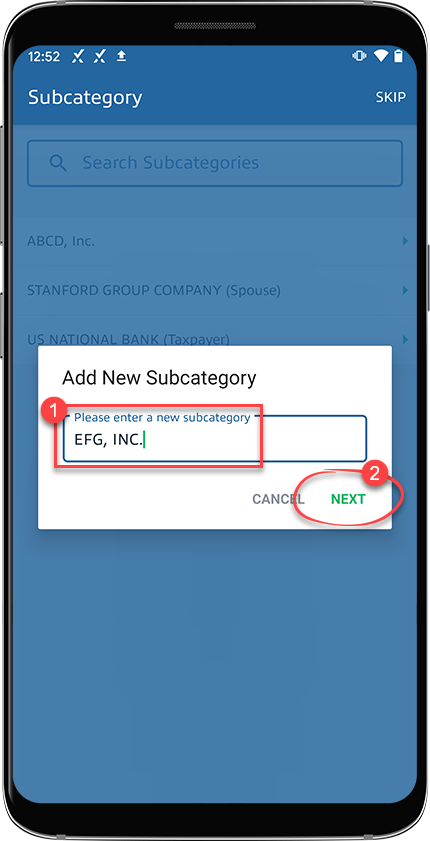
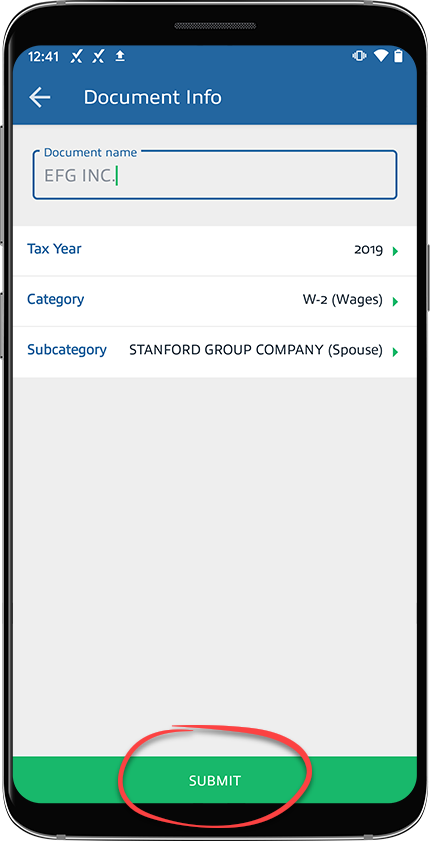
- You'll see the tax year, category, and subcategory on this screen.
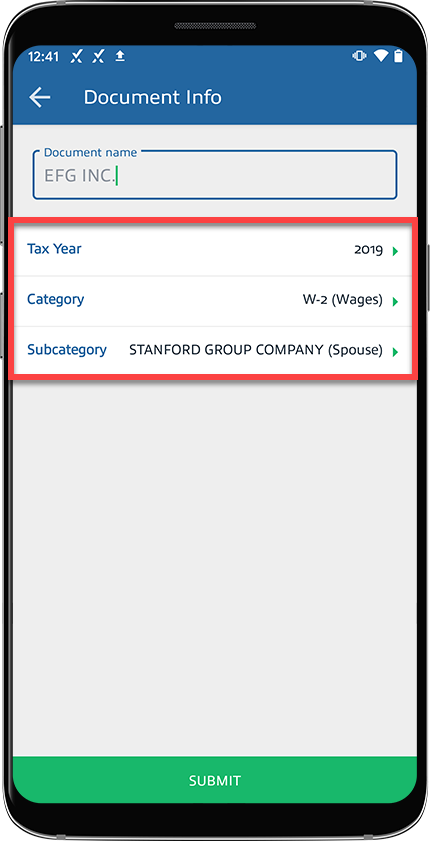
- SelectSUBMIT.