
Rename documents
Show all hidden content
You can edit the names of documents in Uploaded Tax Documents. You can also move or delete documents.
TaxCaddy.com on PC, Mac, or tablet
Follow these steps to edit the name of a document using TaxCaddy.com on your PC, Mac, or tablet.
- Sign in to TaxCaddy.com.
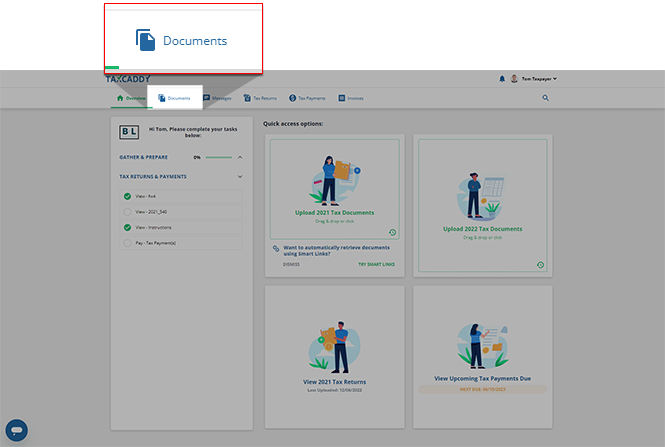
- SelectDocuments.
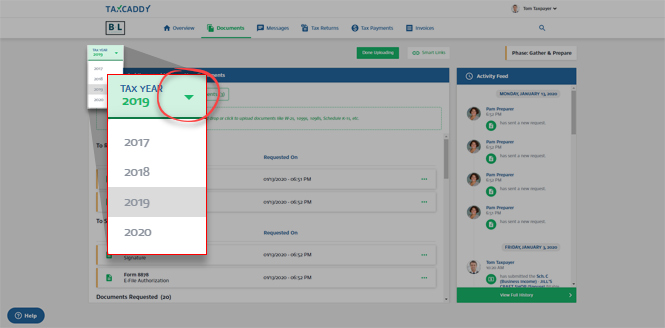
- Select theTax Yearmenu to select the relevant tax year.
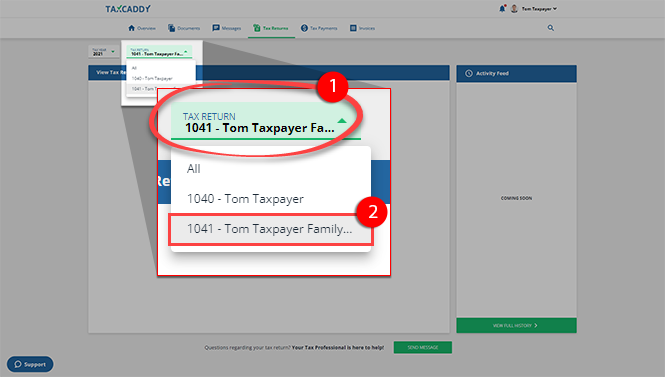
- If your tax professional has enabled 1041 tax return profiles on your account for trust/estate, you can select the correctTAX RETURNprofile.
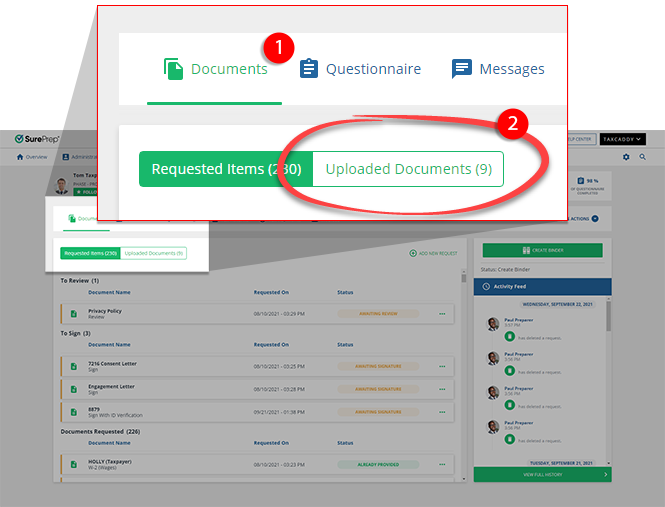
- SelectUploaded Documentsto view documents previously uploaded to your selected tax return.
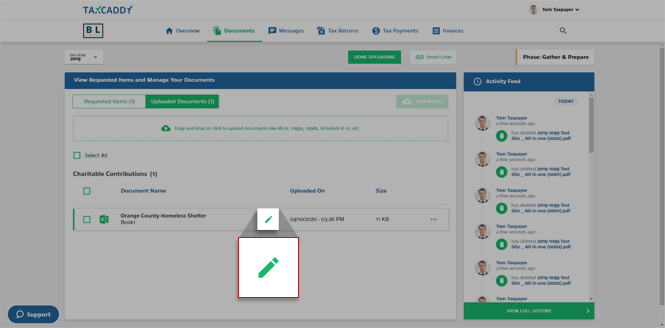
- Your uploaded tax documents will appear under their respective categories. Select theEditicon next to the document you want to rename.
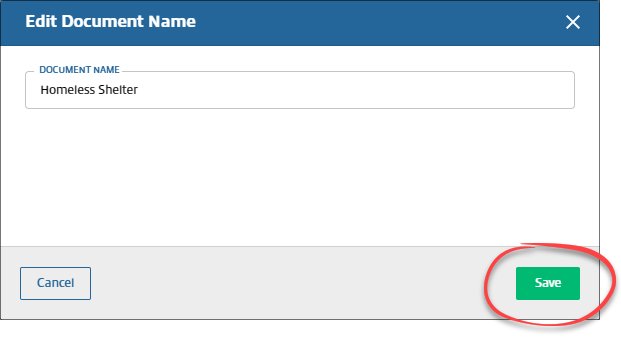
- Thewindow appears. Enter a new name for the document, then selectEdit Document NameSave. The changes will appear immediately.
iOS mobile app
Follow these steps to edit the name of a document on the iPhone mobile phone app.
- Sign in to the TaxCaddy mobile app.
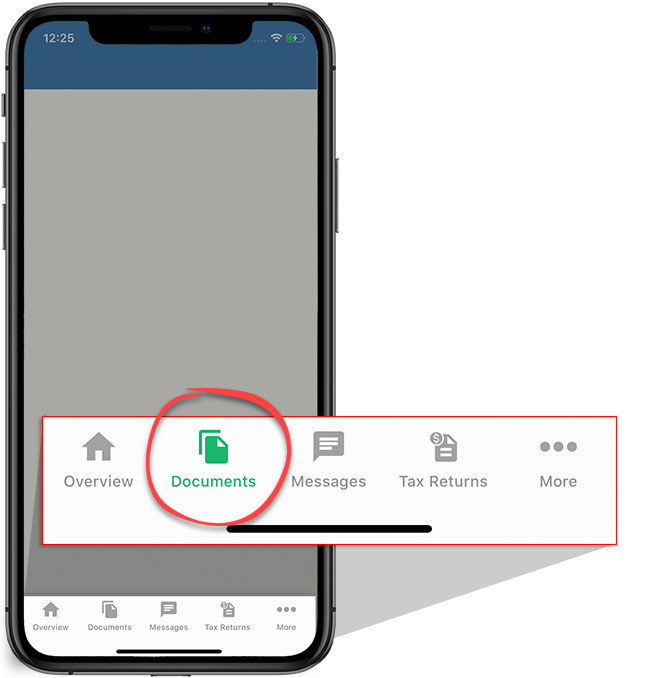
- Select theDocumentsicon on the navigation bar.
- Select the tax year.

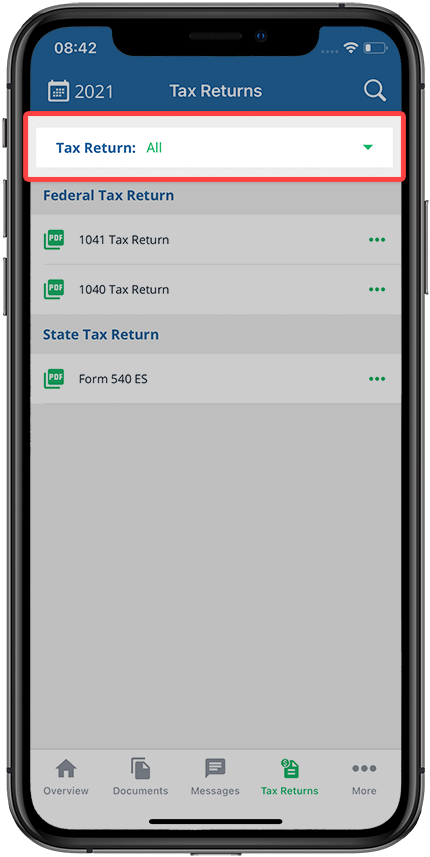
- If your tax professional has enabled 1041 tax return profiles on your account for trust/estate, select theTax Returndropdown to select the tax return profile.
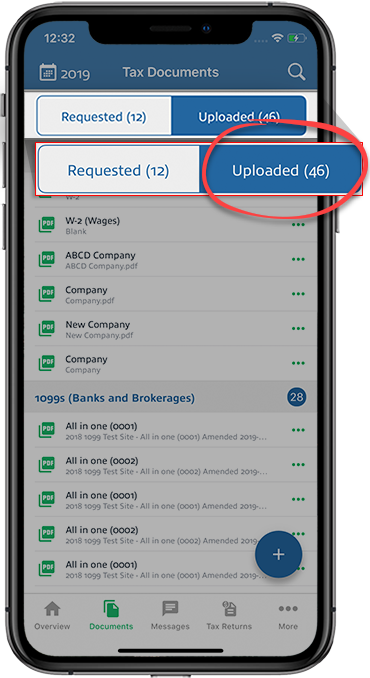
- Select theUploadedtab to view uploaded documents.
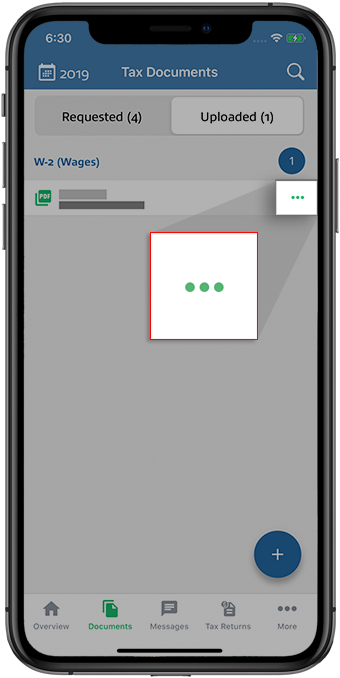
- Select theMenuicon next to the document you want to rename.
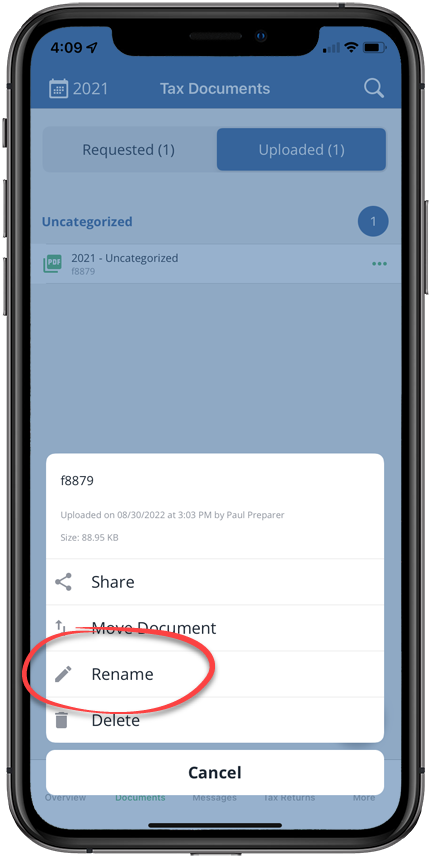
- SelectRename.
 Alternatively, you can open the document the PDF Viewer, then select theMenuicon.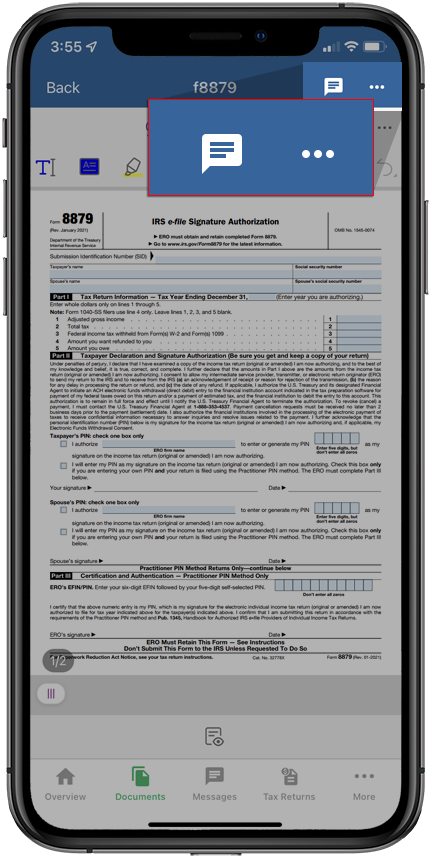
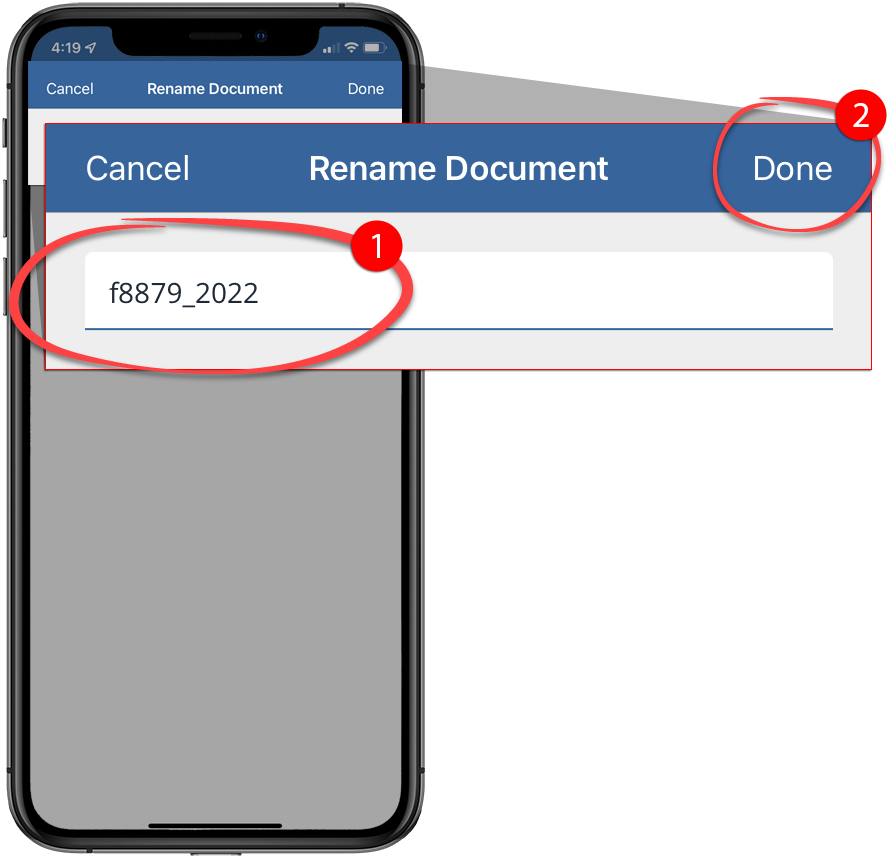
- Enter a new name and selectDone. If you see the confirmation window, selectConfirm.
Android mobile app
Follow these steps to edit the name of a document on the Android mobile phone app.
- Sign in to the TaxCaddy mobile app.
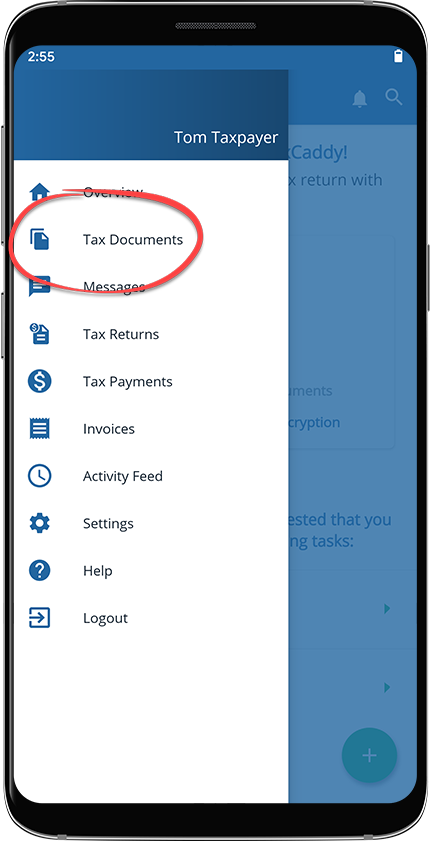
- Select theMenuicon.

- SelectTax Documents.
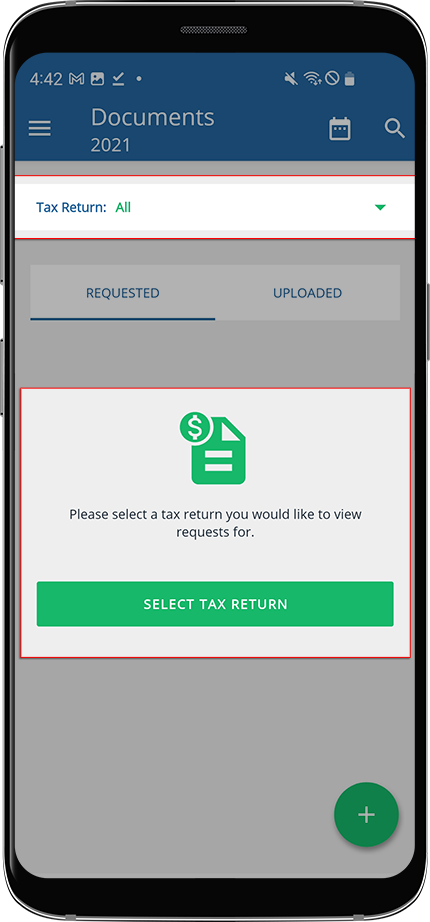
- If your tax professional has enabled 1041 tax return profiles on your account for trust/estate, select theTax Returndropdown to select the tax return profile.
- SelectUPLOADED.
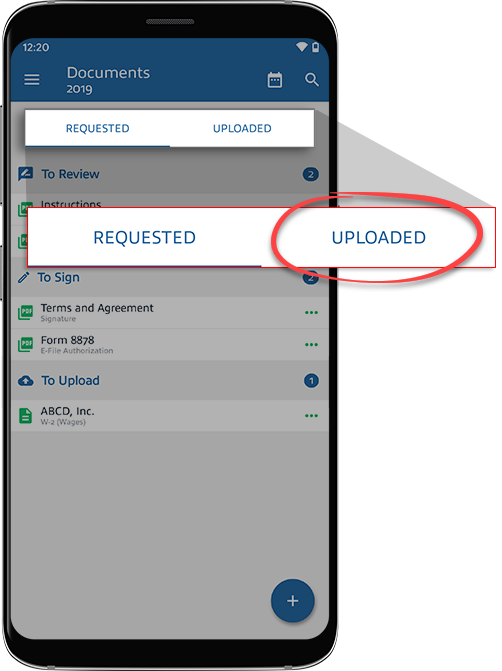
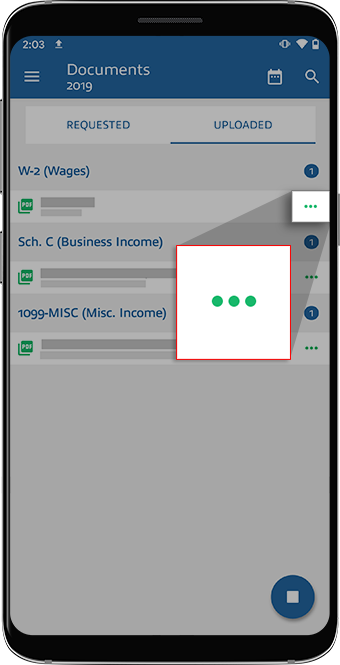
- Select theMenuicon next to the document you want to rename.
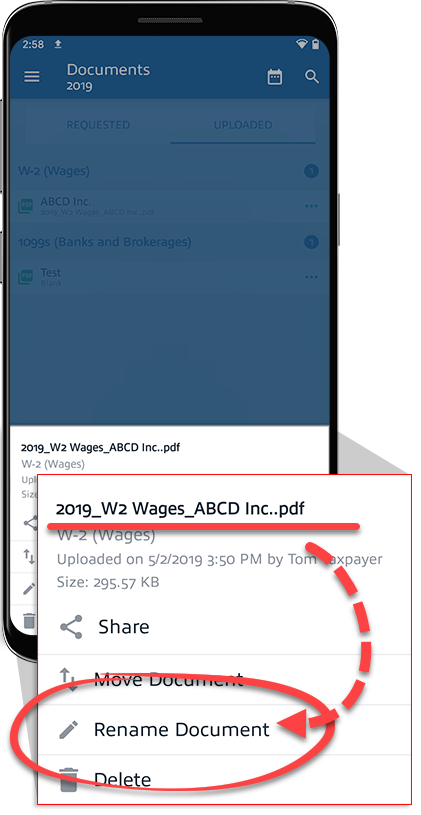
- SelectRename Document.
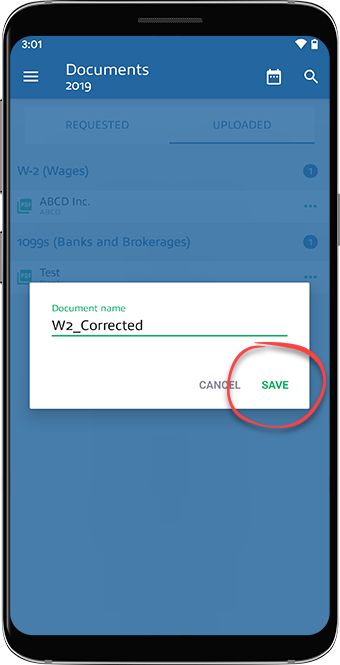
- Enter a new name and selectSave.
- Your document will be renamed.

