
Undo an action (delete, doesn't apply, already provided)
Show all hidden content
If you accidentally deleted an uploaded document or indicated that a requested item doesn’t apply or was already provided, you can undo the action at any time.
TaxCaddy.com on PC, Mac, or tablet
Follow these steps to undo an action when using TaxCaddy.com on your PC, Mac, or tablet.
- Sign in to TaxCaddy.com.
- You can undo an action from theActivity Feed. To view theActivity Feed, go to any of the following screens:
- Documents
- Messages
- Tax Returns
- Tax Payments
- Invoices

- In theActivity Feedpanel, select the action you want to undo, thenUndo This.tipIf you need to undo an action that was not recent, selectView Full Historyto see the complete history of actions on your account.
 noteOnce deleted,Undo Thiscan only restoreUploaded Documents. You can't restore deleted Tax Returns or Tax Payments.
 - TaxCaddy confirms the document or request was restored.

iOS mobile app
Follow these steps to undo actions using Latest Activity on the iPhone mobile phone app.
- Sign in to the TaxCaddy mobile app.
- SelectMoreon the navigation tab, thenActivity Feed.

- The full activity page is displayed. Locate the action you want to undo and selectUndo.
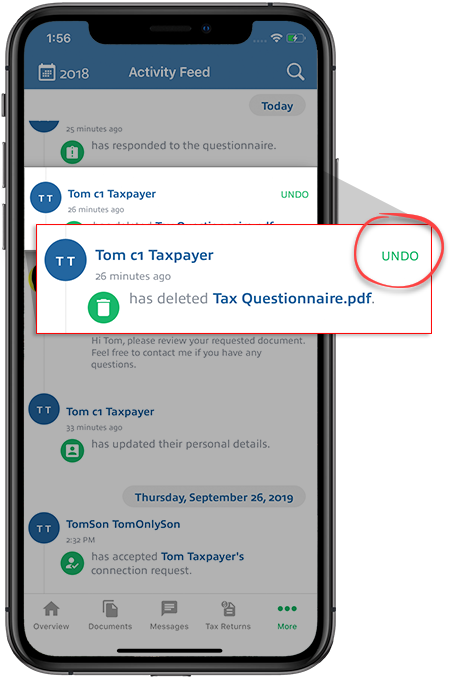
- You'll see a message indicating that the action was reversed.

- The Latest Activity will now include the undone action.

Android mobile app
Follow these steps to undo actions using Latest Activity on the Android mobile phone app.
- Sign in to the TaxCaddy mobile app.
- Select theMenuicon.

- SelectActivity Feed.

- The full activity page is displayed. Find the action you want to undo and selectUndo.


