
Add charitable contributions
You can use the following methods to add charitable contributions to TaxCaddy:
- Upload a Word or Excel document
- Upload letters and receipts with the TaxCaddy mobile app on iOS and Android
- Message your tax professional from TaxCaddy
Upload Word or Excel documents
Upload Word or Excel documents
You can create an Excel or Word document of your charitable contributions then upload the documents to TaxCaddy.
Once you have created your Word or Excel document, upload the document to TaxCaddy.
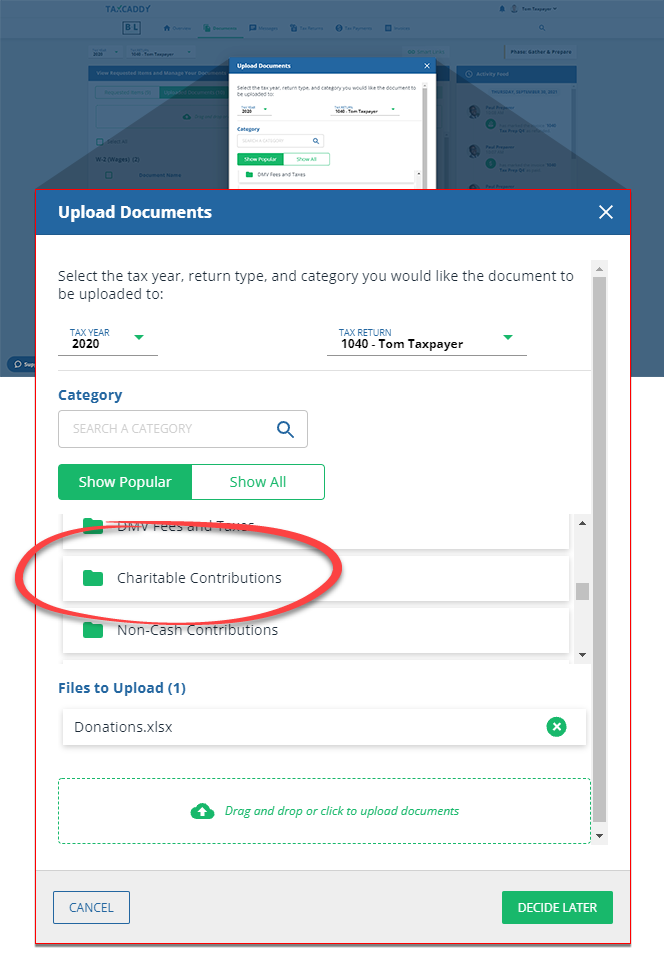
When uploading documents, you can place your donations in a category (for example,
Charitable Contributions
or Non-Cash Contributions
).
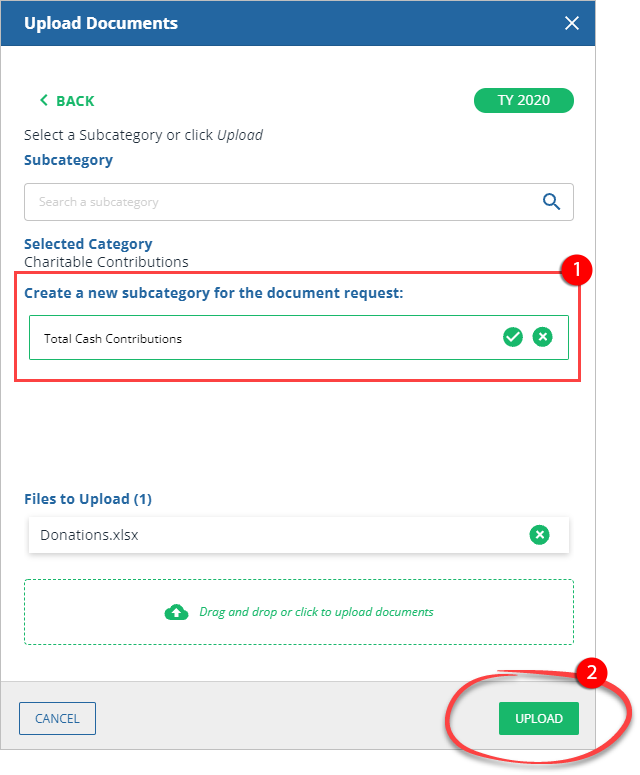
Select
Add New...
to create a subcategory, then select UPLOAD
.
The uploaded document will be placed in the
Uploaded Documents
tab.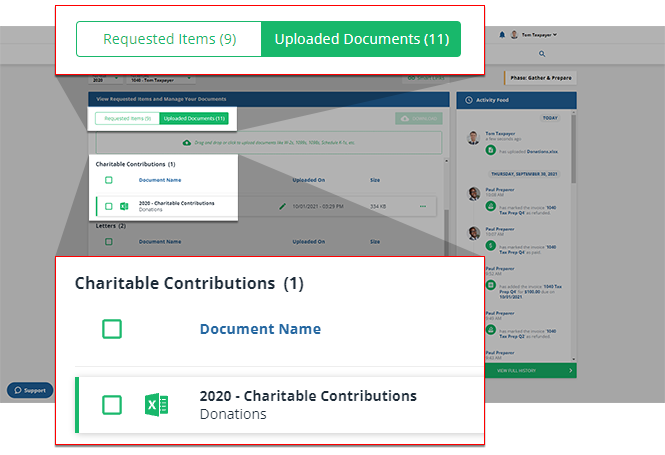
Upload letters and receipts with the TaxCaddy mobile app on iOS and Android.
Upload letters and receipts with the TaxCaddy mobile app on iOS and Android.
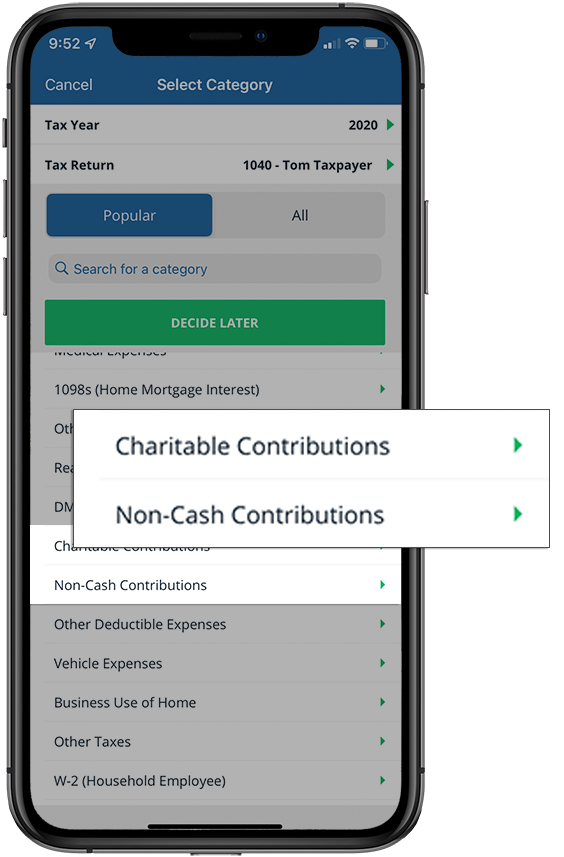
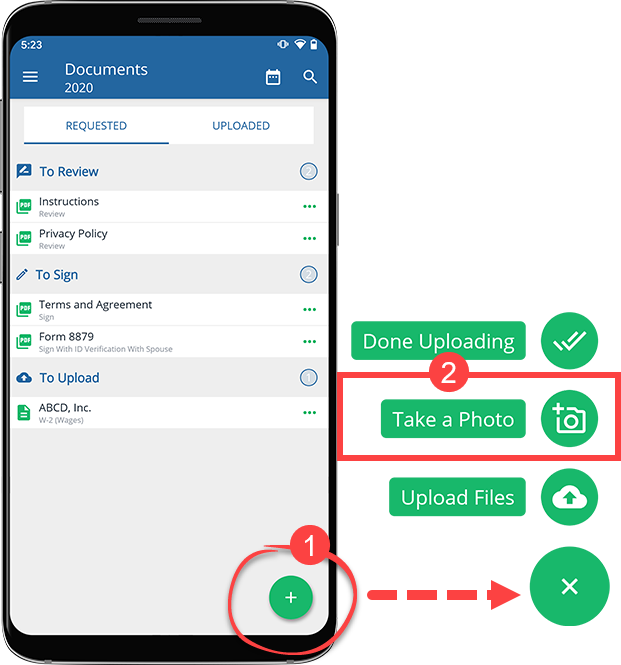
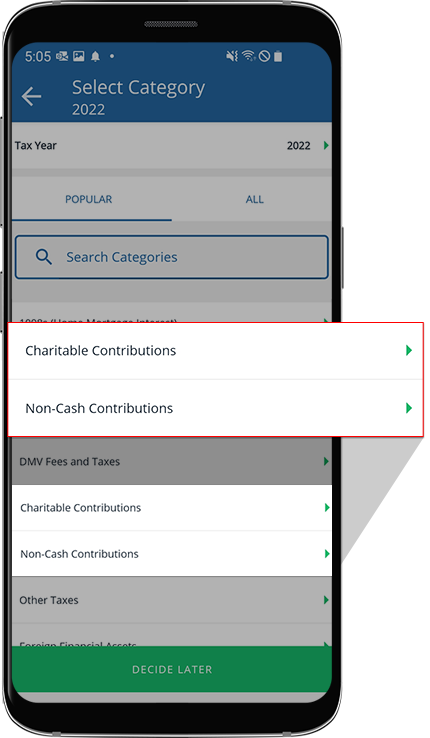
You can also use the TaxCaddy mobile app to take a photo of your charitable contributions receipt or letter.
Take a photo using your iPhone.
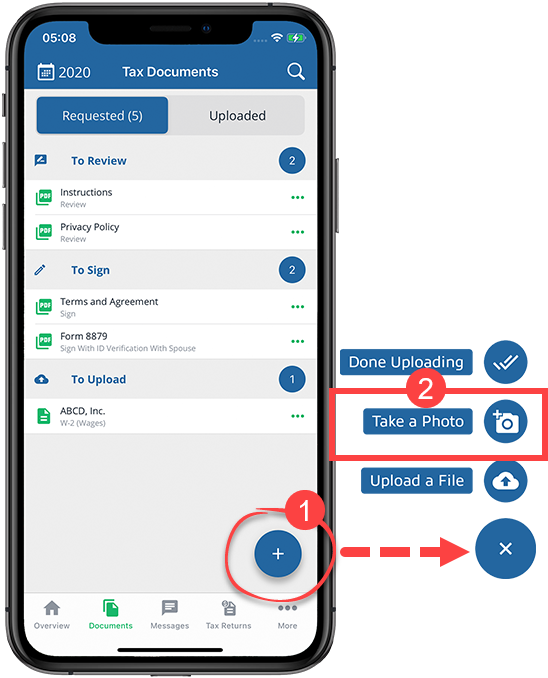
Select a category (for example,
Charitable Contributions
or Non-Cash Contributions
).
Take a photo using Android
.
Select a category (for example,
Charitable Contributions
or Non-Cash Contributions
).
Message your tax professional from TaxCaddy
Message your tax professional from TaxCaddy
Once you have uploaded your charitable contributions, you can create a message thread to notify your tax professional.
tip
You can message your tax professional with the amount you contributed without uploading a document.
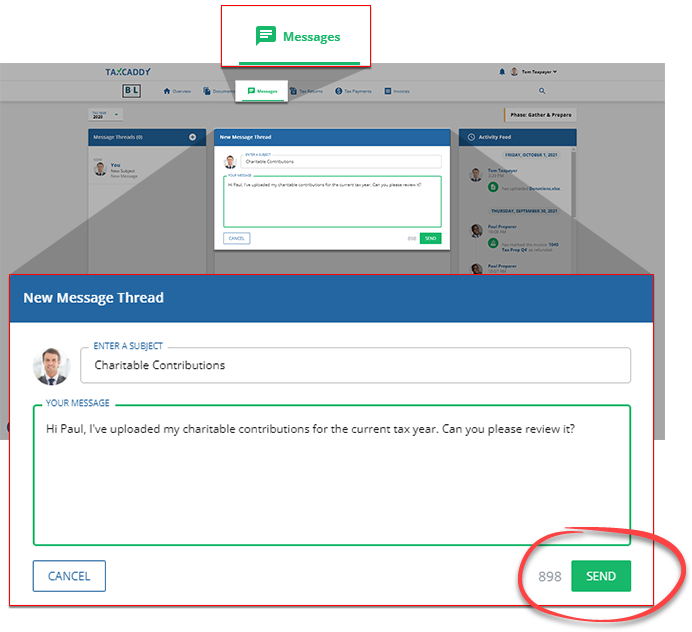
Replying with amount
Replying with amount
If your tax professional has sent a document request for your charitable contributions, you can either upload the document or reply with an amount.

Related Content
-
Upload documents
Format: Article

