
Complete a form
Show all hidden content
Certain types of documents requested by your tax professional can be fulfilled by completing a fillable form. Once the form has been completed, it will be moved to the uploaded documents tab.
TaxCaddy.com on PC, Mac, or tablet
Follow these steps to resolve a Document Request by completing a fillable form:
- Sign in to TaxCaddy.com.
- On theOverviewscreen, you will see aTask Liston the left, with yourUploadrequests listed as[Tax Year] Document Requests.
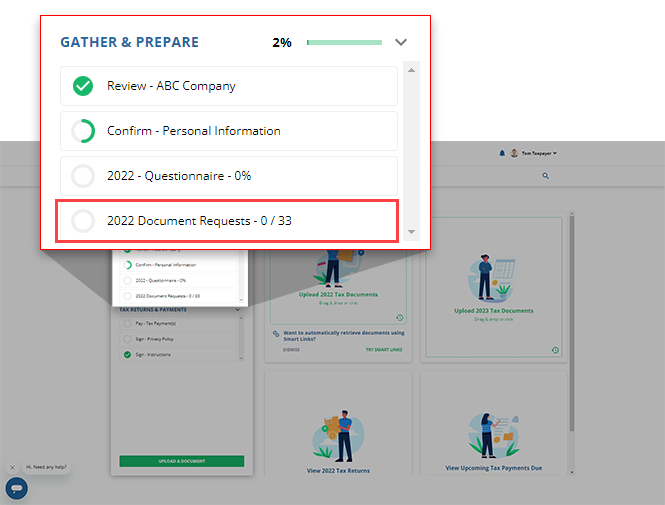
- Select[Tax Year] Document Requeststo open a list of your document requests next to yourTask List.By default, both pending and previously fulfilled requests will be displayed. However, you can use the dropdown to display only
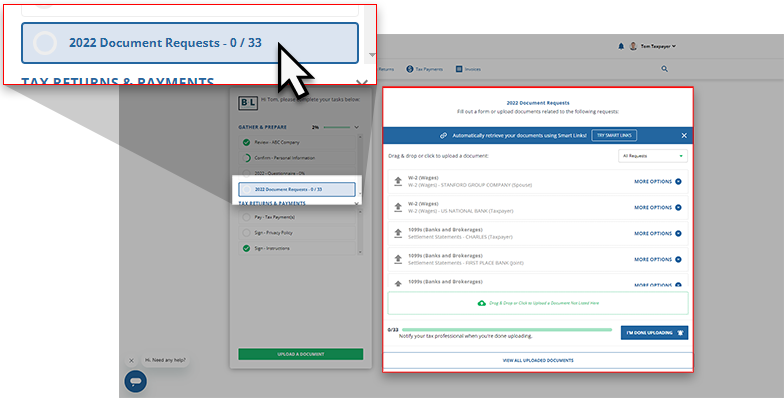 Open Requests.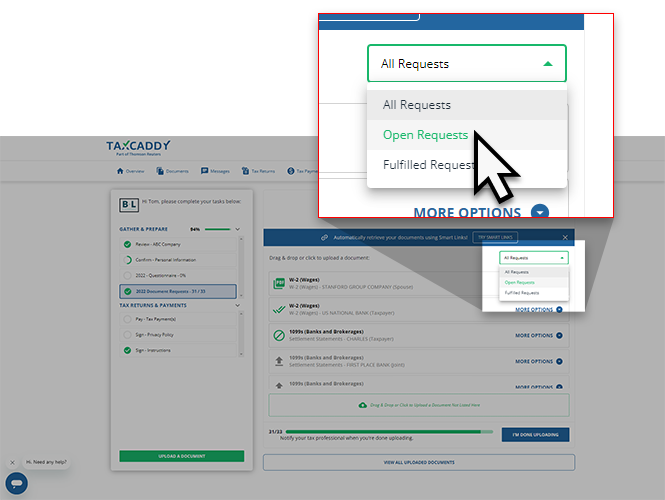
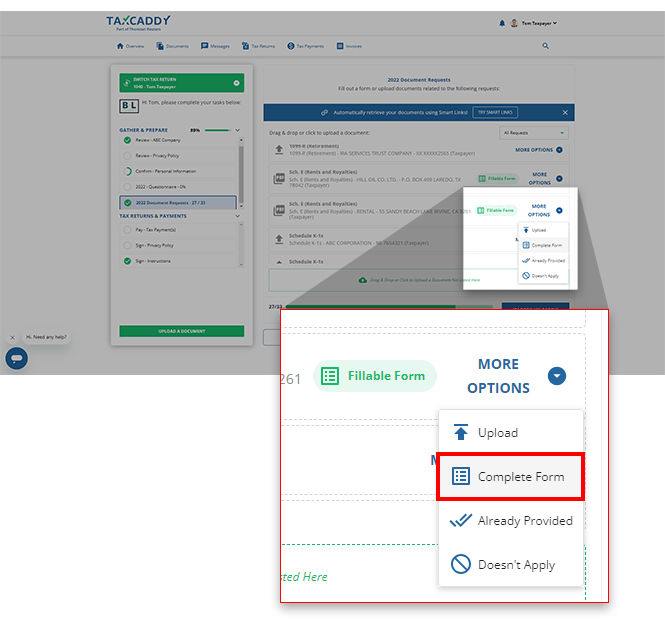
- UnderDocuments Requested, theFillable Formbadge indicates that a fillable form is attached to this document request. You can either fill out the form or upload the requested document. To continue, select theMORE OPTIONSmenu on the document tile.
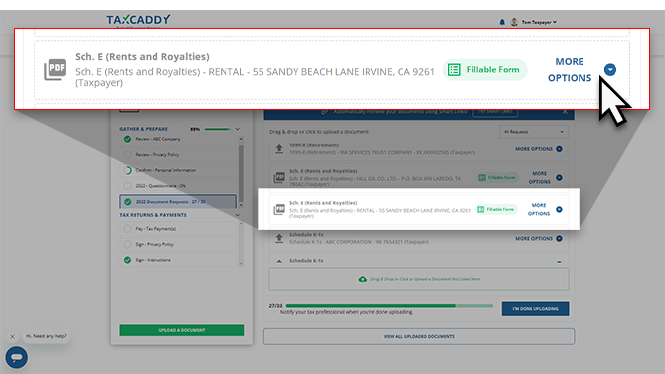
- If the requested document is a fillable form, you will seeComplete Formas an option on the document tile. SelectComplete Form.
 If you decide toUploada document rather than complete the form, you will be alerted that this will replace the attached fillable PDF and any data you've provided to it.ClickCONTINUEto upload your document, or selectCOMPLETE FORMto fill out the PDF your tax professional has provided.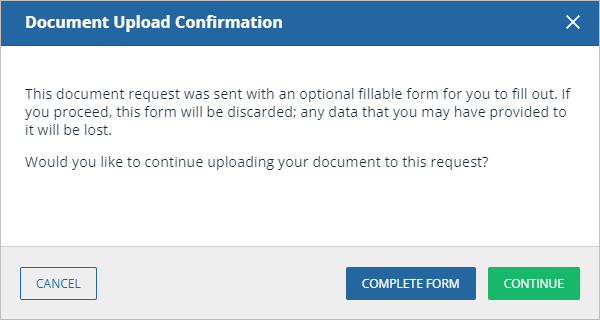
- Fill out the form in the Document Viewer panel.noteDocument data is auto saved as you enter it. You can return back and continue from where you left off.
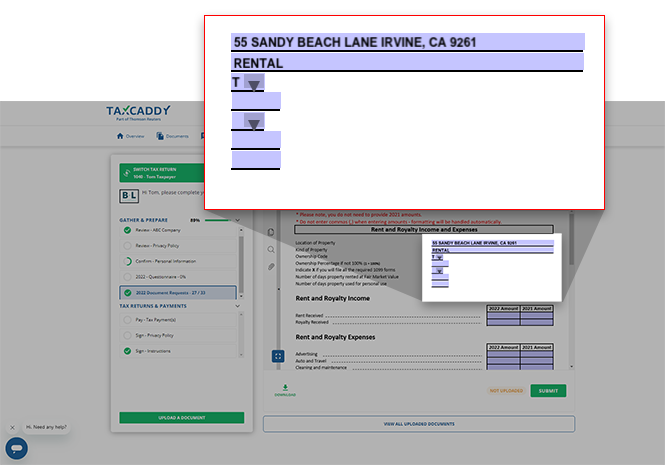 noteSome fields will ask for current year records while displaying your prior tax year information for reference. When you see information auto-filled to the prior year column, remember to leave that information as is and only address the current year records.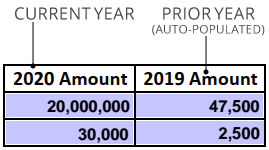
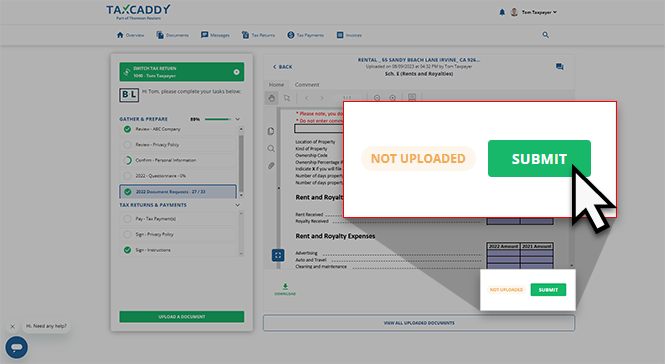
- Once you have completed the form, selectSUBMITto upload the form.
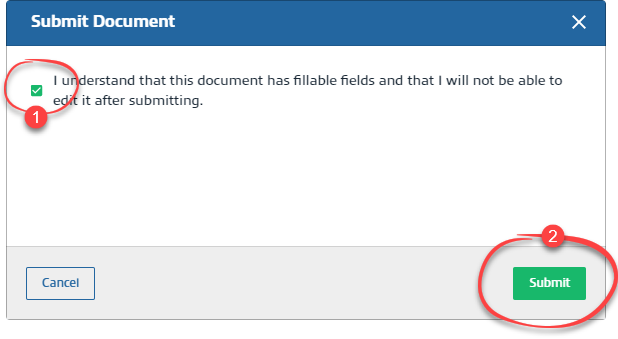
- In thewindow, select the checkbox then selectSubmit DocumentsSubmit. Once the document is submitted, it can no longer be modified.
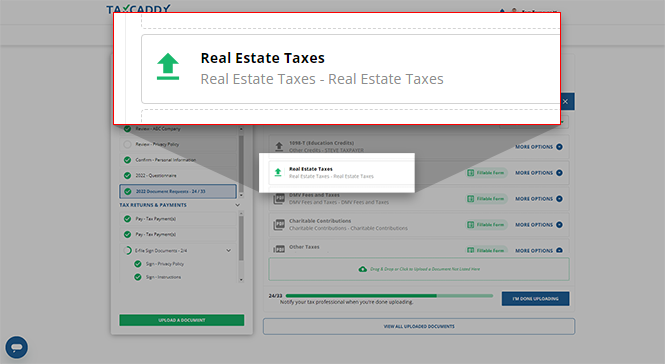
- TheCompleted Uploadicon will appear next to the associated document request.
 You can also view the completed document in theUploaded Documentstab.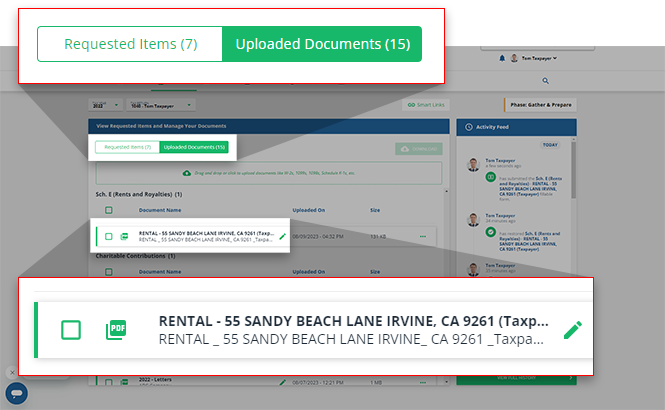
iOS mobile app
Follow these steps to resolve a Document Request by completing a fillable form on your iOS mobile phone app:
- Sign in to the TaxCaddy mobile app and select[Tax Year] Document Requeststo go to your pending document requests.
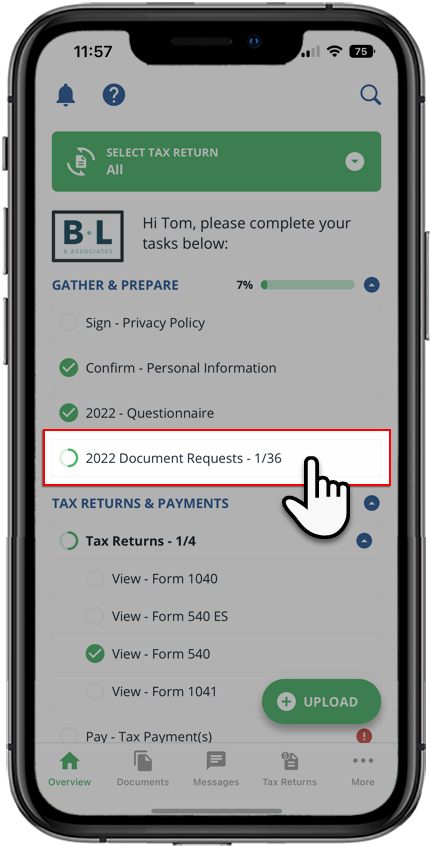
- Your document requests will appear under[Tax Year] Document Requests.
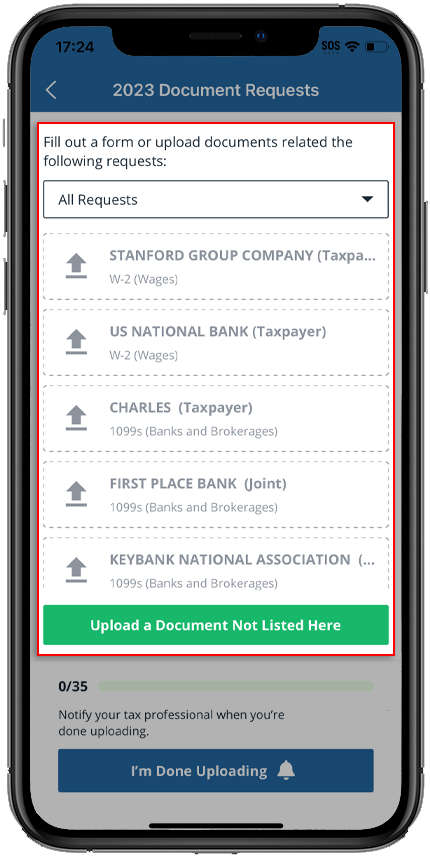
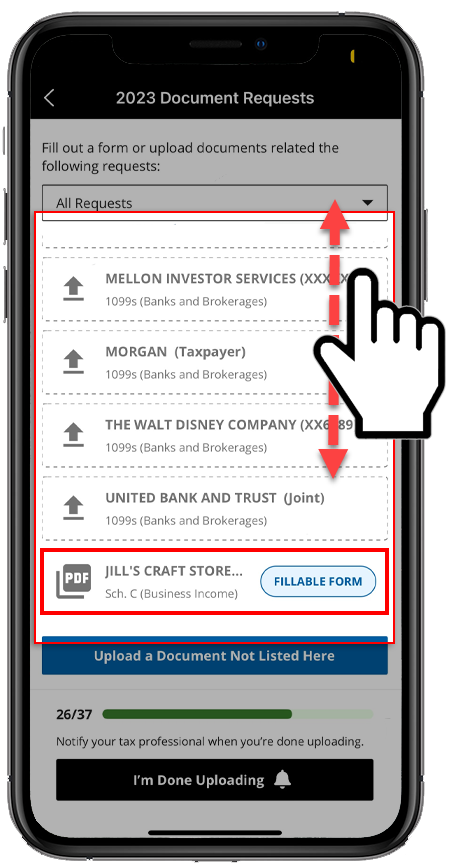
- Go to the fillable form (denoted by theFILLABLE FORMbadge) that you would like to complete. Select this document request tile.
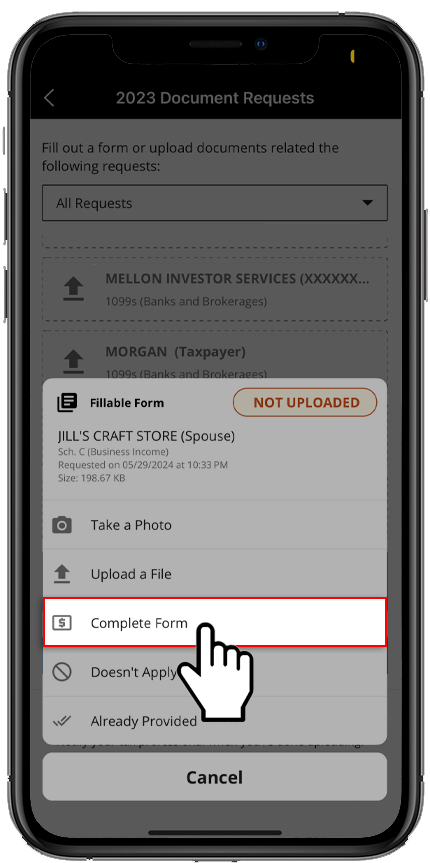
- SelectComplete Formfrom the fulfillment options listed.
- Fill the form in the Document Viewer.noteSome fields will ask for current year records while displaying your prior tax year information for reference. When you see information auto-filled to the prior year column, remember to leave that information as is and only address the current year records.
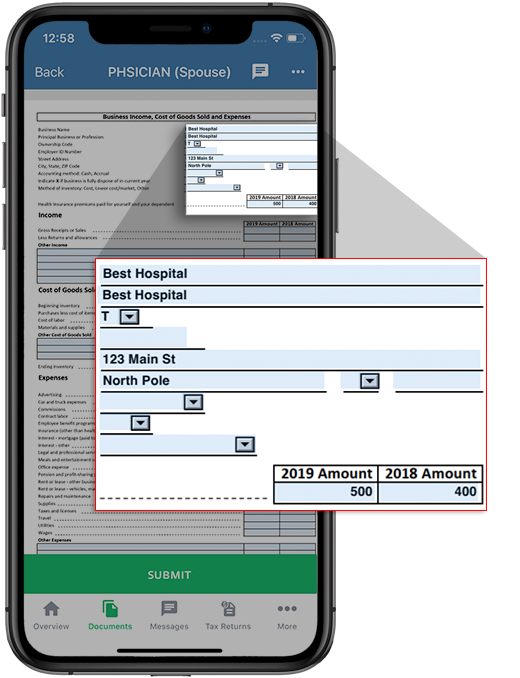
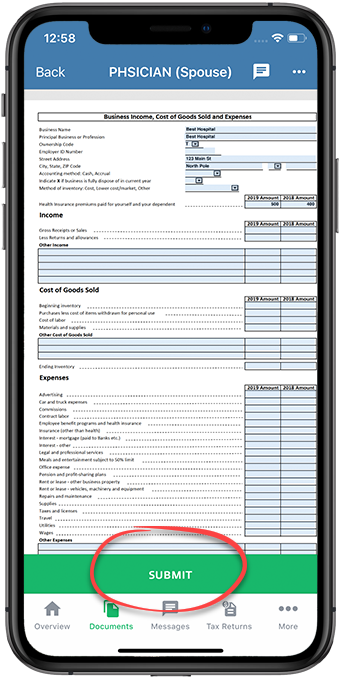
- Once you have completed the form, tapSubmitto upload the form.
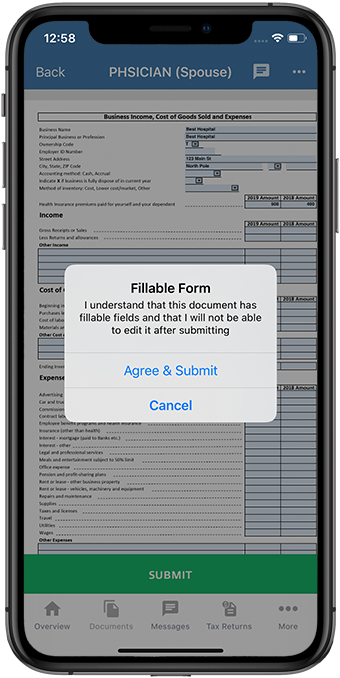
- In the window, selectAgree & Submit. Once you submit the document, it can no longer be modified.
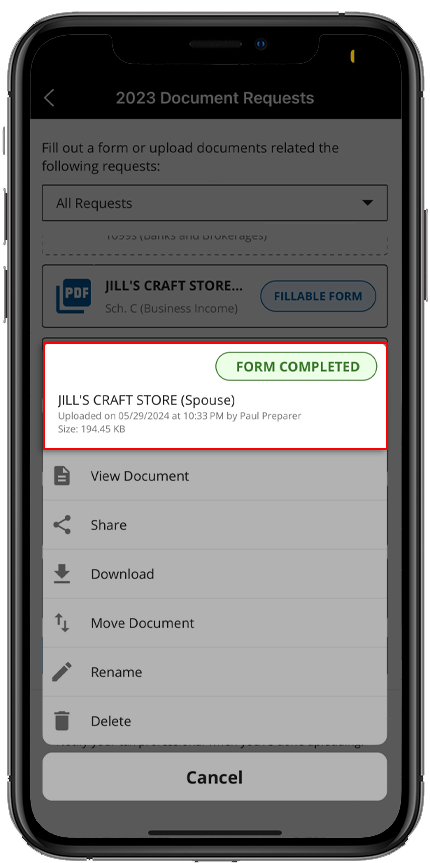
- The document will appear on theUPLOADEDtab. The document menu will showForm Completed.
Android mobile app
Follow these steps to resolve a Document Request by completing a fillable form on your Android mobile phone app:
- Sign in to the TaxCaddy mobile app and select[Tax Year] Document Requeststo go to your pending document requests.
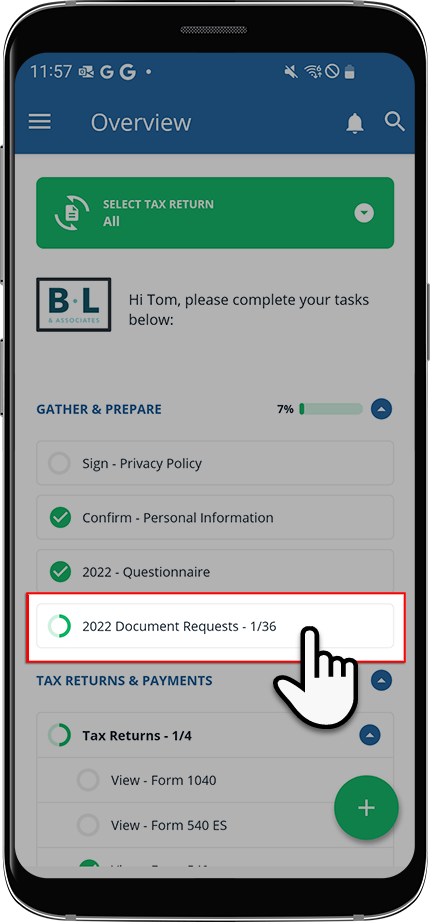
- Your document requests will appear after[Tax Year] Document Requests.
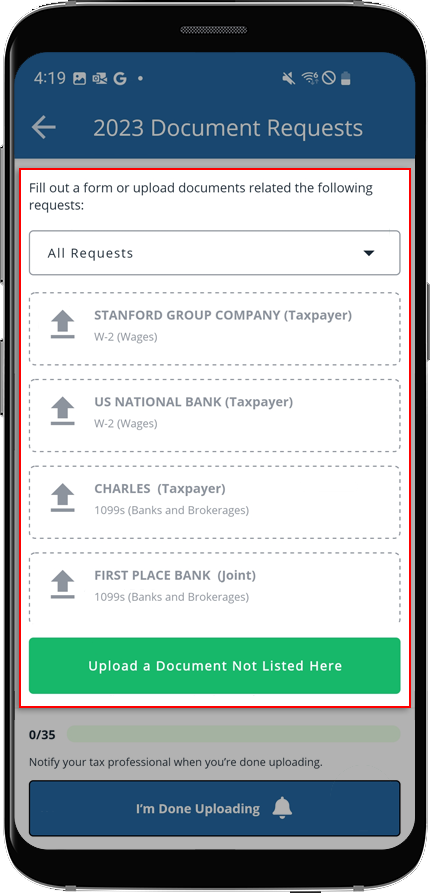
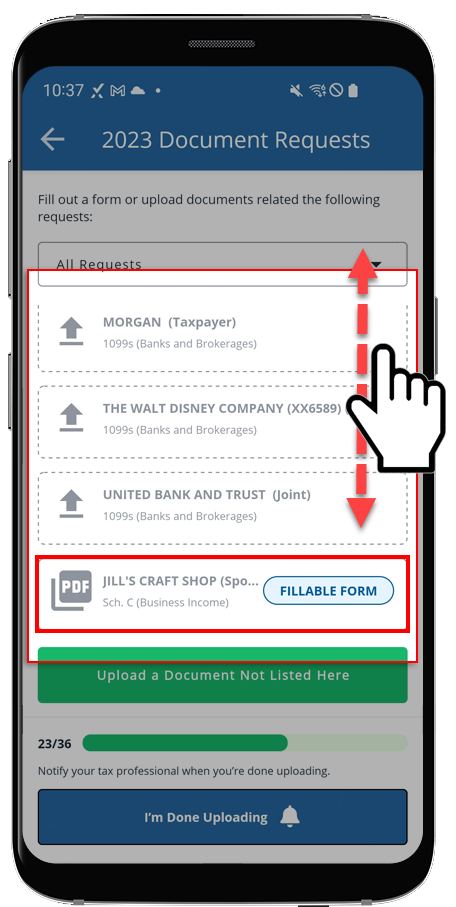
- Go to the fillable form (denoted by theFILLABLE FORMbadge) that you would like to complete. Select this document request tile.
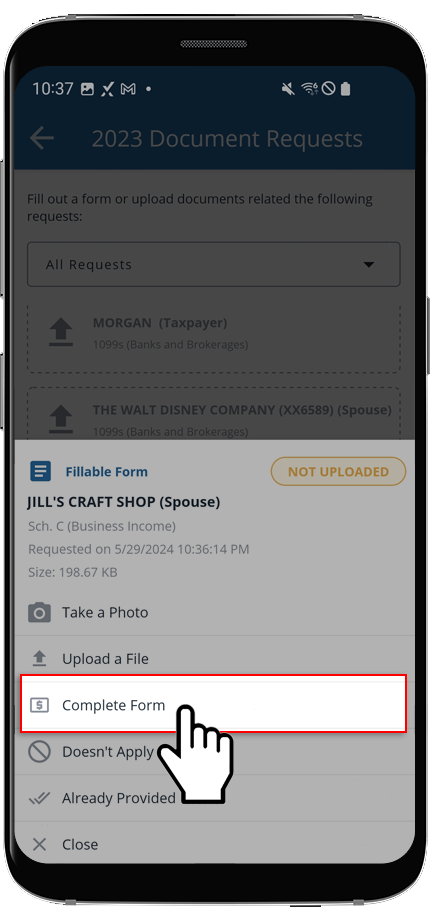
- SelectComplete Formfrom the fulfillment options listed.
- Fill the form in the Document Viewer.noteSome fields will ask for current year records while displaying your prior tax year information for reference. When you see information auto-filled to the prior year column, remember to leave that information as is and only address the current year records.
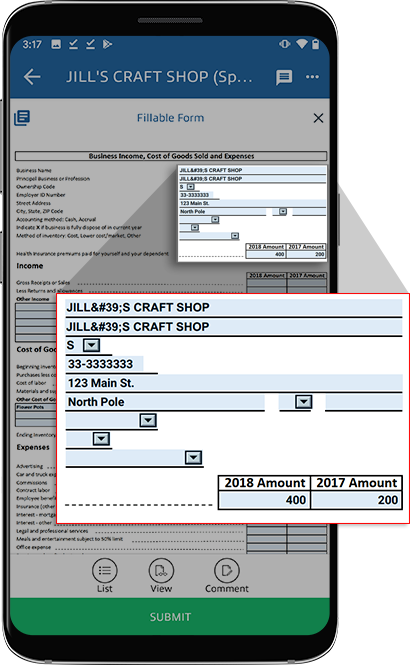
- Once you have completed the form, selectSUBMITto upload the form.
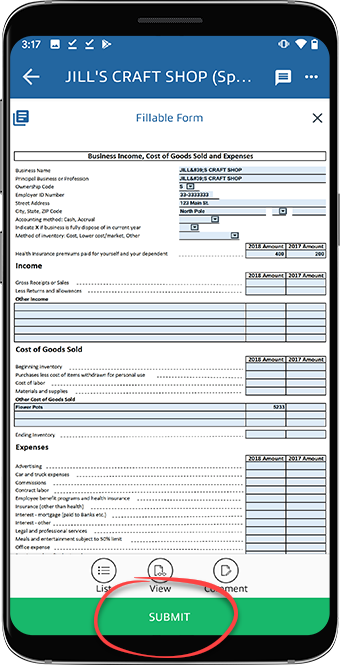
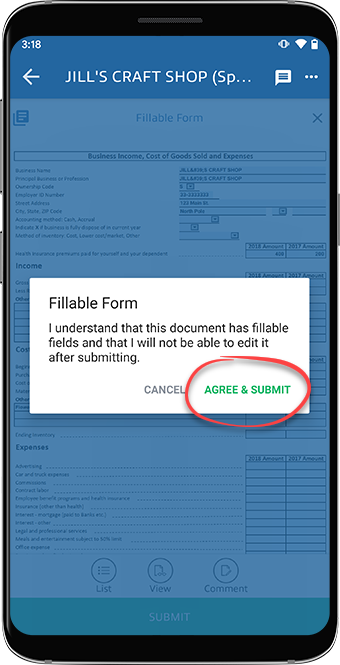
- In the window, selectAgree & Submit. Once you submit the document, it can no longer be modified.
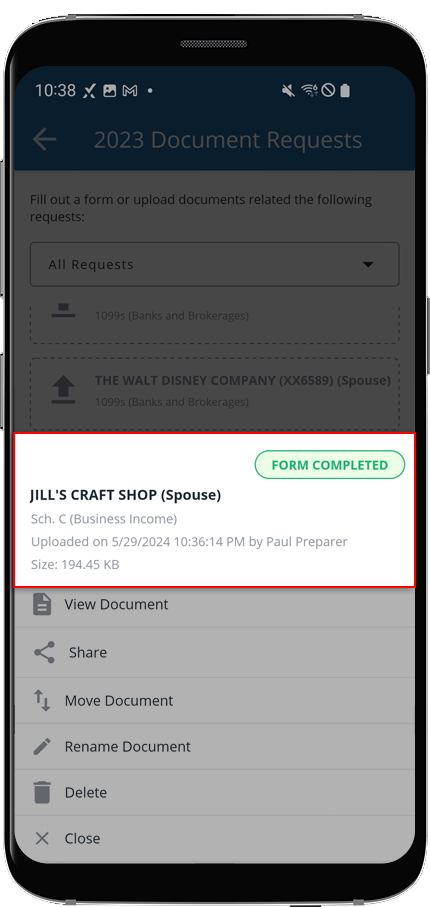
- The request will now be fulfilled and will display theFORM COMPLETEDbadge when selected from your list of document requests.
note
To redo the fillable form (for requested documents), delete the document from the
Uploaded Documents
tab. However, after the uploaded form has been deleted, it will be restored to its original state in your Document Requests
. All entered data will be deleted. Only the fillable forms available for uploading requested document will be restored (for example, documents completed through the Complete Form
feature). Fillable Forms for review/sign documents won’t be restored if they are deleted.Related Content
-
View requested items
Format: Article

