
Reply with an amount
Show all hidden content
You can fulfill your tax professional's document request by replying to it with an amount.
TaxCaddy.com on PC, Mac, or tablet
Follow these steps to resolve a document request by replying with an amount:
- Sign in to TaxCaddy.com.
- On theOverviewscreen, you will see aTask Liston the left, with yourUploadrequests listed as[Tax Year] Document Requests.noteYour progress in completing all of yourUploadtasks will be denoted with theProgressicon.
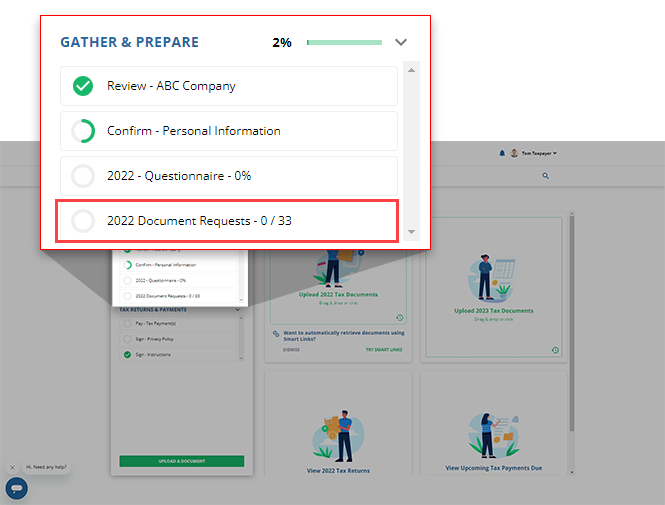
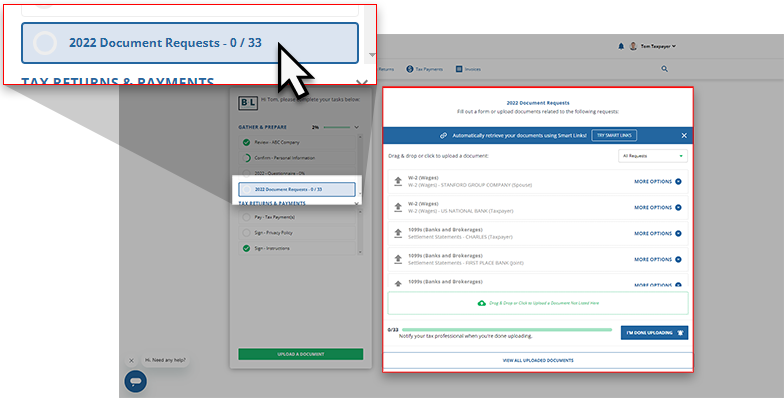
- Select[Tax Year] Document Requeststo open a list of your document requests next to yourTask List.By default, both pending and previously fulfilled requests will be displayed. However, you can use the dropdown to display only
 Open Requests.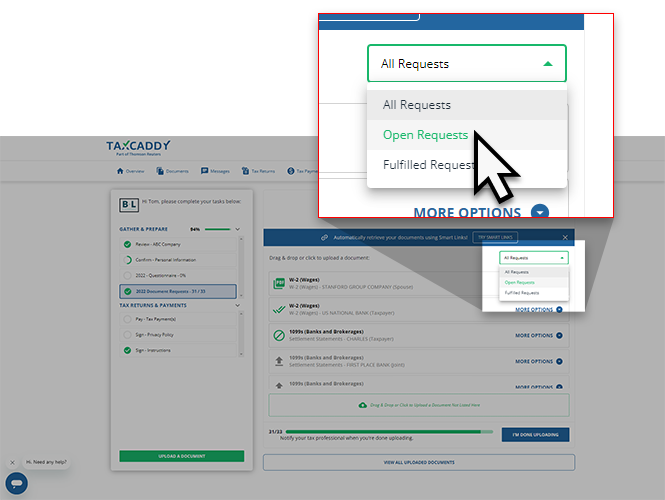
- Select theMORE OPTIONSmenu to view all fulfillment options for this request, selectReply With Amount.
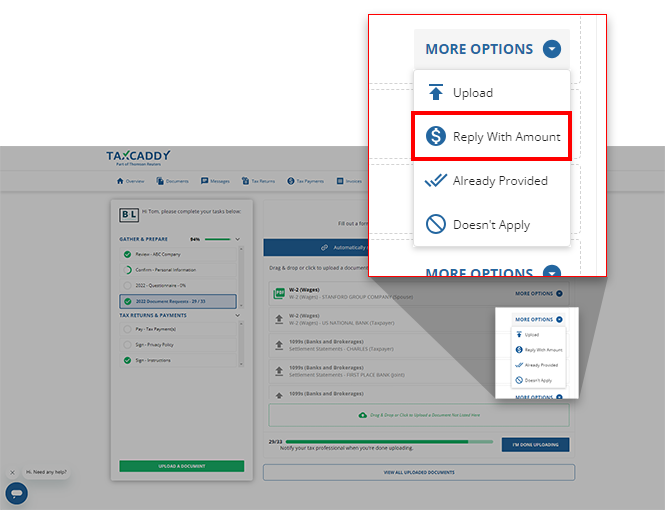
- TheReply With Amountwindow will appear. Fill the form, then selectNext.noteTheNextbutton isn't available until theAmountis entered.
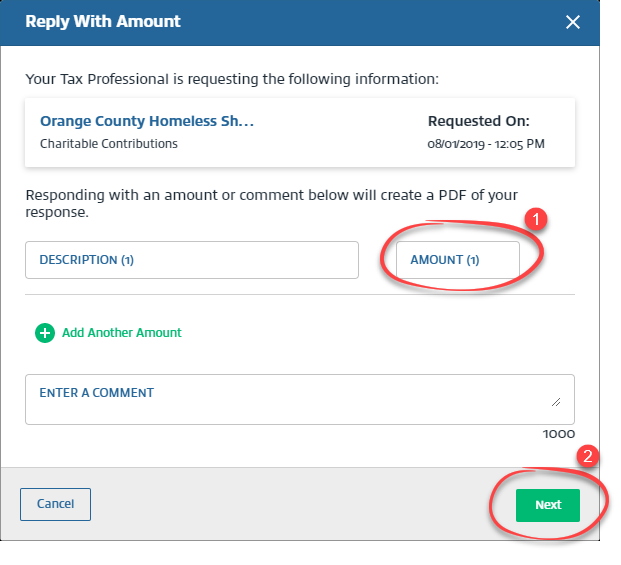 To reply with multiple amounts, selectAdd Another Amount.To delete an amount, select theDeleteicon.
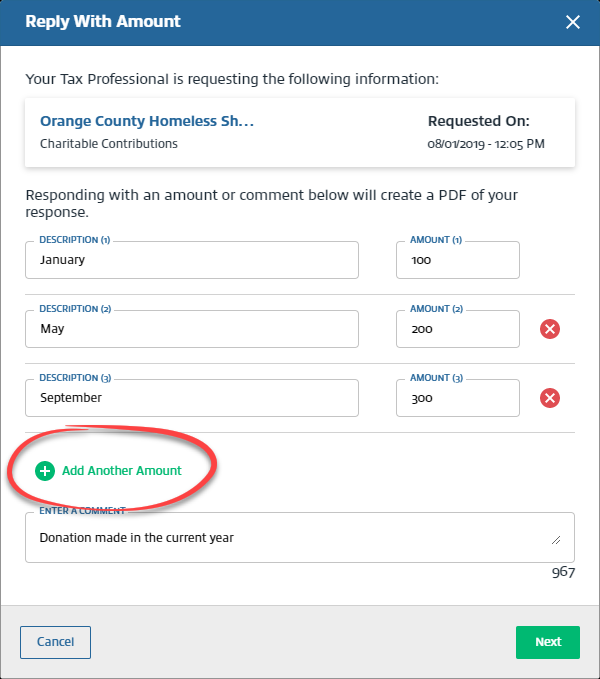 noteYou can add details in theDescriptionfield to specify each amount.
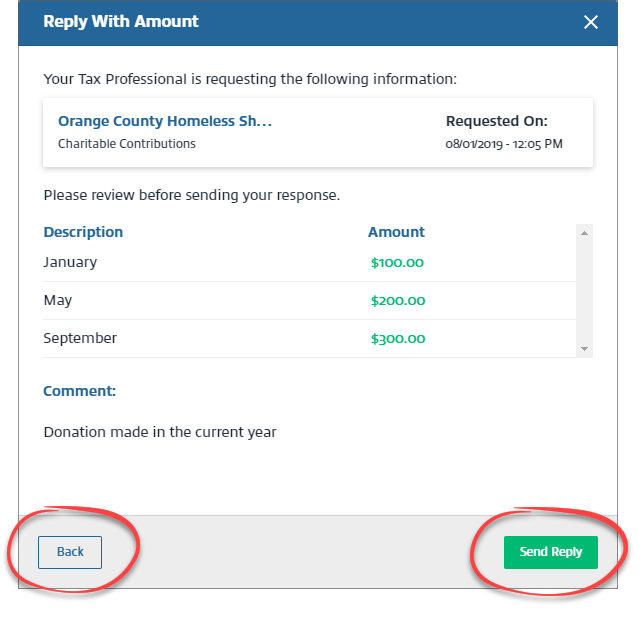
 - Reply With Amountwindow will let you review the data. SelectBackto make changes. SelectSend Replyto fulfill the document request with an amount.
- TheCompleted Uploadicon will appear next to the associated document request.
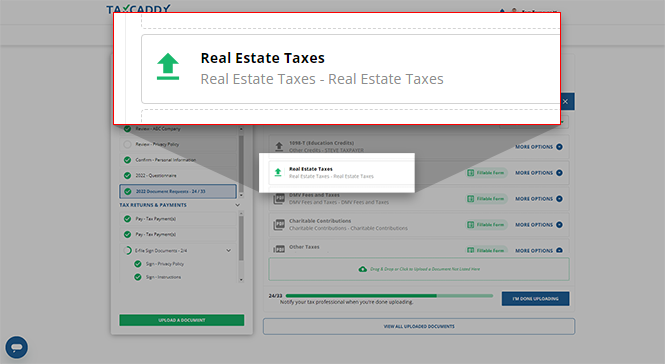
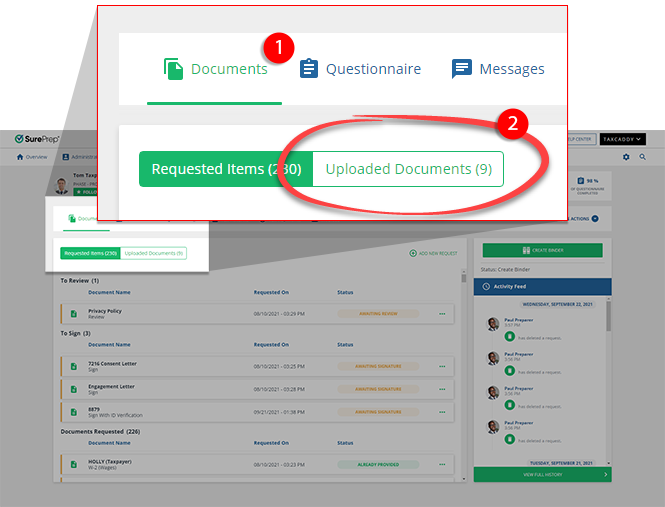
- You can also find the completedDocument Requestunder theUploaded Documentstab of yourDocumentsscreen.
iOS mobile app
Follow these steps to reply with an amount on your iOS mobile phone app.
- Sign in to the TaxCaddy mobile app, then select[Tax Year] Document Requestsfrom yourTask Listto go to a list of your pending document requests.
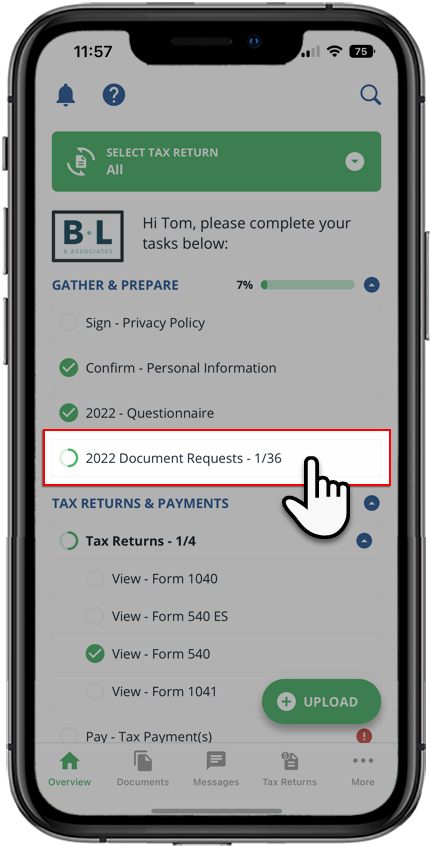
- Your requested items will appear under[Tax Year] Document Requests.
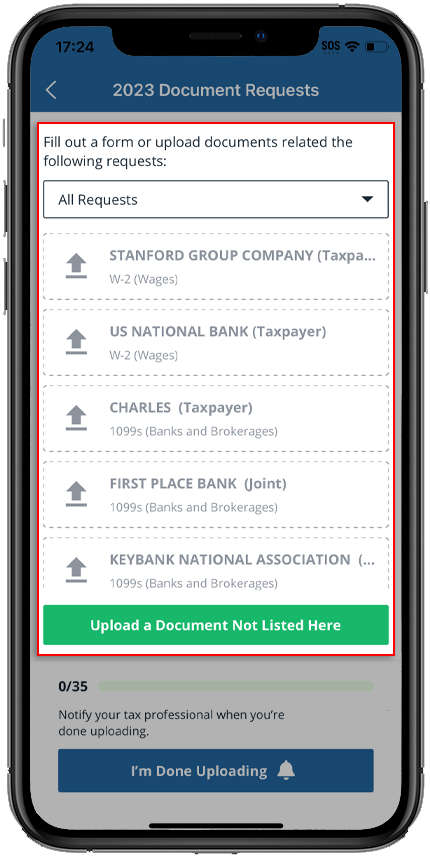
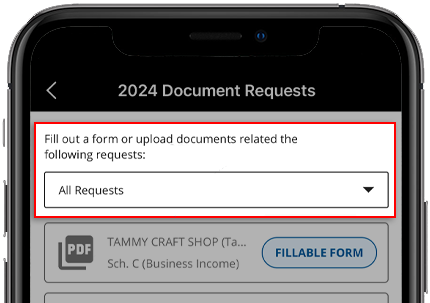
- By default, TaxCaddy will displayAll Requests(including open requests and requests that have already been fulfilled). You can selectOpen Requestfrom the dropdown to display only requests that haven’t yet been fulfilled.
- Select the request you would like to reply to with an amount.
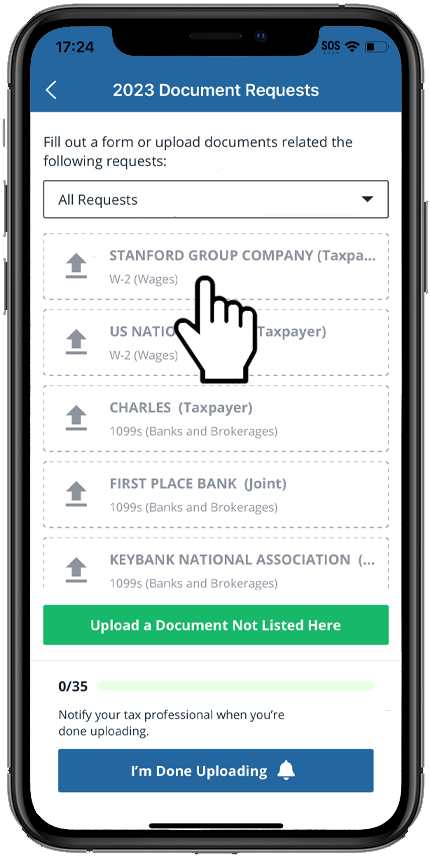
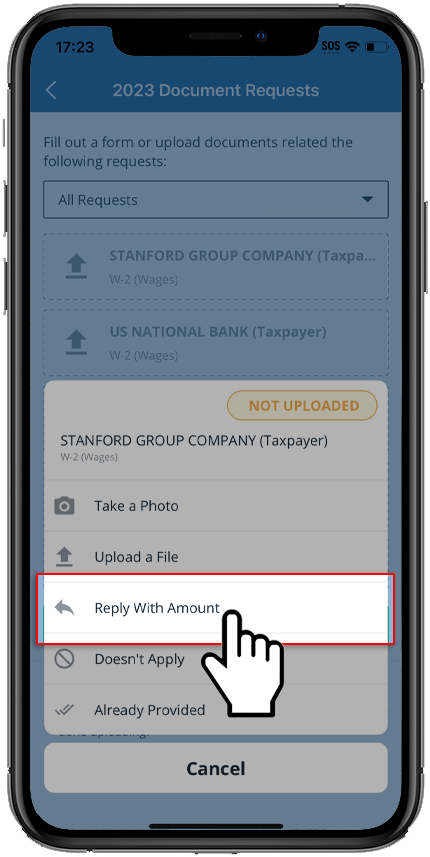
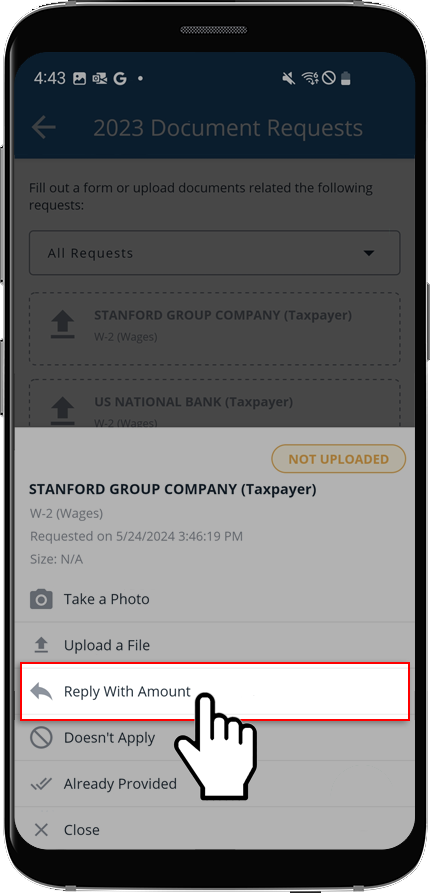
- The menu with fulfillment options will appear. SelectReply with Amount.
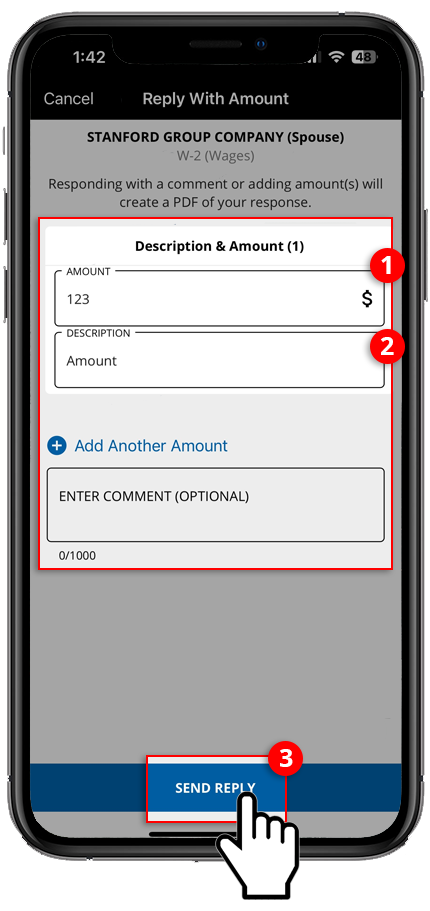
- On theReply With Amountscreen, provide theAMOUNT,DESCRIPTION, and aCOMMENTif necessary, then selectSEND REPLY.
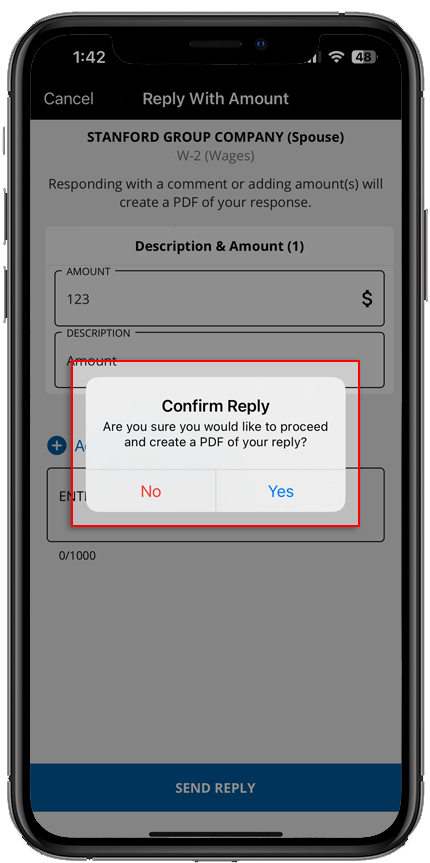
- When theConfirm Replywindow appears, selectYesto resolve this document request. SelectNoto close without saving changes.
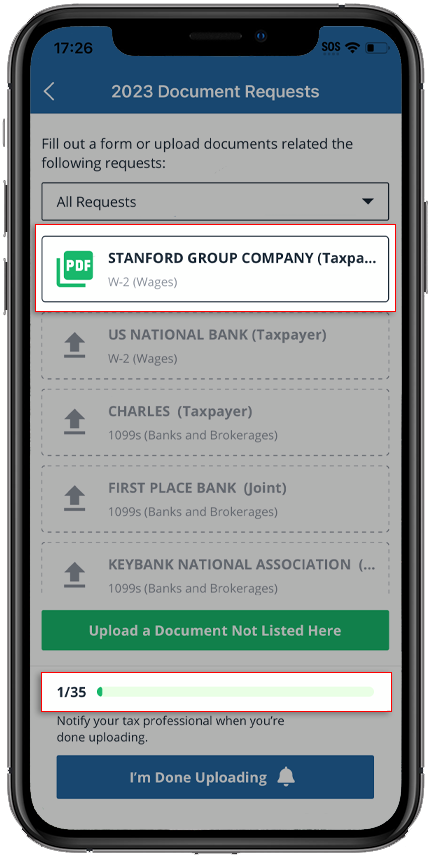
- Once fulfilled, the icon next to the listed request will indicate so, and the progress bar will update. Your tax professional will also be notified that the document has been uploaded. You can select the request tile to view the uploaded document.
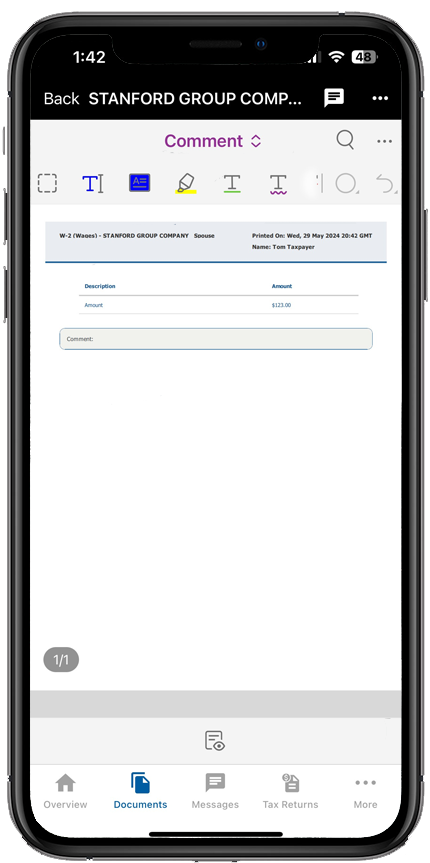
- Select the request tile to review the uploaded document containing theDescription,Amount, andCommentsrelated to the paid amount.
Android mobile app
Follow these steps to reply with an amount on your Android mobile phone app.
- Sign in to the TaxCaddy mobile app.
- Document Requeststhat your tax professional has uploaded to your account will appear on theOverviewscreen. Select[Tax Year] Document Requeststo go to a list of your pending document requests.
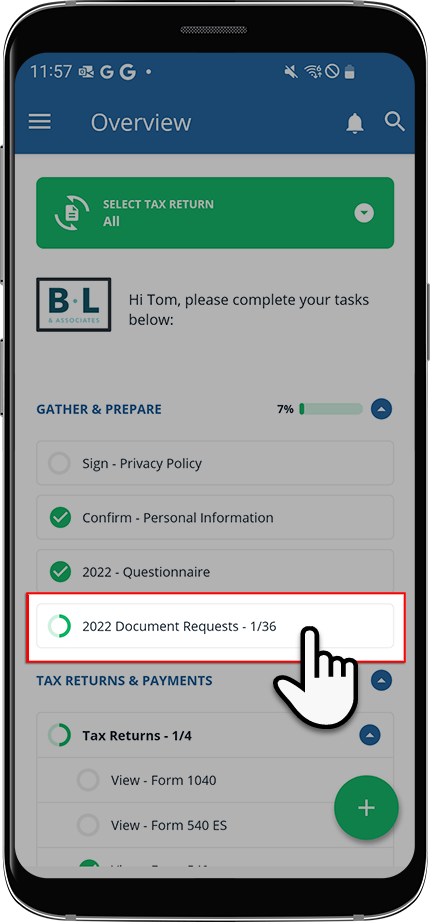
- Your requested items will appear under[Tax Year] Document Requests.
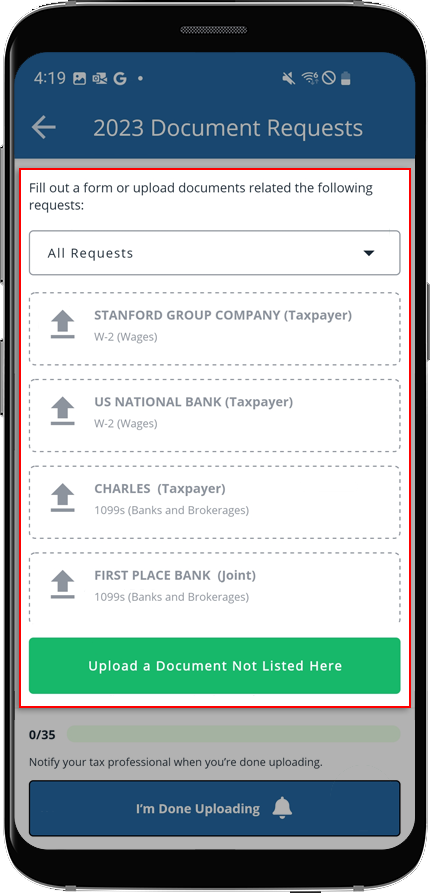
- By default, TaxCaddy will displayAll Requests(including open requests and requests that have already been fulfilled). You can selectOpen Requestfrom the dropdown to display only requests that haven’t yet been fulfilled.
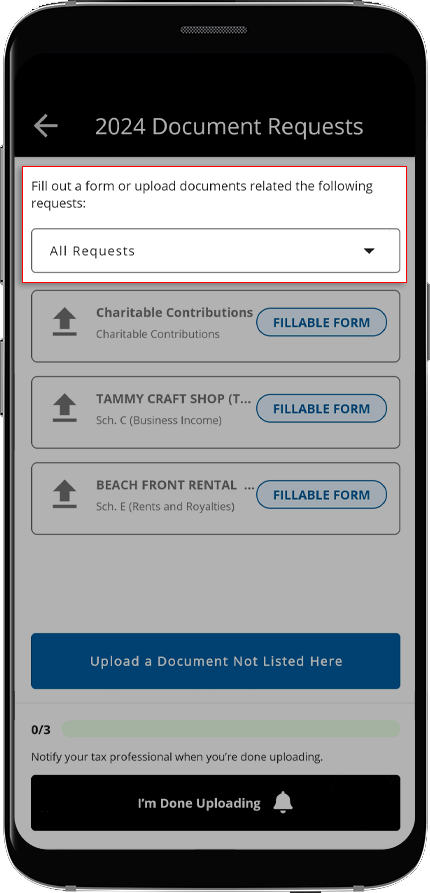
- Select the request you would like to reply to with an amount.
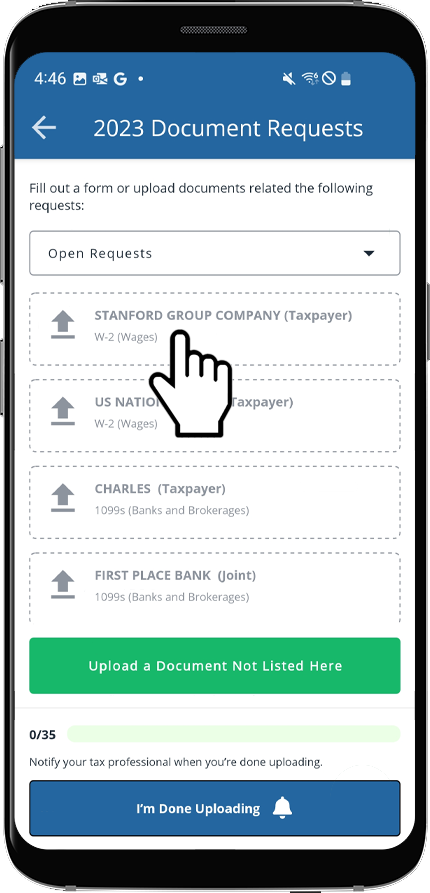
- The menu with fulfillment options will appear. SelectReply with Amount.
- On theReply With Amountscreen, fill the form, then selectSend Reply.
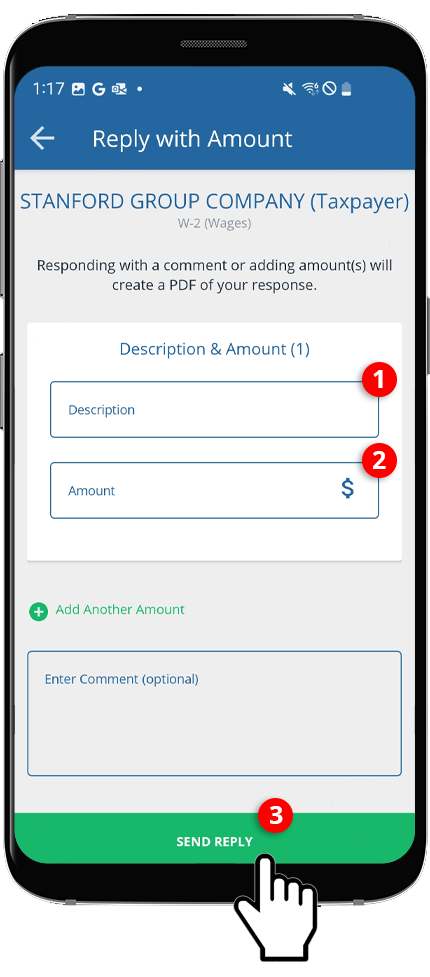
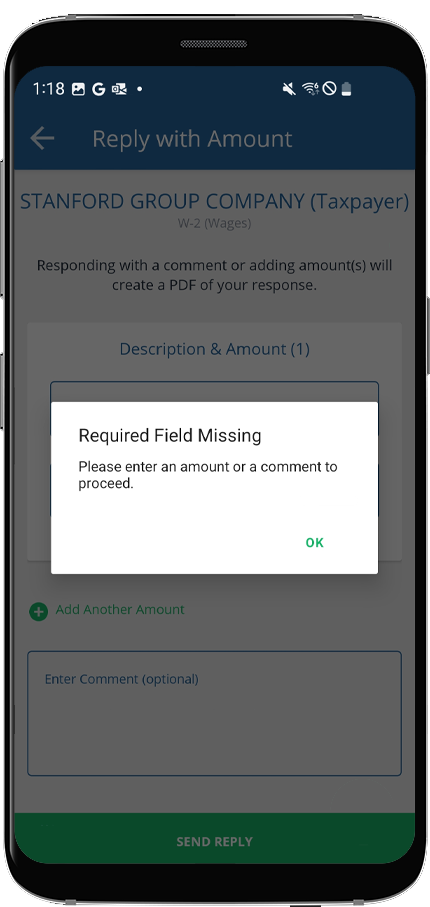
- If you see theRequired Field Missingwindow, selectOK. You must anAmountand/orCommentto continue.
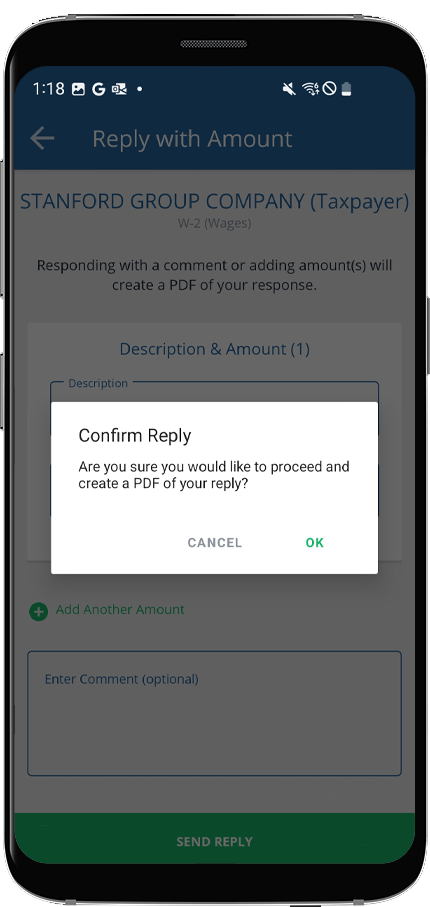
- When theConfirm Replywindow appears, selectOKto resolve this document request. SelectCANCELto close without saving changes.
- Once fulfilled, the icon next to the listed request will indicate so, and the progress bar will update. Your tax professional will also be notified that the document has been uploaded. You can select the request tile to view the uploaded document.
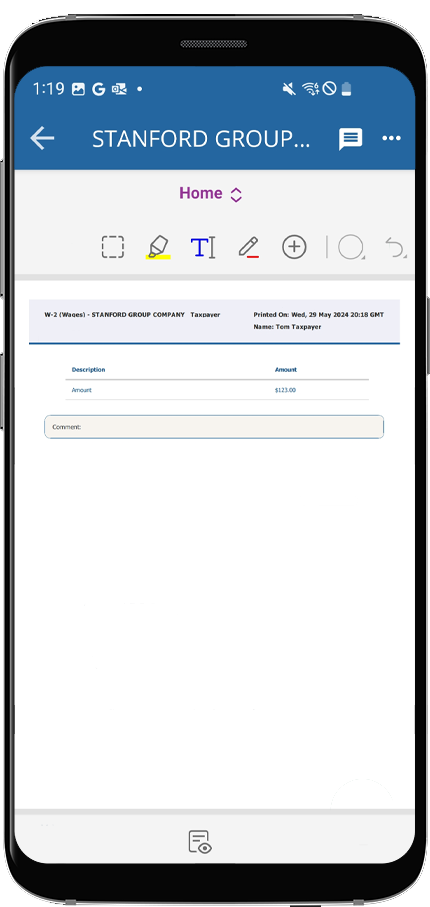
- Select the request tile to review the uploaded document containing theDescription,Amount, andCommentsrelated to the paid amount.
Related Content
-
View requested items
Format: Article

