
Upload requested items
Show all hidden content
When your tax professional needs you to upload a document, their request appears in your requested items under
Document Requests
.note
You can also upload documents that your tax professional hasn’t requested, or retrieve documents directly from your financial institution.
TaxCaddy.com on PC, Mac, or tablet
Follow these steps to upload requested items using TaxCaddy.com on your PC, Mac, or tablet.
- Sign in to TaxCaddy.com.
- On theOverviewscreen, you will see aTask Liston the left, with yourUploadrequests listed as[Tax Year] Document Requests.noteYour progress in completing all of yourUploadtasks will be denoted with theProgressicon. Once you've completed all your tasks, you will see theCompletedicon.
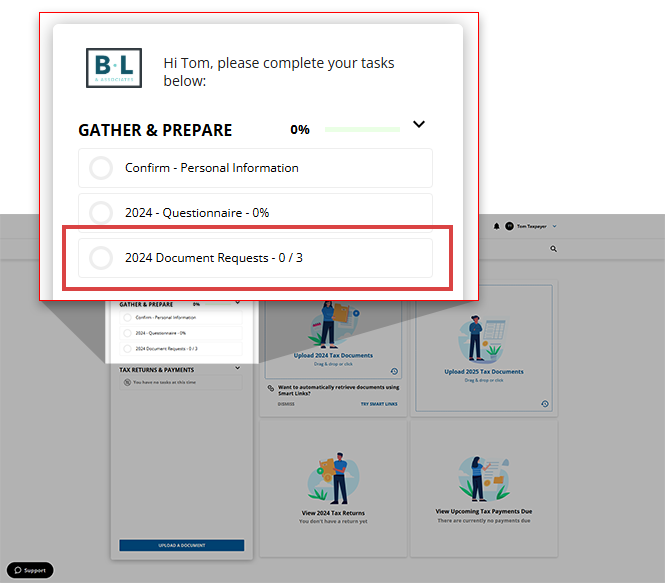
- Select[Tax Year] Document Requeststo open a list of your document requests next to yourTask List.
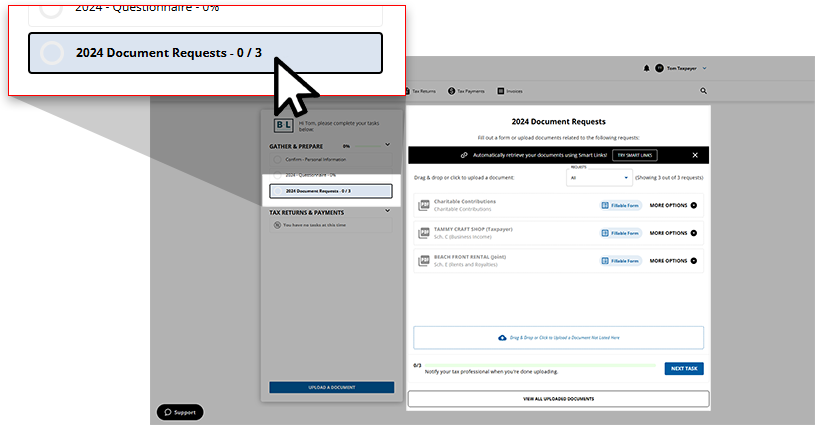 By default, both pending and previously fulfilled requests will be displayed. However, you can select the dropdown to specify onlyOpen(pending) orFulfilled(completed) requests be displayed.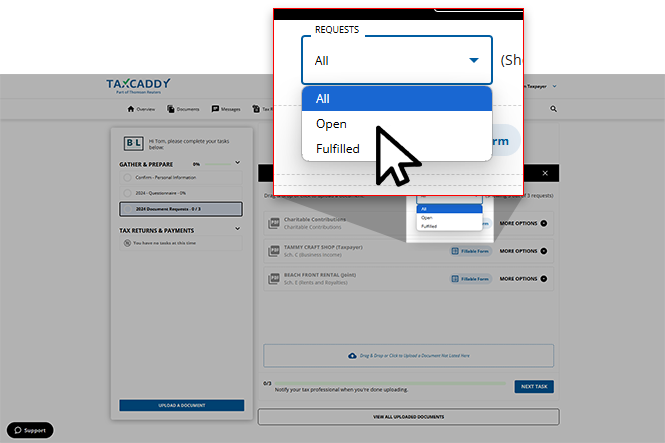
- You can see which document requests have been addressed by looking at the color and theUploadicon. Pending requests not yet fulfilled will display an icon in gray. Completed requests will have a green icon.Learn more about the various icons that can appear with a document request.
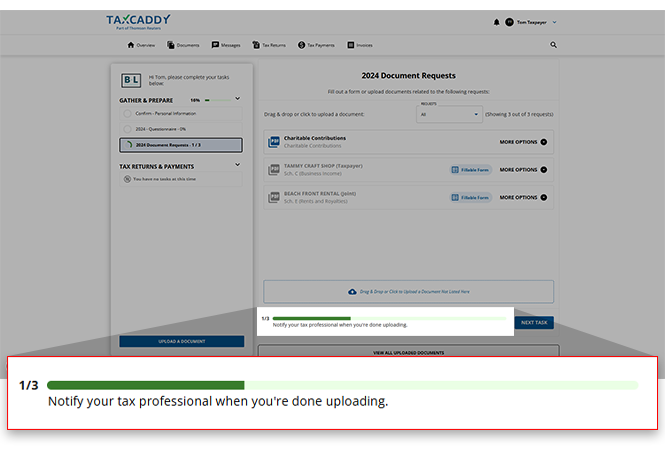
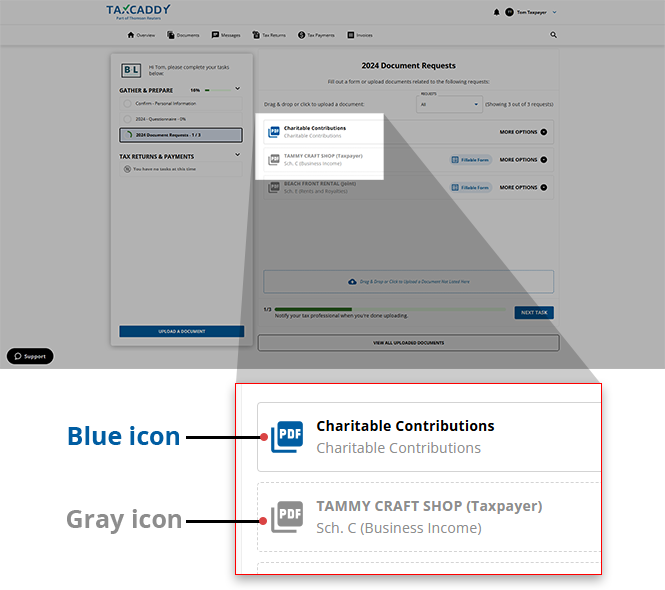 noteYou can also find the exact number of requests you've completed following your list of document requests. As you complete more requests, both the number shown and the progress bar will update to depict your progress in real time.
 - Select a pending document request to begin fulfilling it with an upload. Alternatively, you can drag a file onto the document request.noteIf a requested document has aFillable Formbadge, you can complete the form instead of uploading the document.
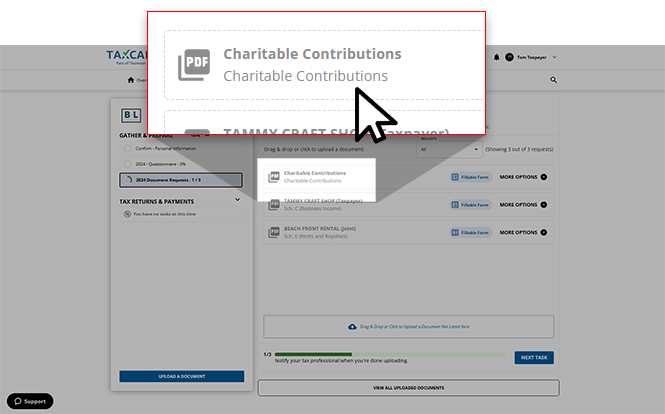 Alternatively, you can select theMORE OPTIONSmenu to view all options to fulfill/complete this request.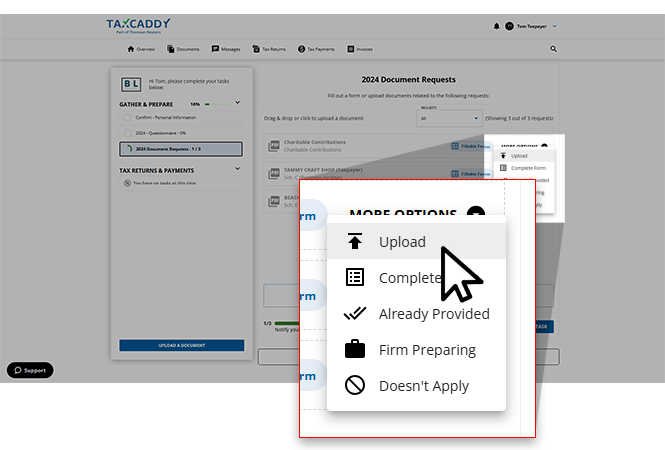
- Go to the location of the file on your device and select a file to upload.noteAccepted file formats include: PDF, DOCX, XLS, and XLSX. You can upload multiple files to the same category at 1 time.
- To include any additional documents with this document request, drag the files onto the drop zone, or selectDrag or click here to upload documents. When you're done, selectCLOSE.
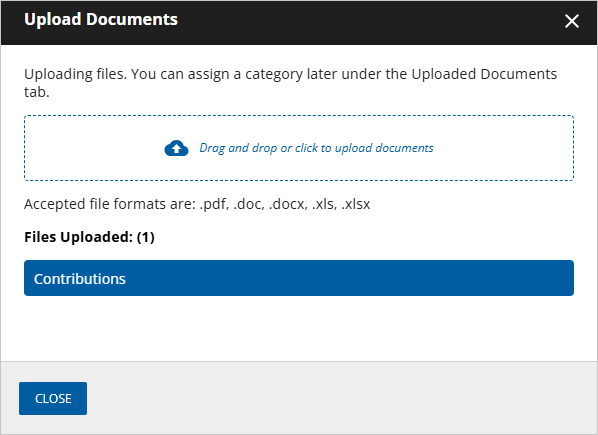
- After you provide the requested item, the icon appearing for this document request will update to green to indicate that this request has been fulfilled.
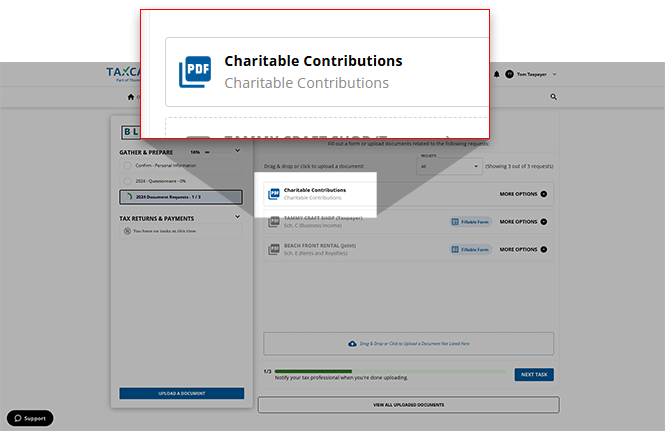
- If you'd like to delete the uploaded document for any reason (that is, uploading the wrong document to this request), you can select theMORE OPTIONSmenu, then selectDelete.
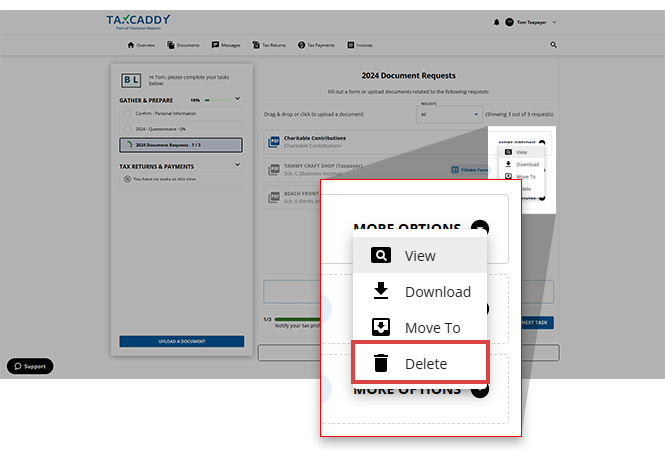 The document request will return to an unfulfilled status, letting you complete this request once again.
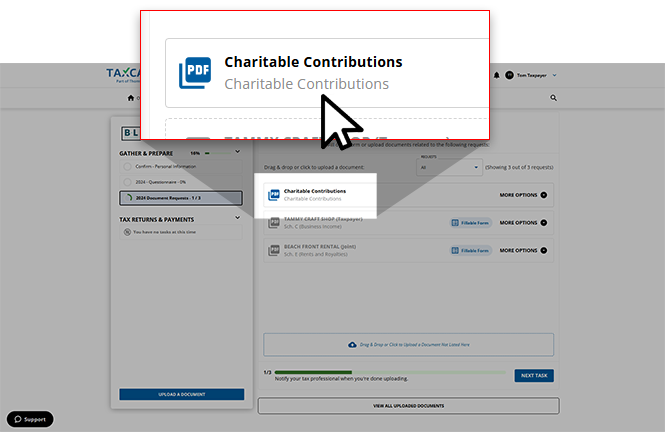
 - Once the correct document is uploaded to the request, you can select the document tile to open the uploaded document in the Document Viewer panel.
 After opening the document in the Document Viewer panel, you will see the option to use theDOWNLOADorMOVE TOfeature for this uploaded document.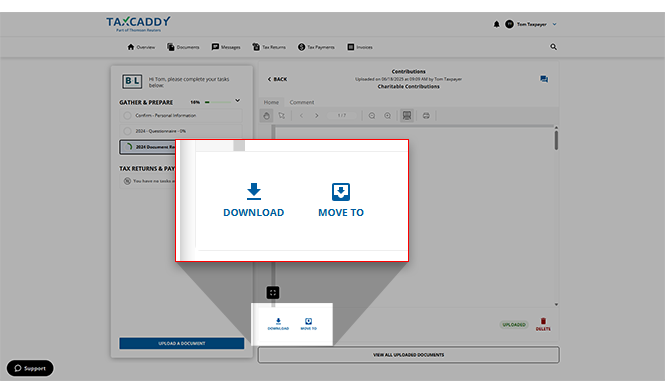
- Fulfilling a document request will also update the progress bar to indicate how many more pending requests you have in your account.
note
After completing all of your pending tasks, your account's
Task List
progress won’t reach 100%
until you've notified your tax professional that you are done uploading tax documents for this tax year. Icon descriptions
The following icons will appear with your document requests to indicate whether a request has been fulfilled or not, and if so, how the request was fulfilled.
Field | Description |
|---|---|
 ( Pending ) | This request hasn’t yet been completed. |
 ( Completed ) | This request has been completed. |
 ( PDF ) | This request has been completed by uploading a PDF file. |
 ( Excel ) | This request has been completed by using an XLS or XLSX file. |
 ( Already provided ) | You've indicated that the document in this request has already been provided previously. |
 ( Doesn't apply ) | You've indicated that the document in this request doesn’t apply. |
 ( Firm Preparing ) | You've indicated that the document in the request is currently being prepared by your tax professional. |
iOS mobile app
Follow these steps to upload a requested item by taking a photo with the TaxCaddy iPhone mobile phone app.
- Sign in to the TaxCaddy mobile app.
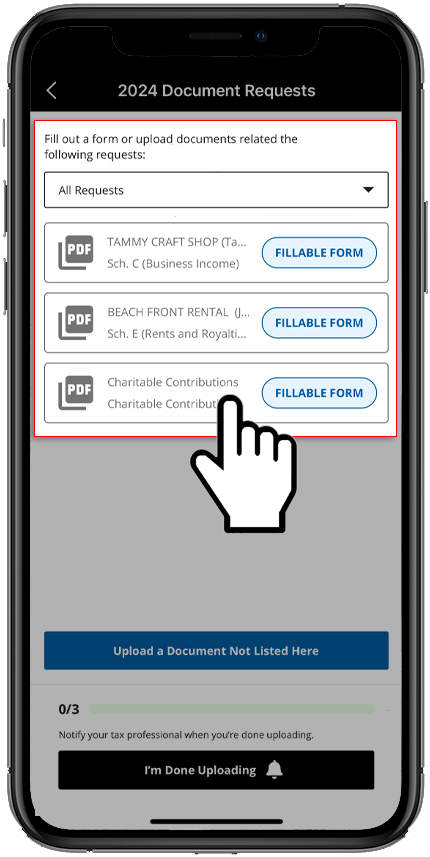
- Document Requeststhat your tax professional has uploaded to your account will appear on theOverviewscreen. Select[Tax Year] Document Requeststo go to a list of your pending document requests.
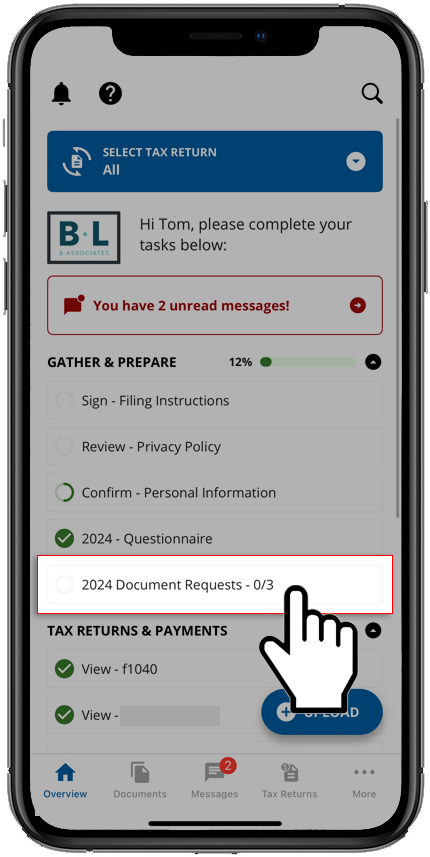
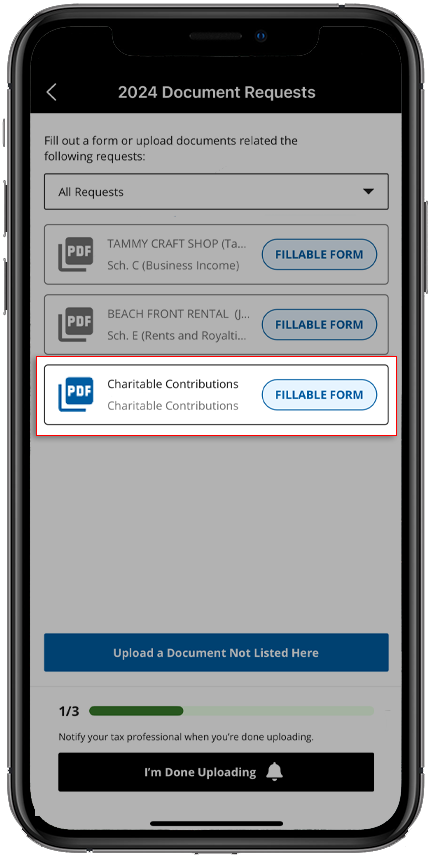
- Your requested items will appear in[Tax Year] Document Requests.
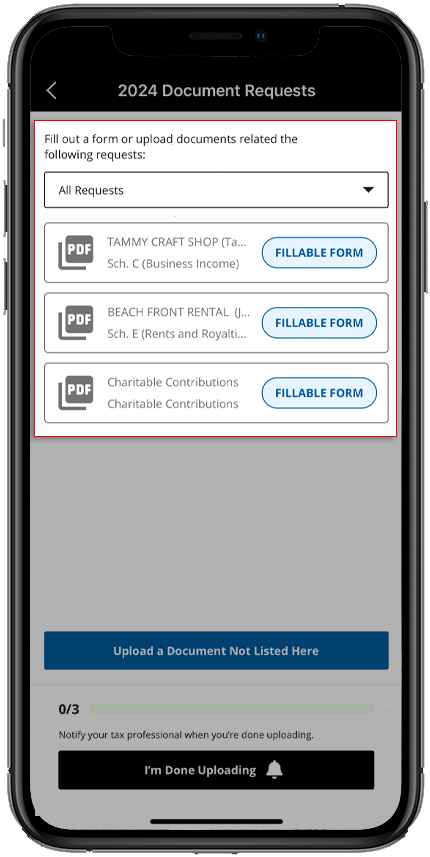
- By default, TaxCaddy will displayAll Requests(including open requests and requests that have already been fulfilled).If you'd like to specify either open or fulfilled requests, open the dropdown, then select
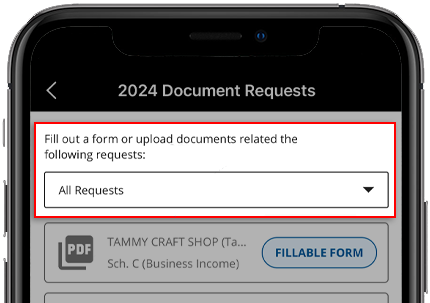 Open RequestsorFulfilled Requestsfrom the options provided.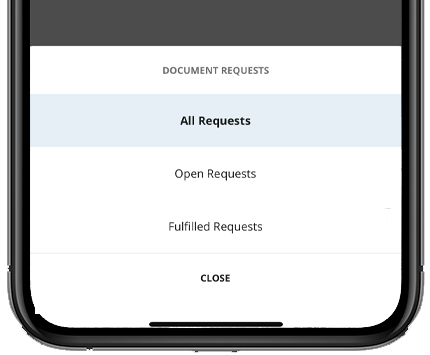
- Select the request you would like to fulfill.
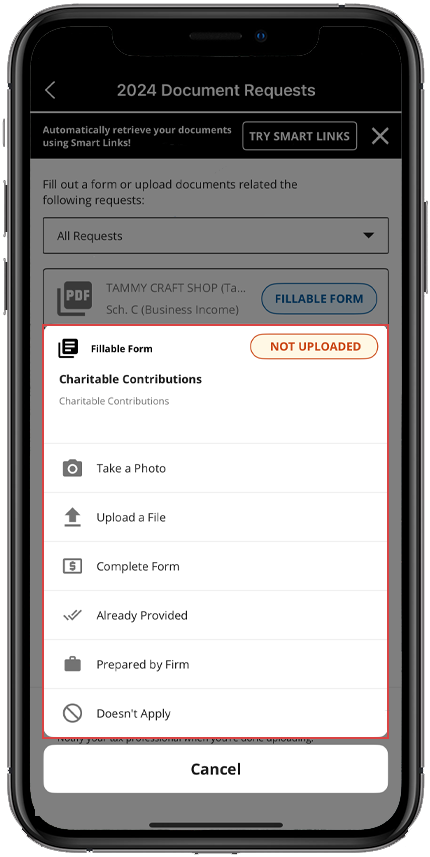
- The menu with fulfillment options will appear. To upload the requested item, select eitherTake a PhotoorUpload a File.
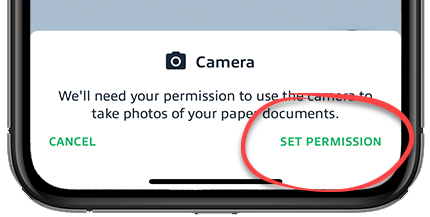
- If you selectedTake a Photofor the 1st time, TaxCaddy will need permission to access the camera. TapSET PERMISSIONto continue.
 If you see the requesting permission window, selectOKto give TaxCaddy access to your camera.
 - Position the camera over the document. Additional instructions appear onscreen. The photo will be captured automatically when the camera is properly aligned with the document. Alternatively, tapSwitch to Manual Shutterto take the photo manually.
- Alternatively, you can tapUpload a Fileto upload from Google Drive or Dropbox.
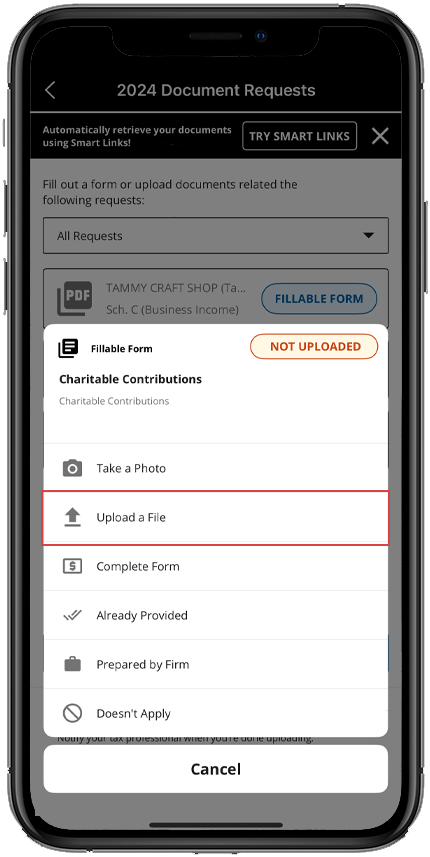 noteAccepted file formats include: PDF, DOCX, XLS, and XLSX. You can upload multiple files to the same category.You can also selectReply With Amountto reply with an amount.
 - Once fulfilled, the icon next to the listed request will indicate so, and the progress bar at the bottom of the list will update. Your tax professional will also be notified that the document has been uploaded. You can tap the request tile to view the uploaded document.
Android mobile app
Follow these steps to upload a requested item by taking a photo with the TaxCaddy Android mobile phone app.
- Sign in to the TaxCaddy mobile app.
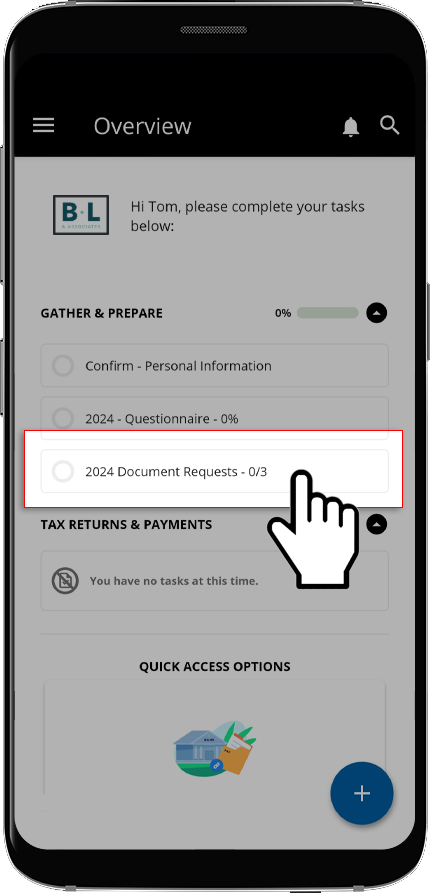
- Document Requeststhat your tax professional has uploaded to your account will appear on theOverviewscreen. Tap[Tax Year] Document Requeststo go to a list of your pending document requests.
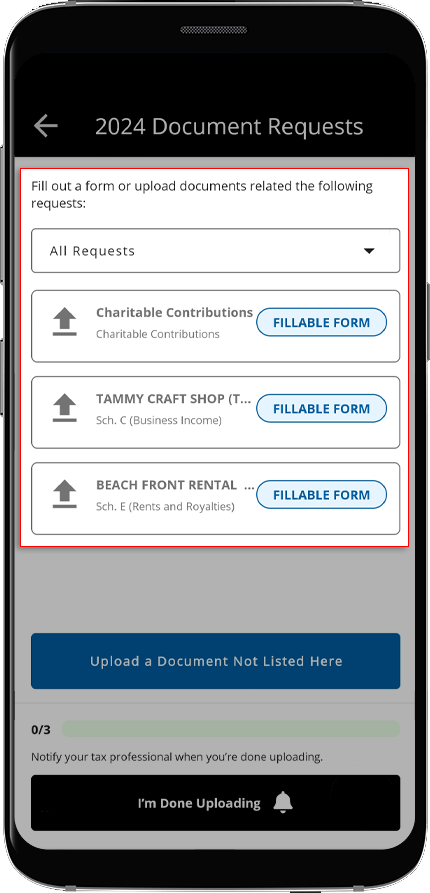
- Your requested items will appear under[Tax Year] Document Requests.
- By default, TaxCaddy will displayAll Requests(including open requests and requests that have already been fulfilled).If you'd like to specify either open or fulfilled requests, open the dropdown, then select
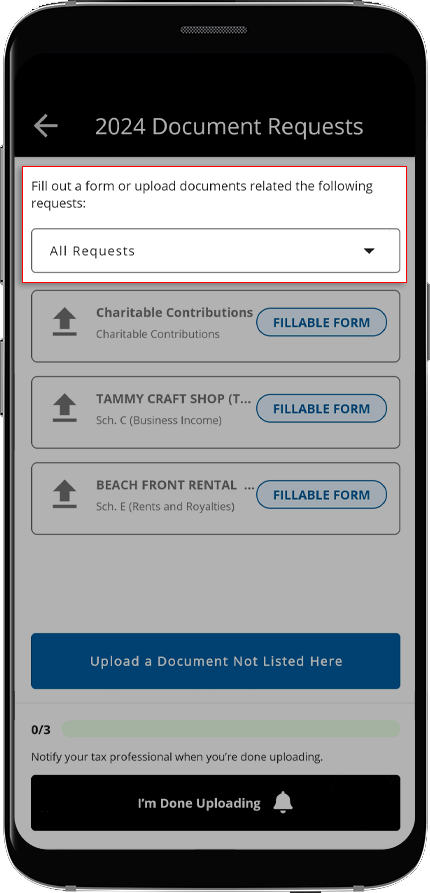 Open RequestsorFulfilled Requestsfrom the options provided.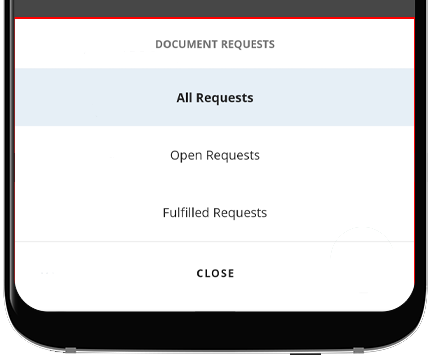
- Select the request you would like to fulfill.
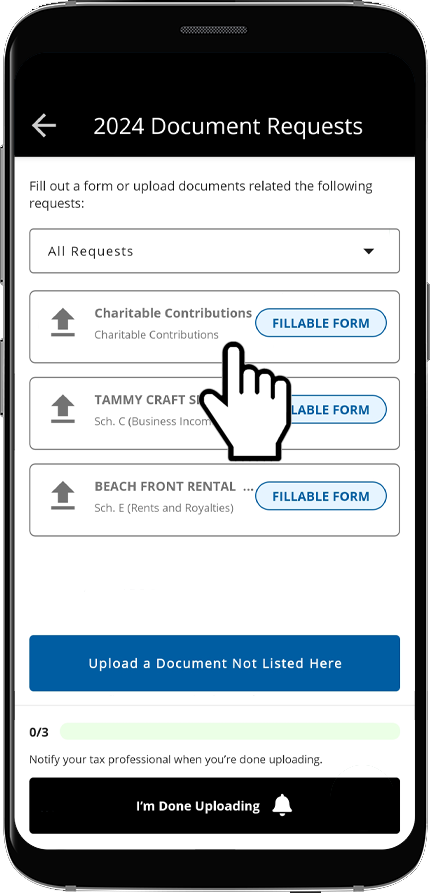
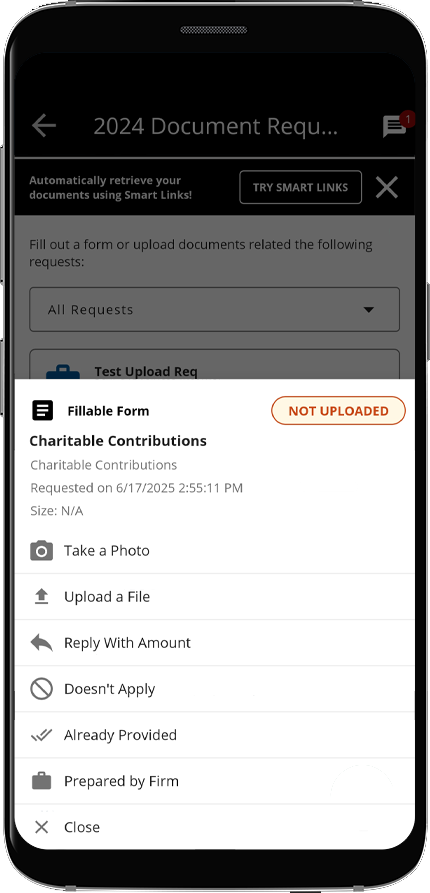
- The menu with fulfillment options will appear at the bottom of the screen. To upload the requested item, select eitherTake a PhotoorUpload a File.
- If you selectedTake a Photofor the 1st time, TaxCaddy will need permission to access the camera. TapSET PERMISSIONto continue.
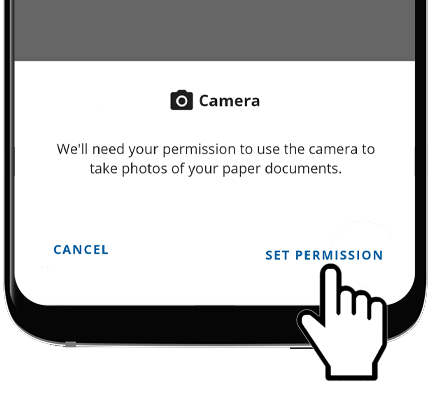 If you see the requesting permission window, selectWhile using the apporOnly this timeto give TaxCaddy access to your camera.Alternatively, you can selectUpload a Fileto upload a document from your device, Google Drive, or Dropbox.
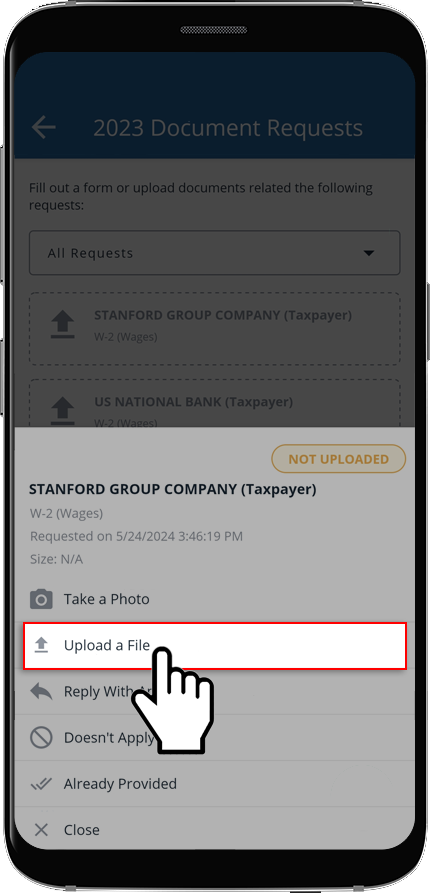 noteAccepted file formats include: PDF, DOCX, XLS, and XLSX. You can upload multiple files to the same category.
 - If you selected to take a photo, then position the camera over the document. Additional instructions appear onscreen. The photo will be captured automatically when the camera is properly aligned with the document. Alternatively, tapSWITCH TO MANUAL SHUTTERto take the photo manually.
- electRETAKEto take the photo again,EDITto edit the photo, orUSEto use the current photo.
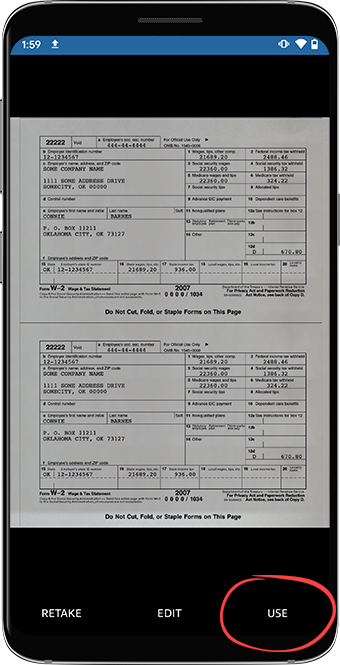
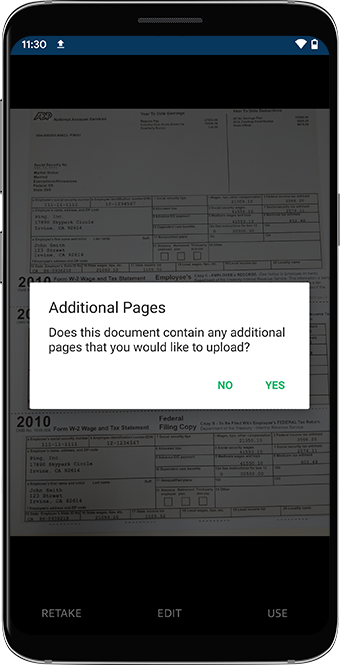
- Once you've taken your photo, confirm whether or not the document contains multiple pages.
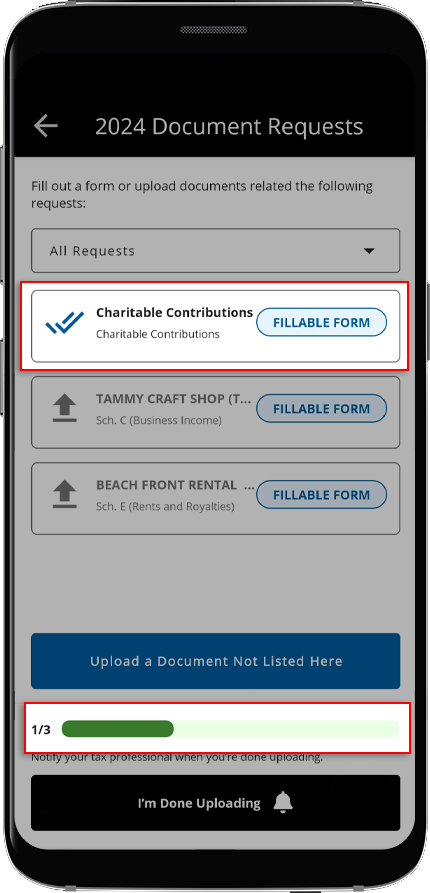
- Once fulfilled, the icon next to the listed request will indicate so, and the progress bar at the bottom of the list will update. Your tax professional will also be notified that the document has been uploaded. You can tap the request tile to view the uploaded document.
Related Content
-
View requested items
Format: Article

