
View uploaded documents
Show all hidden content
You can find documents uploaded to your account by you, other users, or your tax professional, in the Uploaded Documents view on the Documents page. From here, you can move or delete documents.
TaxCaddy.com on PC, Mac, or tablet
Follow these steps to view your uploaded documents using TaxCaddy.com on your PC, Mac, or tablet.
- Sign in to TaxCaddy.com.
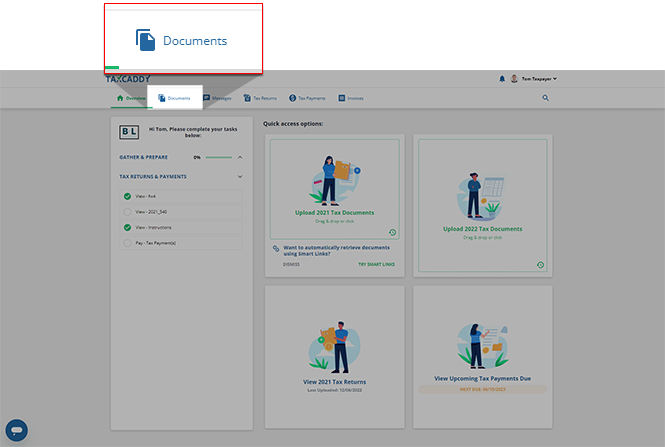
- SelectDocuments.
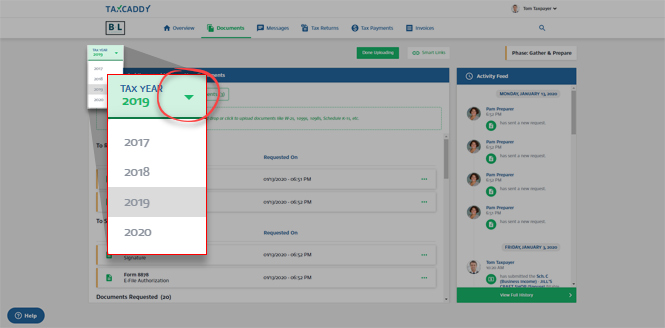
- Select theTAX YEARmenu to select the relevant tax year.
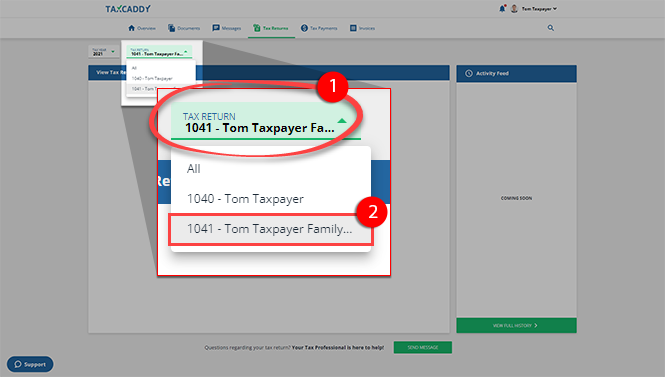
- Skip this step if theTAX RETURNmenu is not available. If your tax professional has enabled 1041 tax return profiles on your account for trust/estate, select aTAX RETURNprofile to narrow down the document list.
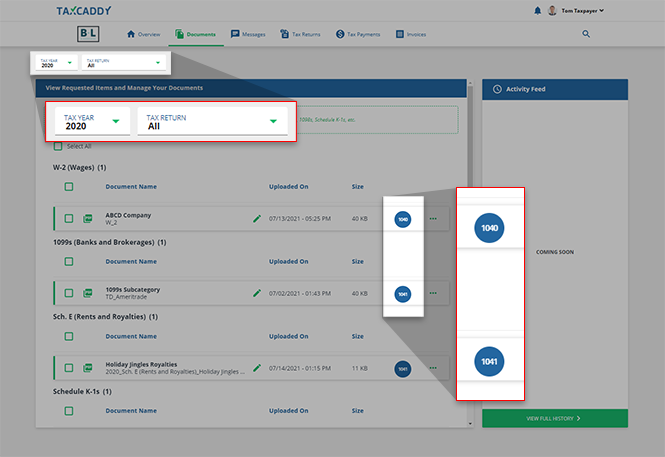
 TheAlloption will be selected by default. SelectAllto display all uploaded documents for the selected tax year, regardless of the tax return type. The1040or1041badge indicates which tax return the document belongs to.
 noteUse the move documents feature to move documents to another tax year, category, or tax return profile.
 - SelectUploaded Documentsto view documents previously uploaded to your selected tax return.
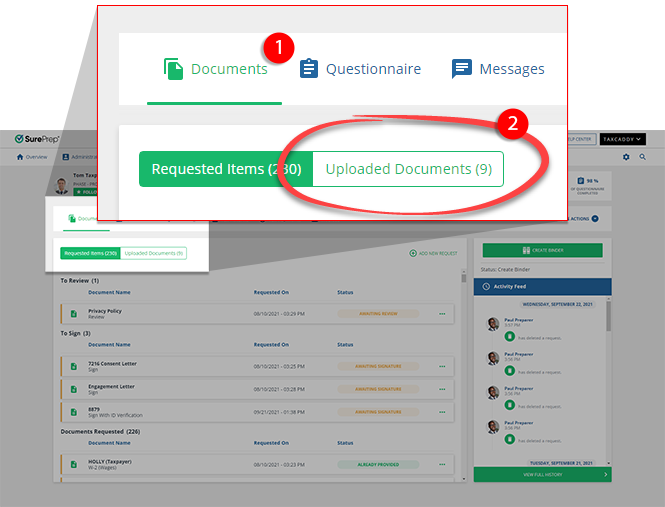
- On theUploaded Documentsscreen, your uploaded documents will appear in their respective categories.noteYou can use the scroll wheel on your mouse or the down arrow key on your keyboard to scroll through the list.
- You can select the document to view it in thewindow.Document Viewer
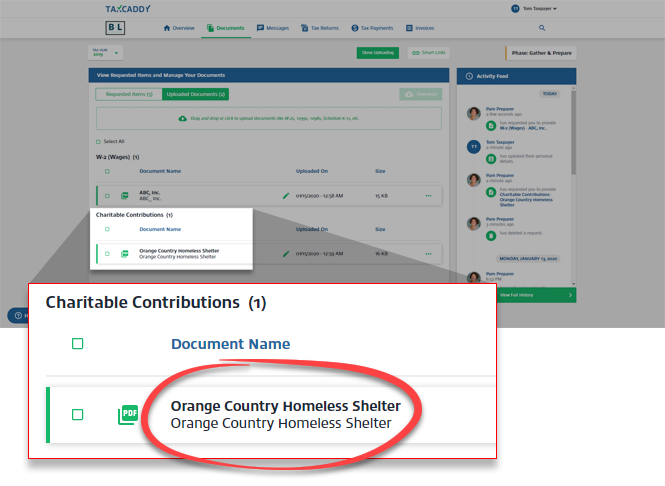
- You can now view your uploaded document in the Document Viewer panel.

- To go back, selectUPLOADED DOCUMENTS. To skip directly to another uploaded document, select the document you want to view from the dropdown.

iOS mobile app
Follow these steps to view your uploaded documents using the iPhone mobile phone app.
- Sign in to the TaxCaddy mobile app.
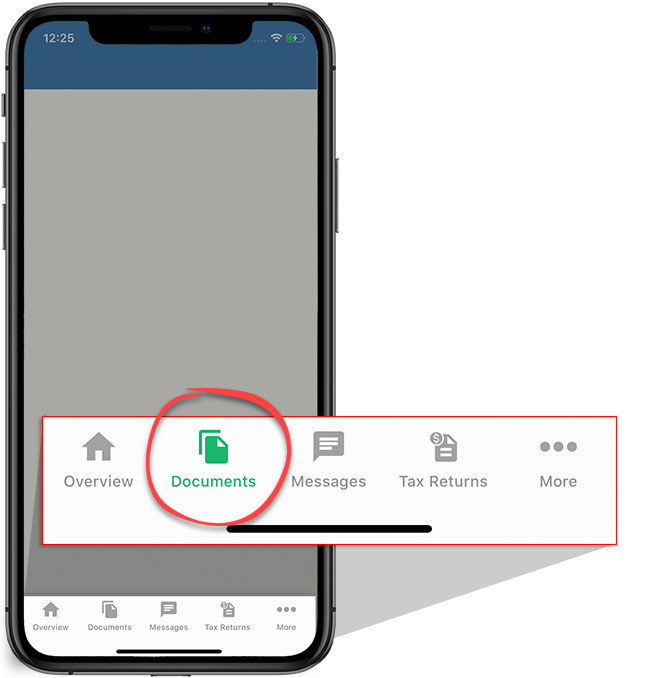
- Select theDocumentsicon.
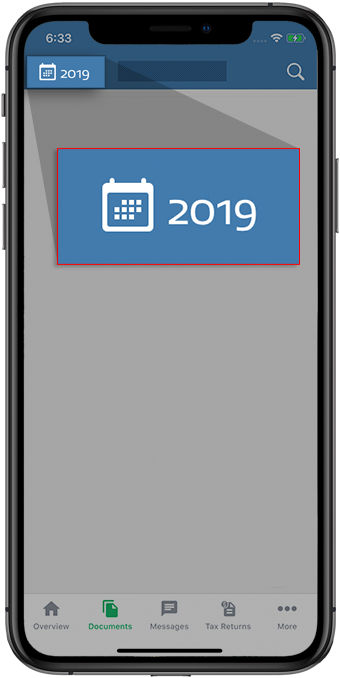
- To view documents for a particular tax year, on the top left, select the tax year to select a different tax year.
- Skip this step if theTAX RETURNmenu is not available. If your tax professional has enabled 1041 tax return profiles on your account for trust/estate, select theTax Returndropdown to select the tax return profile.
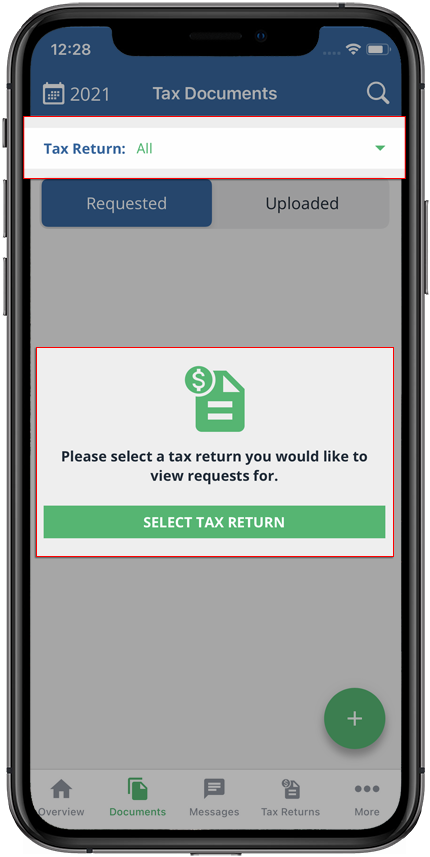
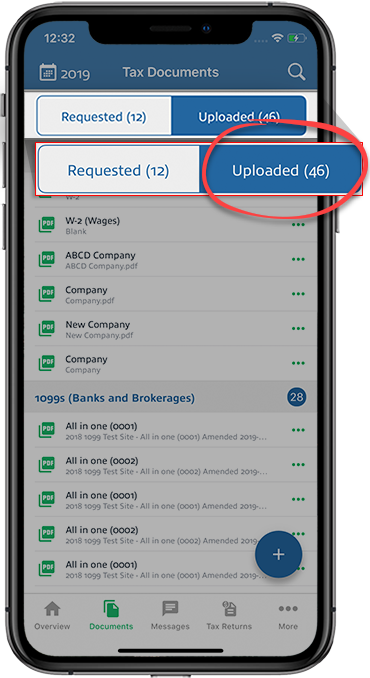
- SelectUploaded.
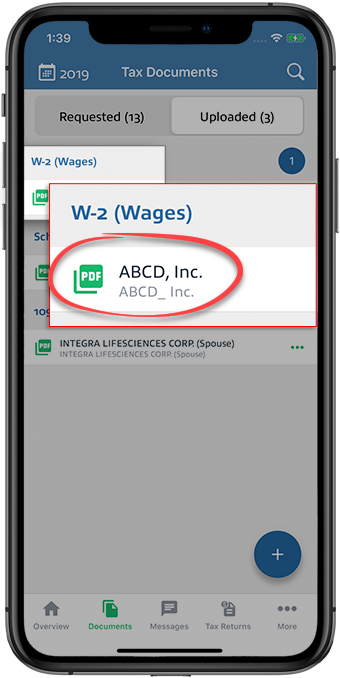
- Select a document to view it in the PDF viewer.
- The uploaded document will open in the PDF viewer.
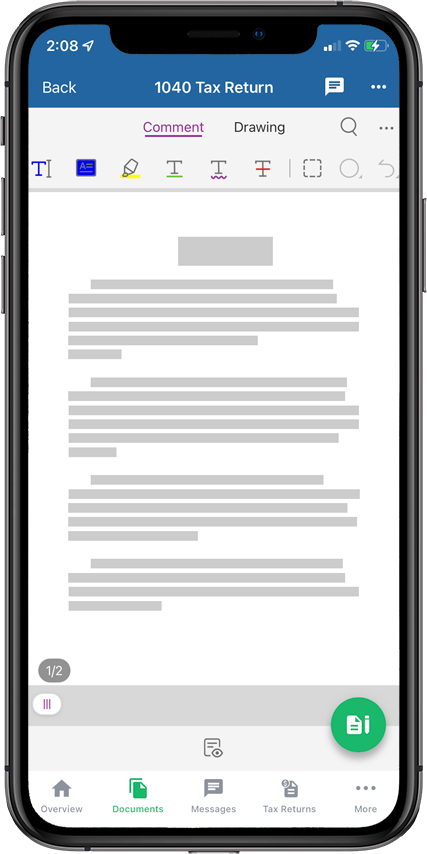
- To view your document information, select theMenuicon to open the document menu.
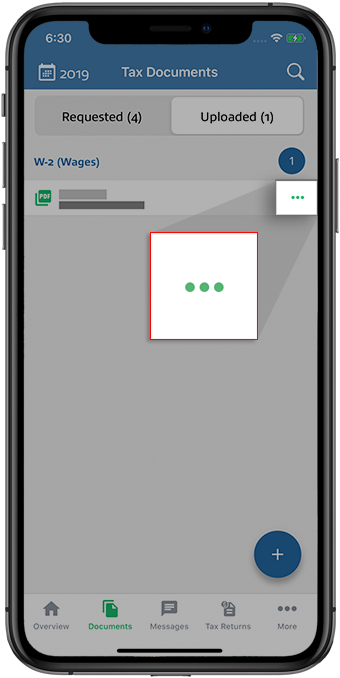 The bottom menu displays the document name, uploaded date, uploaded by, fillable form, and the document size.
Android mobile app
Follow these steps to view your uploaded documents using the Android mobile phone app.
- Sign in to the TaxCaddy mobile app, then select theMenuicon.
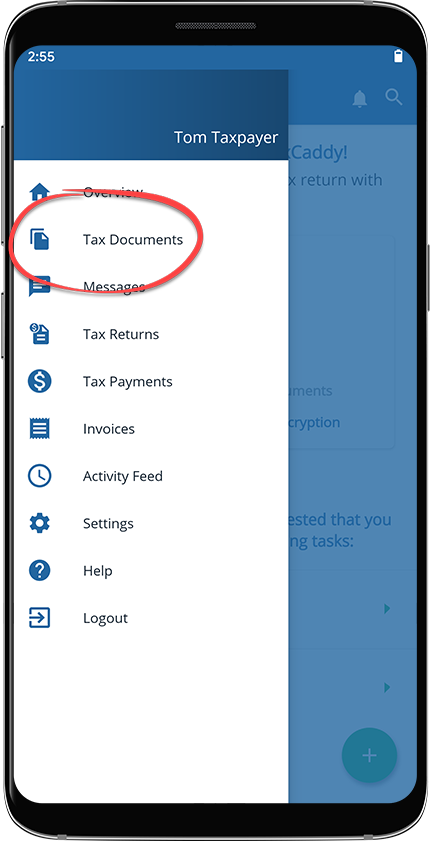
- SelectTax Documents.
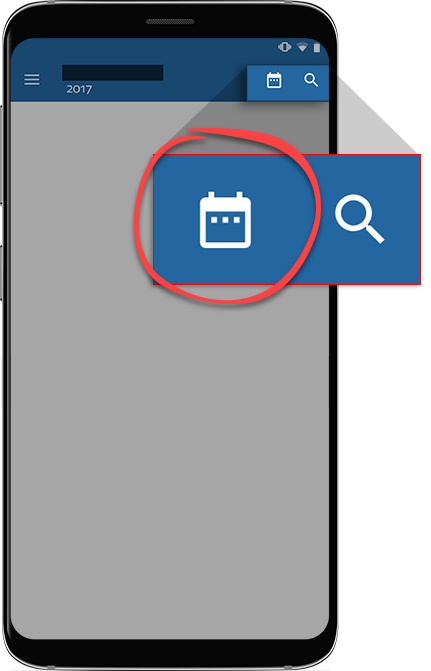
- Select theTax Yearicon to select the tax year.
- Skip this step if theTAX RETURNmenu is not available. If your tax professional has enabled 1041 tax return profiles on your account for trust/estate, select the tax return profile from theTax Returndropdown.
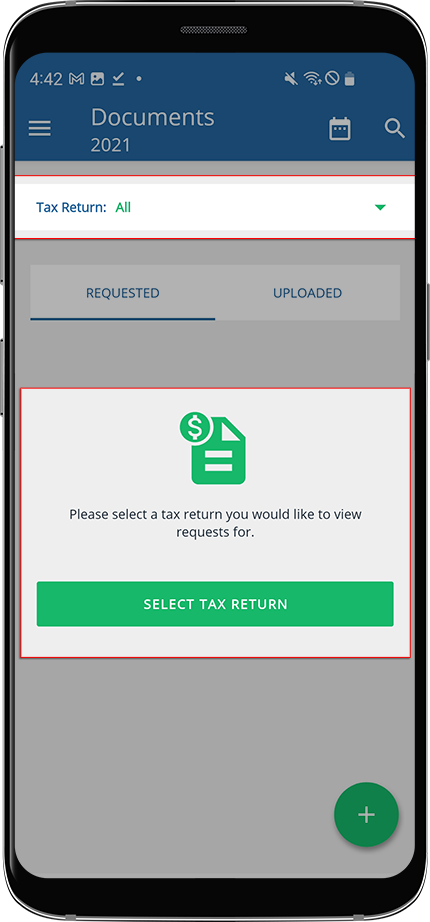
- SelectUPLOADED.
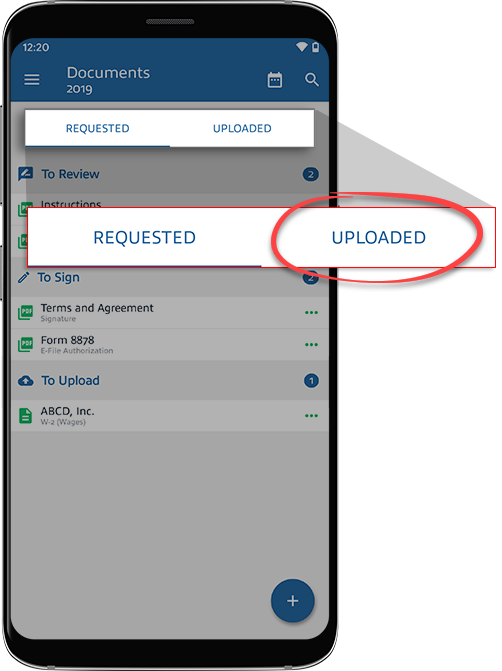
- Your uploaded tax documents will appear under their respective category. Select a document to view it in the PDF viewer.

- The uploaded document will open in the PDF viewer.
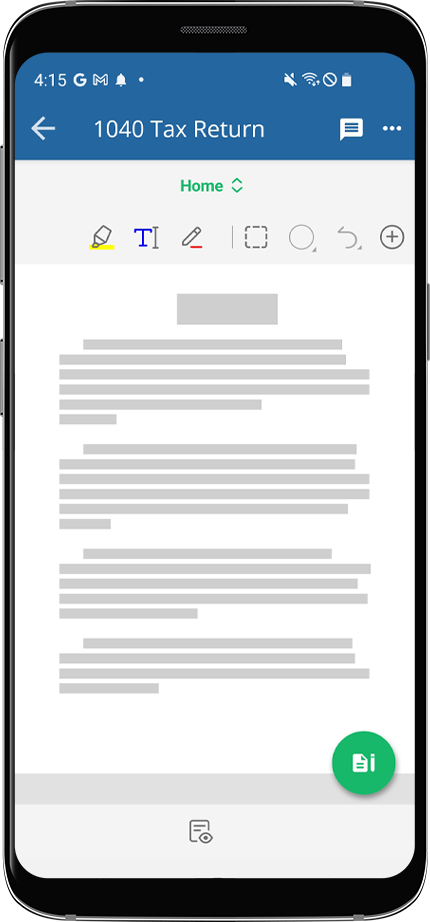
- To view additional details, select theMenuicon to open the document menu.
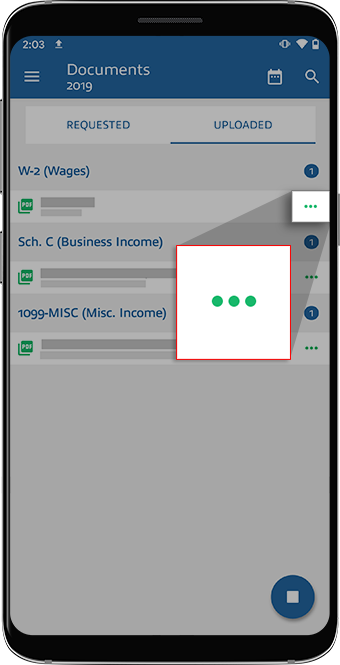 The menu displays the document name, uploaded date, uploaded by, and the document size.

