
Documents
Show all hidden content
The
Documents
screen is where you'll upload, organize, and manage your tax documents. The Documents
screen has 2 tabs: Requested Items
and Uploaded Documents
.TaxCaddy.com on PC, Mac, or tablet
The following covers Documents when using TaxCaddy.com on a PC, Mac, or tablet.
Requested items
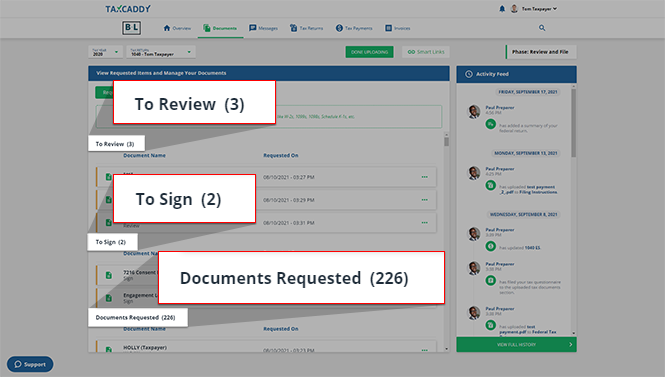
Documents your tax professional needs you to upload, review, or sign appear in the
Requested Items
tab under sections titled To Review, To Sign, and Documents Requested. 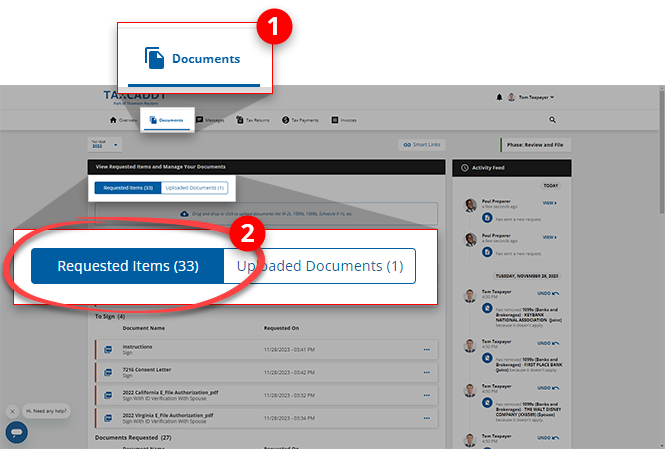
Uploaded documents
The documents you've already uploaded to your account appear in the
Uploaded Documents
tab.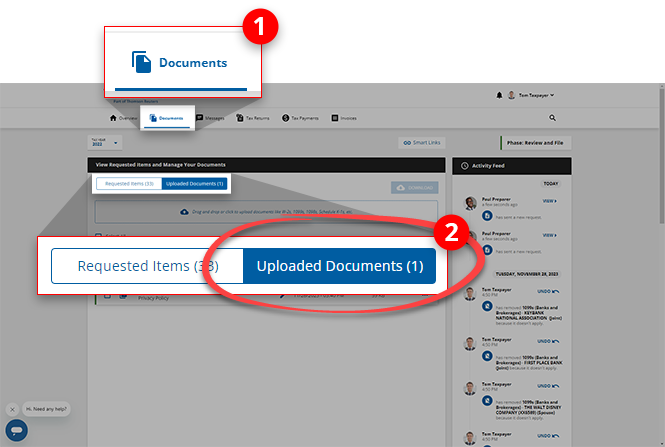
iOS mobile app
This article covers Tax Documents while using the TaxCaddy iPhone mobile phone app.
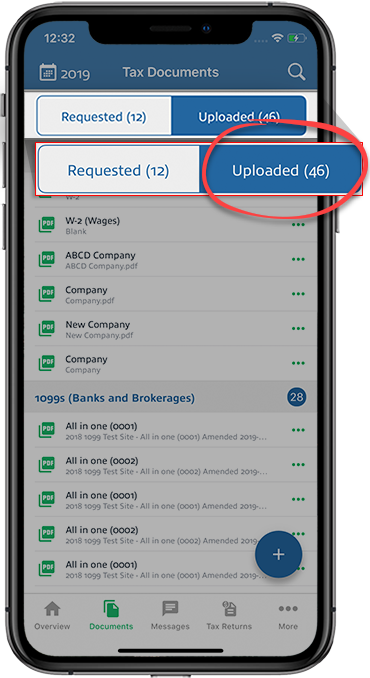
Documents your tax professional needs you to upload, review, or sign appear in
Requested
under sections titled To Review, To Sign and To Upload. 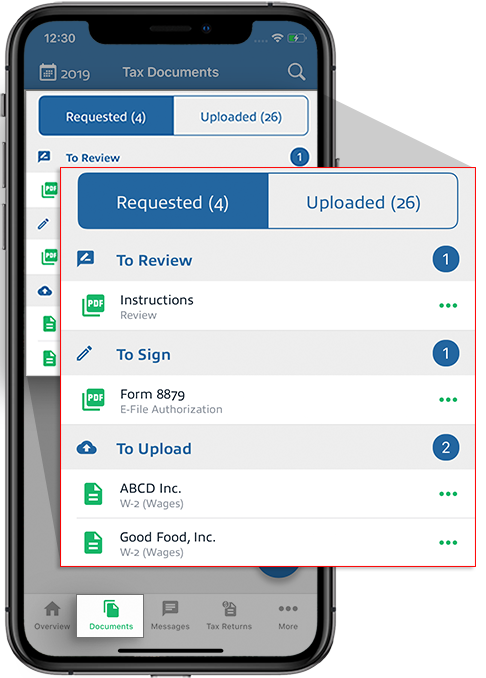
The documents you've already uploaded to your account appear in
Uploaded
.
Tap the floating
+
icon to snap a photo of a tax document and upload it to your account or upload it from other sources.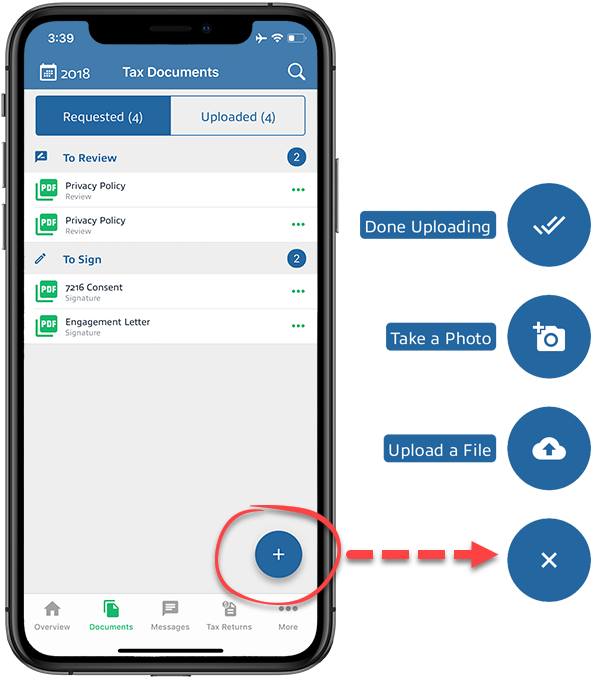
Android mobile app
This article covers Tax Documents while using the TaxCaddy Android mobile phone app.
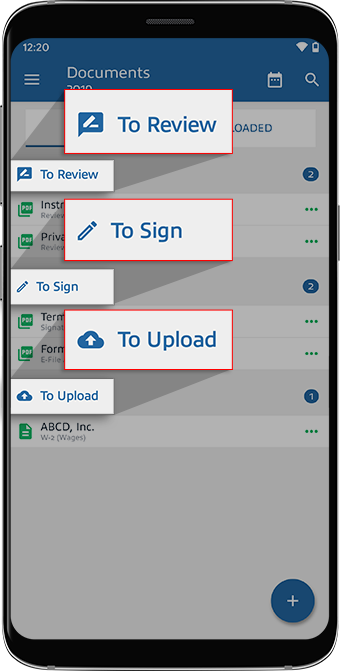
Documents your tax professional needs you to upload, review, or sign appear in
Requested
under sections titled To Review, To Sign and To Upload.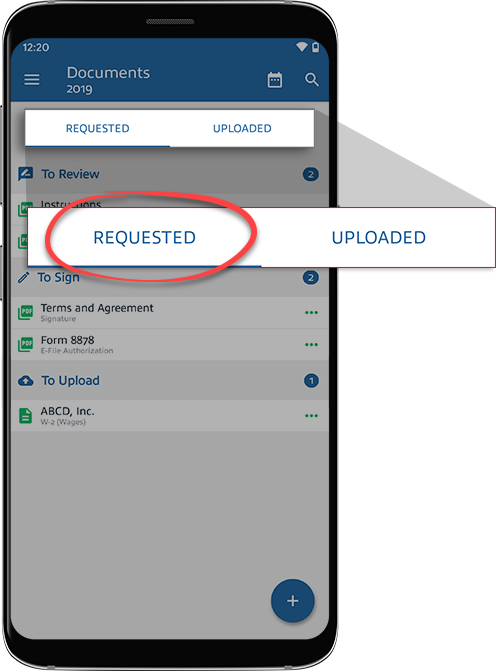
The documents you've already uploaded to your account appear in
Uploaded Documents
. Tap the floating +
icon to snap a photo of a tax document and upload it to your account or upload it from other sources. 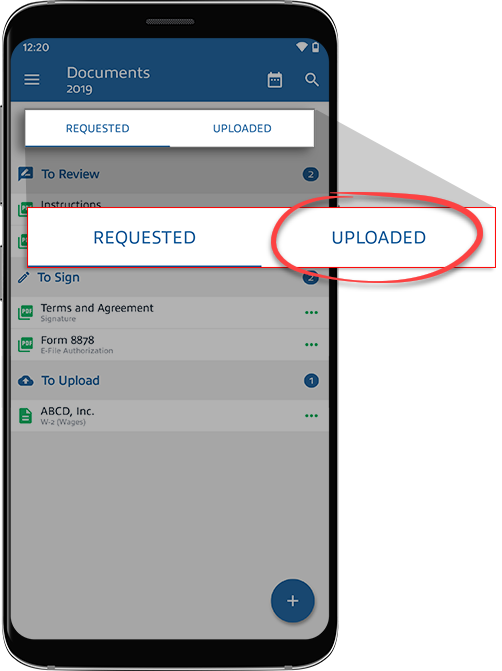
Related Content
-
About TaxCaddy
Format: Article,
4 min read
Article,
4 min read

